
Creating a Checkout.com sandbox account
This guide walks through creating a Checkout.com sandbox (test) account so you can set up and verify your connection before going live.
-
Go to checkout.com/get-test-account, fill in your details, and submit.
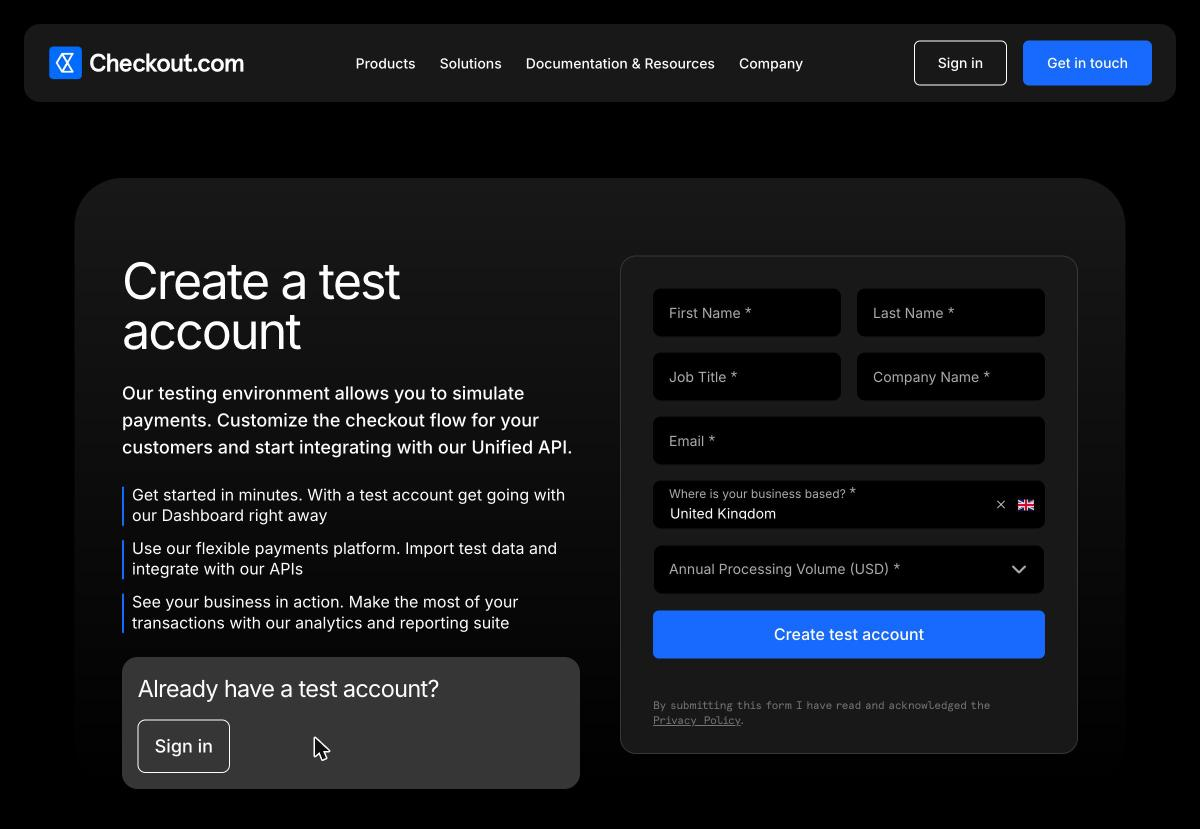
-
Check your email and verify your details. You can then log in.
-
Log in to the sandbox Dashboard at dashboard.sandbox.checkout.com.
-
Select Developers in the left navigation bar and open the Keys tab.
-
Select Create a new key, choose the key type, give the key a description, and select Submit. Do this twice: once for a public API key and once for a secret API key.
-
To find your processing channel ID, select the Settings menu in the top navigation bar, then Settings. Under Business settings, select Processing channels. Each channel’s ID is shown in the list. You need the Admin user role to see this page. See Checkout.com’s Manage processing channels guide.
-
Enter your Public Key, Secret Key, Processing Channel ID and Merchant Name into the setup screen and select Save, as described in Connecting Checkout.com.
These steps follow Checkout.com’s own pages and screens as of 23 November 2026. If they no longer match, Checkout.com’s linked pages are the reference.
Was this page helpful?
What went wrong?
Thanks for telling us.