
Connecting Trust Payments
Connecting to Trust Payments uses API credentials. The integration uses a combination of the Trust Payments Web Services API and JavaScript, so you will create a Web Services user and obtain JavaScript credentials in the Trust Payments dashboard, then enter those details in the setup screen.
-
On your Trust Payments dashboard, open Sites and confirm the site you want to connect is listed. Note down its
sitereference— you will enter this in the setup screen as Site Reference.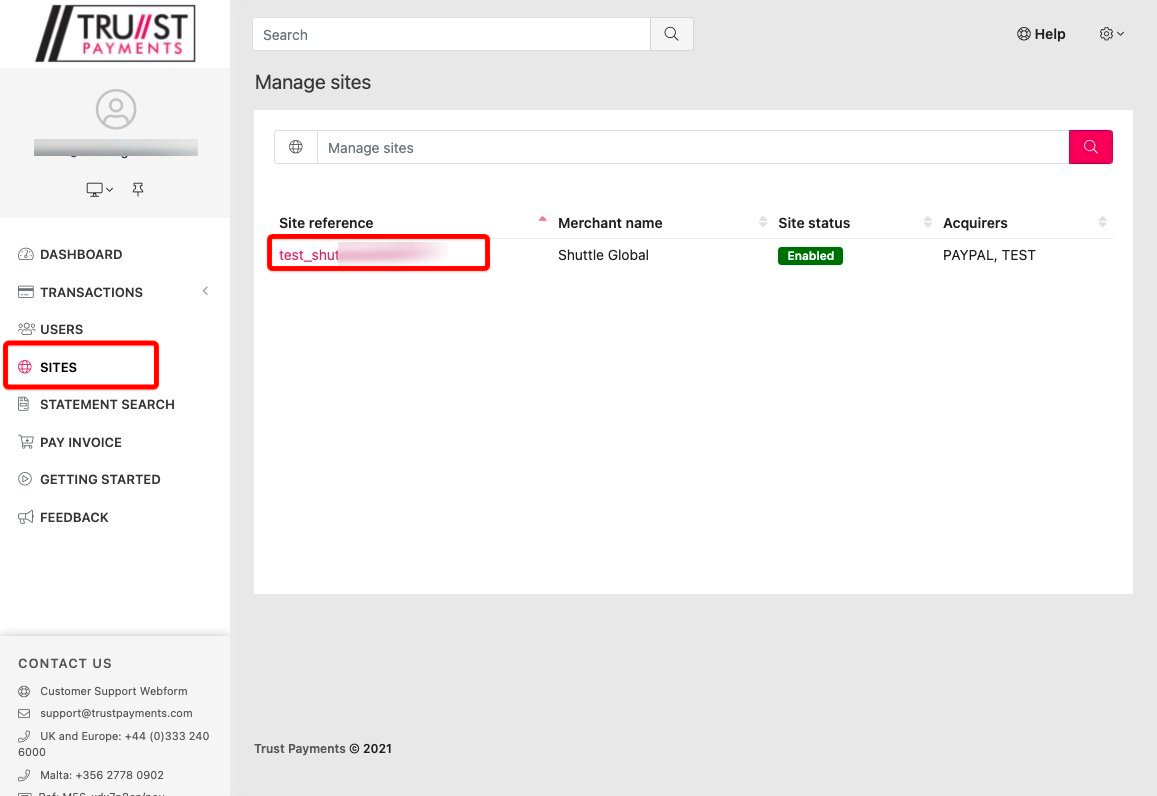
-
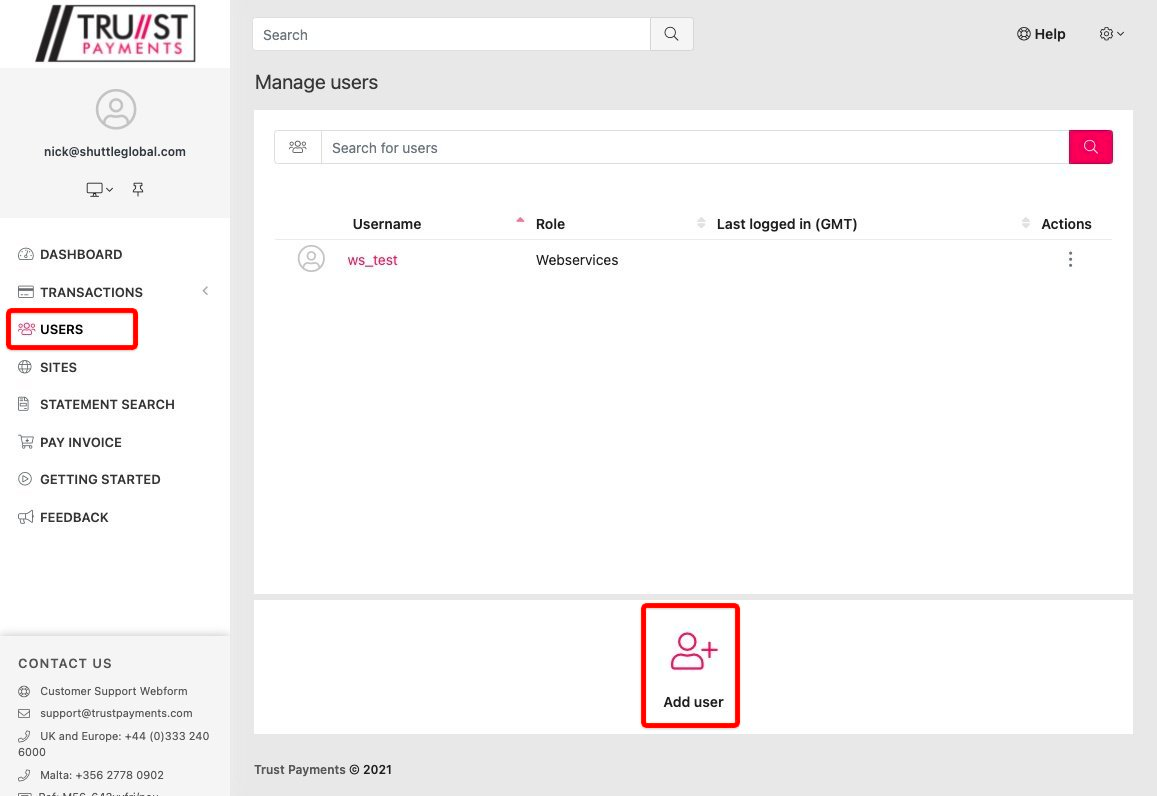
Open Users and select Add user to create a Web Services user.
-
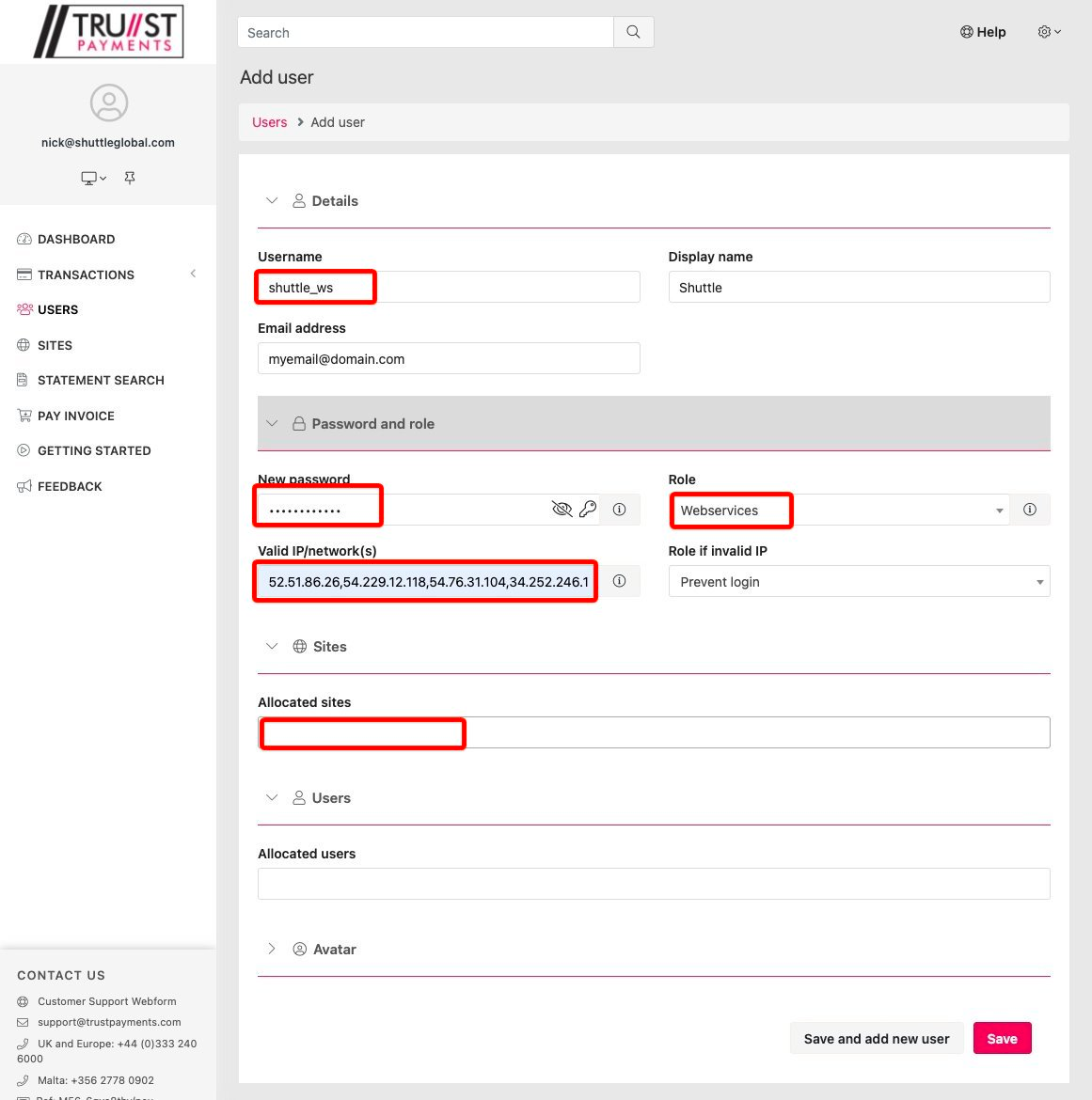
Complete the Web Services user details:
- Username: ws_shuttle
- Display name: Shuttle
- Email: your email
- Password: choose a password
- Role: Webservices
- Valid IP: 52.51.86.26, 54.229.12.118, 54.76.31.104, 34.252.246.134
- Role if invalid IP: Prevent Login
- Allocated sites: make sure your site is listed here
Shuttle Global is the integration platform that connects your payment provider to the software you use to take payments.
Note down:
usernameas WebServices API Usernamepasswordas WebServices API User Password
-
Ask Trust Payments to create your JavaScript credentials — these are required for ecommerce payments. Note down:
usernameas JS API Usernamepasswordas JS API Secret
Configuring the connection
Section titled “Configuring the connection”-
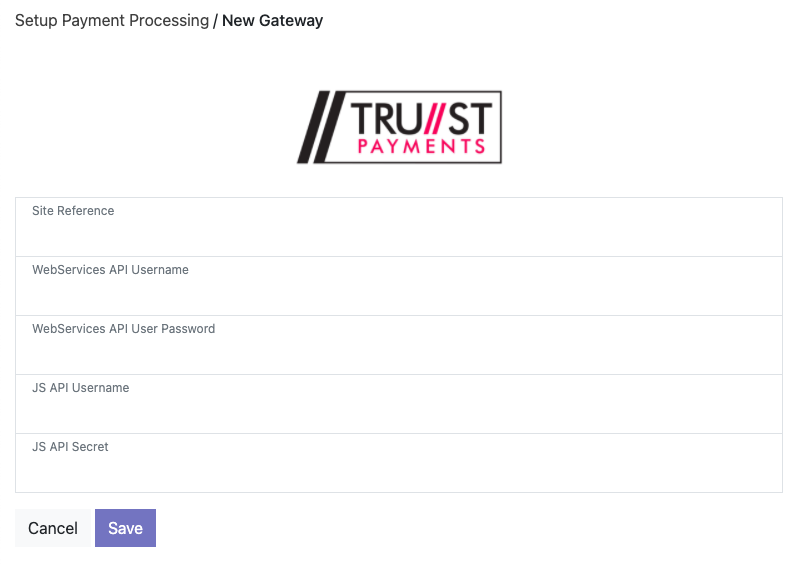
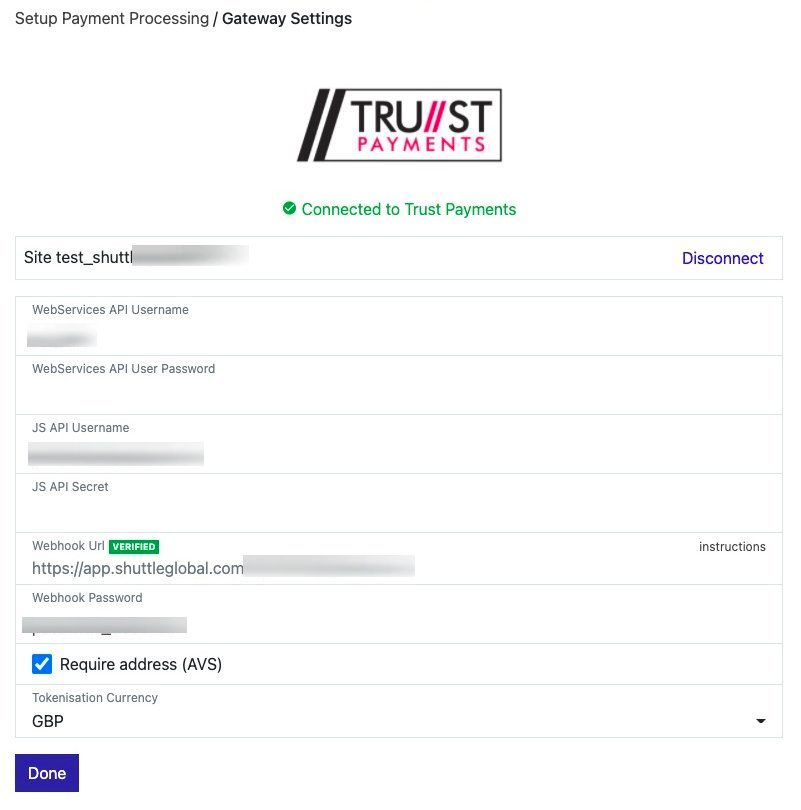
Using the details above, create the Trust Payments connection. Enter the Site Reference, WebServices API Username and Password, and the JS API Username and Secret.
-
When you save, a number of extra fields appear:
- Require address (AVS): require the customer to enter their billing address.
- Tokenisation Currency: your primary currency, used when tokenising cards outside of a transaction.
Enabling webhooks
Section titled “Enabling webhooks”To ensure the integration operates correctly you need to set up webhooks — the way Trust Payments notifies the integration of updates. Using the Webhook Url shown in the gateway settings, configure Trust Payments as follows.
-
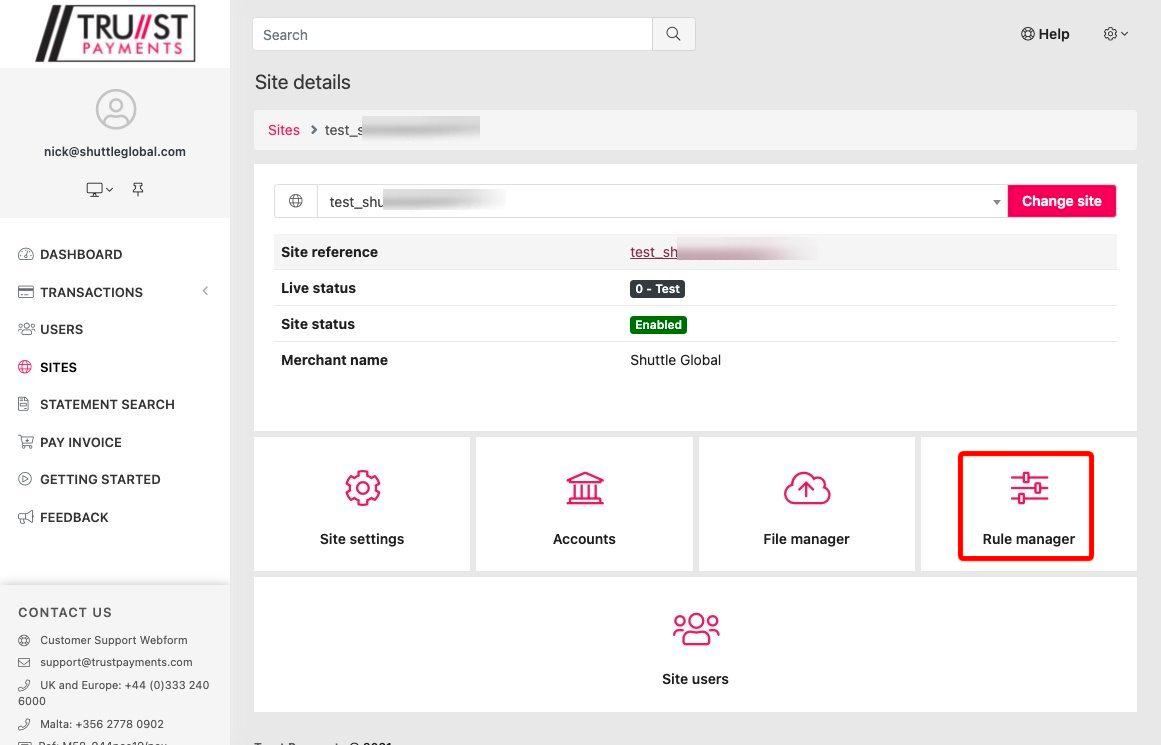
Open the Trust Payments dashboard, select Sites and your site, then open Rule manager.
-
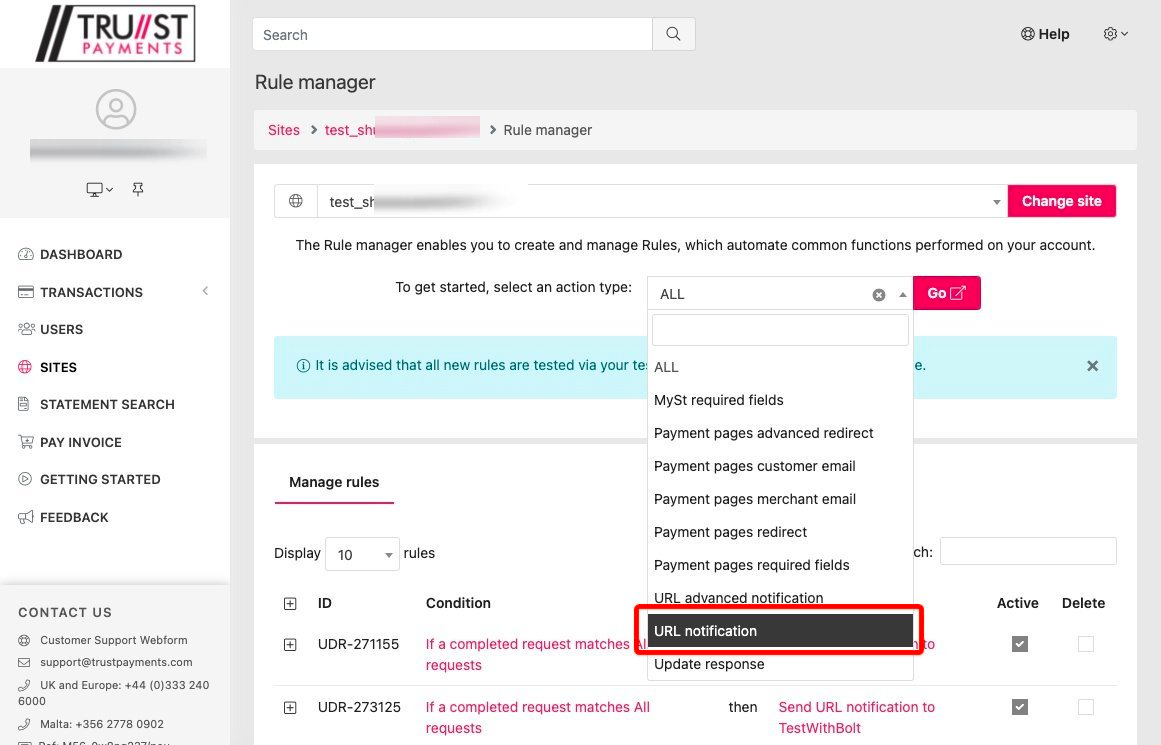
Where it says “To get started, select an action type:”, select URL notification.
-
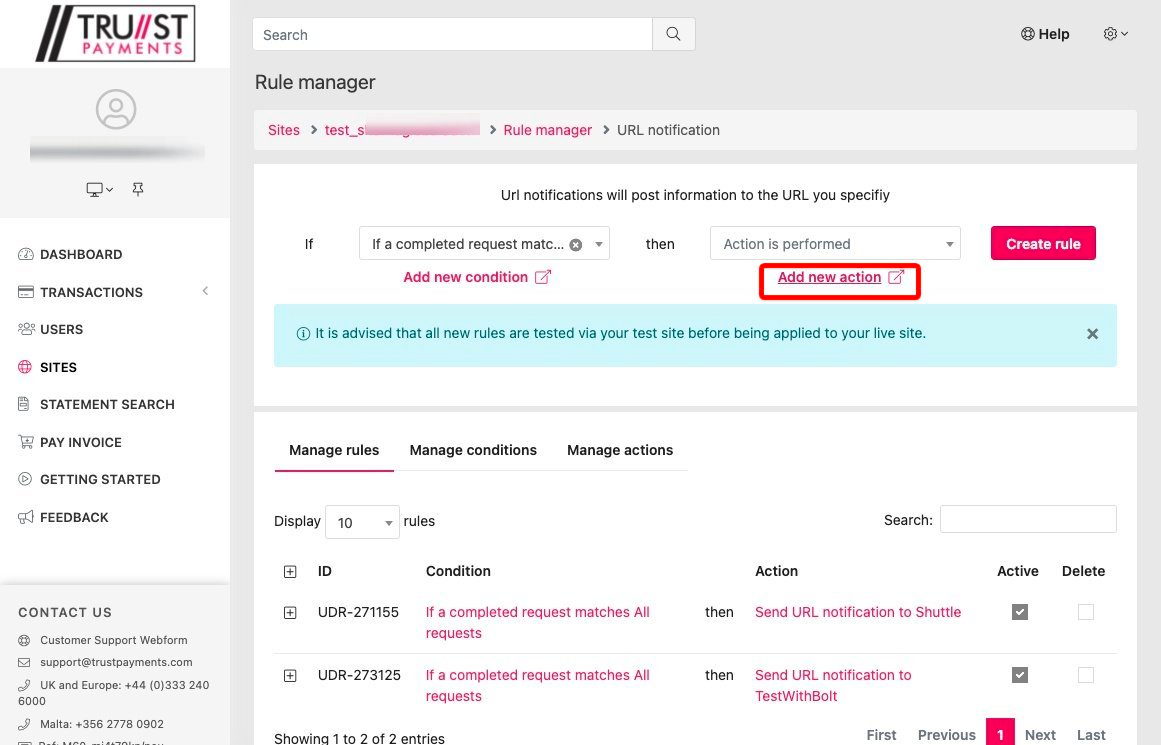
Select Add new action.
-
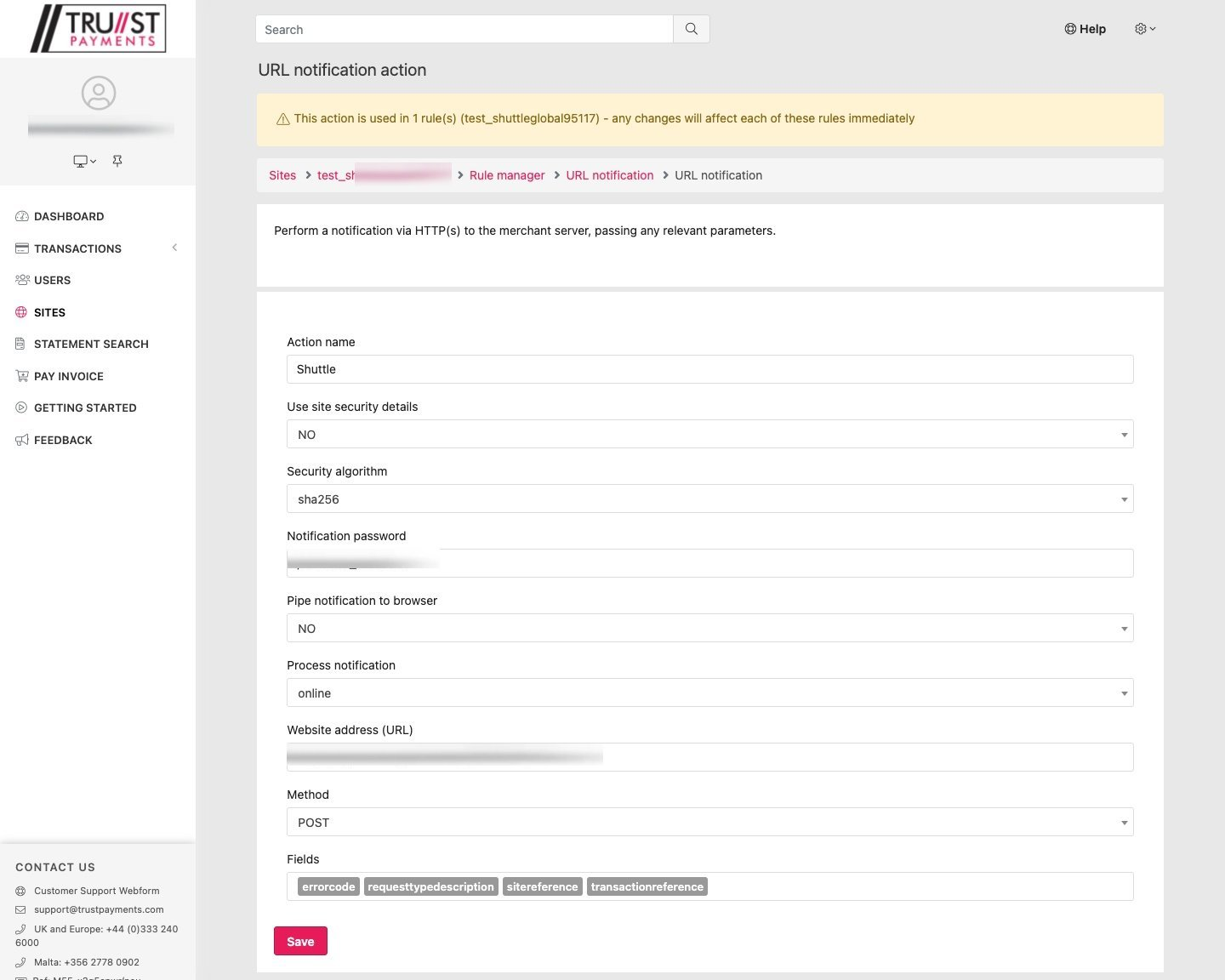
Configure the action:
- Name: Send notification to Shuttle
- Use Site Security Details: No
- Security Algorithm: sha256
- Notification Password: choose a password
- Pipe notification to browser: No
- Process Notification: Online
- Website address: the Webhook Url shown in the gateway settings — typically
https://app.shuttleglobal.com/b/TRUST/webhook - Method: POST
- Fields: sitereference, transactionreference, errorcode, requesttypedescription
Note down the Notification Password as Webhook Password.
-
Complete creating the rule and make sure it is Active:
- If: a completed request matched “All Requests”
- Then: Send notification to Shuttle
-
Enter the Notification Password as Webhook Password in the gateway settings. We test the webhook — this takes about two minutes and shows one of the following statuses:
- UNVERIFIED: we have not received anything. Double check your Trust Payments setup, especially the Web Services user (role and IP addresses) and the webhook notification settings.
- UNSIGNED: we received a webhook but the Webhook Password was missing or incorrect.
- VERIFIED: it is set up correctly.
Was this page helpful?
What went wrong?
Thanks for telling us.