
Connecting with OAuth
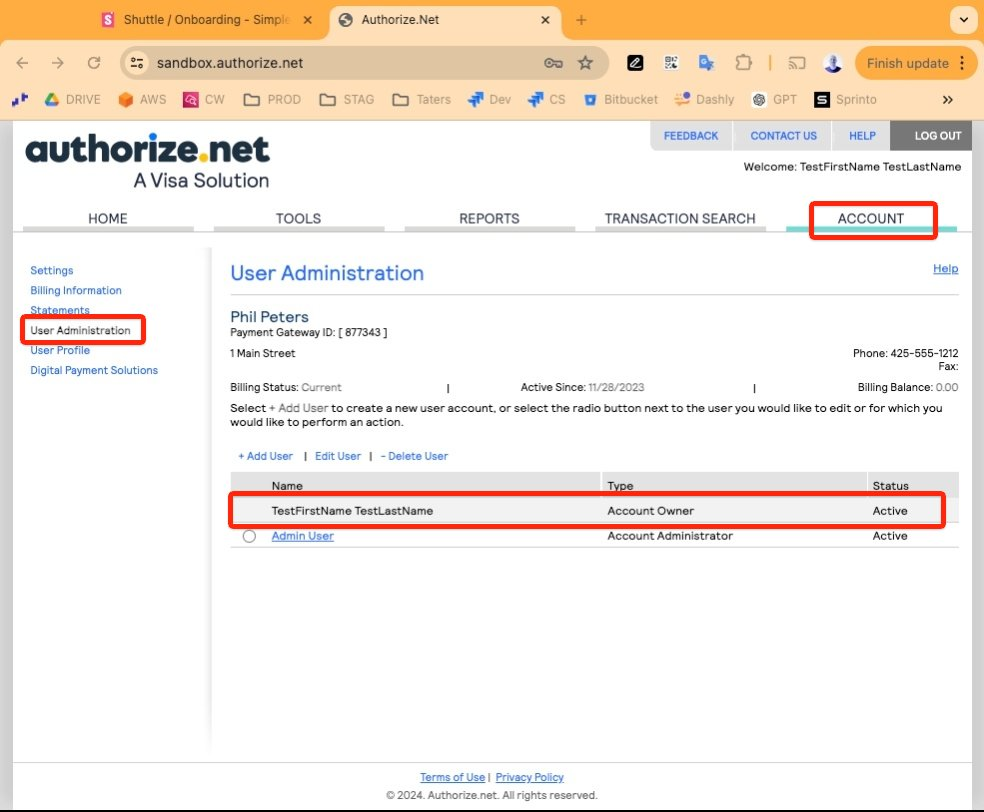
Connecting to Authorize.Net is an OAuth process. It requires you to log into Authorize.Net, which then shares a security token with us. To complete this you must use the Authorize.Net login for the account owner — any other user login will not return correctly from Authorize.Net to finish the OAuth process.
-
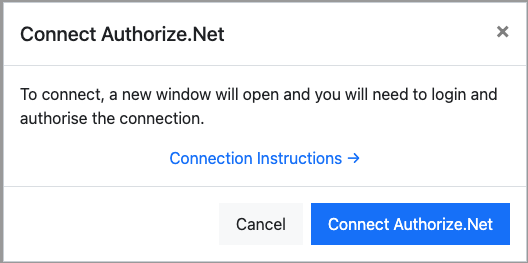
When prompted, select Connect Authorize.Net to log in to your Authorize.Net account.
-
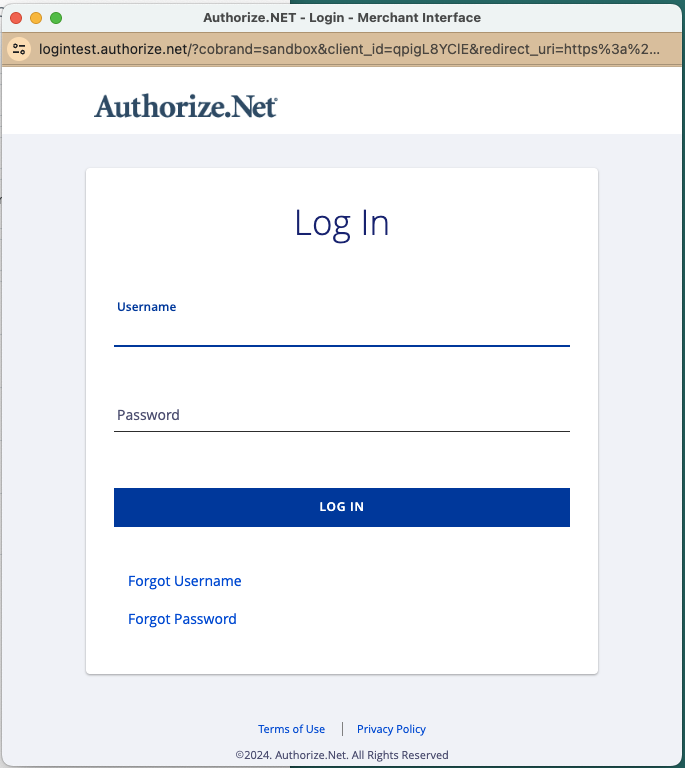
This opens Authorize.Net. Log in as the account owner. If you log in as a user with a different role profile, you will be taken to the Authorize.Net dashboard instead of being returned to the app.
-
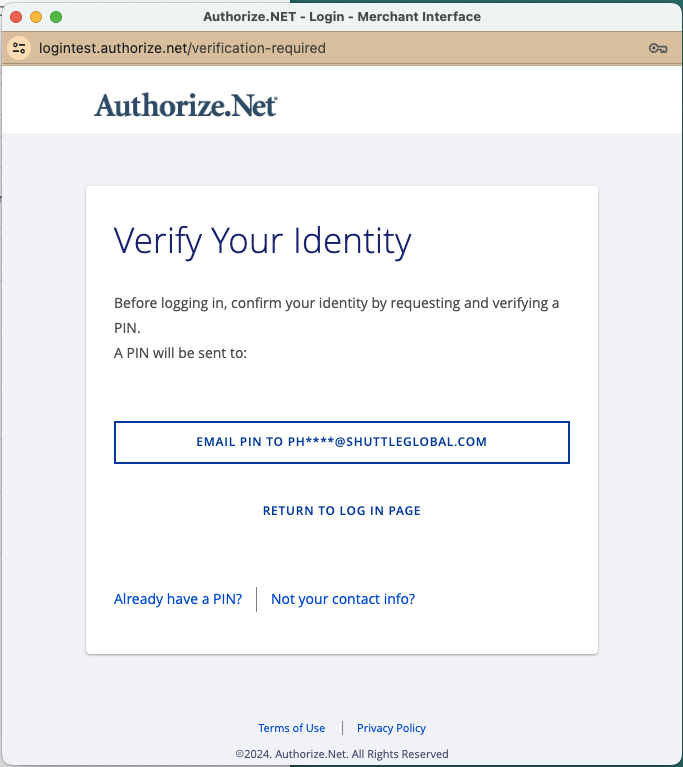
You may be asked to verify your identity before continuing.
-
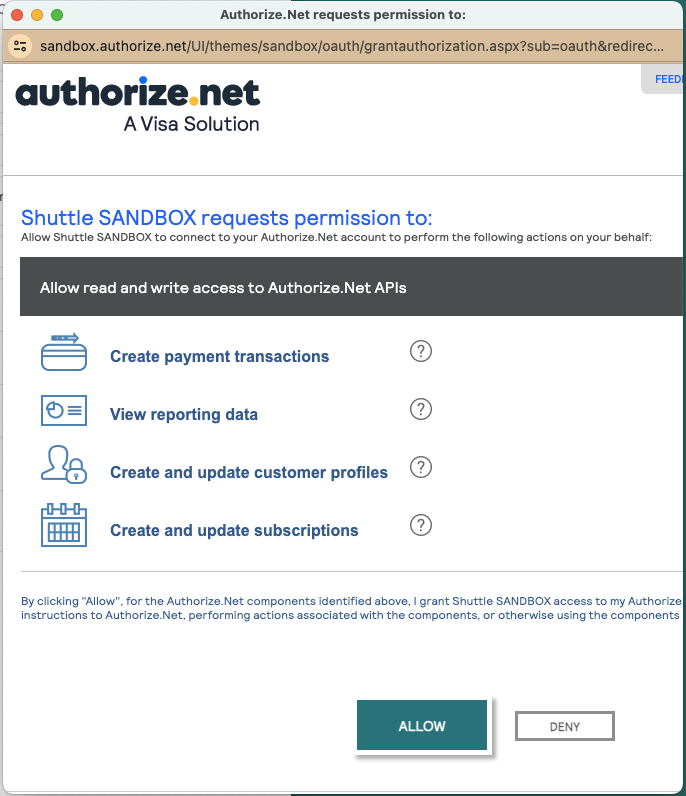
If requested, select Allow. This grants the connection permission to create transactions, view reporting, and manage customer profiles, then closes the popup.
-
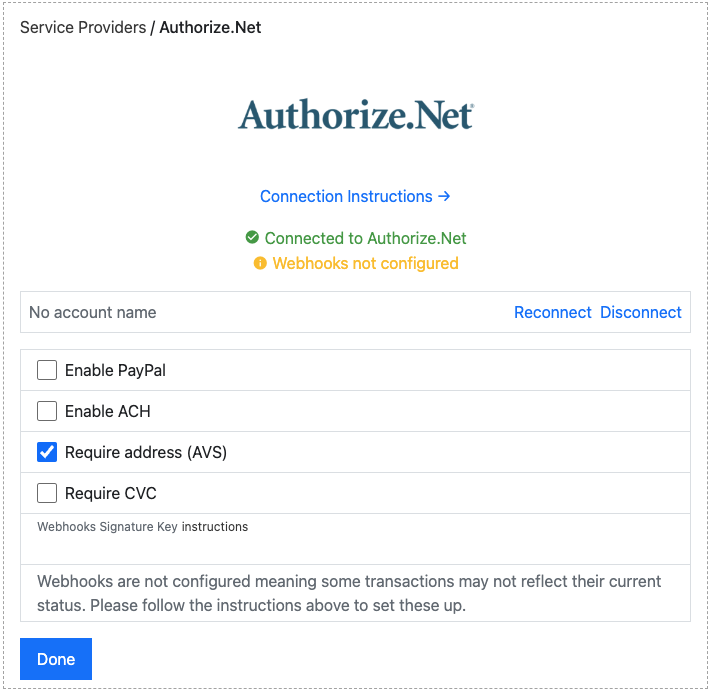
When you are returned to the app, the connection is tested and you are shown a green “Connected to Authorize.Net” message. If there is an error with the connection, use the Reconnect button — but take care to connect to the same account, otherwise saved payment methods and refunds will return an error message.
Connection options
Section titled “Connection options”Our integration with Authorize.Net offers several options:
- Enable ACH: Enables ACH as a payment method. You must also enable this option
on Authorize.Net. Note that Authorize.Net does not reflect ACH declines, which
must be managed off-system (see the
Authorize.Net ACH declines article).
- Recurring eCheck Type: The ACH entry type used for recurring payments: Prearranged Payment and Deposit Entry (PPD) (the default), Web-Initiated Entry (WEB) or Corporate Credit or Debit (CCD). Payments from business checking accounts always use CCD.
- Require address (AVS): Requires the customer to enter their billing address.
- Require CVC: Forces customers to re-enter a card’s CVC when using a saved card.
Webhooks (must read)
Section titled “Webhooks (must read)”When configuring a connection to Authorize.Net, we attempt to configure a webhook endpoint on your Authorize.Net account. It requests notifications for the following events:
net.authorize.payment.fraud.approvednet.authorize.payment.fraud.declinednet.authorize.payment.authorization.creatednet.authorize.payment.authcapture.creatednet.authorize.payment.capture.creatednet.authorize.payment.refund.creatednet.authorize.payment.void.created
This supports the following use cases:
- Transactions held for review due to a merchant fraud rule. These show up as “In Progress” in the platform, in either an UNRESOLVED or PENDING status. Without webhooks, the merchant is responsible for manually marking these transactions as approved or declined in the platform as well as in Authorize.Net. With webhooks, the merchant only needs to approve the transaction in Authorize.Net and it is automatically synced to the platform.
- Gateway-instructed captures, voids, and refunds. If the merchant logs into Authorize.Net and manually captures an authorisation or refunds a payment, this would not otherwise show in the platform. With webhooks enabled, we automatically reflect these actions and pass them on to the source system.
To configure webhooks, the merchant must configure a Signature Key on Authorize.Net first, then enter it in the Webhooks Signature Key field. Authorize.Net does not allow this to be done on a merchant’s behalf.
To configure webhooks, follow the steps below.
-
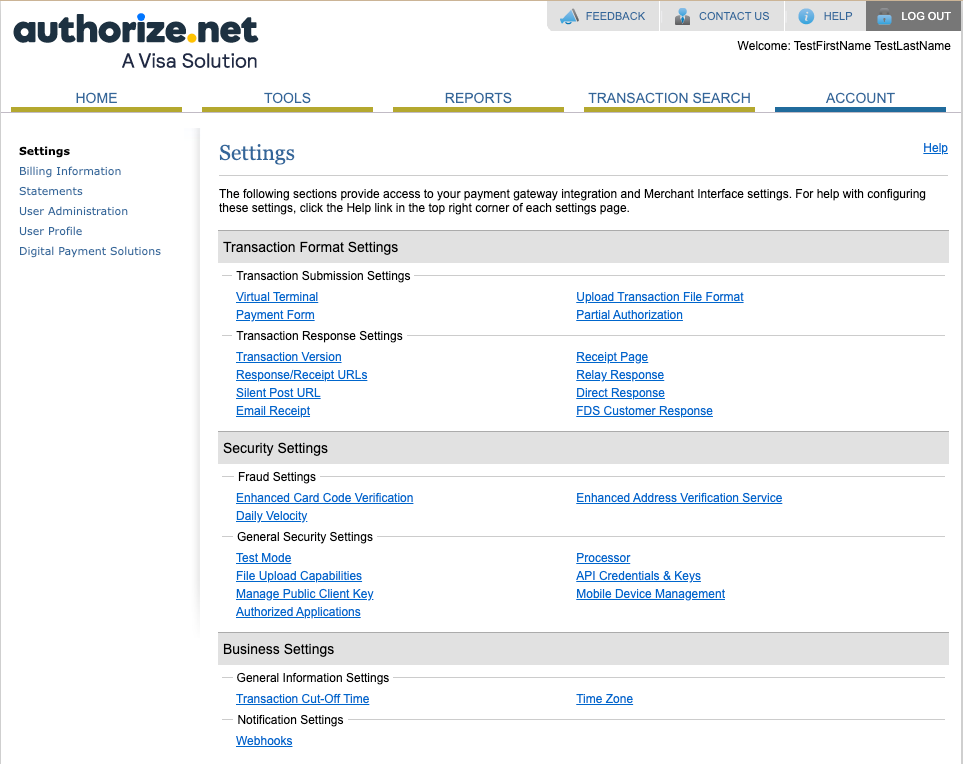
Open the Account menu and the Settings page.
-
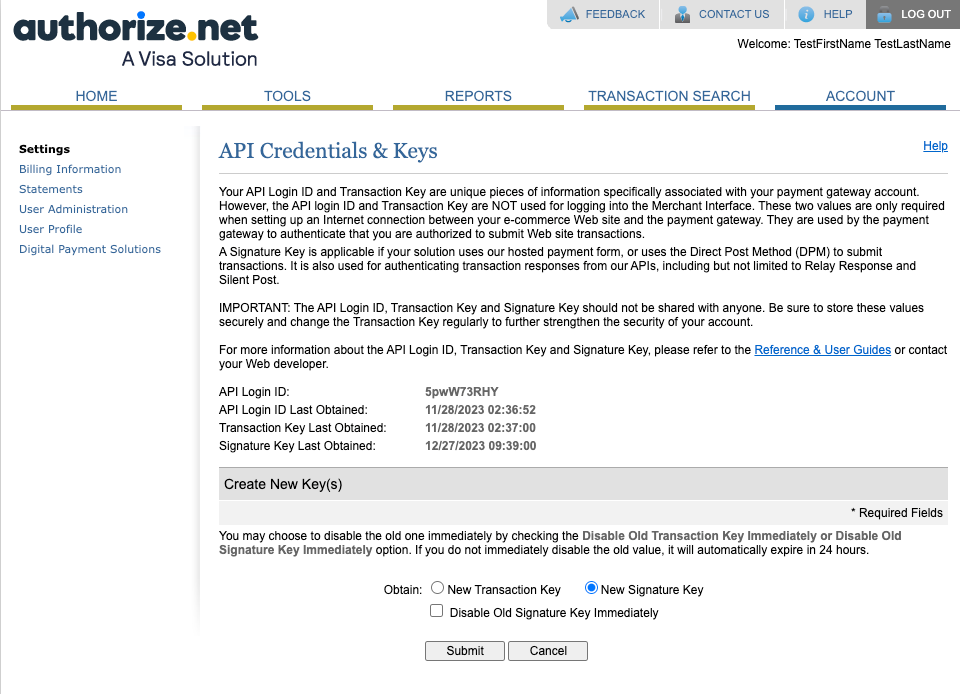
Select API Credentials & Keys.
-
Select New Signature Key and Submit. Do not disable your old signature key if you are using webhooks with another system.
-
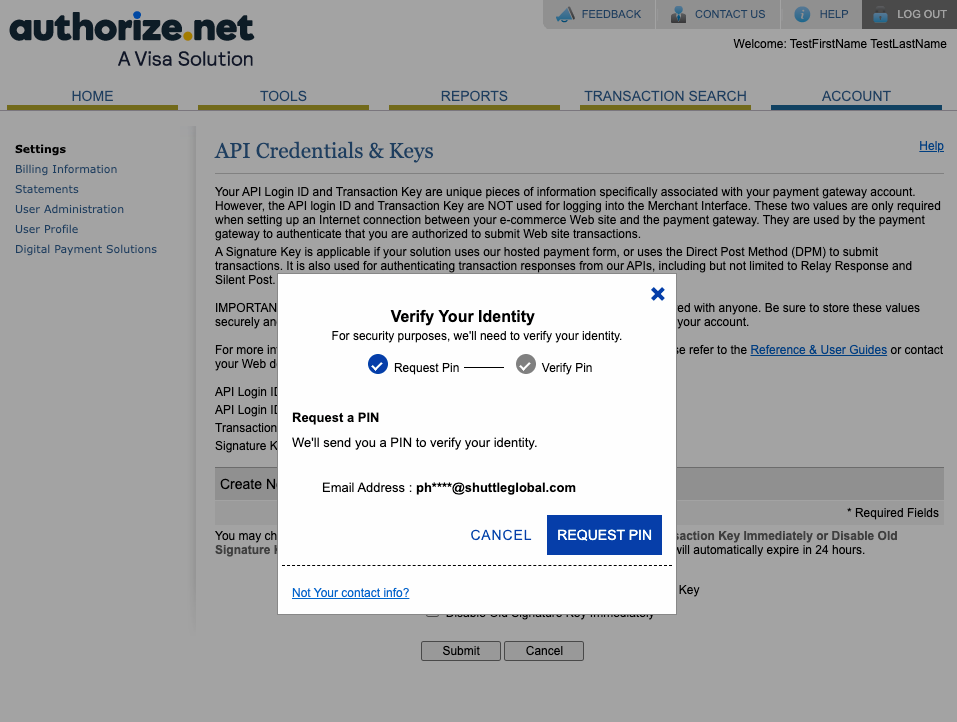
Complete the Authorize.Net verify-your-identity step.
-
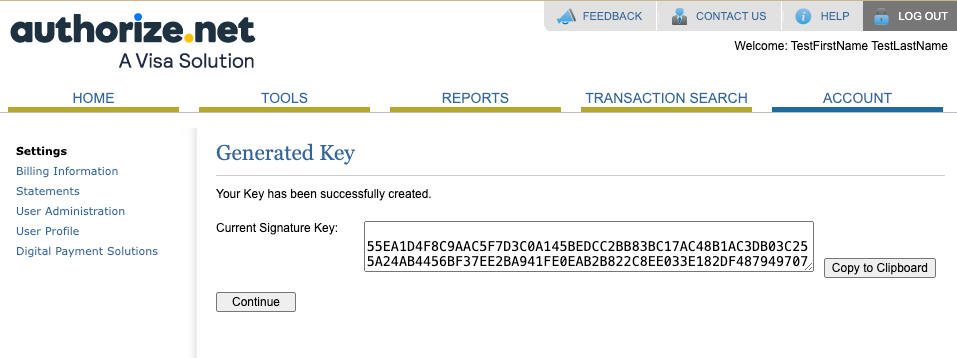
Record the Current Signature Key.
-
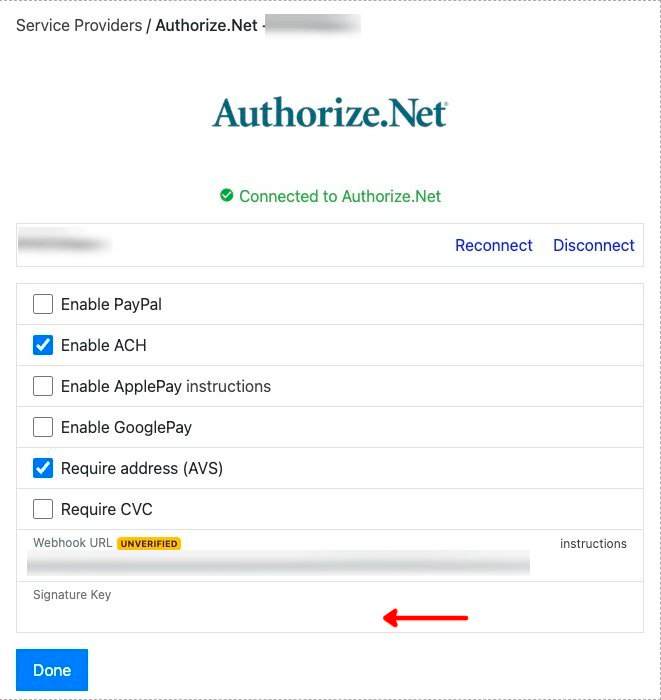
Enter this into the Webhooks Signature Key field in the connection settings and Save.
-
The integration then installs itself as a webhook endpoint on your account and triggers a webhook by requesting a transaction on an invalid card number that will be declined.
Once the webhook is received, the UNVERIFIED label is replaced with:
- VERIFIED: if everything was successful.
- UNSIGNED: if the signature key did not match. In this case, follow the steps again.
For common issues after connecting, see the Authorize.Net FAQs.
Was this page helpful?
What went wrong?
Thanks for telling us.