
Connecting Braintree
Connecting to Braintree uses API keys. If you have not had the values supplied to you, you will need a Braintree login with Account Admin access.
To set up Braintree you will need:
- Your Merchant ID
- Public Key
- Private Key
If you don’t have these, follow the steps below.
-
Log in to Braintree at braintreegateway.com/login.
-
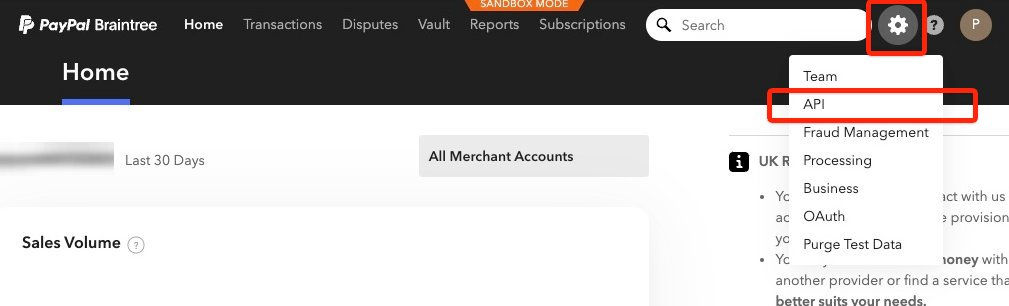
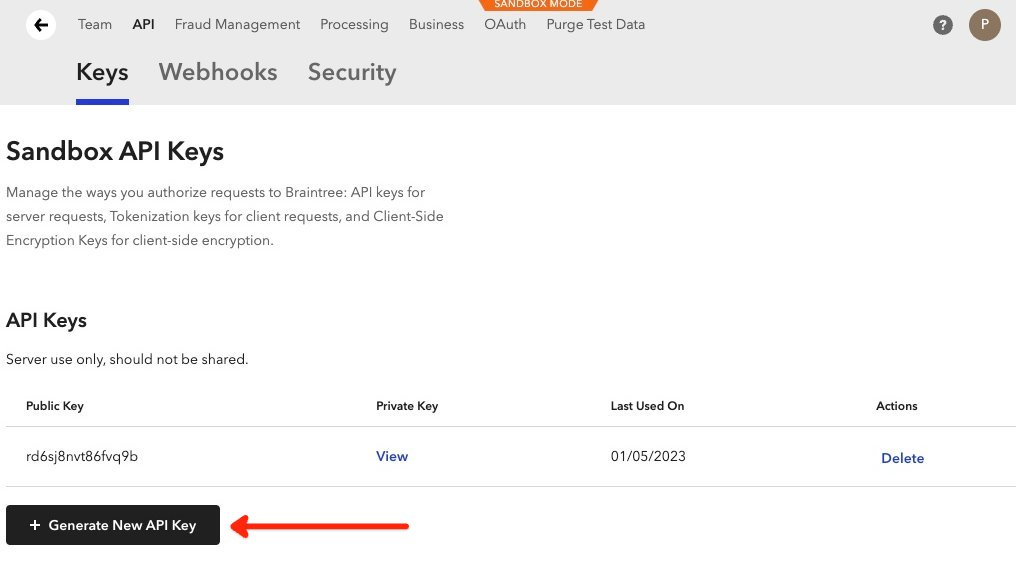
Select Settings → API, then select Generate API Key.
-
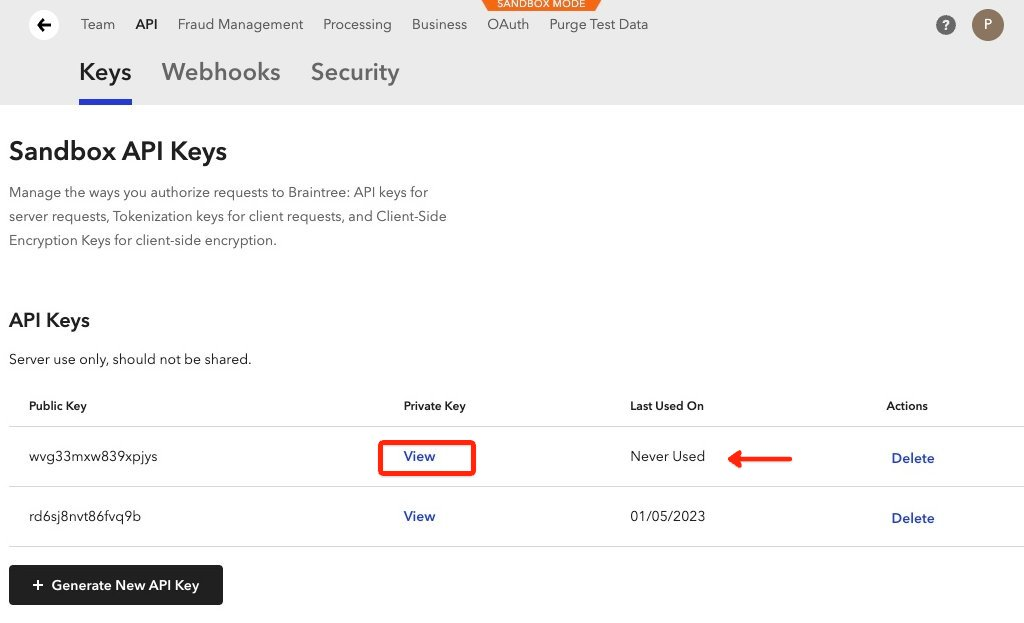
Find the key you just generated and select View.
-
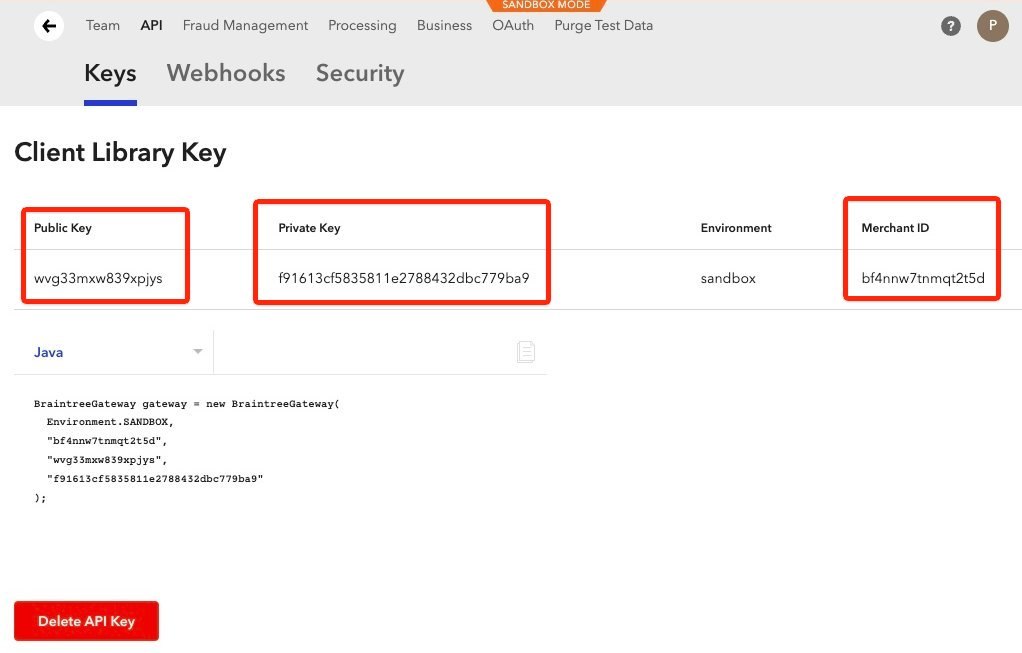
From the key detail screen, copy the values for your Merchant ID, Public Key, and Private Key.
-
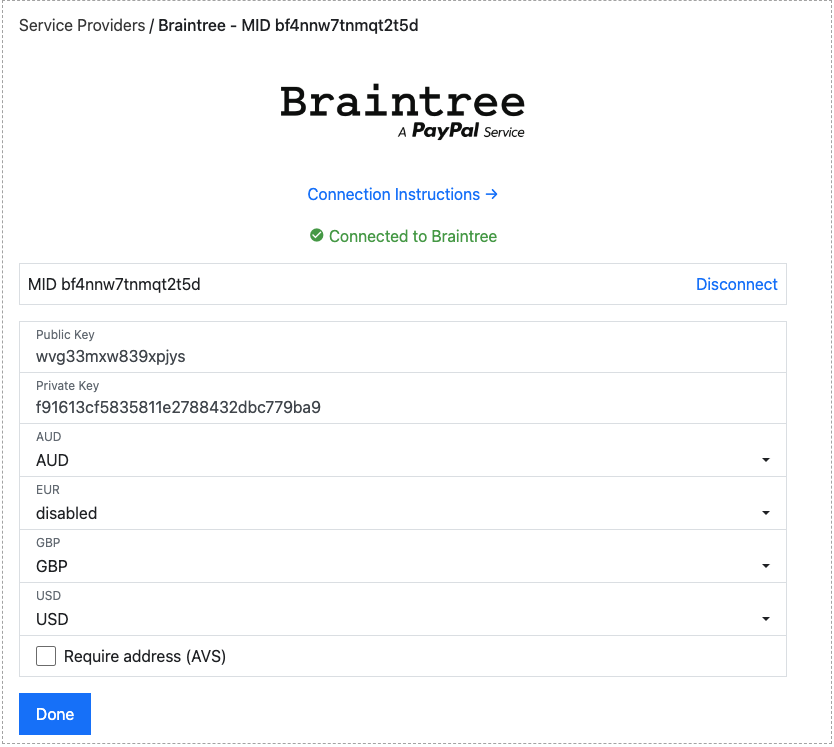
Enter these values in the Braintree connection screen. The connection is tested and you are shown a green “Connected to Braintree” message. If there is an error with the connection, an error message will appear.
Connection options
Section titled “Connection options”Our integration with Braintree offers several options:
- Public Key: Update if you change your credentials.
- Private Key: Update if you change your credentials.
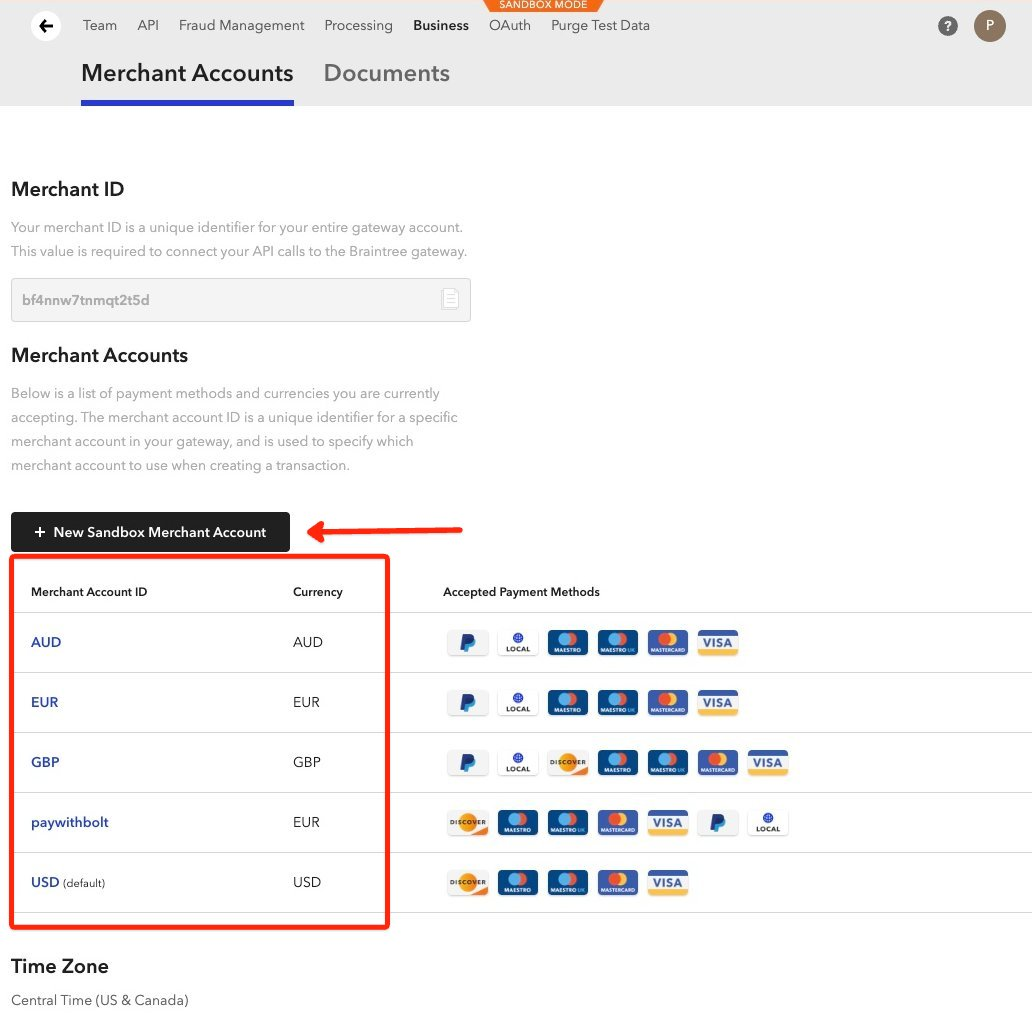
- Currencies: Braintree only allows you to collect payment in the currency of one of your merchant accounts. We provide a list of each currency you have configured and let you select which merchant account to settle into (see below).
- Enable PayPal: Offers PayPal as a payment method, processed through your Braintree account.
- Enable ACH: Offers ACH bank debits (USD only). When you turn it on, enter your Company name: it is shown to the customer in the ACH debit authorisation they accept at checkout.
- Require address (AVS): Asks the customer for their billing postcode on card payments.
- Enable 3D Secure: Authenticates card payments with 3D Secure.
Adding currencies
Section titled “Adding currencies”To add support for more currencies, go to Settings → Business.
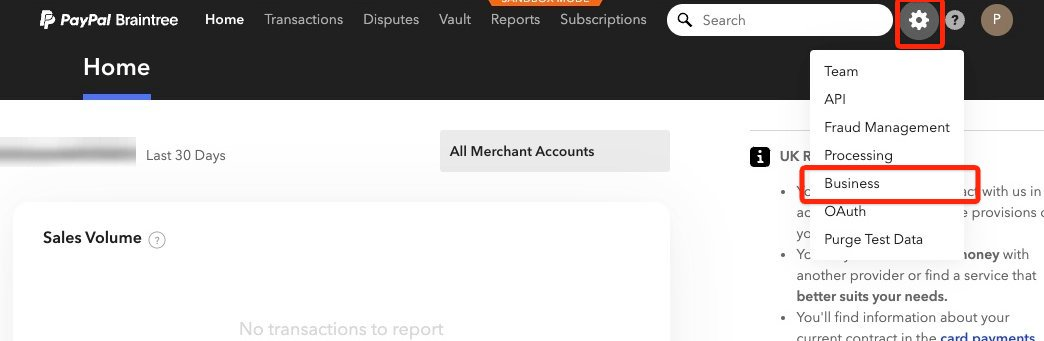
Here you can see the merchant accounts you have configured and add new ones. After adding a new one, return to the Braintree connection screen and the new merchant account will appear under its currency.
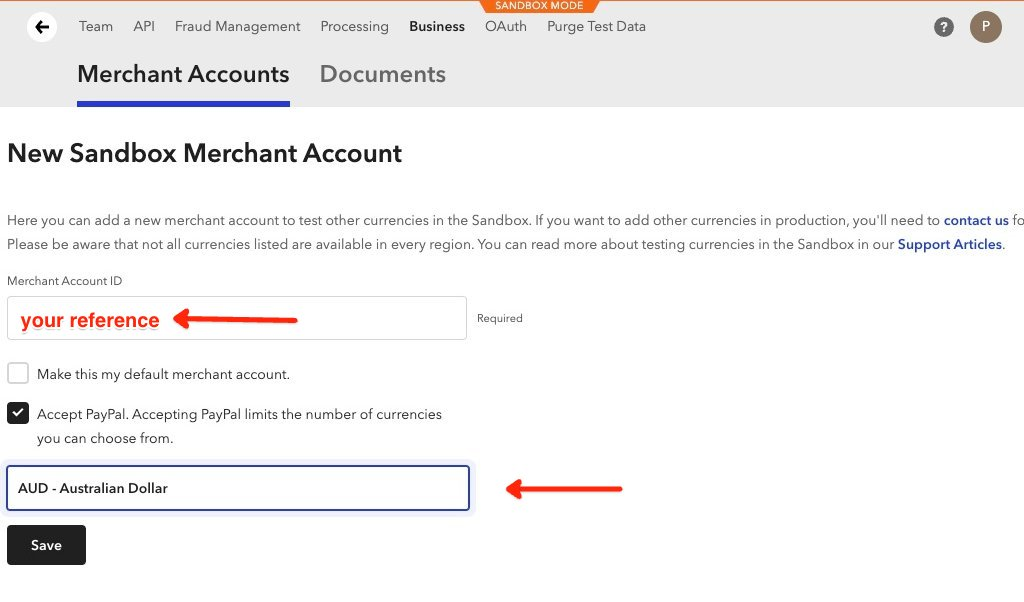
For example, to support AUD, add a merchant account in AUD. (The screenshot below is a test account; the live screen will vary slightly.)
Was this page helpful?
What went wrong?
Thanks for telling us.