
Connecting NMI
Connecting to NMI requires an NMI username and password. We highly recommend you create a dedicated user on NMI for this purpose rather than reusing a personal login.
-
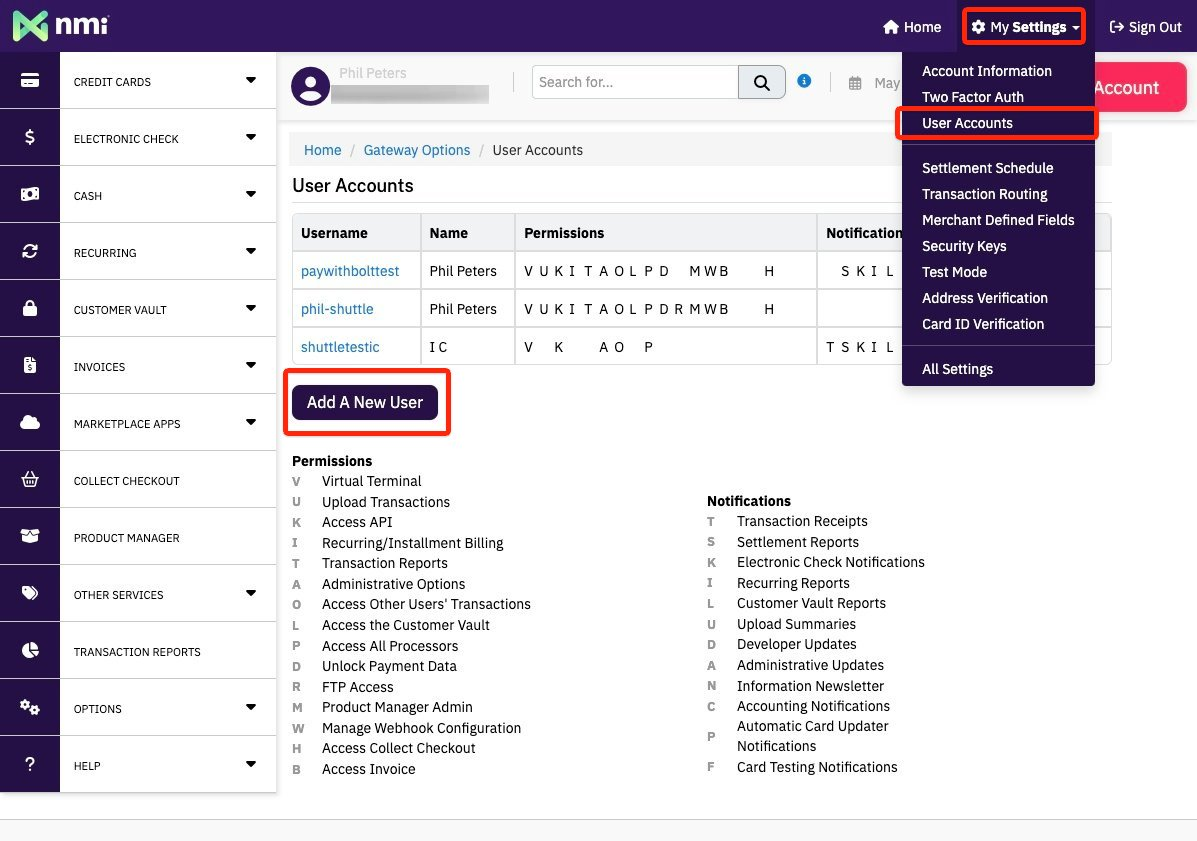
Log in to NMI and go to My Settings → User Accounts → Add A New User.
-
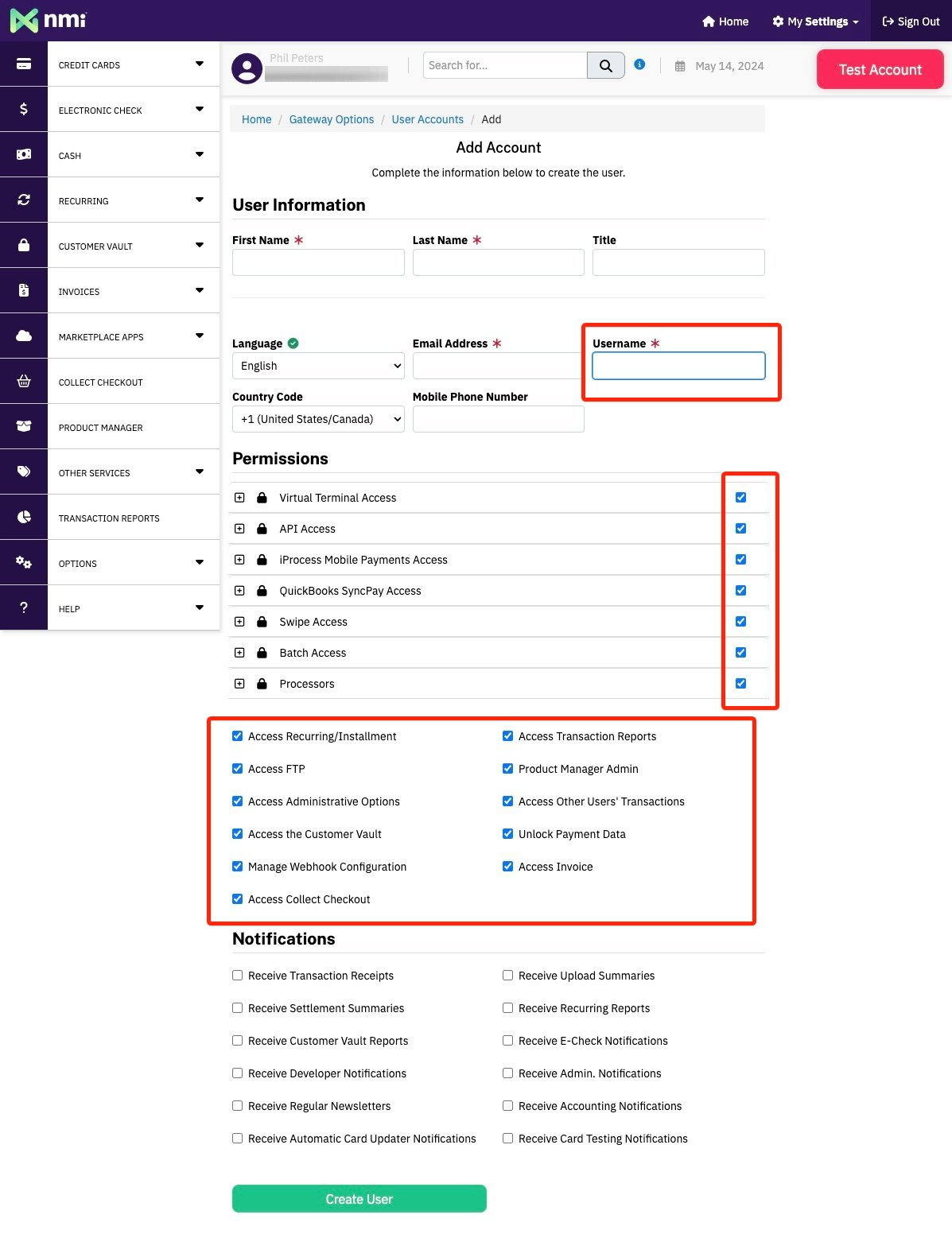
Create the user account. Enable all permissions, and note the username — you will need it when connecting.
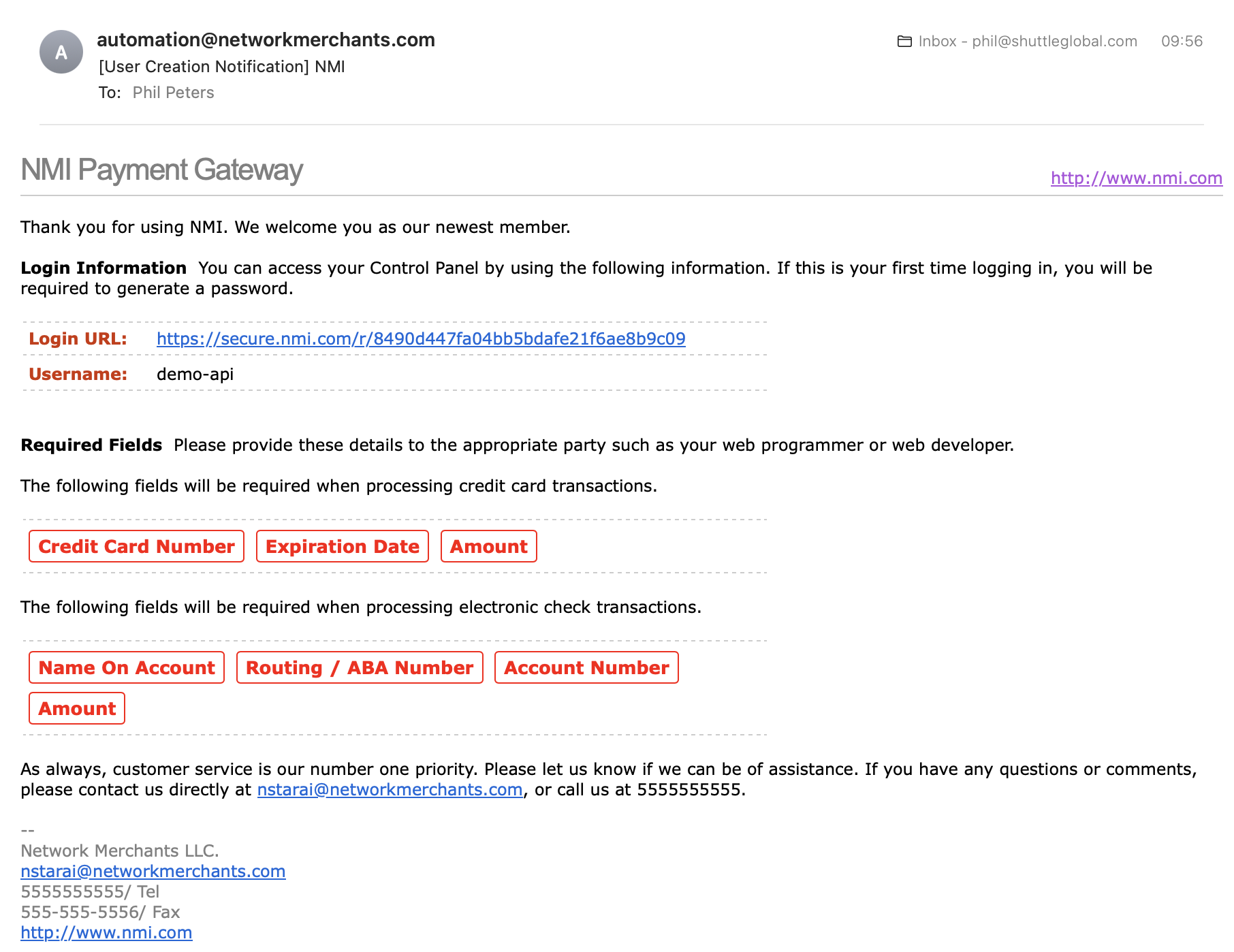
You will receive an email with a link to create a password for the new user.
-
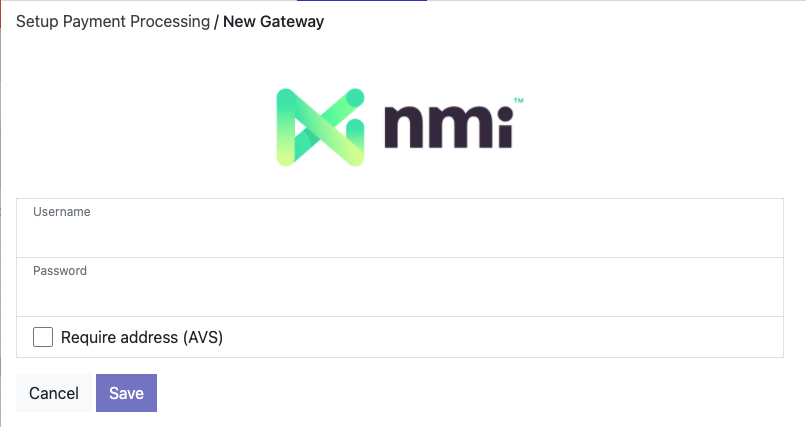
In the NMI connection screen, enter your username and password and select Save.
-
The connection is tested and you are shown a green “Connected to NMI” message. If there is an error, check that the account details are correct and that the user has been granted all permissions.
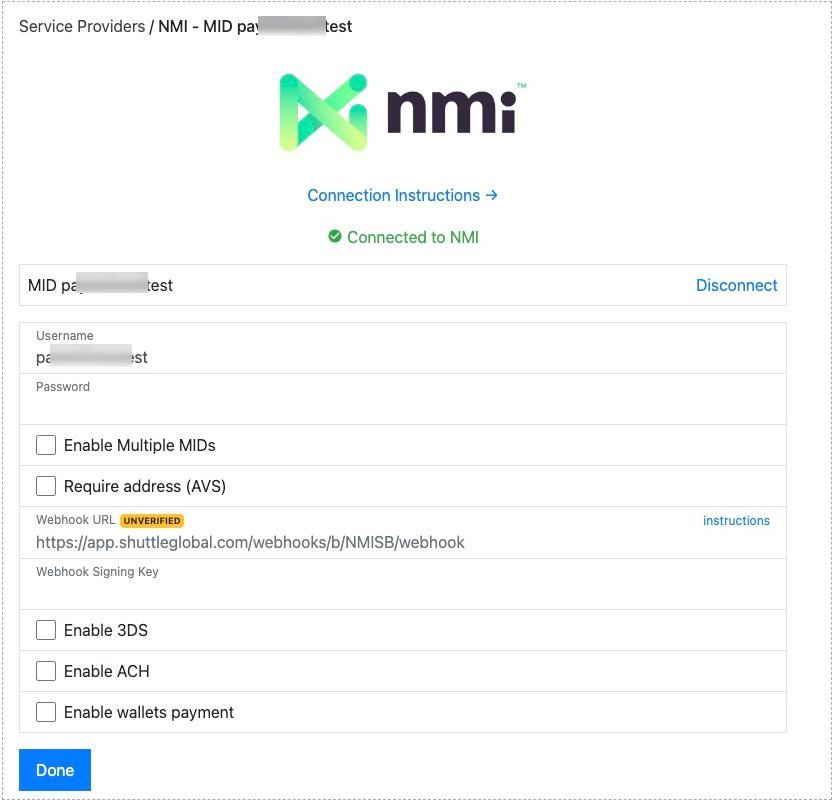
-
You will then be prompted to set up webhooks. See Enabling webhooks below.
Connection options
Section titled “Connection options”Our integration with NMI offers several options:
-
Enable 3DS: Enables 3D Secure support for ecommerce transactions that require it. This option appears once the connection is saved. When selected, a Public Key field appears.

To get your public key, in NMI go to My Settings → Security Keys → Add a New Public Key.
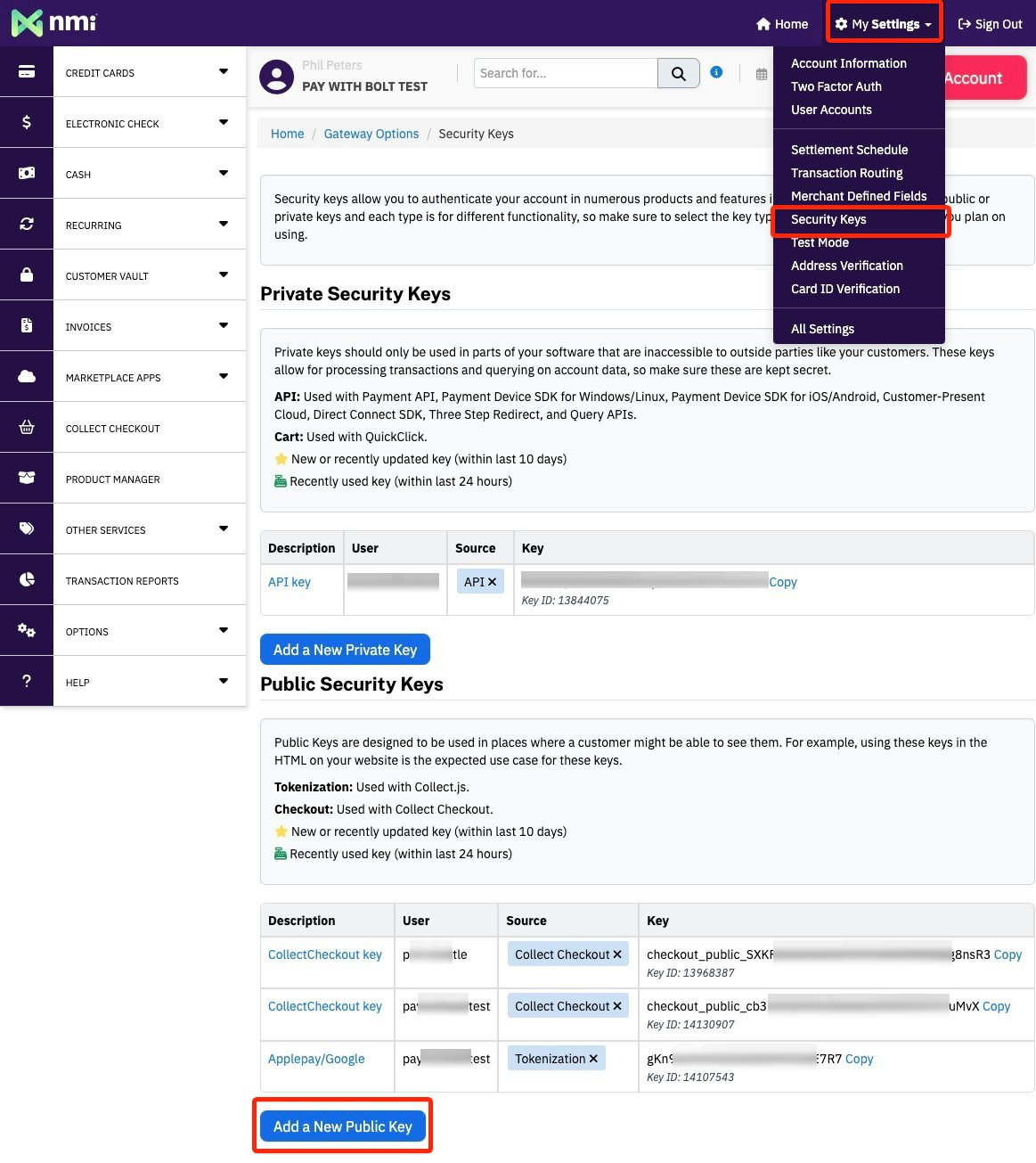
Enter a key name (for example
3DS), select the username you created in step 2, and set Key Permission to Checkout.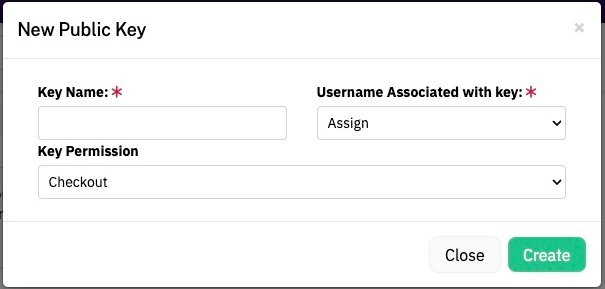
Then copy the value of Key from your Public Security Keys list into the Public Key field in the setup screen.
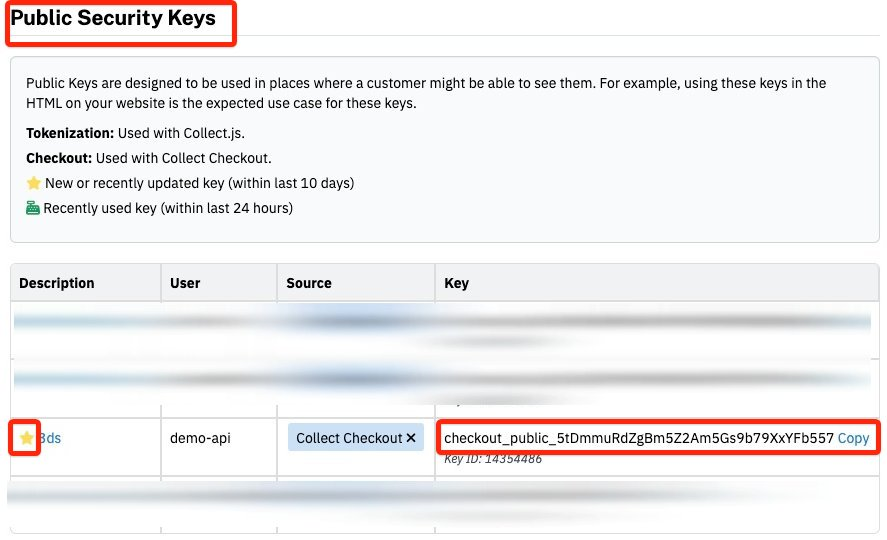
-
Enable ACH: Enables ACH as a payment method. You must also have ACH enabled on your NMI account.
- ACH Type (non ECOMMERCE): The ACH entry type used for payments that aren’t made online by the customer, such as phone and recurring payments: TEL - Telephone-initiated (the default), CCD - Corporate Credit or Debit, CTX - Corporate Trade Exchange or PPD - Prearranged Payment and Deposit. Online (ecommerce) ACH payments always use WEB.
-
Require address (AVS): Requires the customer to enter their billing address.
-
Require Account Name: Requires the customer to enter the cardholder name.
-
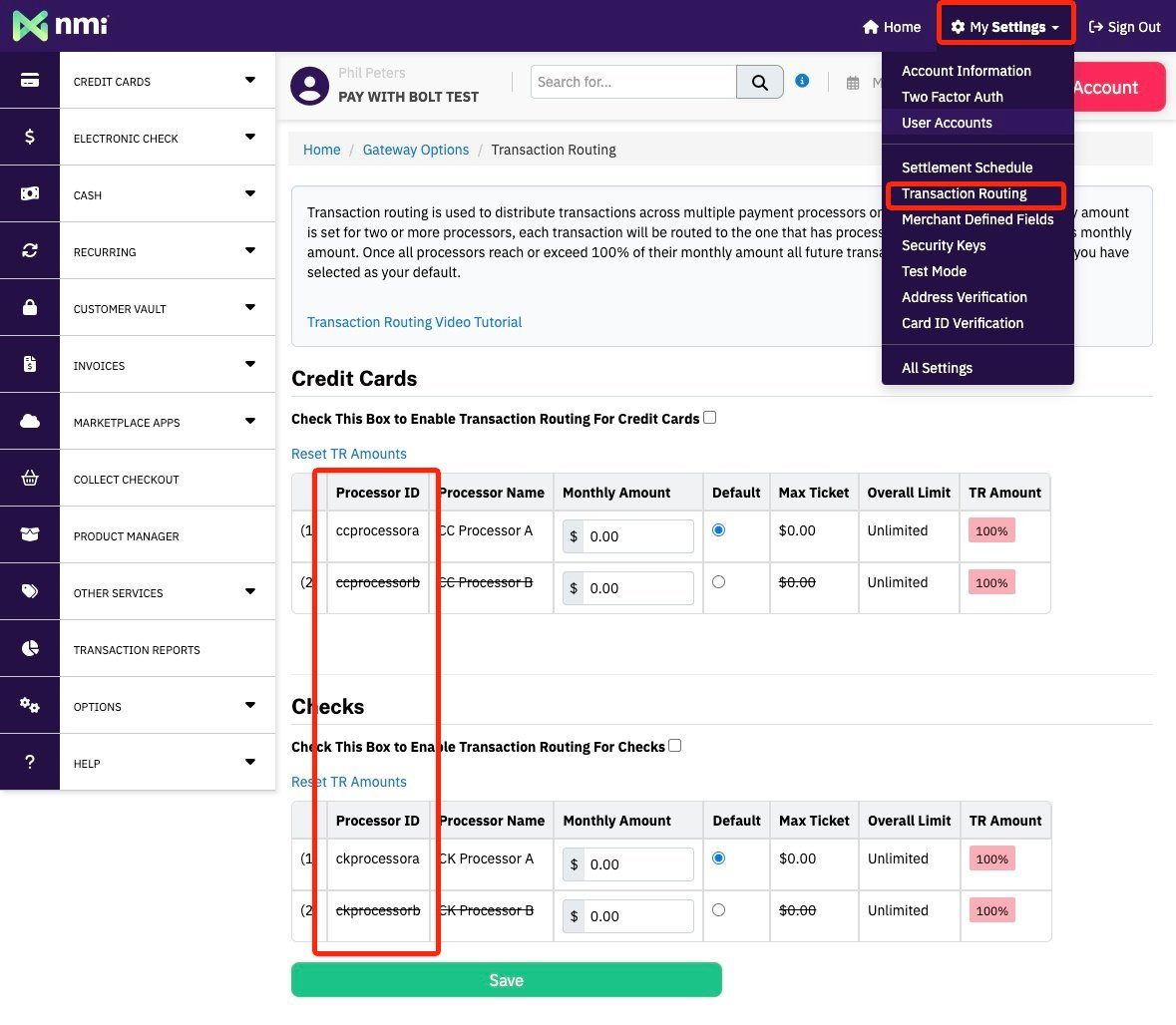
Enable Multiple MIDs: Lets you configure a different MID for ecommerce and MOTO transactions. Some acquirers issue separate accounts for these. Enter the Ecommerce Processor ID and the MOTO / MIT Processor ID.

You can check your processor IDs in NMI under My Settings → Transaction Routing.
Enabling webhooks
Section titled “Enabling webhooks”To ensure the NMI integration operates correctly, you need to set up webhooks. This is how NMI notifies us of transaction and settlement updates.
-
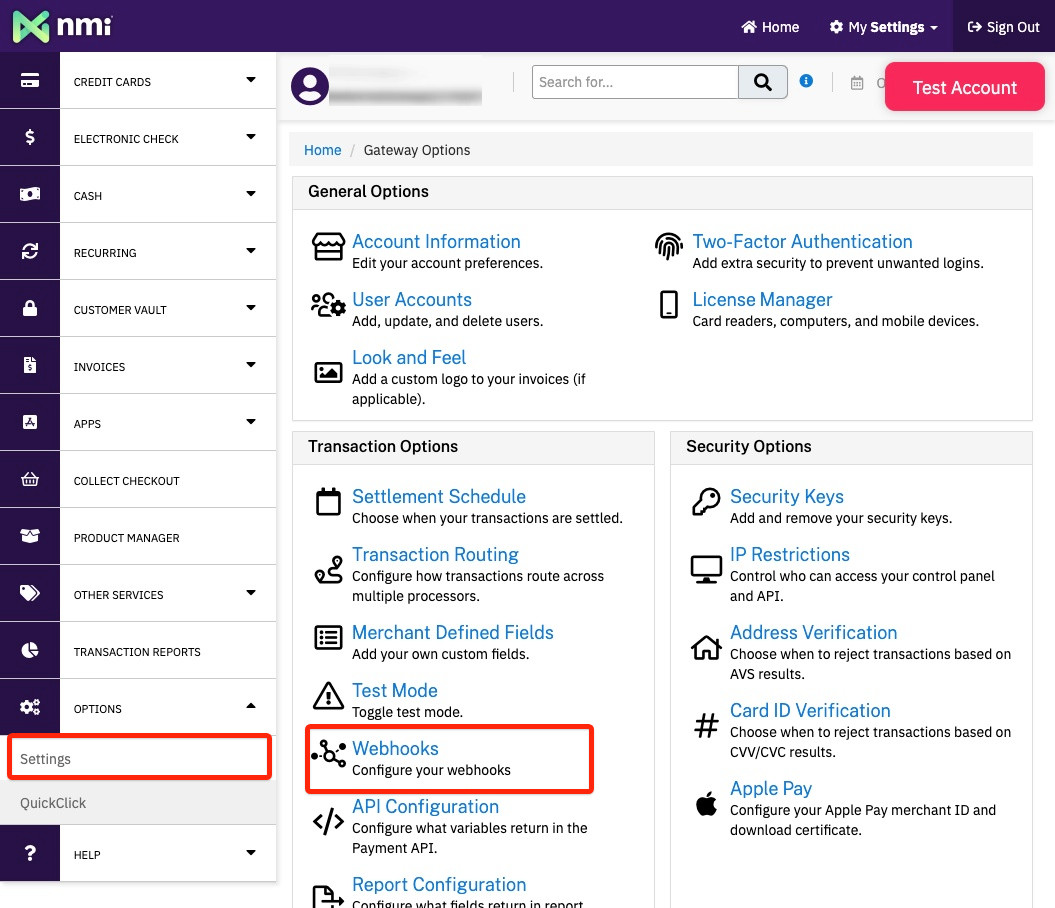
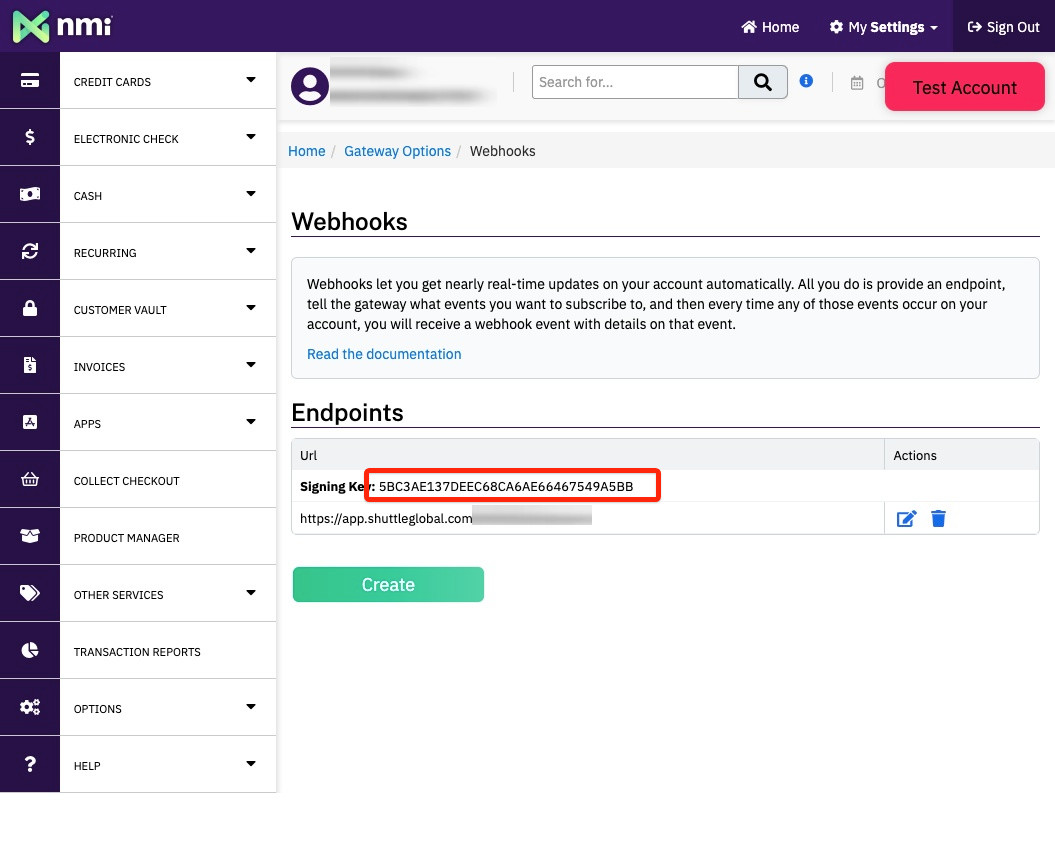
In NMI, go to Settings → Webhooks.
-
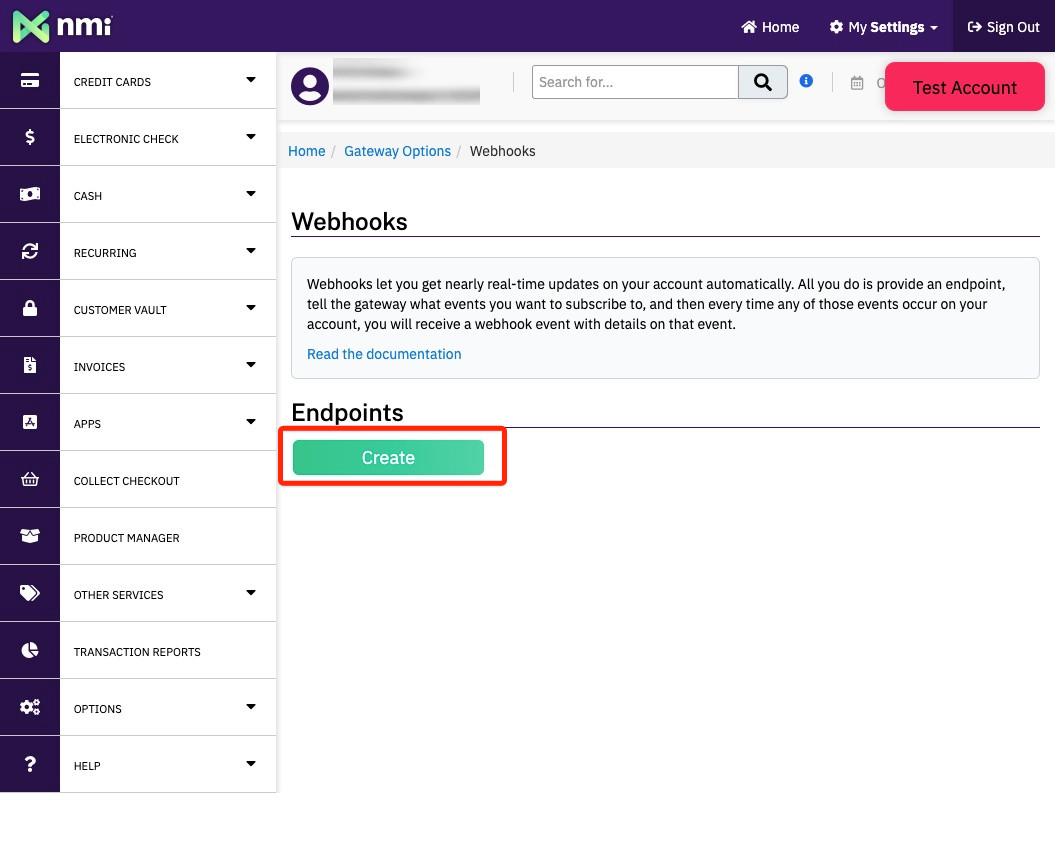
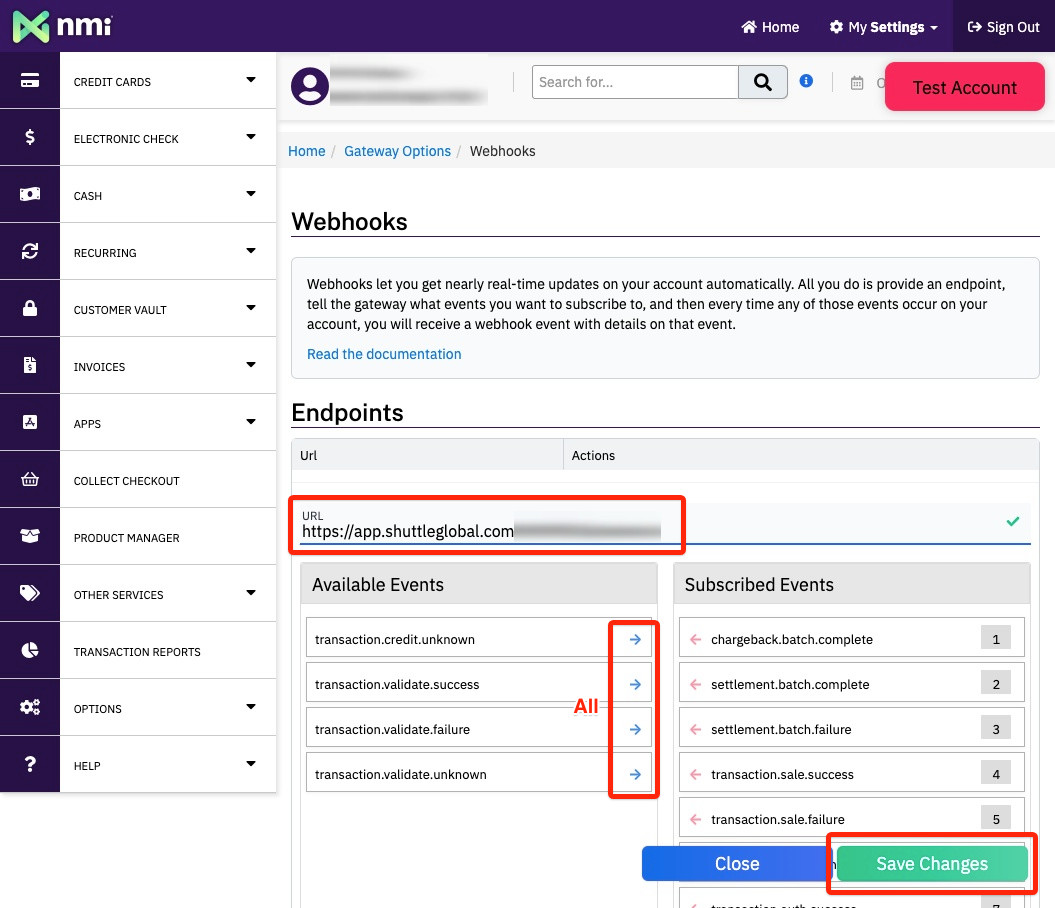
Add a new webhook pointing to the URL shown in the setup screen, and select All available events.
-
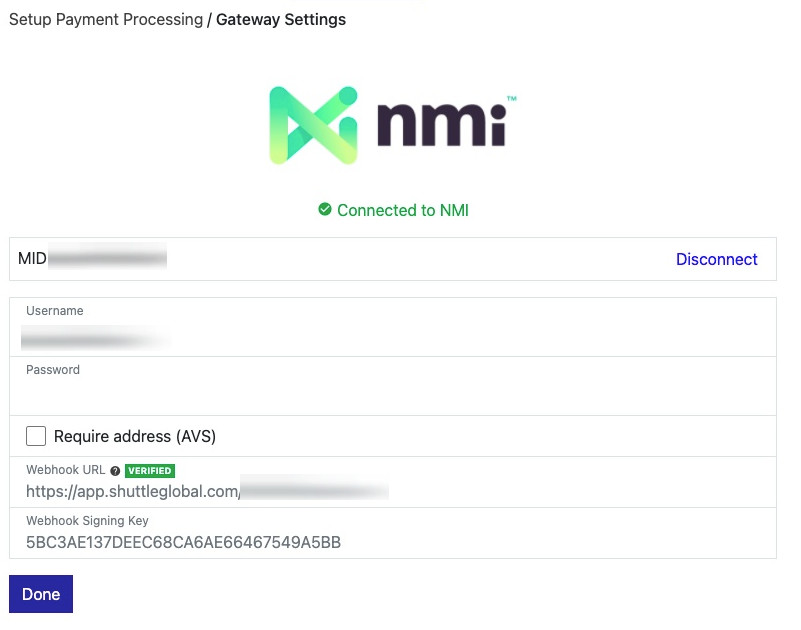
You will be shown a Signing Key. Copy it back into the Webhook Signing Key field in the setup screen and save.
-
We test the webhook. This takes about two minutes and displays one of the following statuses:
- UNVERIFIED: We have not received anything. Double-check your NMI setup.
- UNSIGNED: We received a webhook but the signing key was missing or incorrect.
- VERIFIED: It is set up correctly.
Was this page helpful?
What went wrong?
Thanks for telling us.