
Connecting Square
Connecting to Square is an OAuth process. It requires you to log into Square, which then shares a security token with us. To complete this you need a Square login.
-
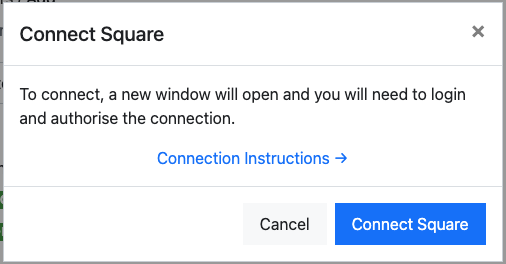
When prompted, select Connect Square to log in to your Square account.
-
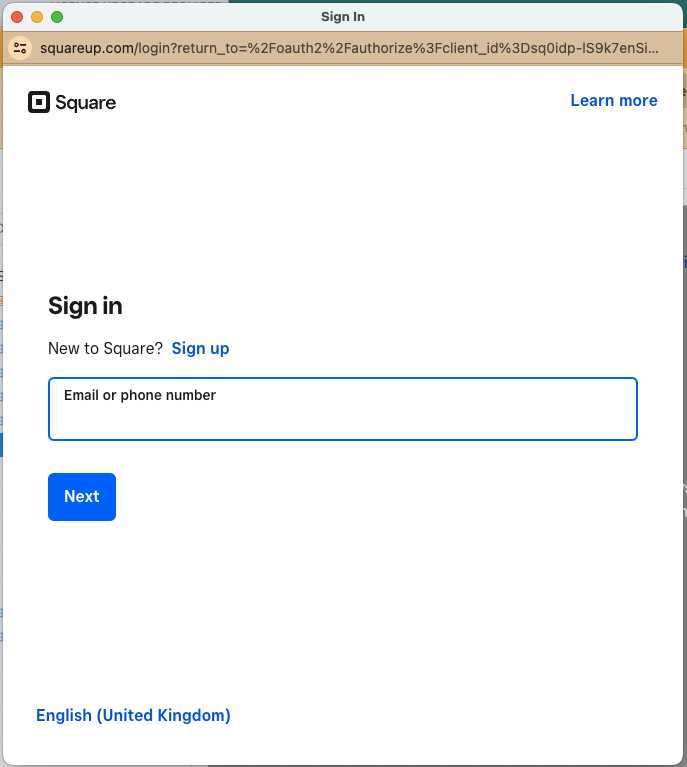
You will be prompted with a login screen. Log in to your Square account.
-
You will be prompted to grant access for “Payments” to submit payments on your behalf. Select Allow.
-
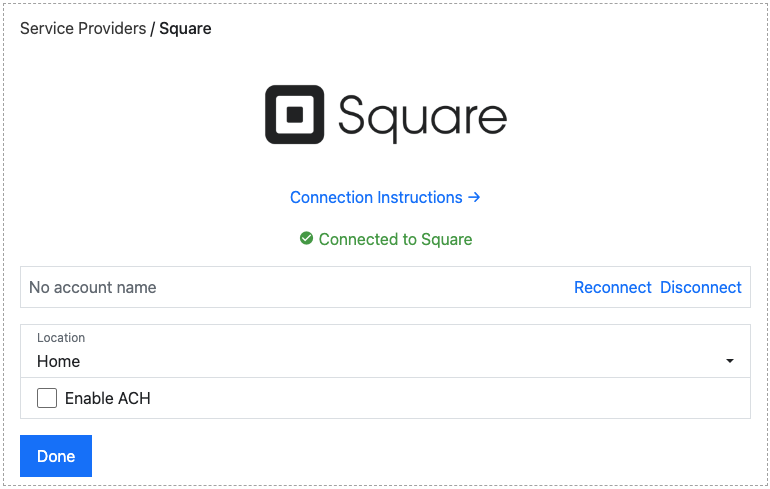
When you are returned to the app, the connection is tested and you are shown a green “Connected to Square” message. If there is an error with the connection, use the Reconnect button — but take care to connect to the same account, otherwise saved payment methods and refunds will return an error message.
Connection options
Section titled “Connection options”Our integration with Square offers several options:
-
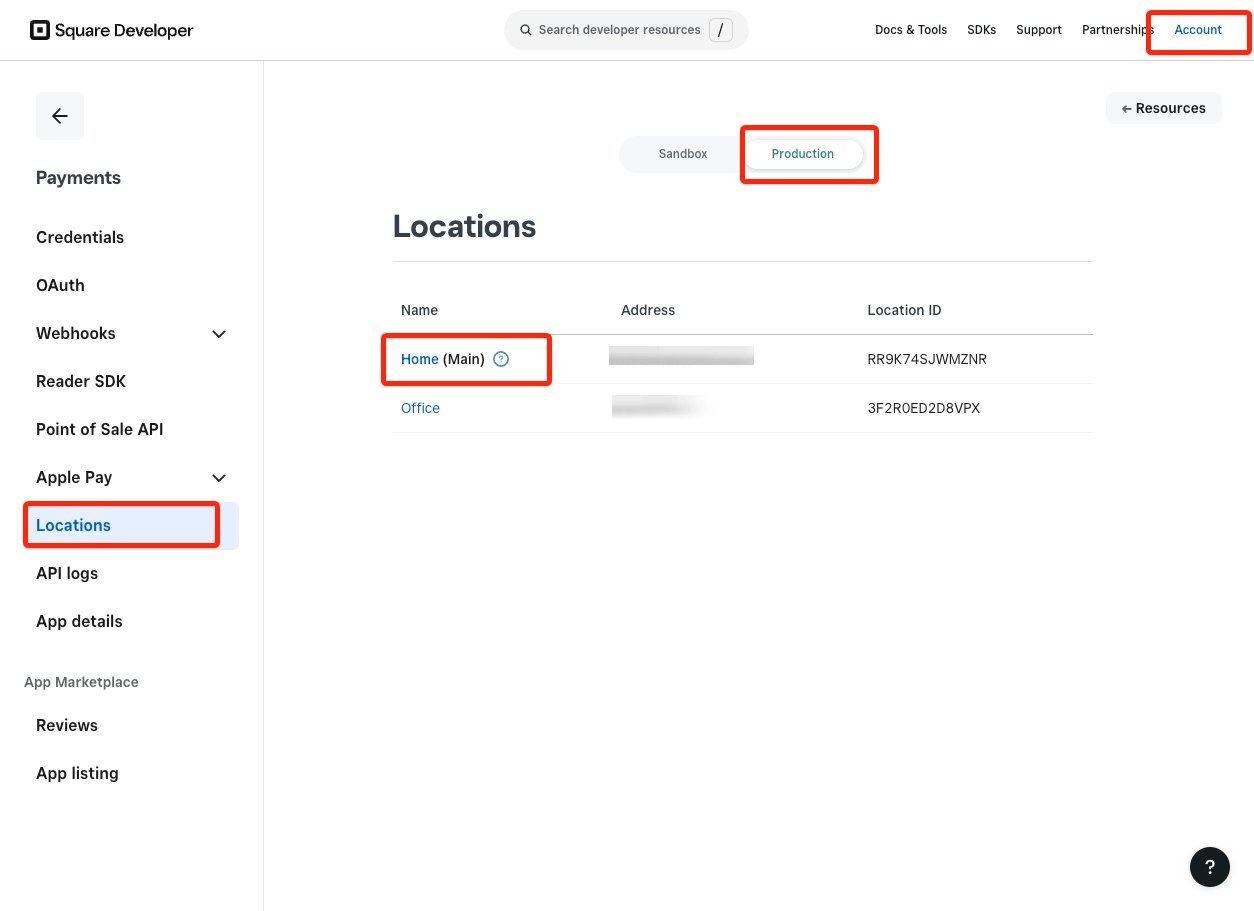
Location: Select the location you want payments taken against. You can check your locations in Account → Locations → Production.
-
Enable ACH: Enables ACH as a payment method. You must also enable this option on Square. Shown only when your Square account takes USD.
-
Enable order creation for all payments: Creates a Square order for every payment, so payments appear against an order in Square. Without it, an order is created only when the payment includes line items.
-
Use Square Risk Manager for 3D Secure: Lets the 3D Secure rules in Square Risk Manager decide when to authenticate a card payment. Only turn this on once you have created a Require 3D Secure rule in your Square Dashboard. With it off, the integration requests 3D Secure verification on every card payment the customer makes online (MOTO payments taken over the phone are excluded).
-
Skip receipt on POS: Skips the receipt screen on the Square point-of-sale app. Shown only where Square terminal (point of sale) acceptance is enabled; that is a platform-level setting, not a per-connection option.
Sandbox users
Section titled “Sandbox users”Users connecting to Square in a sandbox environment will see the following error message, as they have a slightly different process.

To connect a sandbox account:
-
Log into the Square Developer portal: developer.squareup.com.
-
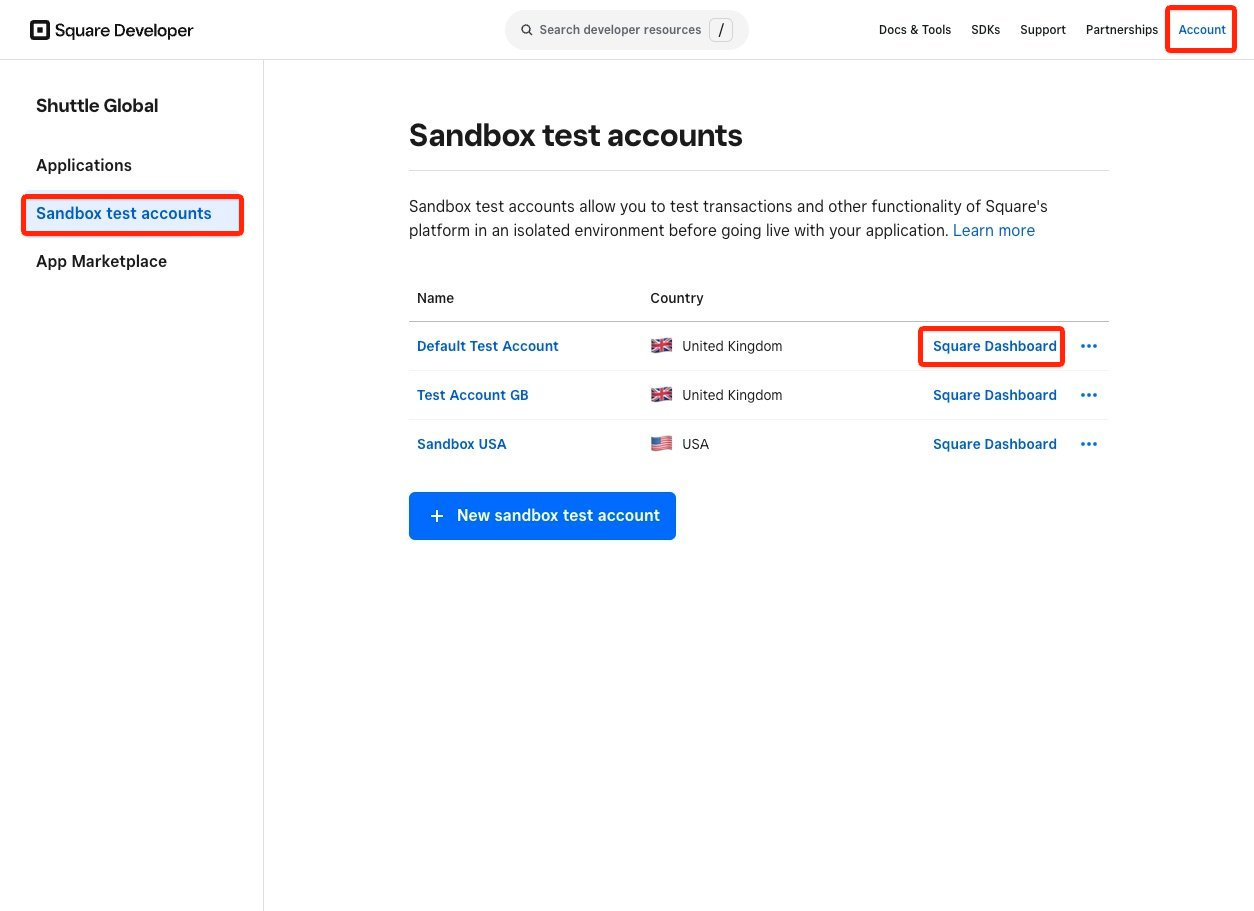
Select (or create) a Sandbox test account via Account → Sandbox Test Accounts → + New sandbox test account.
-
Select Square Dashboard for the account you want to connect to. You must do this in the same browser that you will use to connect to Square, as this process drops a cookie on your browser.
-
Go through the OAuth process. You will not be required to sign in to Square again.
Was this page helpful?
What went wrong?
Thanks for telling us.