
Connecting Kount
To set up Kount, complete the following steps.
Step 1 — Obtain your Kount credentials
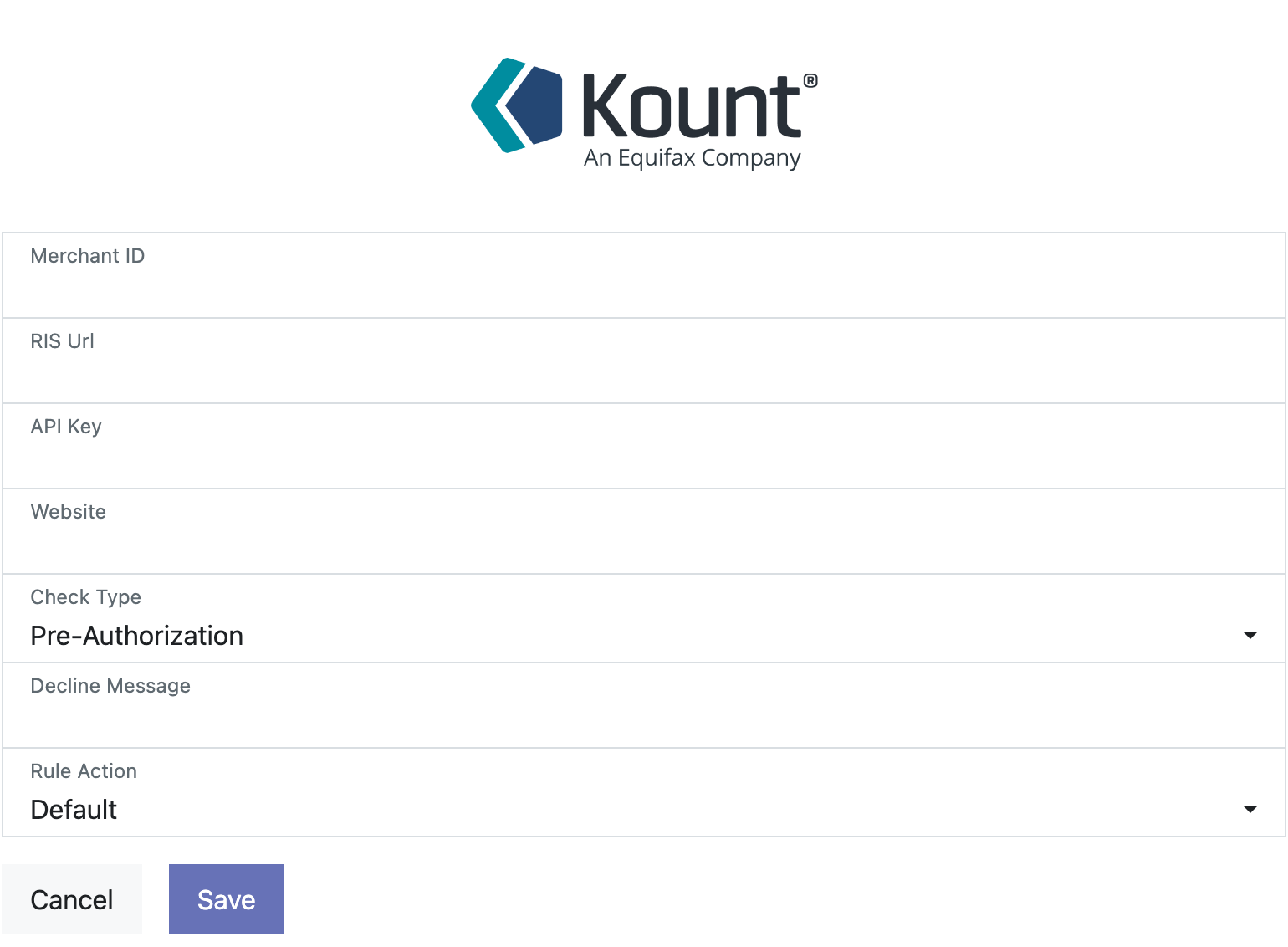
Section titled “Step 1 — Obtain your Kount credentials”To use Kount directly in Enterprise mode, you need credentials from Kount. These are provided by Kount directly to the customer using their services. Once you have them, enter them on the connector screen to establish the connection.
If you are using Kount through a software vendor or third-party integration, your software vendor supplies the credentials instead.
The connector form captures your Merchant ID, RIS URL, API Key, and Website, along with a Check Type (for example Pre-Authorization), a Decline Message, and a Rule Action.
Step 2 — Enable Kount per payment method
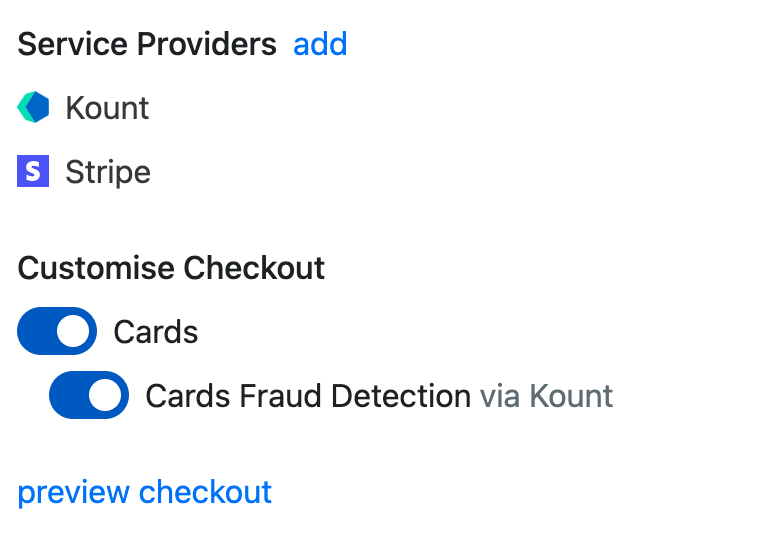
Section titled “Step 2 — Enable Kount per payment method”Use the sliders in the checkout settings to enable Kount fraud protection for each payment method individually. Once enabled, you’re ready to take payments.
Where Kount applies
Section titled “Where Kount applies”Kount screening only displays for Card, SEPA, and ACH payments. It does not apply to:
- Any hosted process (for example GoCardless, Mollie, PayPal, Klarna)
- Hosted card processes (for example Transbank)
- Hosted ACH processes (for example the Stripe ACH / open-banking upgrade)
- Hosted SEPA processes (for example Mollie)
- Integrated iframe payment processes (for example a PayPal cards form inside their iframe)
Was this page helpful?
What went wrong?
Thanks for telling us.