
Connecting FreedomPay
Connecting to FreedomPay uses API credentials issued from your FreedomPay Enterprise account. To connect you will need the following information:
- Enterprise Code — provided to you by FreedomPay
- ES Key (Enhanced Security Key) — generated in the FreedomPay Enterprise portal
- RSA Key Slot ID
- Store ID / Terminal ID
The integration communicates with the following FreedomPay services:
| Environment | Endpoints |
|---|---|
| Sandbox | https://cs.uat.freedompay.com/Freeway/Service.asmxhttps://enterprise-services.uat.freedompay.com/dmpservice/api/v3/keys |
| Live | https://cs12.freedompay.us/Freeway/Service.asmxhttps://enterprise-services.freedompay.com/dmpservice/api/v3/keys |
Generating your ES Key
Section titled “Generating your ES Key”-
Log into the FreedomPay Enterprise portal using your Enterprise Code. Use the Live portal (
https://enterprise.freedompay.com/) for production, or the Sandbox portal (https://enterprise.uat.freedompay.com/) for testing. The Enterprise Code is the same code you enter in the gateway settings.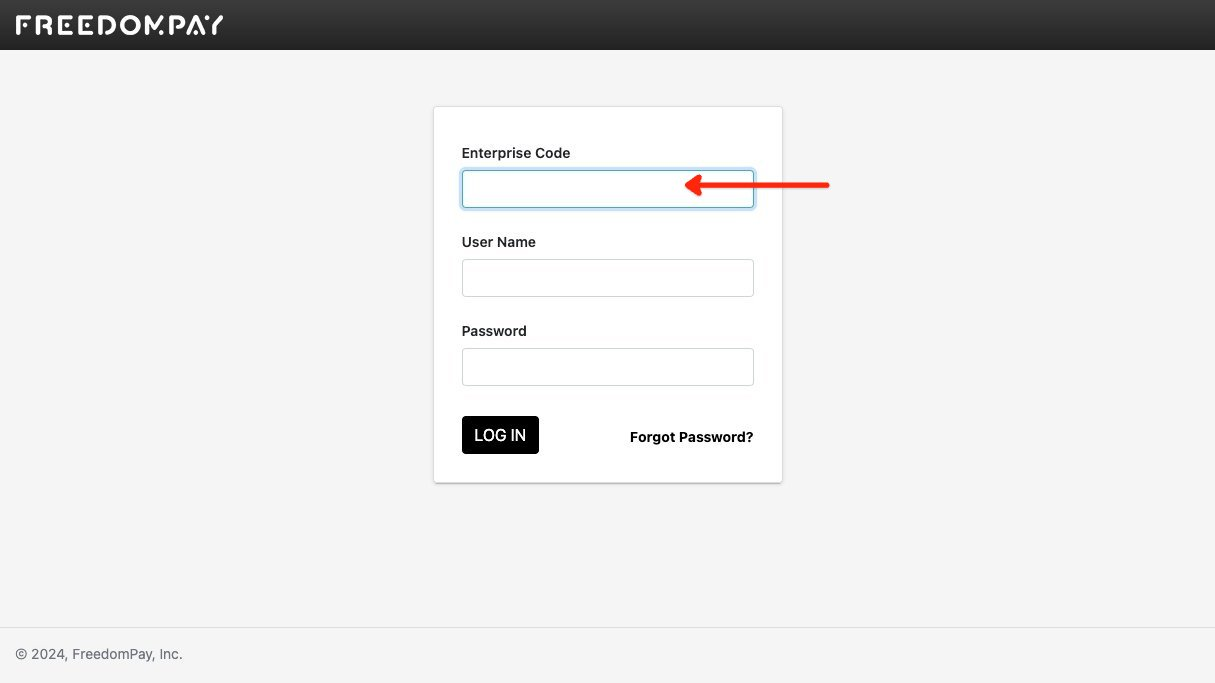
-
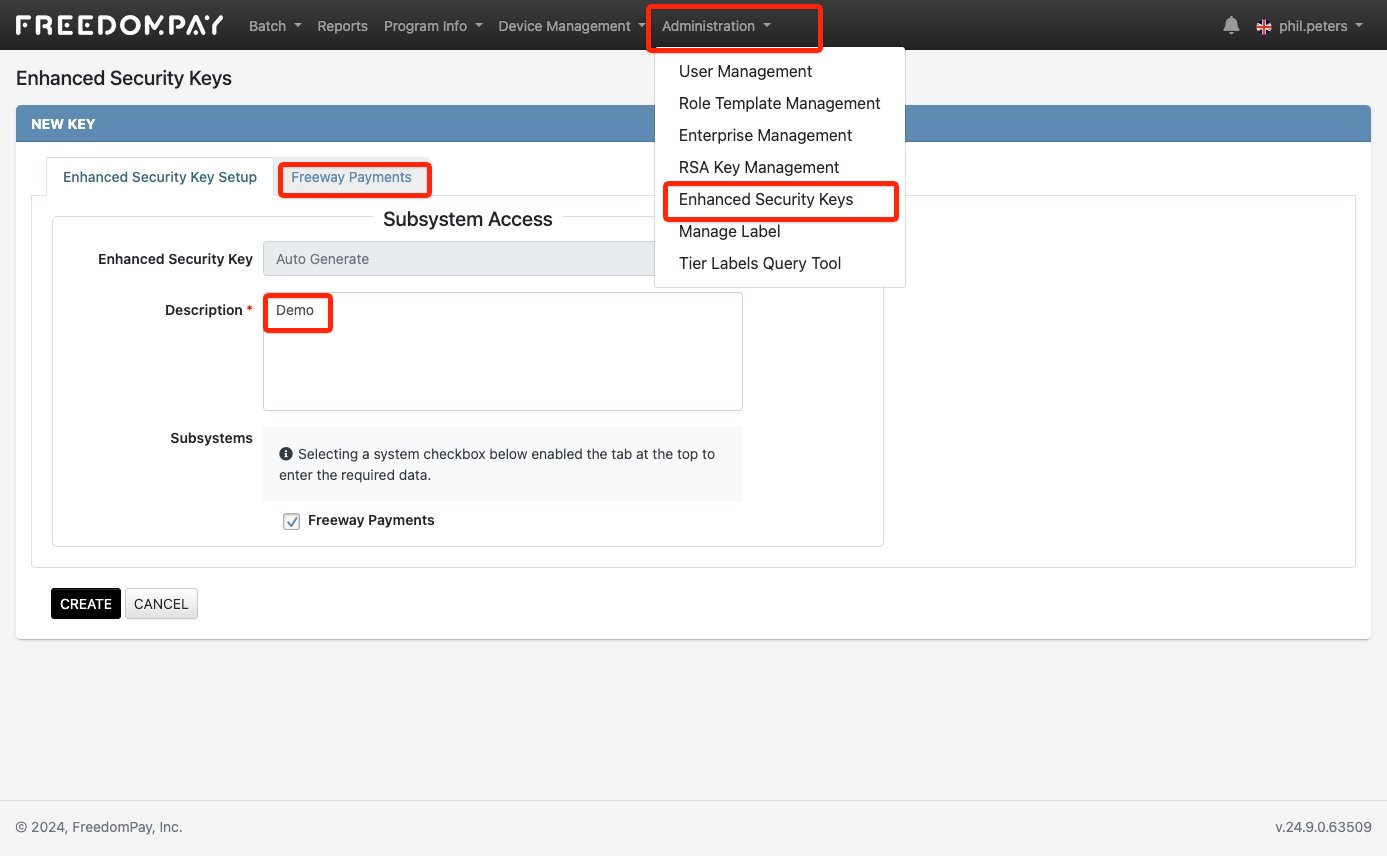
Navigate to Administration → Enhanced Security Keys and create a new key. Add a description that makes its purpose clear, for example “Shuttle”. Shuttle Global is the integration platform that connects your payment provider to the software you use to take payments. Select Freeway Payments and the appropriate share groups and stores (or all of them in UAT), then select Create.
-
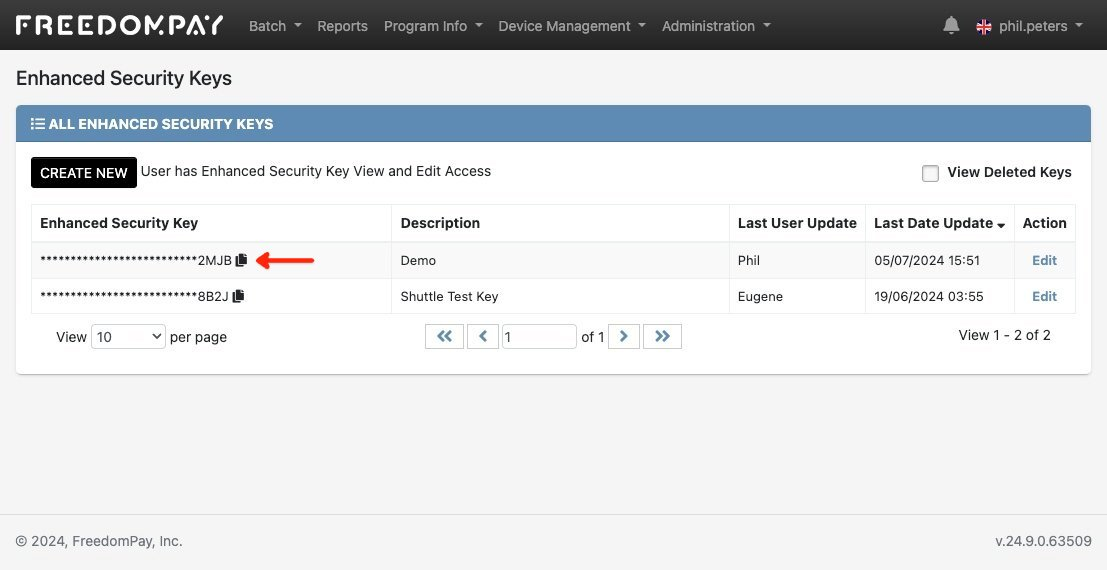
Copy your ES Key using the copy-to-clipboard icon next to the key.
Generating your RSA Key Slot ID
Section titled “Generating your RSA Key Slot ID”-
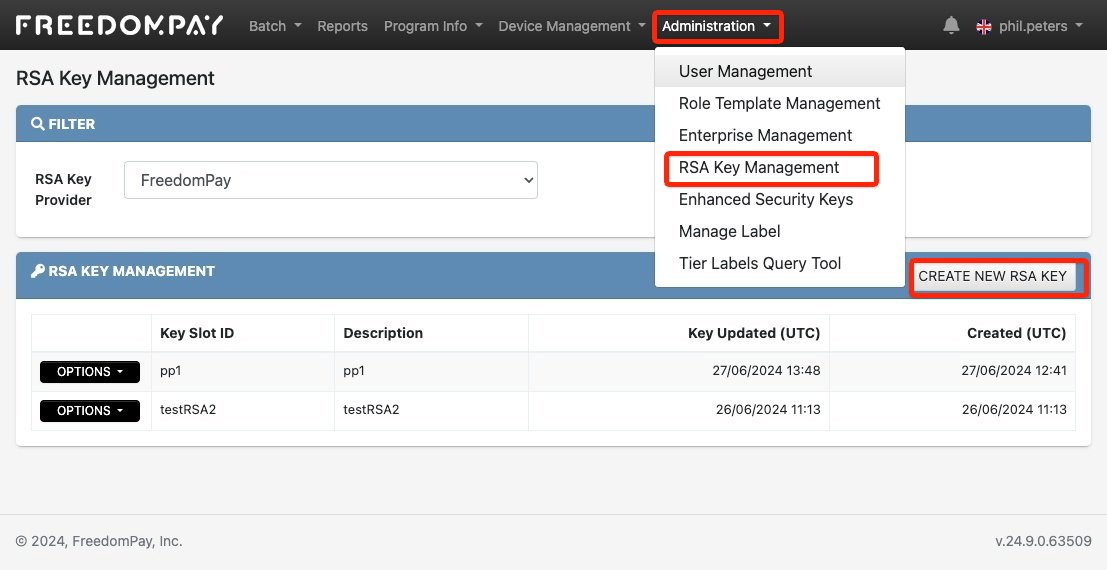
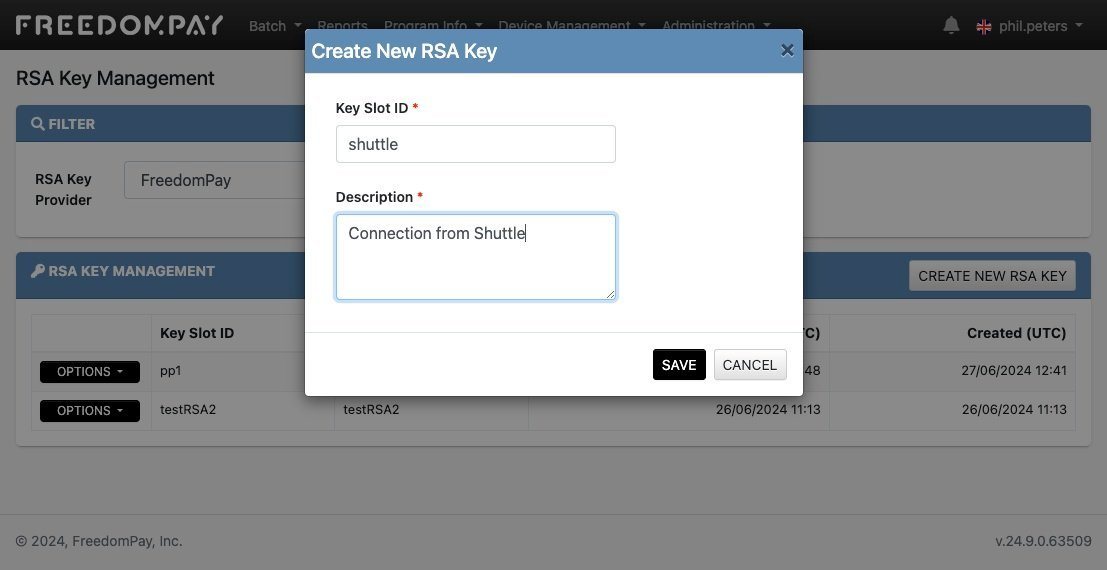
Navigate to Administration → RSA Key Management → Create New RSA Key.
-
You will be prompted to create a Key Slot ID — this is the RSA Key Slot ID that the integration requires. Use a label that makes its purpose clear, for example “shuttle”.
Store IDs, Terminal IDs, and AVS
Section titled “Store IDs, Terminal IDs, and AVS”You will also need your Store ID / Terminal IDs. You will typically have a different pair for MOTO (staff-entered) and e-commerce (customer-entered) transactions. If you are using merchant-initiated transactions (such as scheduled payments), you can choose which Store ID / Terminal ID to use.
Each of MOTO and e-commerce prompts you for the address verification (AVS) rule to apply:
- Disabled — AVS is not performed.
- Zip Only — only the postcode / ZIP is validated.
- Full Address — the customer must enter their full address.
Contact FreedomPay for the appropriate Store ID, Terminal ID, and AVS configuration to use.
Configuring the gateway settings
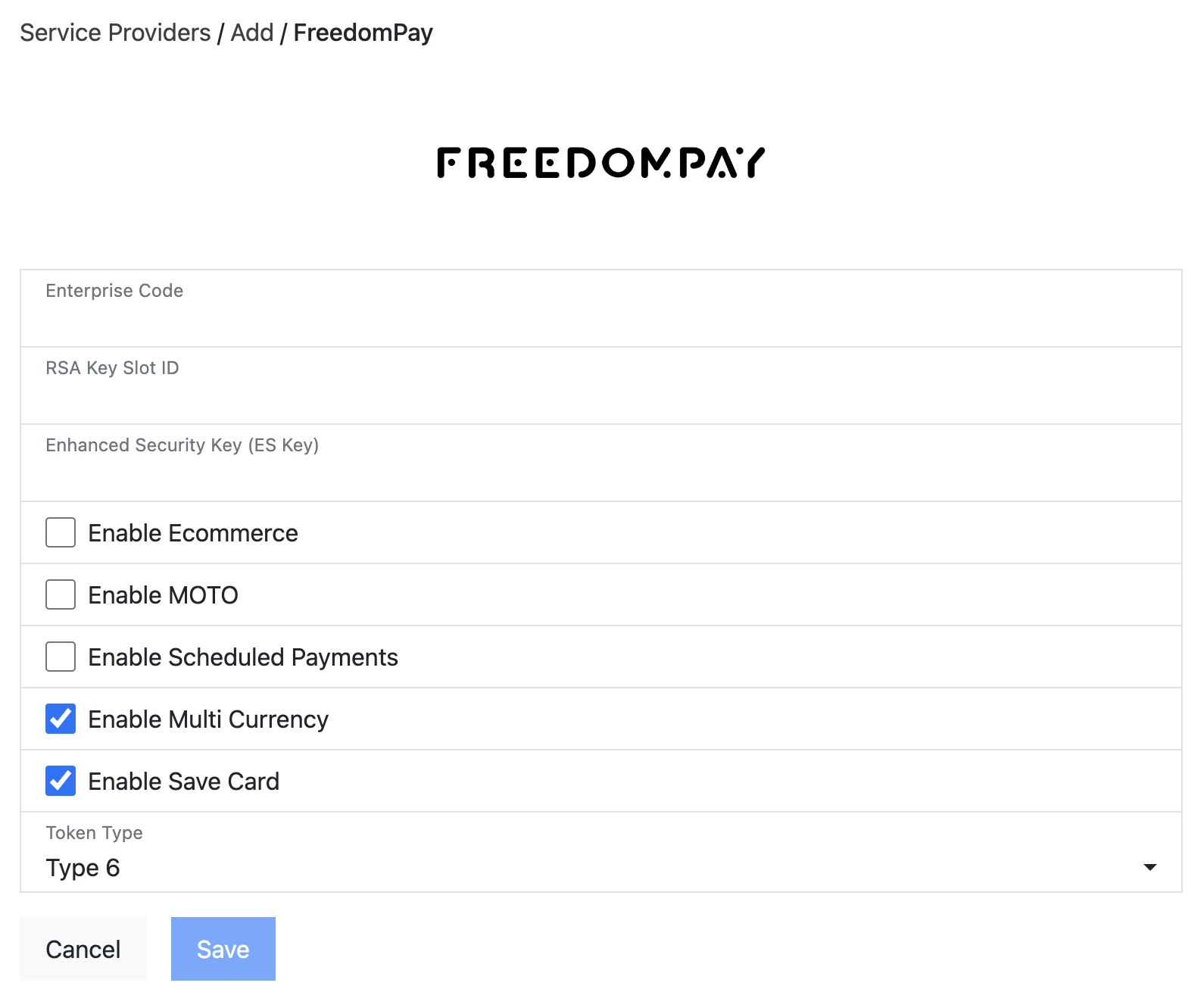
Section titled “Configuring the gateway settings”Enter your FreedomPay details in the gateway settings:
- Enterprise Code — from the ES Key step above.
- RSA Key Slot ID — from the RSA Key step above.
- Enhanced Security Key (ES Key) — from the ES Key step above.
- Enable Ecommerce — select if the customer pays via a web page or mobile app.
- Enable MOTO — select if the customer pays via phone (IVR or call centre).
- Enable Scheduled Payments — select if you are configuring recurring or scheduled payments.
- Enable Multi Currency — select if you accept payments in more than one currency (this must also be configured on your FreedomPay account). Otherwise, select your single Currency.
- Enable Save Card — select to let customers save (tokenise) their card for later use without re-entry.
- Token Type — the type of saved-card token to use. Defaults to Type 6; check with FreedomPay which type your account is set up for.
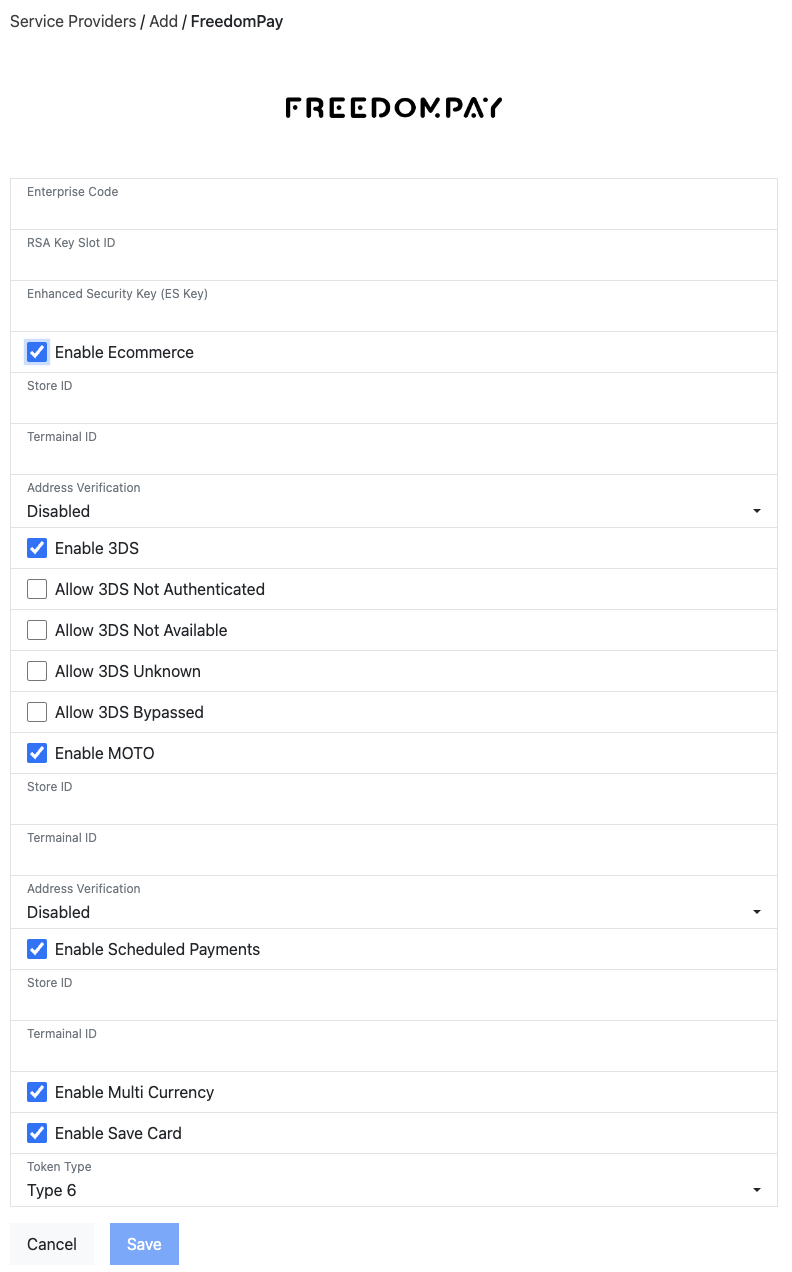
When you expand the options, the full set is as follows:
- Ecommerce
- Store ID / Terminal ID — as supplied by FreedomPay.
- Address Verification — match the configuration FreedomPay has set up so the correct data is collected and passed through.
- Enable 3DS — match the configuration FreedomPay has set up so 3DS is prompted when required.
- Allow 3DS Not Authenticated / Not Available / Unknown / Bypassed — submit these transactions for processing. Note that you will not have 3DS protection on them.
- Security Overrides — with Allow Old Browsers and Disable ReCaptcha beneath it. Leave these off unless FreedomPay asks you to change them.
- MOTO
- Store ID / Terminal ID — as supplied by FreedomPay.
- Address Verification — match the configuration FreedomPay has set up.
- Scheduled Payments
- Store ID / Terminal ID — as supplied by FreedomPay (typically the same as e-commerce).
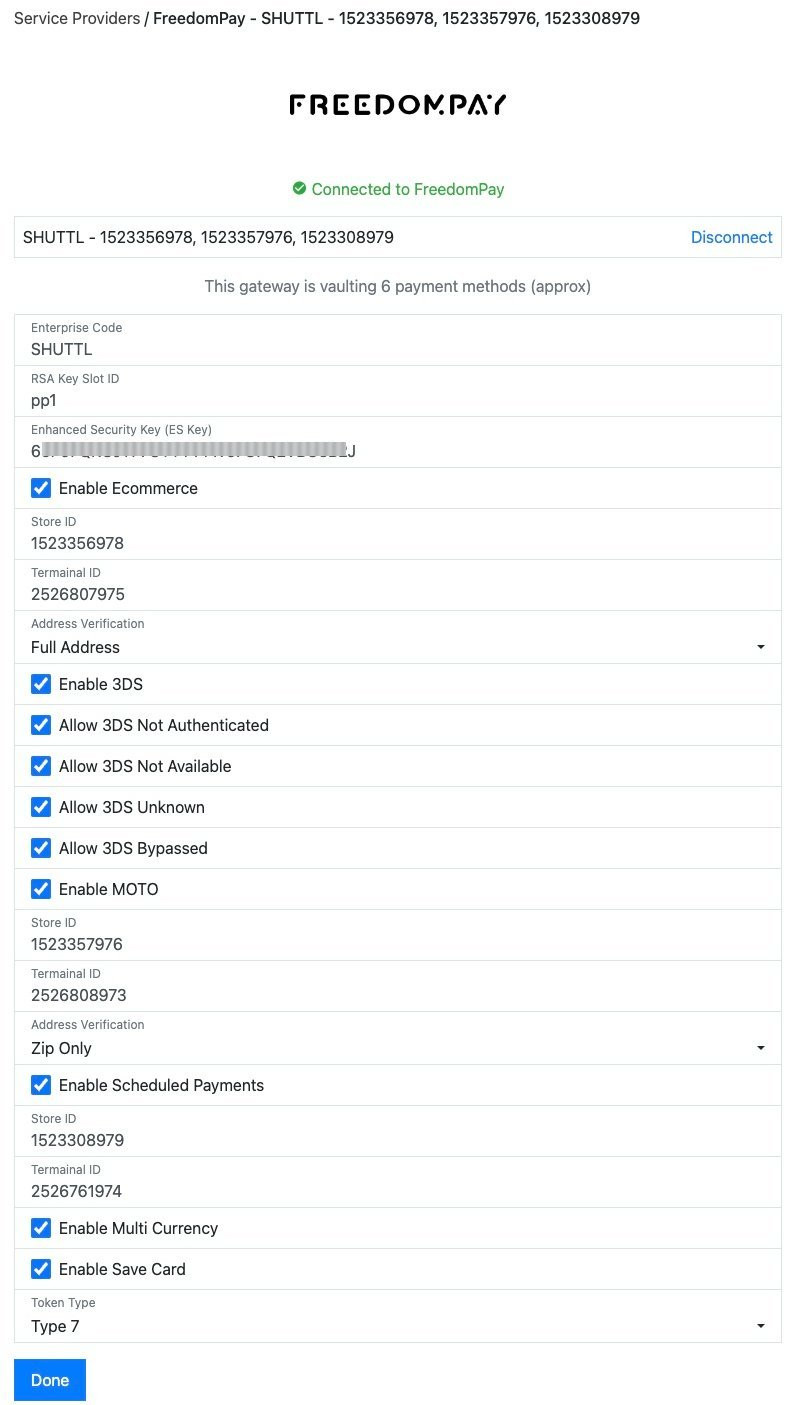
When you save the configuration, the connection to FreedomPay is tested and a green “Connected to FreedomPay” message confirms the connection was established.
Was this page helpful?
What went wrong?
Thanks for telling us.