# Connecting FreedomPay
> Connecting to FreedomPay uses API credentials issued from your FreedomPay Enterprise account. To connect you will need the following information:
Connecting to FreedomPay uses API credentials issued from your FreedomPay
Enterprise account. To connect you will need the following information:
- **Enterprise Code** — provided to you by FreedomPay
- **ES Key** (Enhanced Security Key) — generated in the FreedomPay Enterprise portal
- **RSA Key Slot ID**
- **Store ID / Terminal ID**
The integration communicates with the following FreedomPay services:
| Environment | Endpoints |
| ----------- | --------- |
| **Sandbox** | `https://cs.uat.freedompay.com/Freeway/Service.asmx`
`https://enterprise-services.uat.freedompay.com/dmpservice/api/v3/keys` |
| **Live** | `https://cs12.freedompay.us/Freeway/Service.asmx`
`https://enterprise-services.freedompay.com/dmpservice/api/v3/keys` |
:::note[Tip]
For UAT and testing you can use the sandbox credentials listed in
[UAT Credentials](/payment-providers/freedompay-uat-credentials/).
:::
## Generating your ES Key
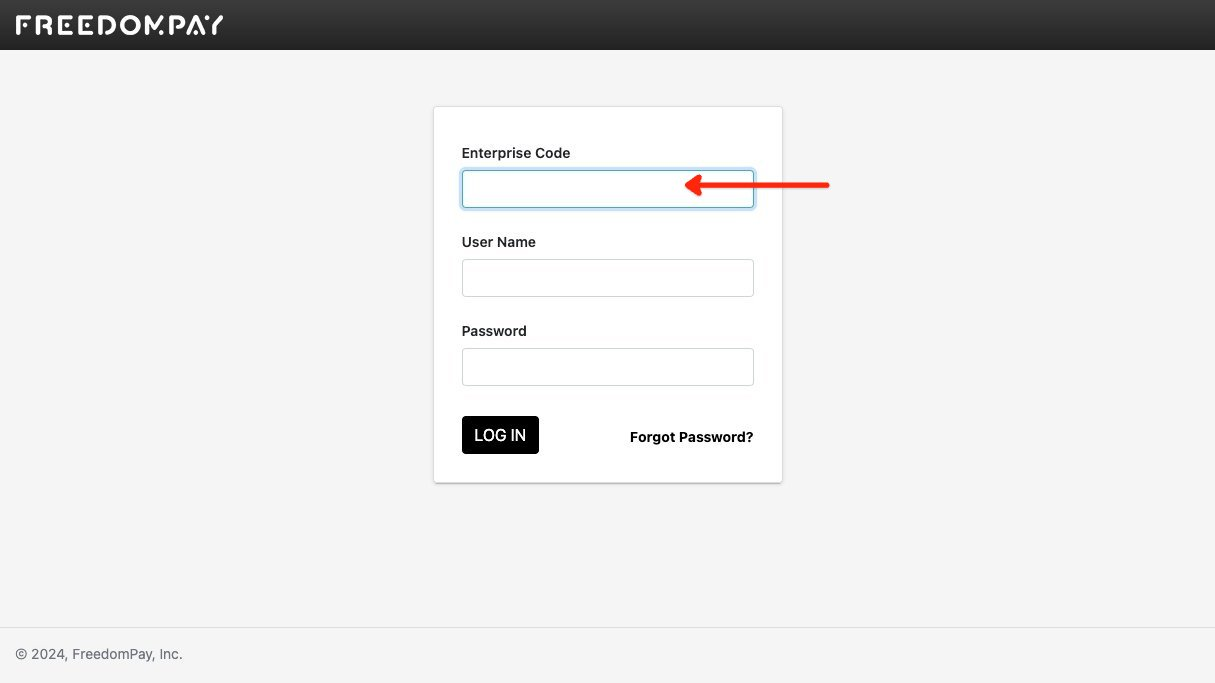
1. Log into the FreedomPay Enterprise portal using your Enterprise Code. Use the
**Live** portal (`https://enterprise.freedompay.com/`) for production, or the
**Sandbox** portal (`https://enterprise.uat.freedompay.com/`) for testing. The
Enterprise Code is the same code you enter in the gateway settings.
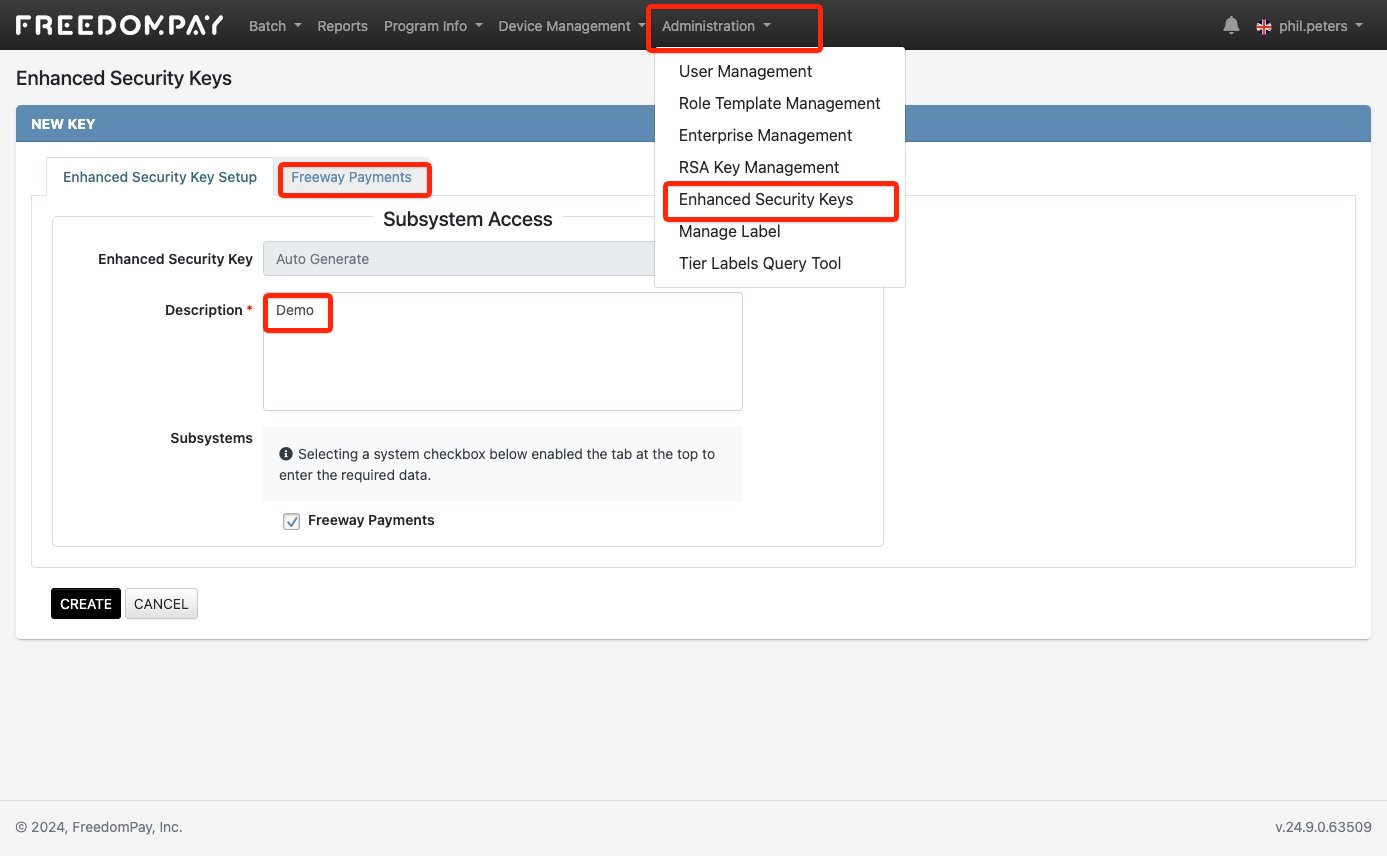
2. Navigate to **Administration → Enhanced Security Keys** and create a new key.
Add a description that makes its purpose clear, for example "Shuttle". Shuttle Global is the integration platform that connects your payment provider to the software you use to take payments. Select
**Freeway Payments** and the appropriate share groups and stores (or all of
them in UAT), then select **Create**.
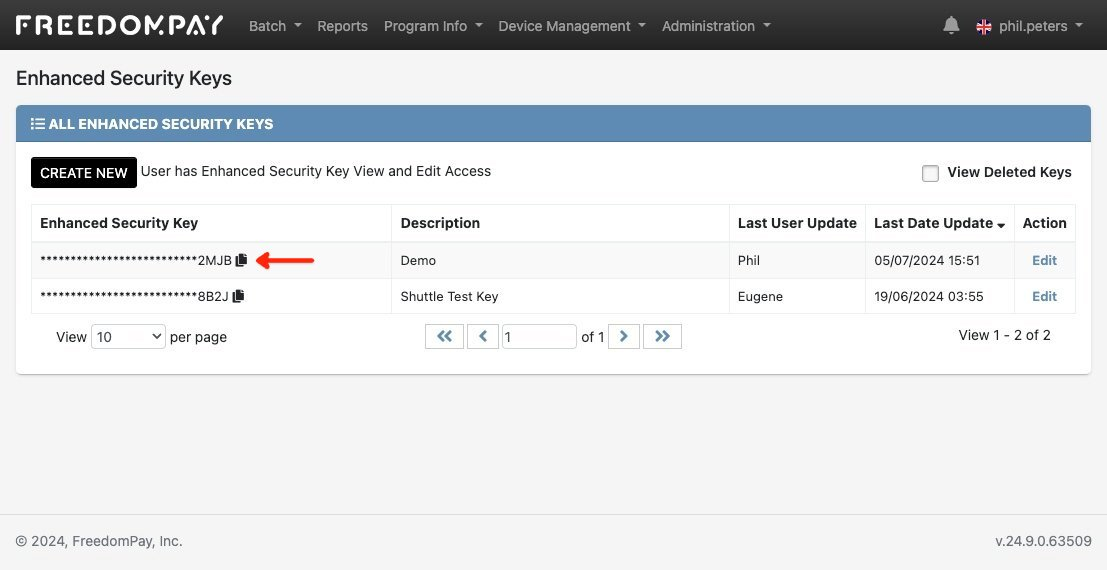
3. Copy your ES Key using the copy-to-clipboard icon next to the key.
## Generating your RSA Key Slot ID
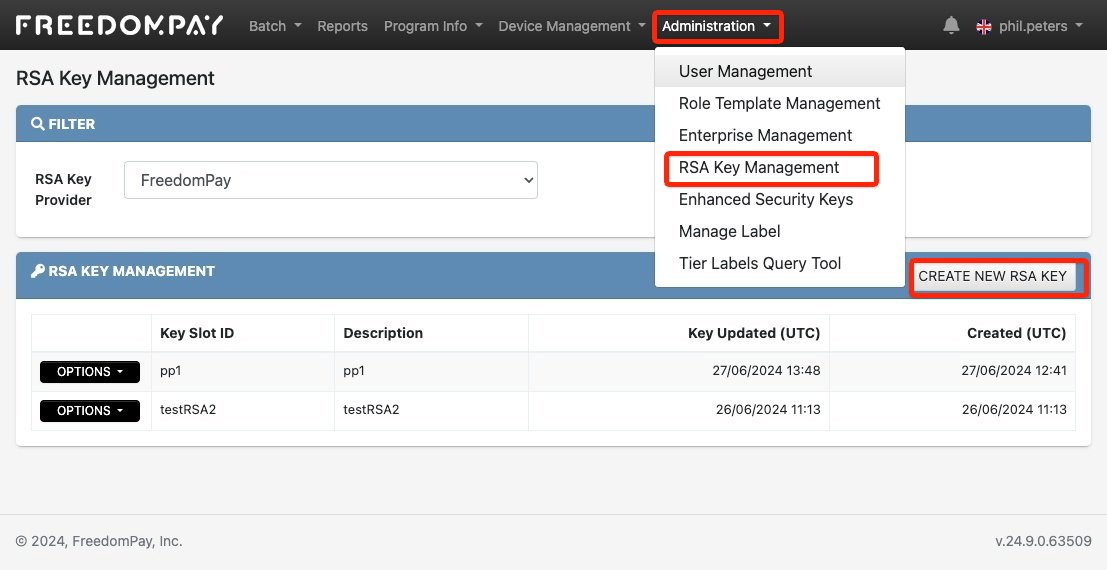
1. Navigate to **Administration → RSA Key Management → Create New RSA Key**.
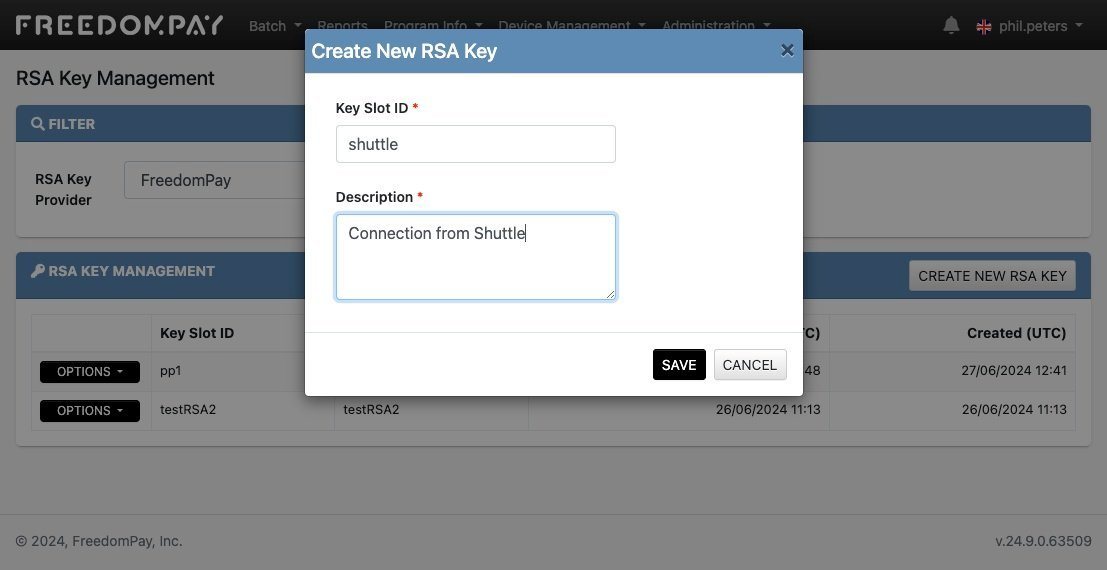
2. You will be prompted to create a **Key Slot ID** — this is the **RSA Key Slot
ID** that the integration requires. Use a label that makes its purpose clear, for
example "shuttle".
## Store IDs, Terminal IDs, and AVS
You will also need your **Store ID / Terminal IDs**. You will typically have a
different pair for MOTO (staff-entered) and e-commerce (customer-entered)
transactions. If you are using merchant-initiated transactions (such as scheduled
payments), you can choose which Store ID / Terminal ID to use.
Each of MOTO and e-commerce prompts you for the address verification (AVS) rule to
apply:
- **Disabled** — AVS is not performed.
- **Zip Only** — only the postcode / ZIP is validated.
- **Full Address** — the customer must enter their full address.
Contact FreedomPay for the appropriate Store ID, Terminal ID, and AVS
configuration to use.
:::note[Tip]
- To use **multi-currency**, ask FreedomPay to enable it on each of your Store
IDs. Otherwise, select a single currency, which applies to all transactions and
must match your FreedomPay configuration.
- To use **Save Card** across more than one Store ID, ask FreedomPay to configure
a **Share Group** that includes each Store ID used. Otherwise, saved cards fail
when accessed via another Store ID.
- Merchant-initiated (scheduled) transactions also require **Save Card** to be
enabled.
:::
## Configuring the gateway settings
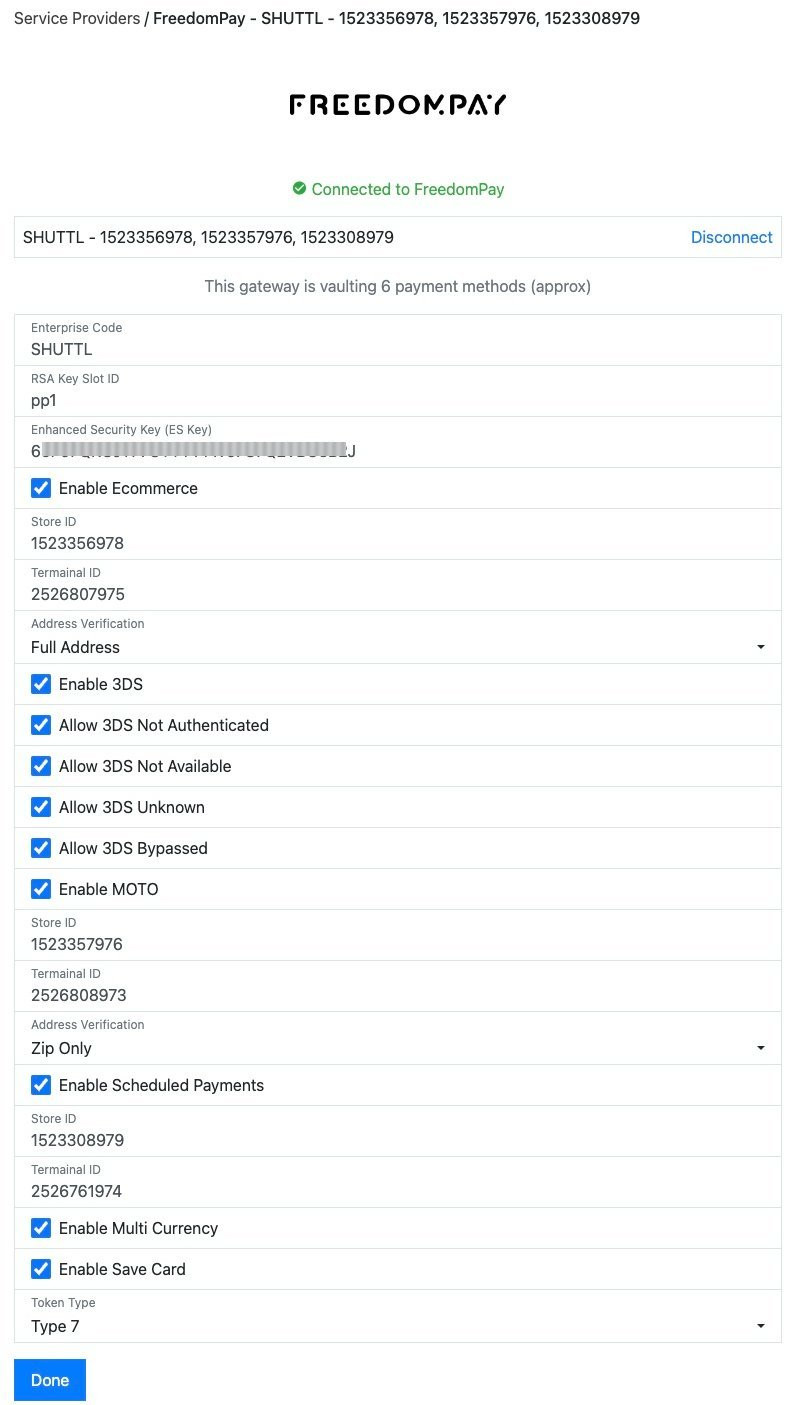
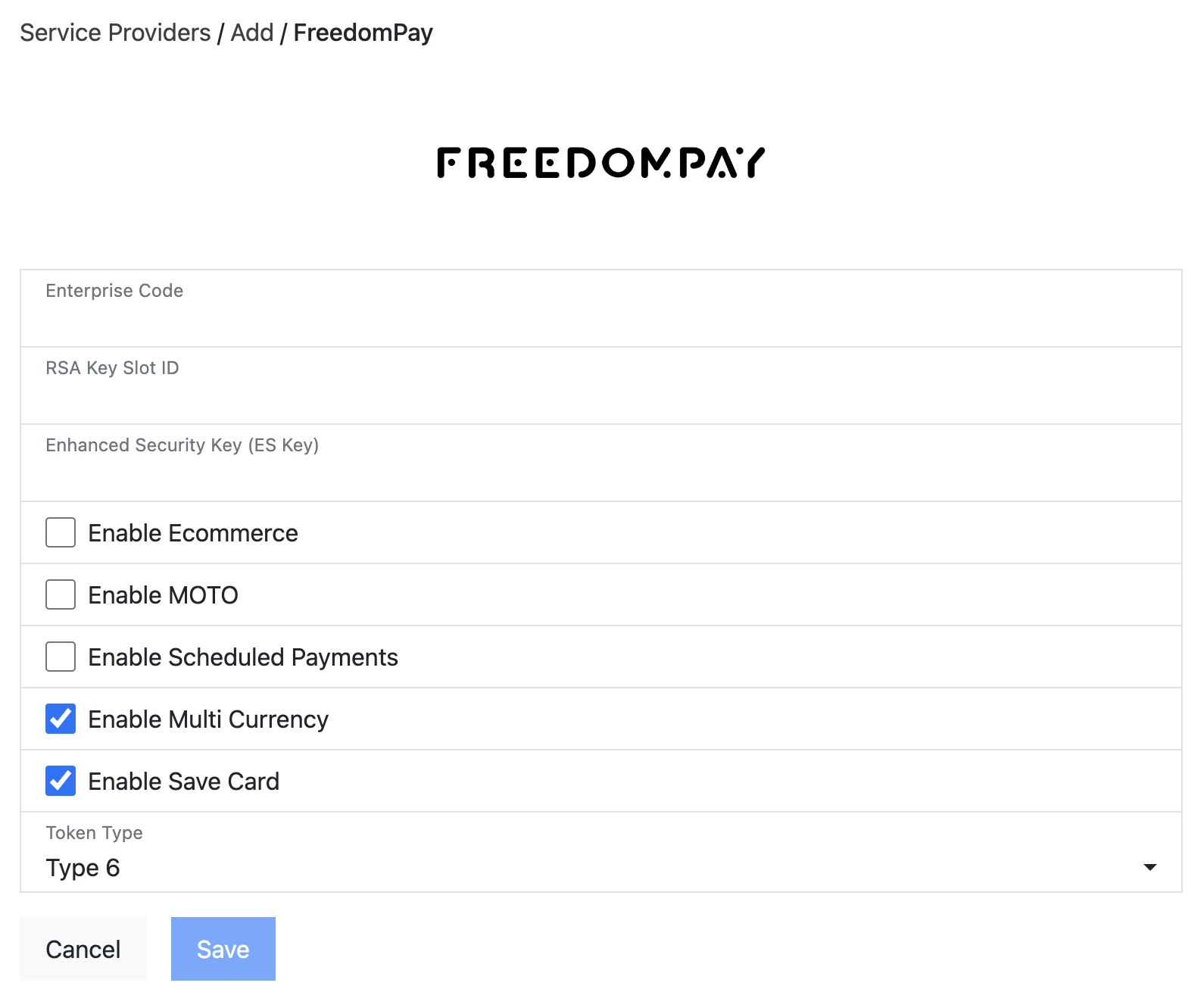
Enter your FreedomPay details in the gateway settings:
- **Enterprise Code** — from the ES Key step above.
- **RSA Key Slot ID** — from the RSA Key step above.
- **Enhanced Security Key (ES Key)** — from the ES Key step above.
- **Enable Ecommerce** — select if the customer pays via a web page or mobile app.
- **Enable MOTO** — select if the customer pays via phone (IVR or call centre).
- **Enable Scheduled Payments** — select if you are configuring recurring or
scheduled payments.
- **Enable Multi Currency** — select if you accept payments in more than one
currency (this must also be configured on your FreedomPay account). Otherwise,
select your single **Currency**.
- **Enable Save Card** — select to let customers save (tokenise) their card for
later use without re-entry.
- **Token Type** — the type of saved-card token to use. Defaults to **Type 6**;
check with FreedomPay which type your account is set up for.
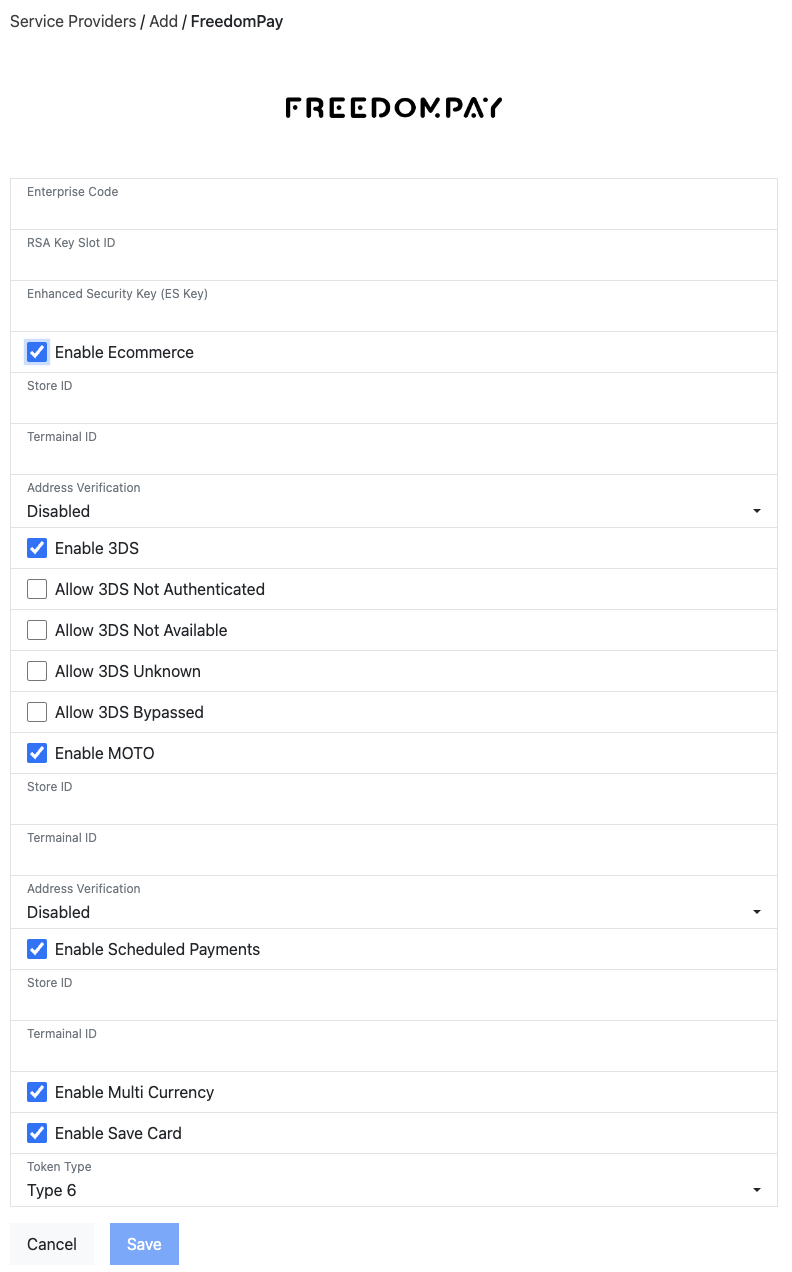
When you expand the options, the full set is as follows:
- **Ecommerce**
- **Store ID / Terminal ID** — as supplied by FreedomPay.
- **Address Verification** — match the configuration FreedomPay has set up so the
correct data is collected and passed through.
- **Enable 3DS** — match the configuration FreedomPay has set up so 3DS is
prompted when required.
- **Allow 3DS Not Authenticated / Not Available / Unknown / Bypassed** — submit
these transactions for processing. Note that you will not have 3DS protection
on them.
- **Security Overrides** — with **Allow Old Browsers** and **Disable ReCaptcha**
beneath it. Leave these off unless FreedomPay asks you to change them.
- **MOTO**
- **Store ID / Terminal ID** — as supplied by FreedomPay.
- **Address Verification** — match the configuration FreedomPay has set up.
- **Scheduled Payments**
- **Store ID / Terminal ID** — as supplied by FreedomPay (typically the same as
e-commerce).
When you save the configuration, the connection to FreedomPay is tested and a green
**"Connected to FreedomPay"** message confirms the connection was established.