
Connecting Xendit
Connecting to Xendit uses API credentials issued from your Xendit dashboard. You will need three values:
- Secret API Key
- Public API Key
- Webhook Verification Token
You can find these in your Xendit console under Account → Settings → API Keys (https://dashboard.xendit.co/login).
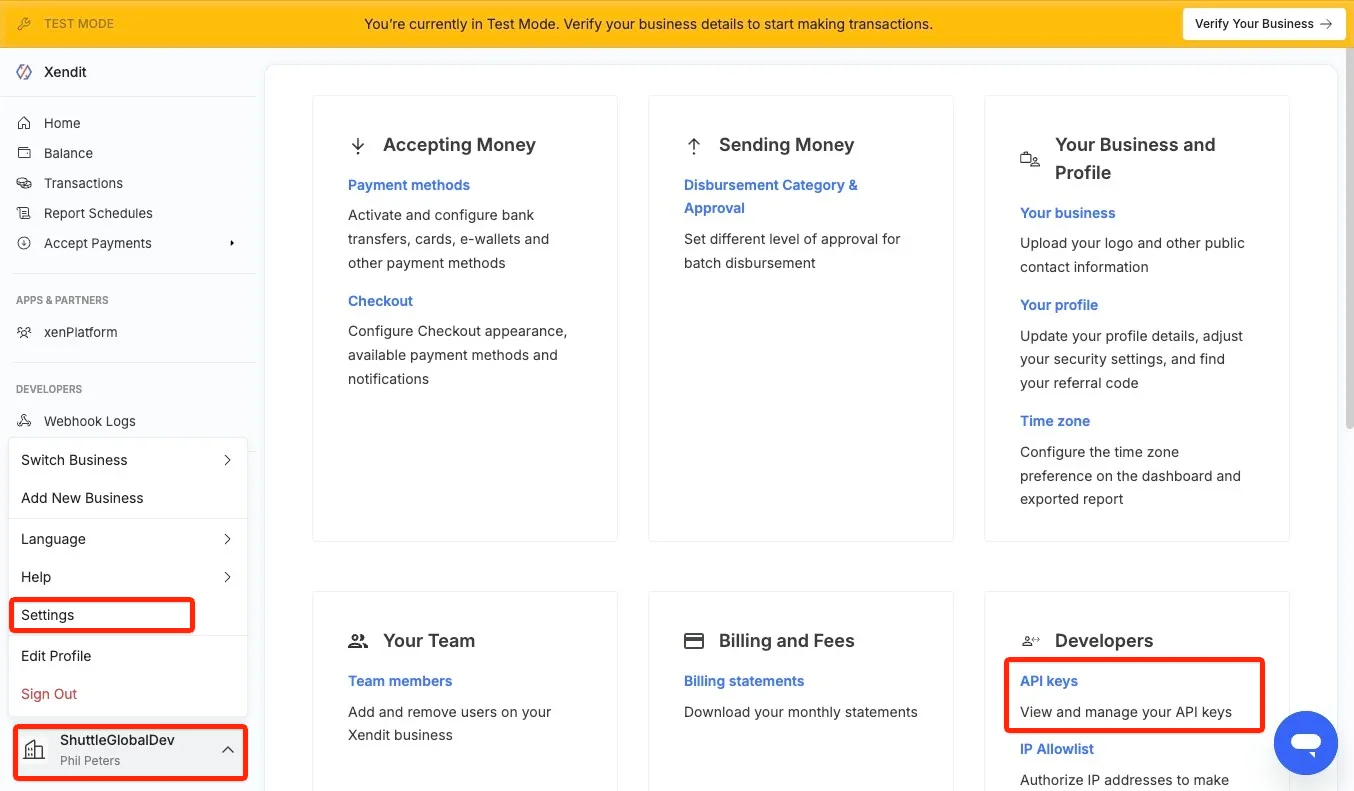
-
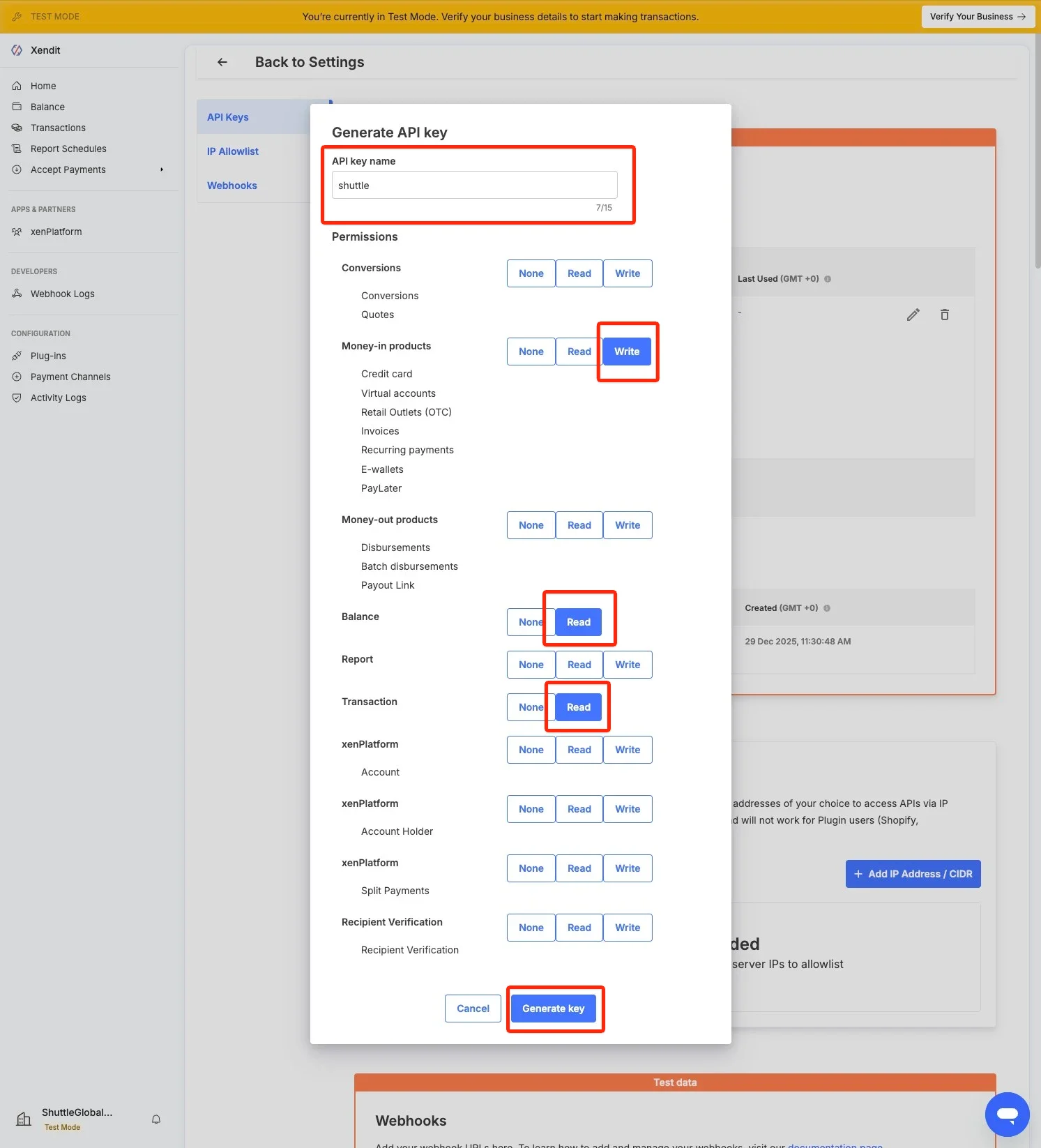
Note your Public Key, then select Generate Secret Key and create a key with:
- Name:
shuttle(or whatever you prefer) - Money-In products: Write
- Balance: Read
- Transaction: Read
Select Generate Key — you will be prompted for your MFA code.
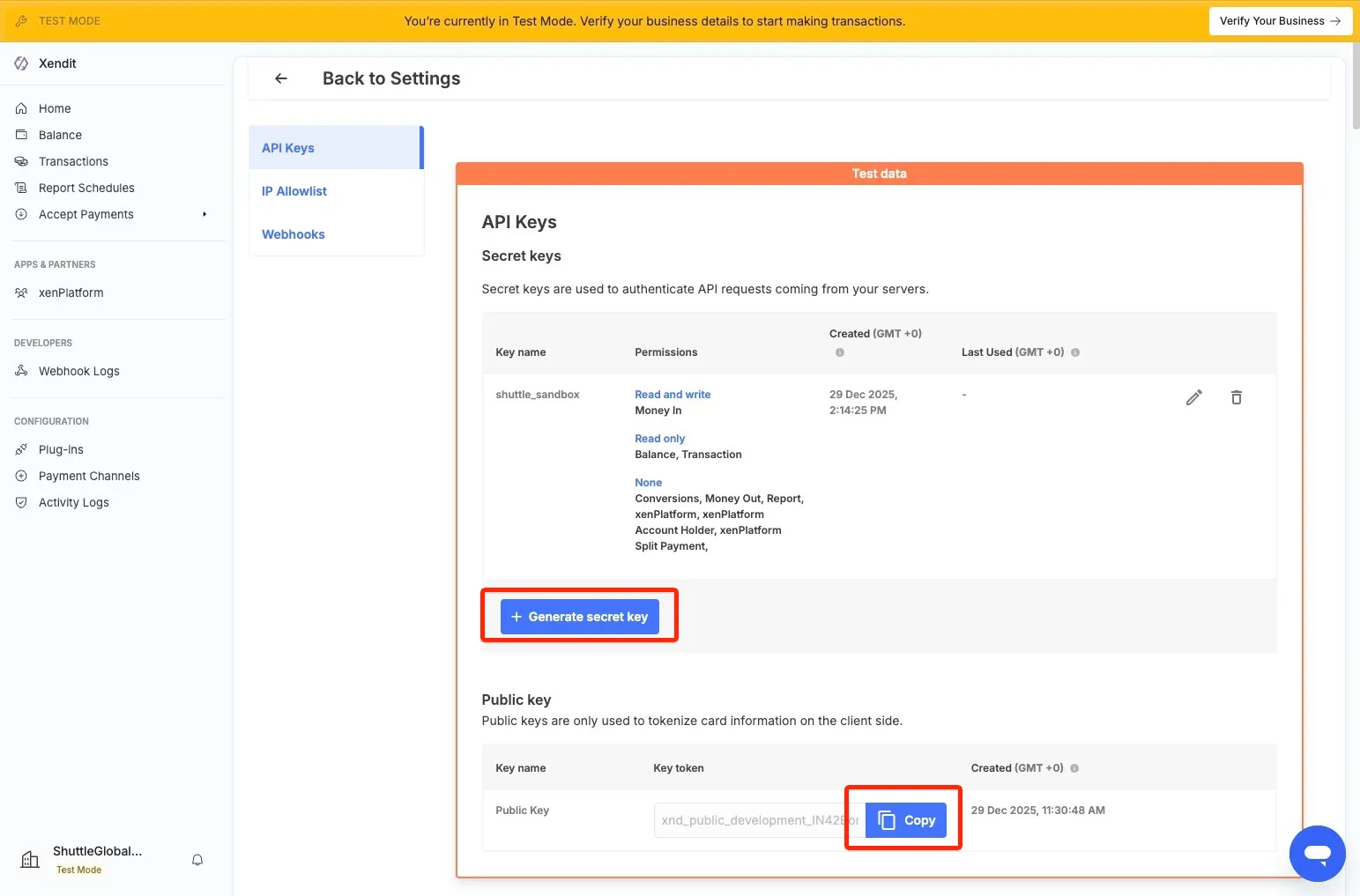
- Name:
-
The generated value is your Secret Key.
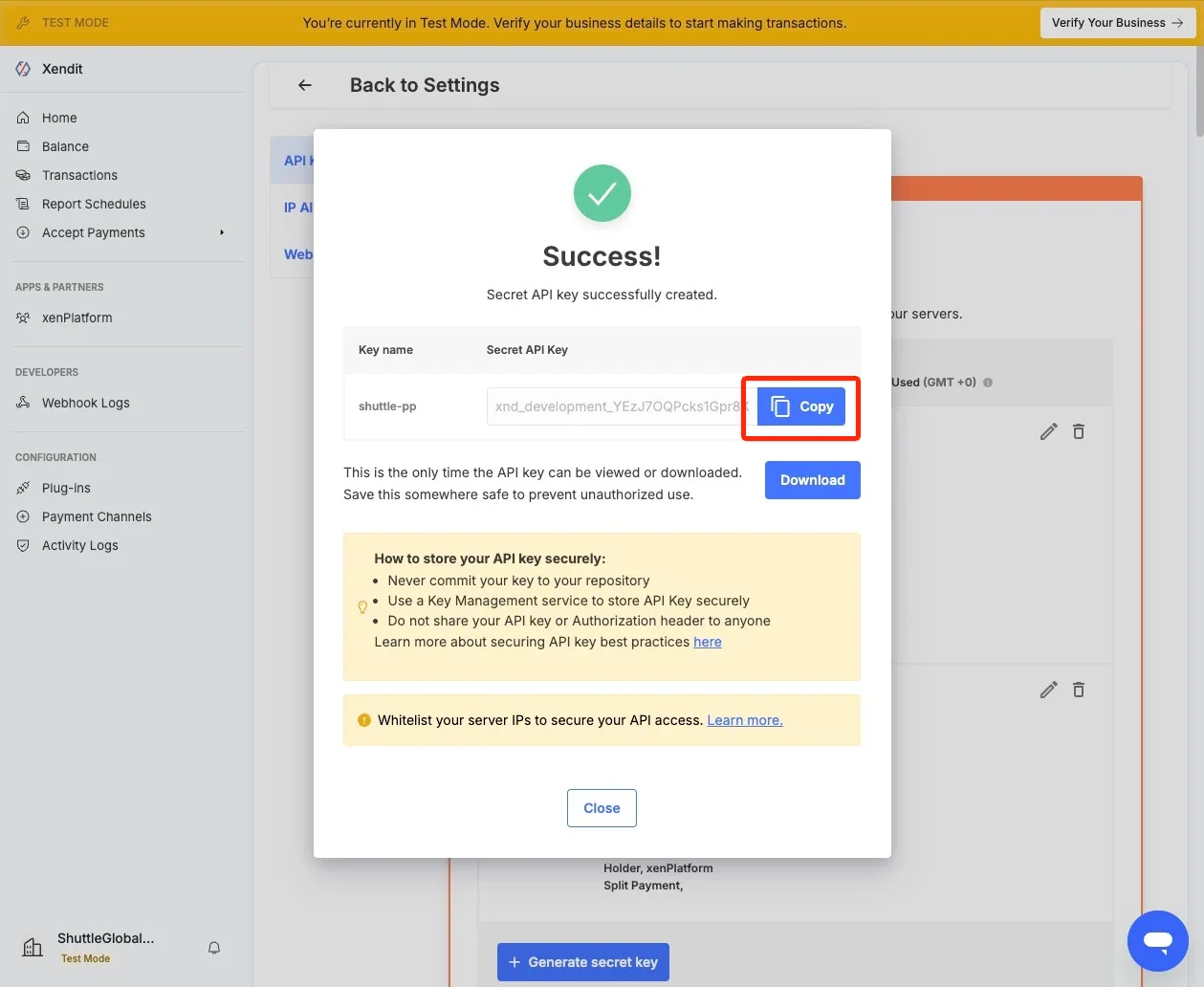
-
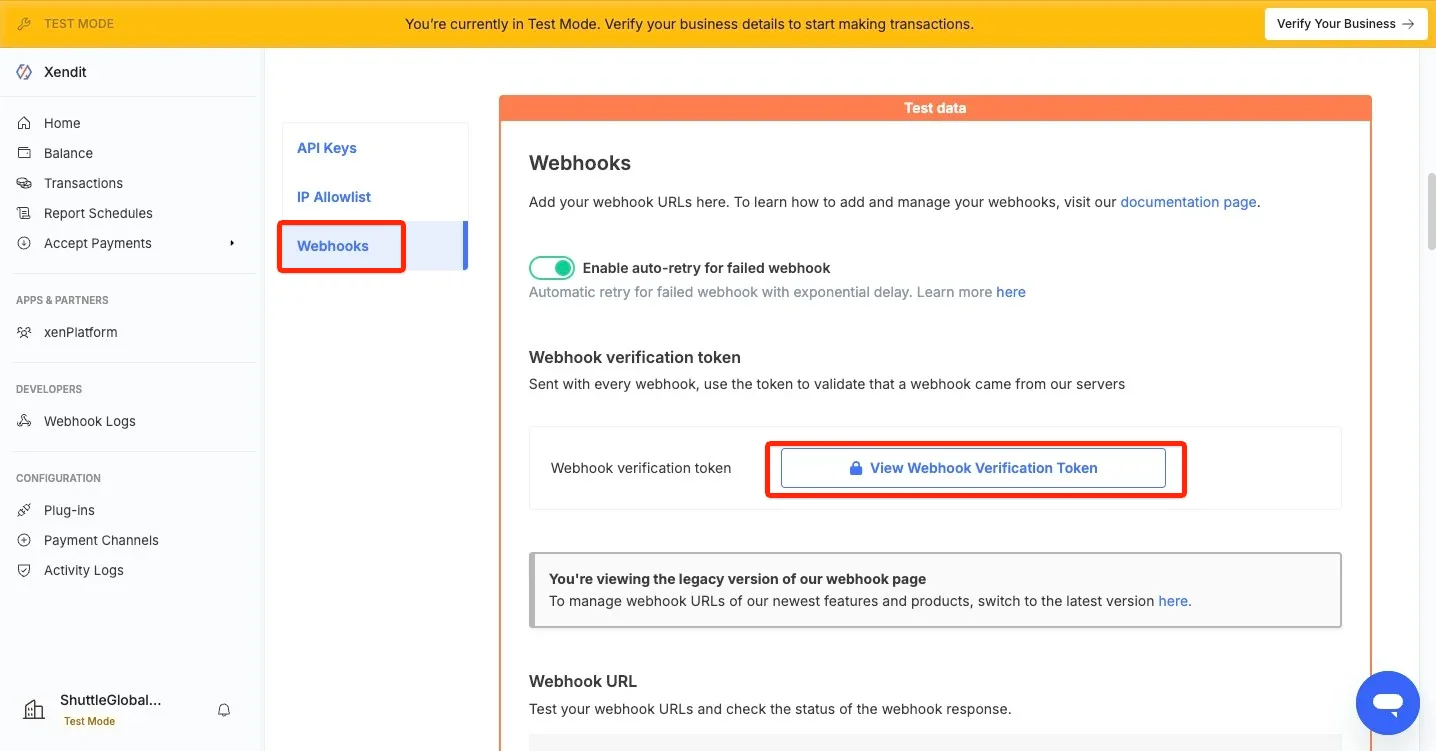
Select Webhooks, then View Webhook Verification Token, and note this value.
-
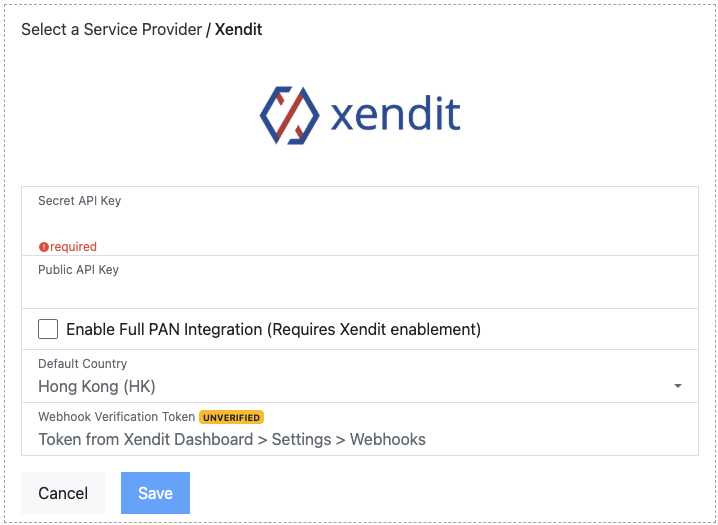
In the setup screen, enter the Secret API Key, Public API Key, and Webhook Verification Token, select your country, and select Save.
-
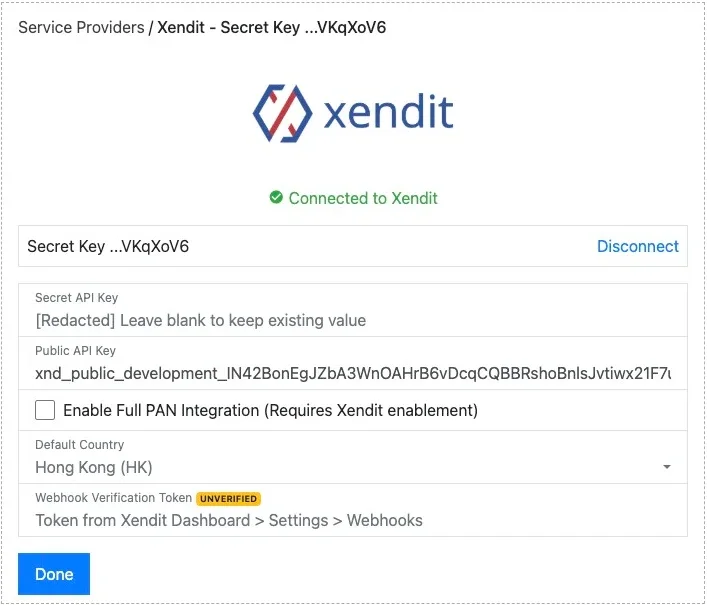
Once connected, you are shown a green “Connected to Xendit” message. The API Key is not displayed again.
Connection options
Section titled “Connection options”Our integration with Xendit offers the following options:
- Enable Full PAN Integration (Requires Xendit enablement): Sends full card
details to Xendit directly. Xendit must enable this feature on your account
before it can be used.
- Enable MOTO payments (requires skip 3DS feature enabled): Allows MOTO (staff-entered / DTMF) payments. Xendit must also enable its skip 3DS feature on your account.
- Default Country: The country used for a payment when the customer’s billing country isn’t known. Defaults to Hong Kong (HK).
Verifying webhooks
Section titled “Verifying webhooks”To complete configuration, confirm your webhooks are working by performing a test payment. When webhooks are configured correctly, the connection shows a green VERIFIED badge.
The badge reflects the webhook state:
- UNVERIFIED: No webhook has been received yet — perform a test payment.
- UNSIGNED: A webhook was received, but the Verification Token did not match — recheck the token.
- VERIFIED: A webhook was received and the Verification Token matched. Setup is complete.
Was this page helpful?
What went wrong?
Thanks for telling us.