
Connecting QuickBooks Payments
Connecting to QuickBooks Payments is an OAuth process. It requires you to log into QuickBooks, which then shares a security token with us. To complete this you need:
- A QuickBooks login with administrator access on your QuickBooks Payments account.
- A QuickBooks Online account with QuickBooks Payments enabled. This is available on the Essentials plan and above.
-
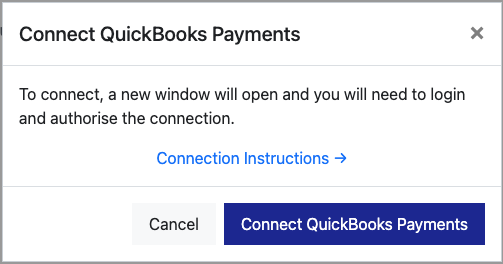
When prompted, select Connect QuickBooks Payments to log in to your QuickBooks Payments account.
-
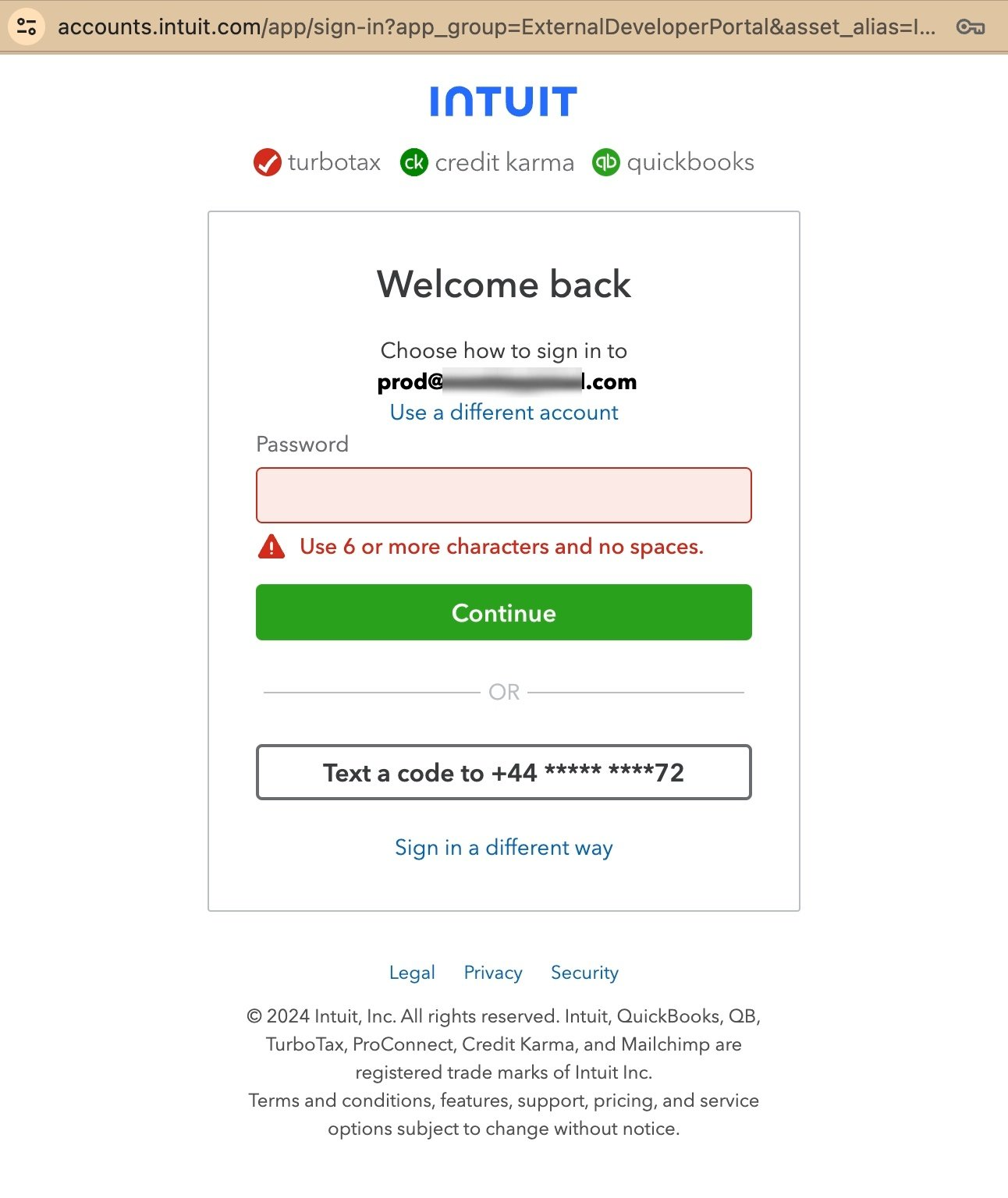
You will be prompted with a login screen. Log in as an administrator of the account.
-
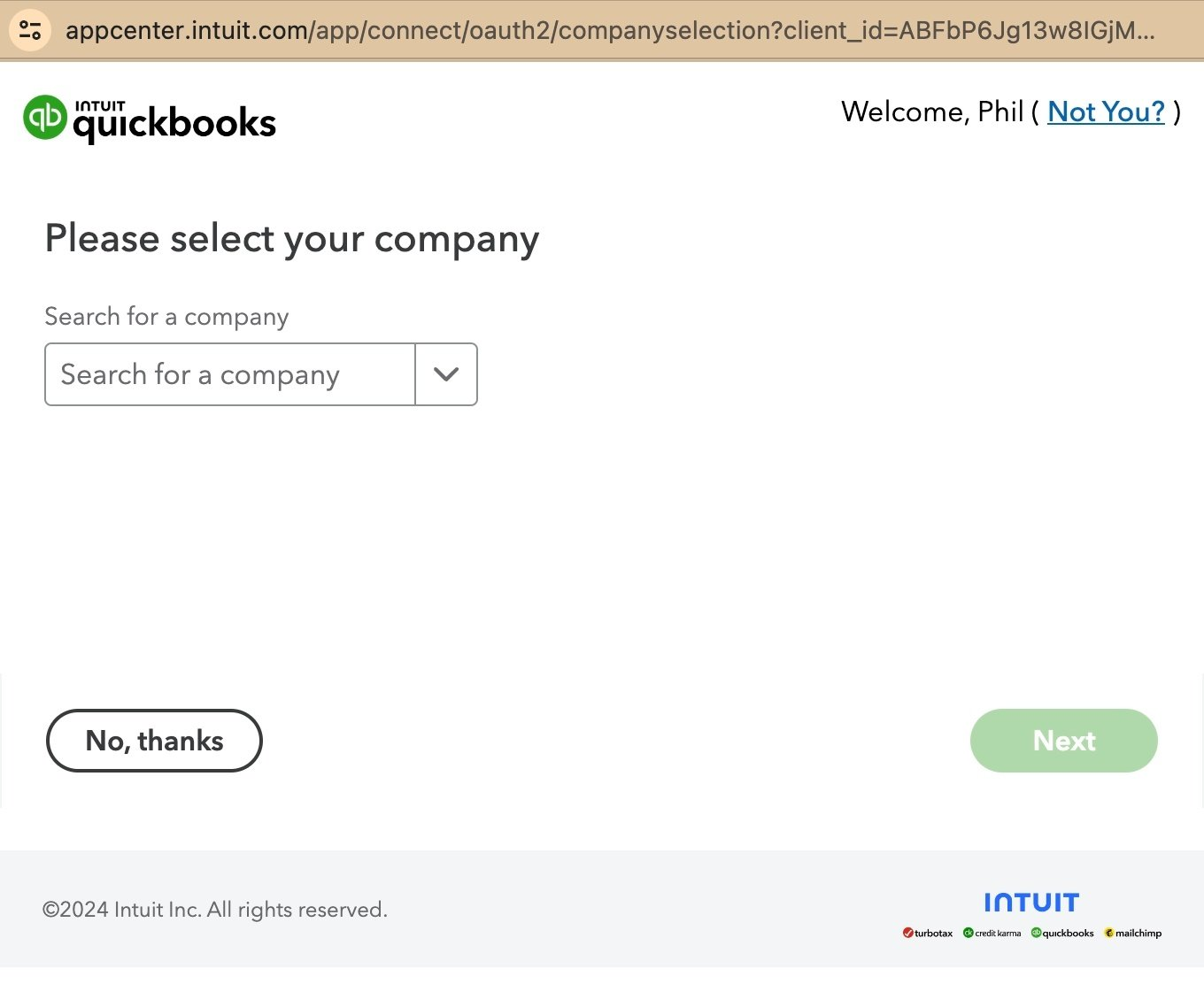
You will be prompted to select your company.
-
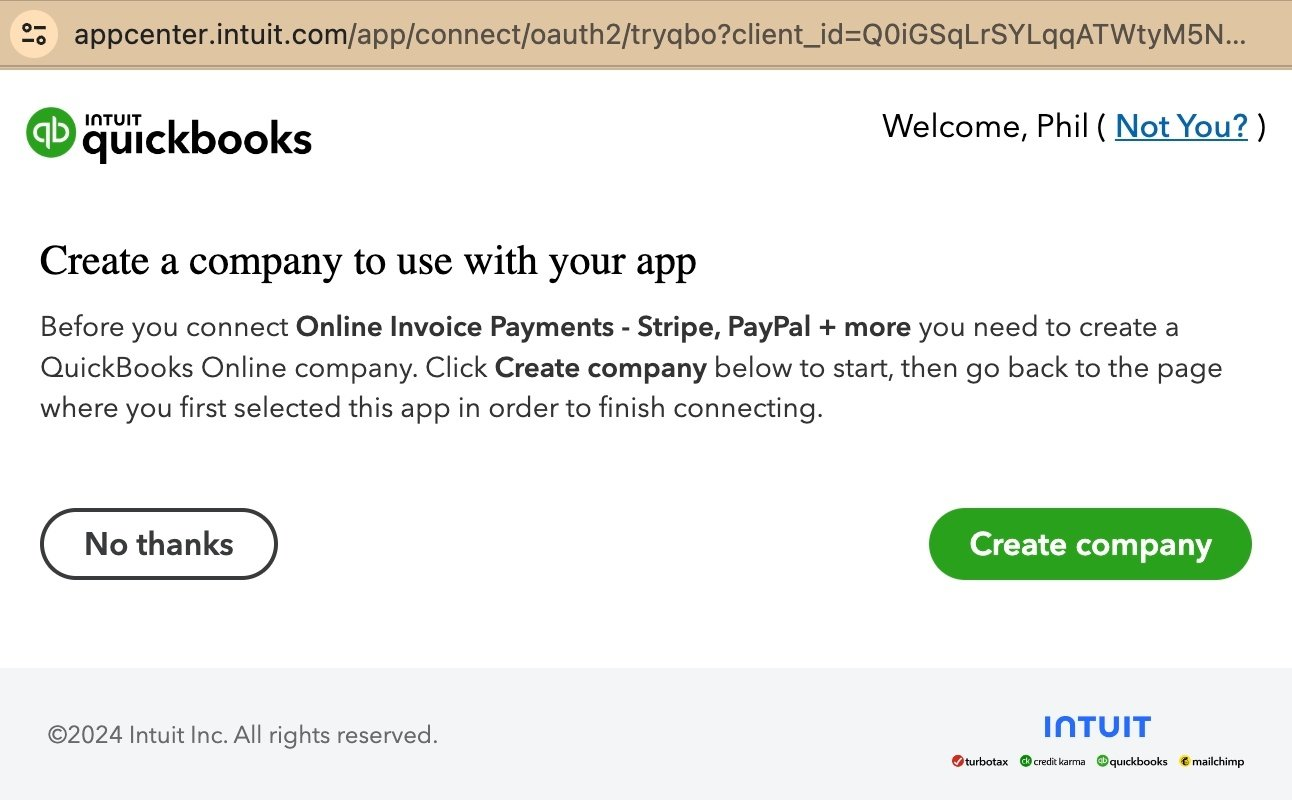
When you select your company you will see one of the following screens:
Better: You have a company but Payments are not yet enabled. Select Set up to enable payments before you can proceed.
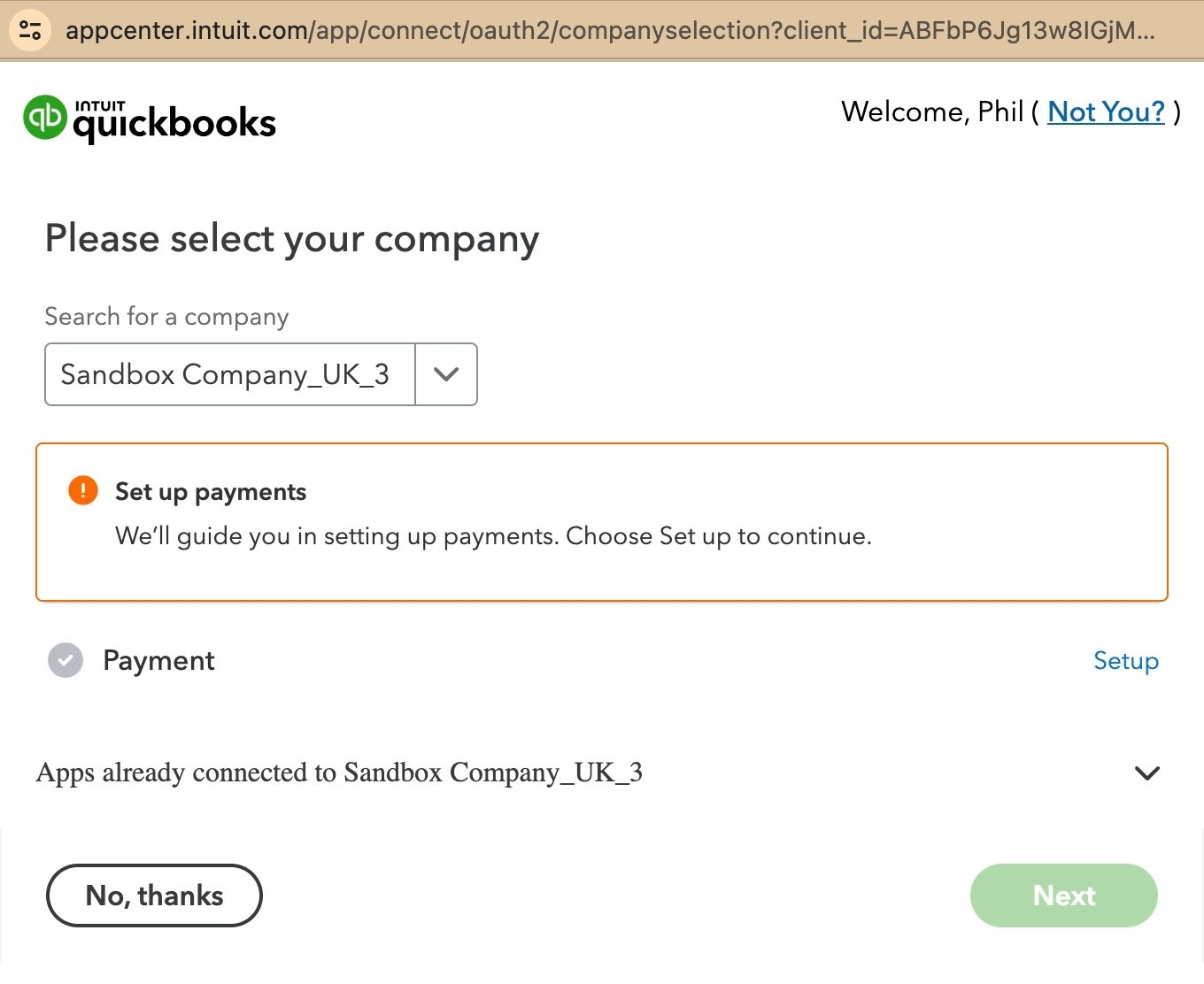
Best: You have a company that is set up and Payments are enabled. Select Next to continue.
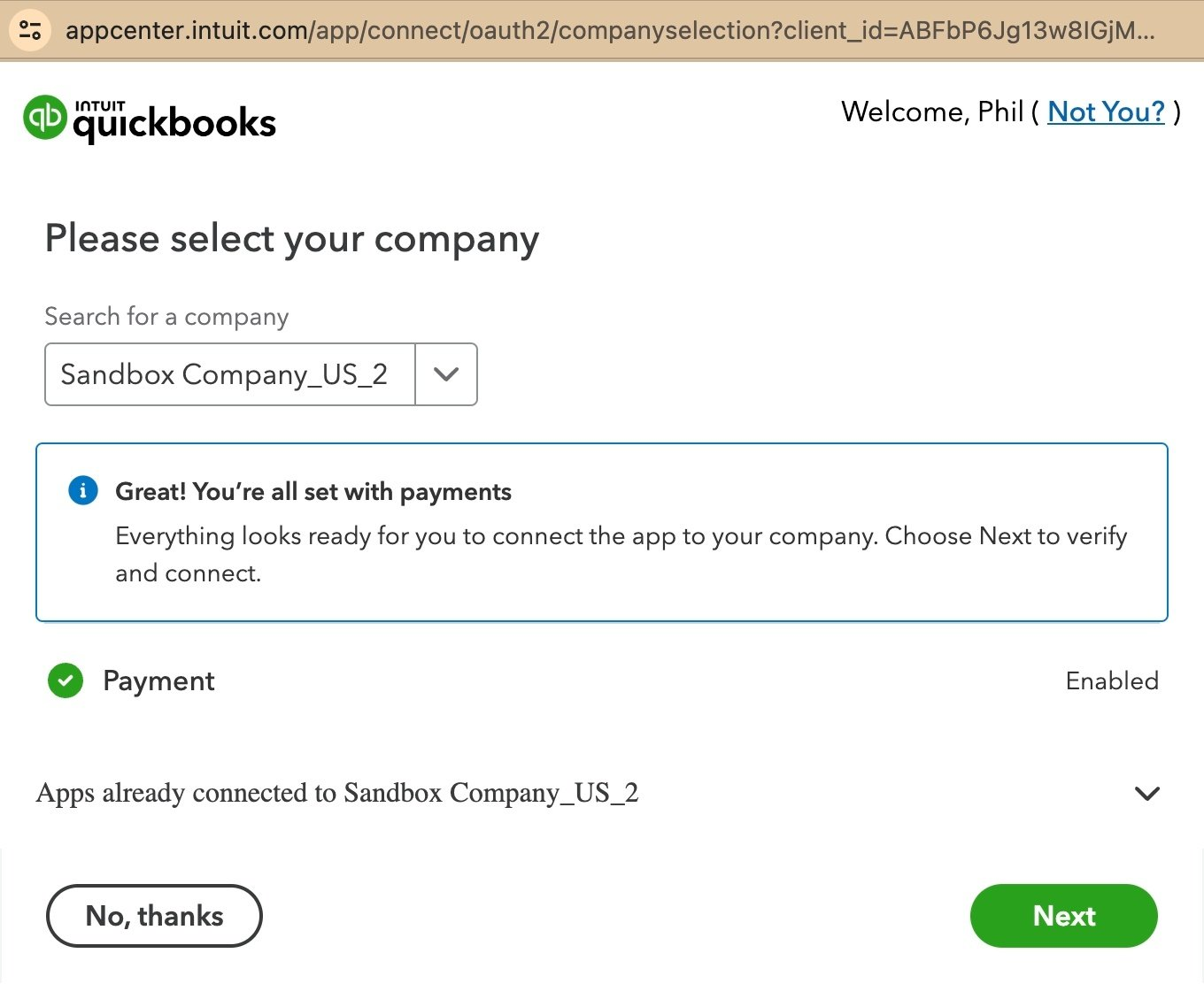
-
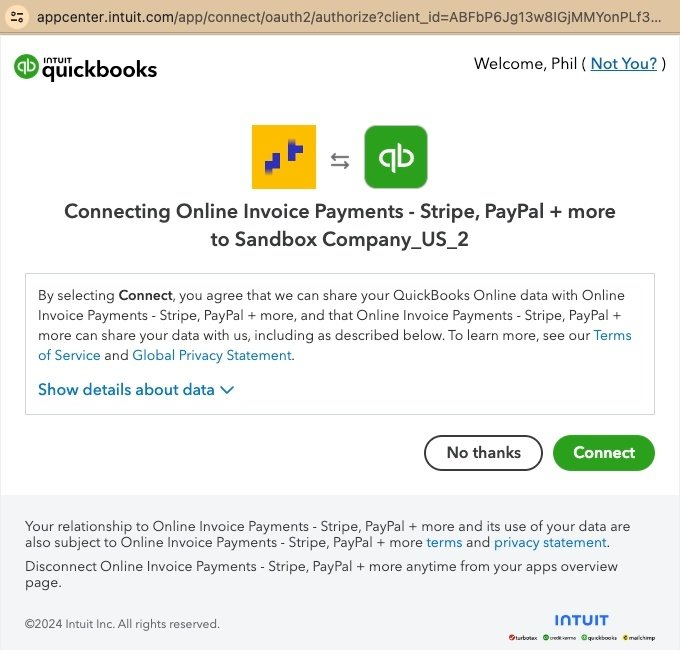
Once you select Next, you will be prompted to authorise the connection. Select Connect.
-
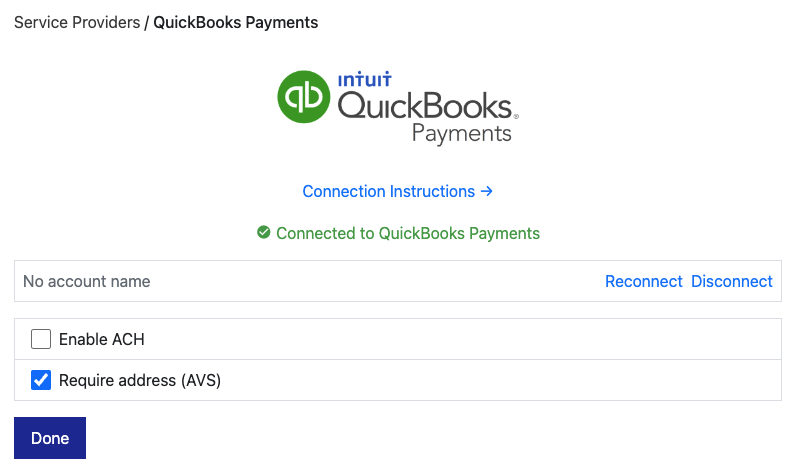
When you are returned to the app, the connection is tested and you are shown a green “Connected to QuickBooks Payments” message. If there is an error with the connection, use the Reconnect button — but take care to connect to the same account, otherwise saved payment methods and refunds will return an error message.
Connection options
Section titled “Connection options”Our integration with QuickBooks Payments offers several options:
- Require address (AVS): Requires the customer to enter their billing address.
- Enable ACH: Enables ACH as a payment method. ACH is available for USD only. You must also enable this option on QuickBooks.
Was this page helpful?
What went wrong?
Thanks for telling us.