
Connecting Fat Zebra
Fat Zebra is an Australian and New Zealand payments gateway. This integration supports cards, including card network tokens (which is what Apple Pay and Google Pay use).
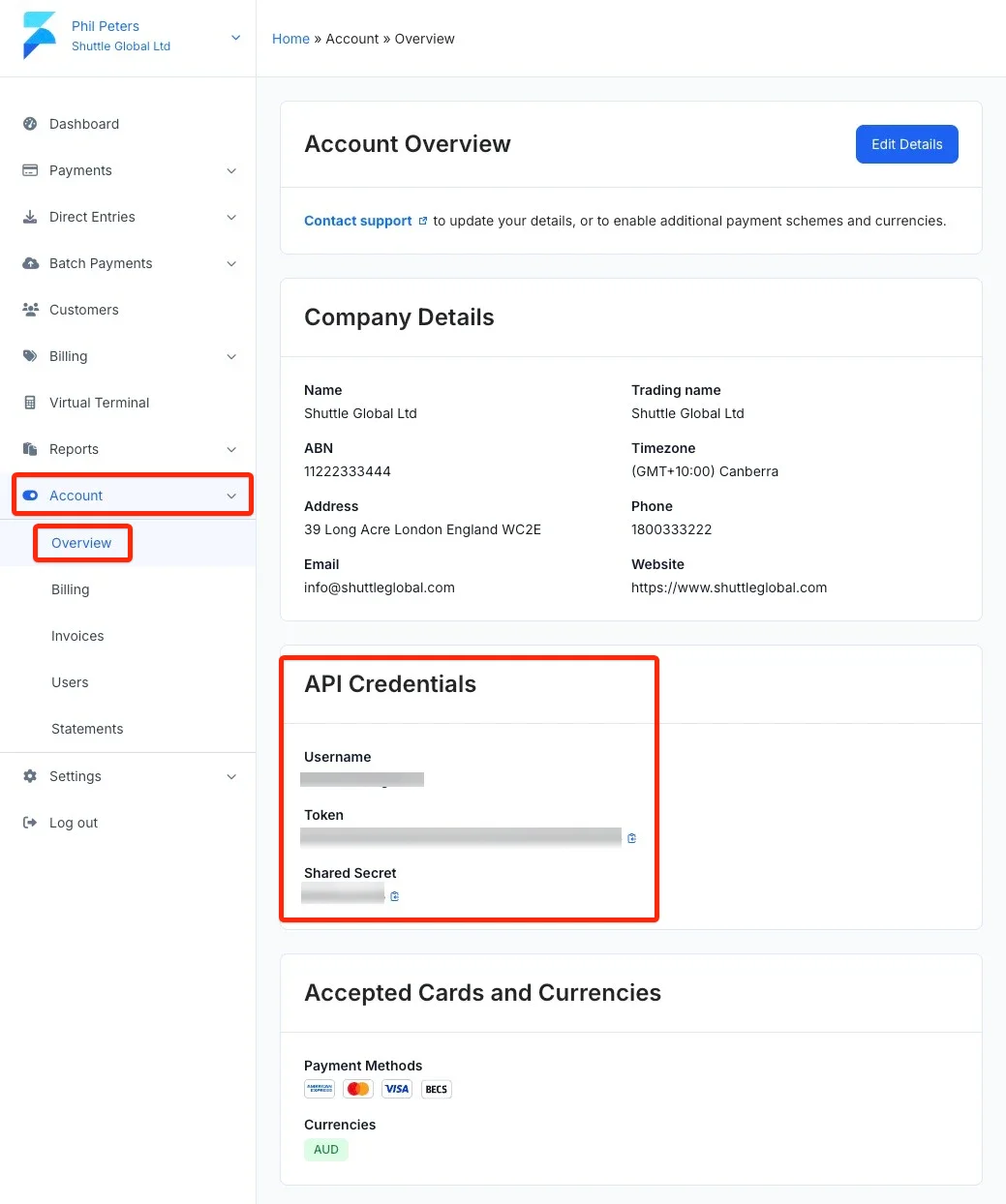
To connect to Fat Zebra you need three credentials:
- API Username
- API Token
- Shared Secret (also known as the Pay Now token)
You can find these in your Fat Zebra console, under Account → Overview:
- Live: dashboard.fatzebra.com.au
- Sandbox: dashboard.sandbox.fatzebra.com.au
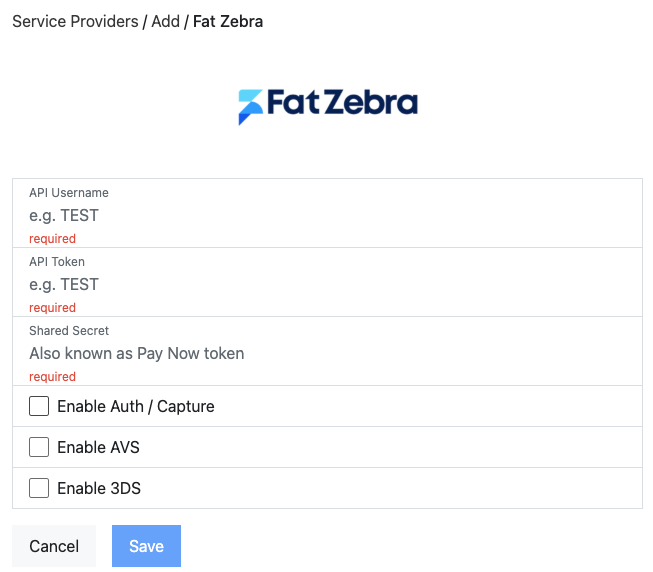
In the setup screen, enter the API Username, API Token, and Shared Secret, then select Save.
Connection options
Section titled “Connection options”Our integration with Fat Zebra offers several options:
- Enable Auth / Capture: Fat Zebra does not give every merchant access to authorise / capture by default — it must be enabled on your account. If you have it enabled on your Fat Zebra account, select this checkbox to make it available.
- Enable AVS: Requires the customer to enter their billing address.
- Enable 3DS: Fat Zebra does not give every merchant access to 3DS by default —
it must be enabled on your account. If you have it enabled on your Fat Zebra
account, select this checkbox to make it available. With 3DS on, the
customer is also asked for their name and email address. When you save, the integration
sets up the 3DS credentials with Fat Zebra for you.
- Attempt transaction when 3DS unavailable: If 3DS can’t run because of a technical problem (rather than the customer failing authentication), the payment goes ahead without 3DS instead of failing.
- Access Key and Access Secret: Shown only if the integration couldn’t set up the 3DS credentials automatically. Save the connection again to retry, or enter the credentials here.
Webhooks
Section titled “Webhooks”When you save, the integration registers a webhook with Fat Zebra so that payment updates reach it. If this can’t be done automatically, the connection settings show the Webhook URL and a Webhook URL ID field: save the connection again to retry, or add the webhook URL in your Fat Zebra dashboard and enter its ID in Webhook URL ID.
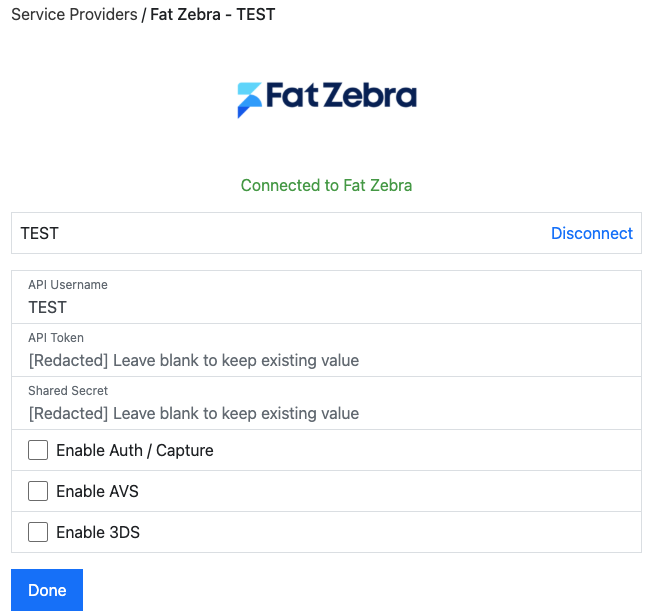
Once connected, you are shown a green “Connected to Fat Zebra” message. The shared secret is not displayed.
Was this page helpful?
What went wrong?
Thanks for telling us.