
Using PayTomorrow
At checkout
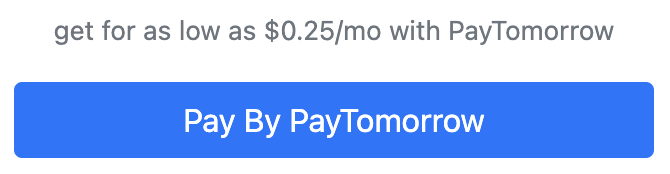
Section titled “At checkout”PayTomorrow is presented as a payment option at checkout, but only when all of the following conditions are met:
- Currency is USD
- Customer first name is present
- Customer last name is present
- Customer email is present
- A shipping address is present
- Basket line items are present
It will not be presented if a saved card is required — for example a recurring
payment, a scheduled payment, or any flow where save_card = true. If you are
unsure whether this applies, check with your platform.
The option appears at checkout as shown below (subject to any CSS customisation):
Payment (immediate capture)
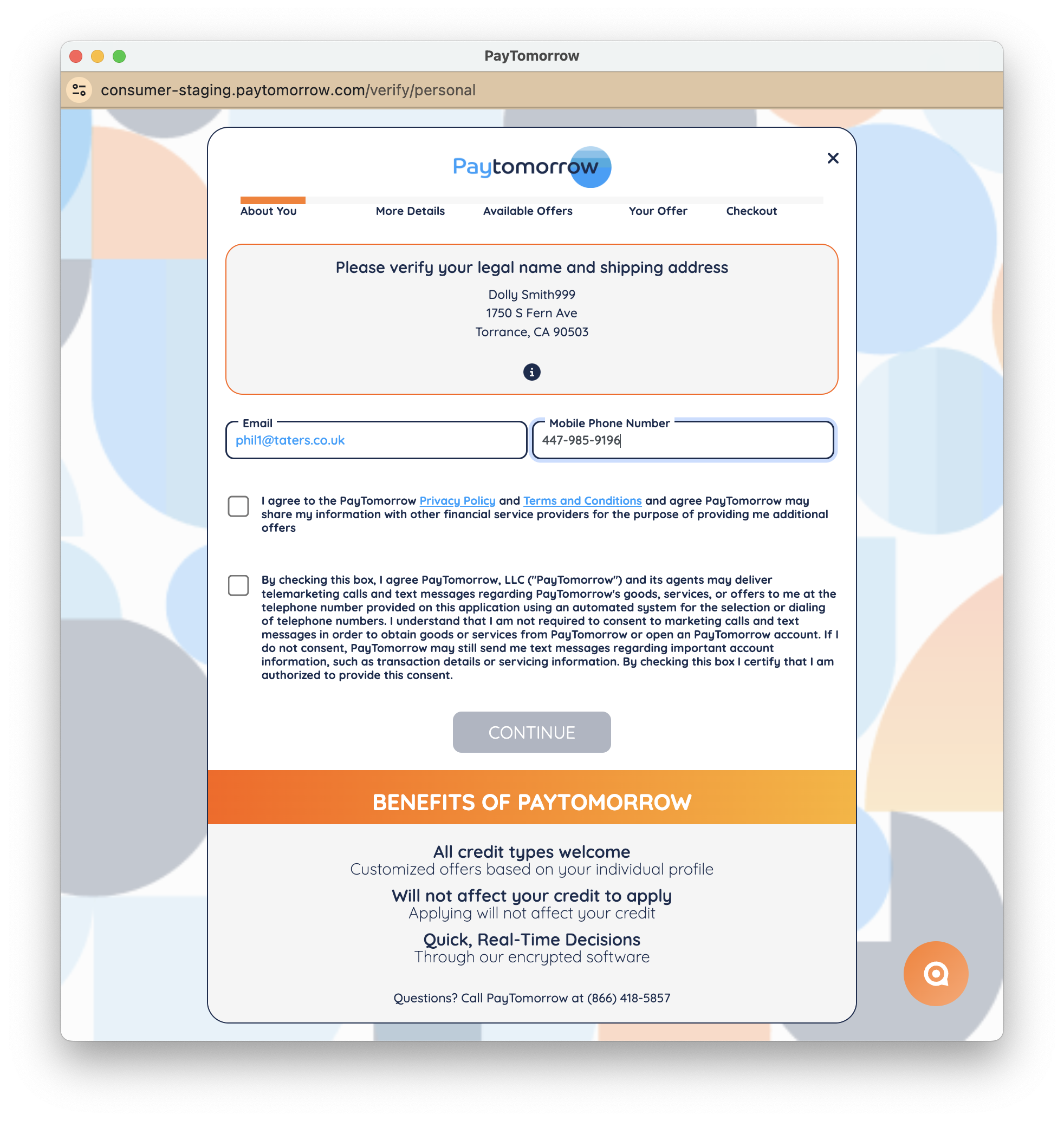
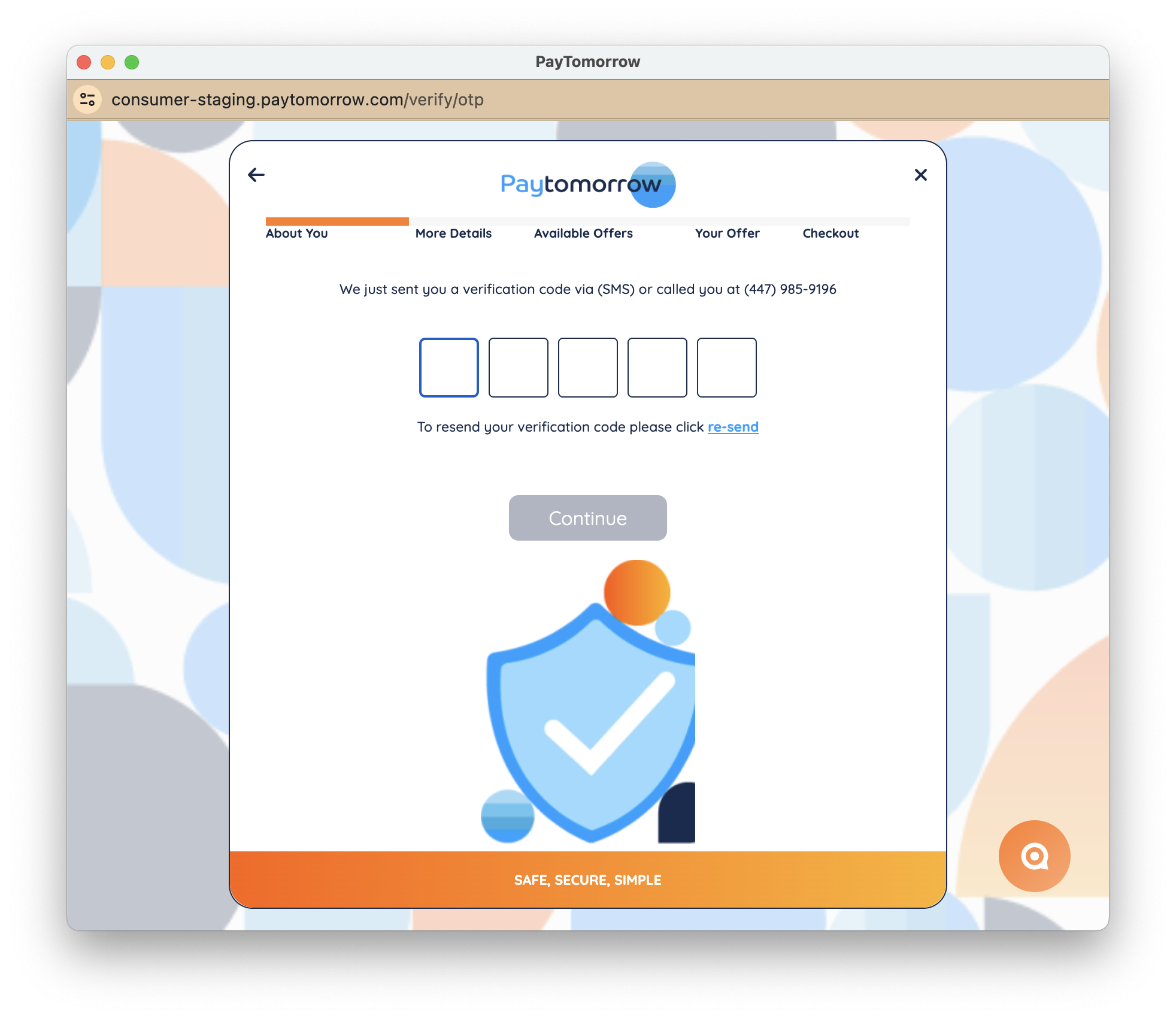
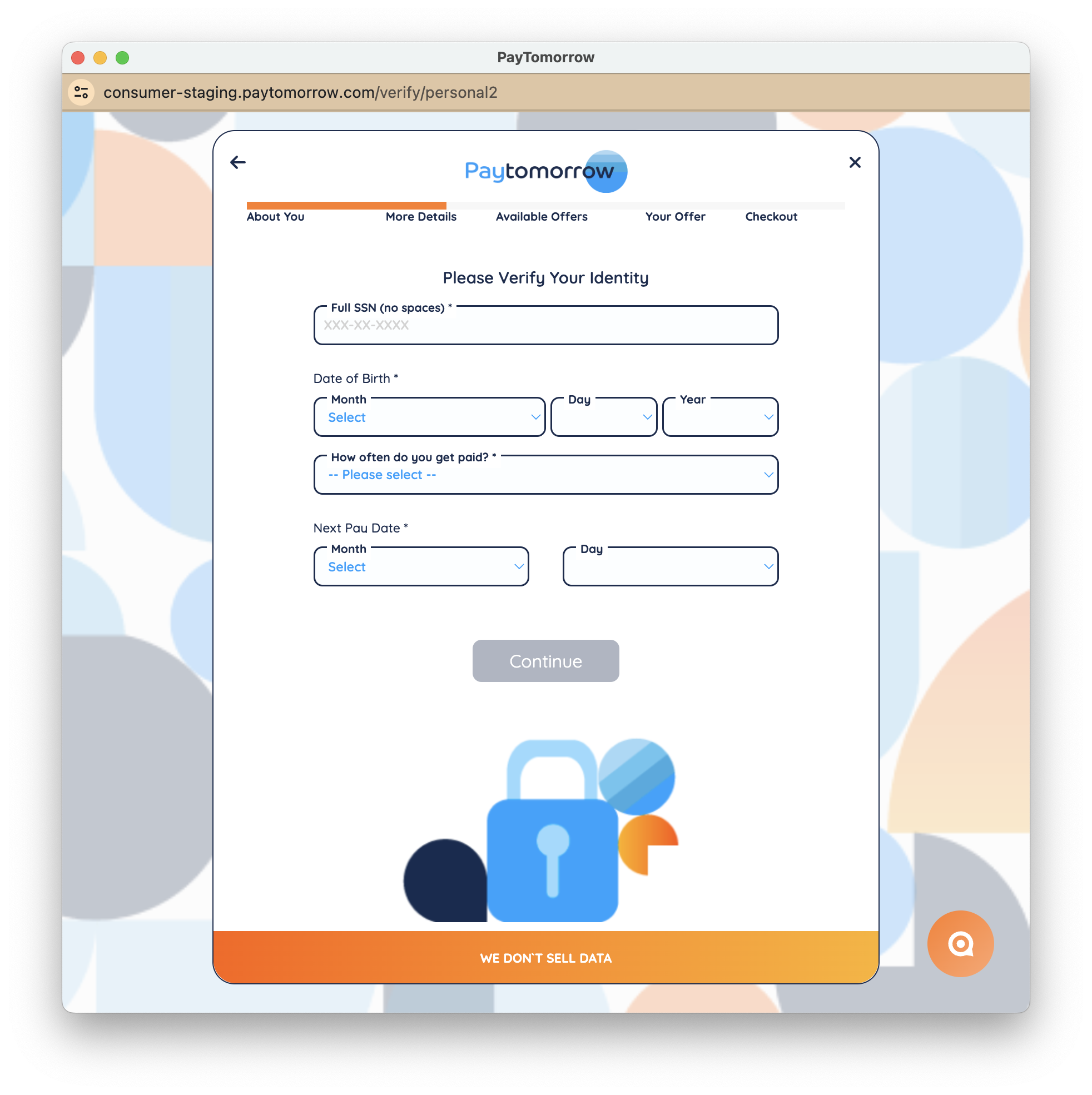
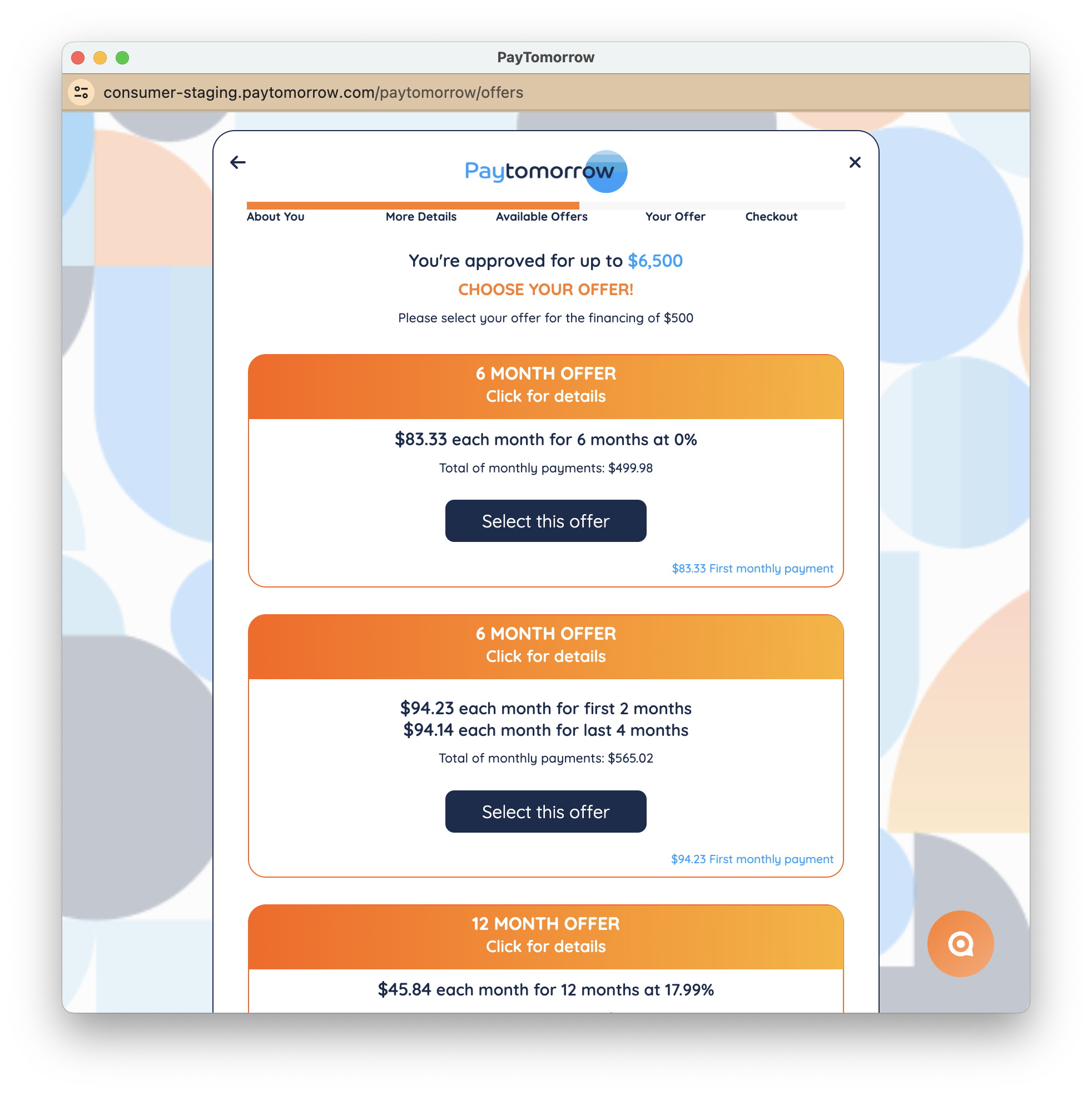
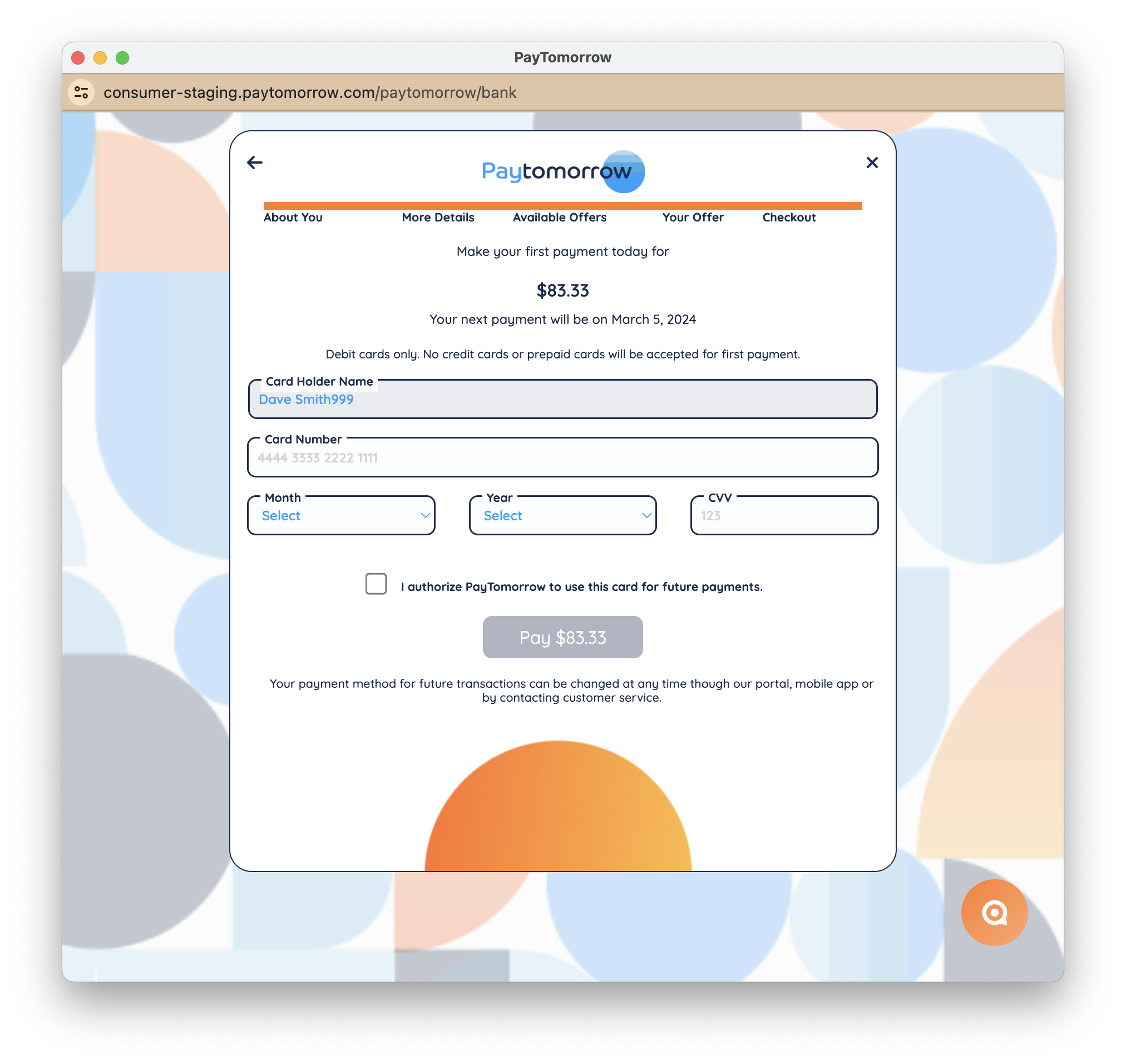
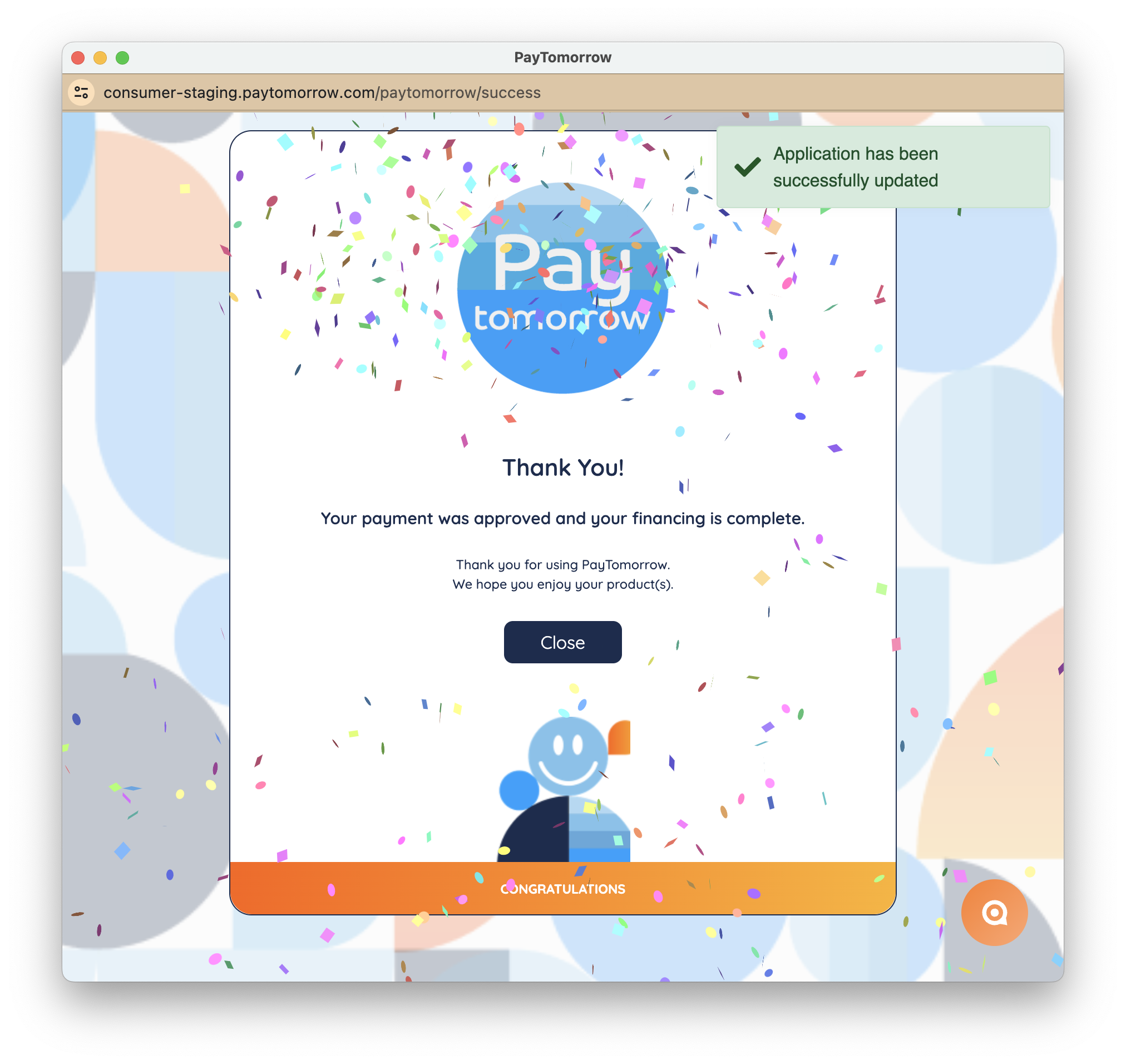
Section titled “Payment (immediate capture)”When a customer selects PayTomorrow, they complete the financing application on PayTomorrow’s hosted flow.
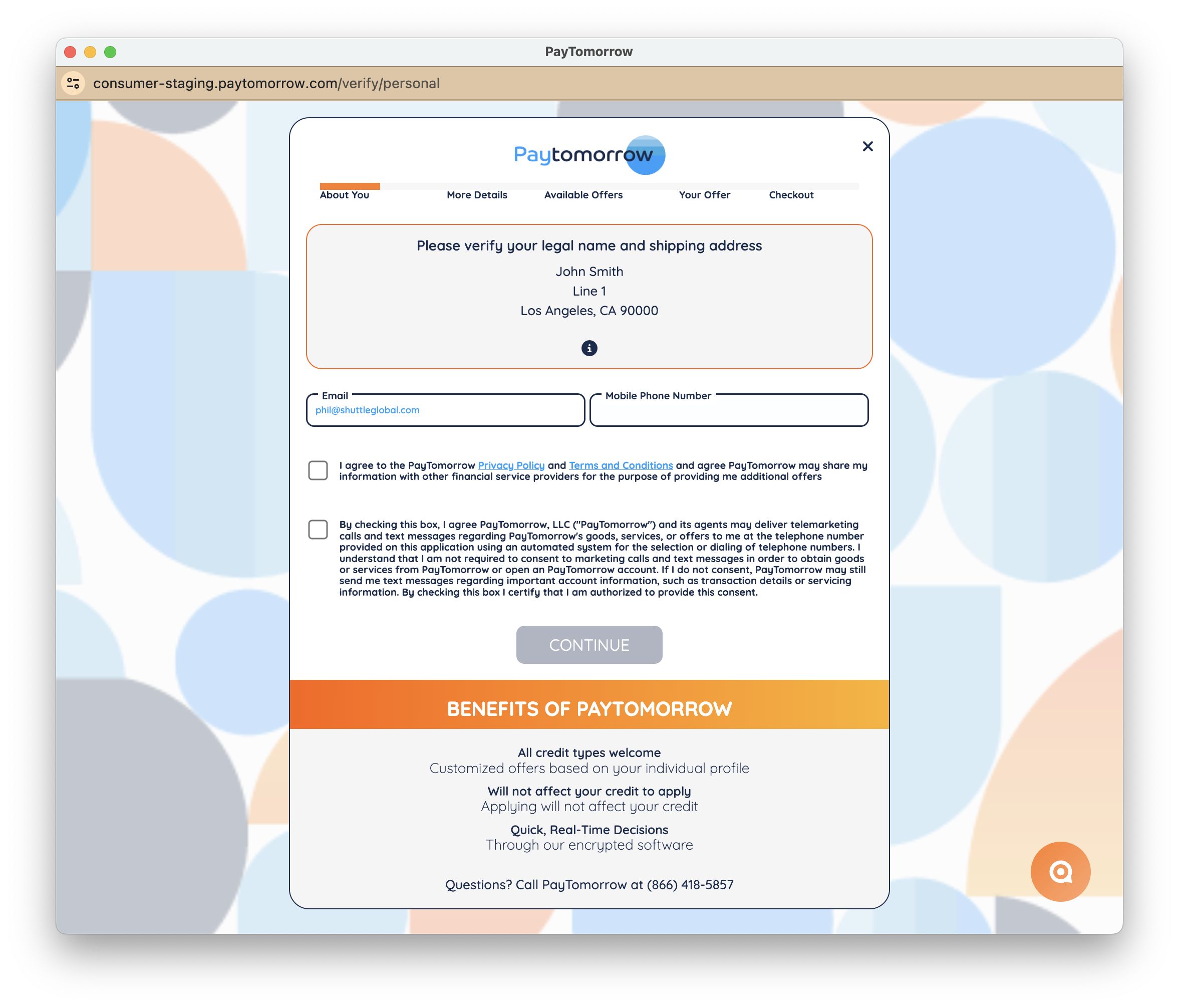
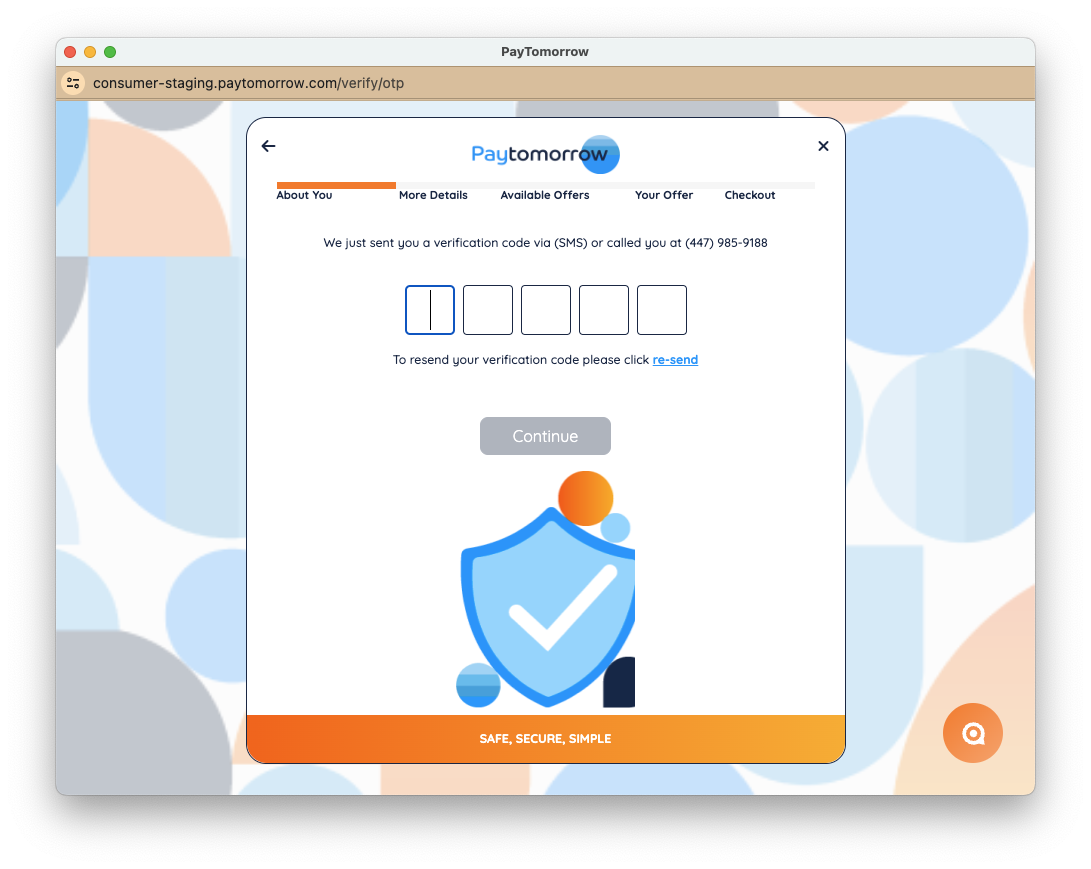
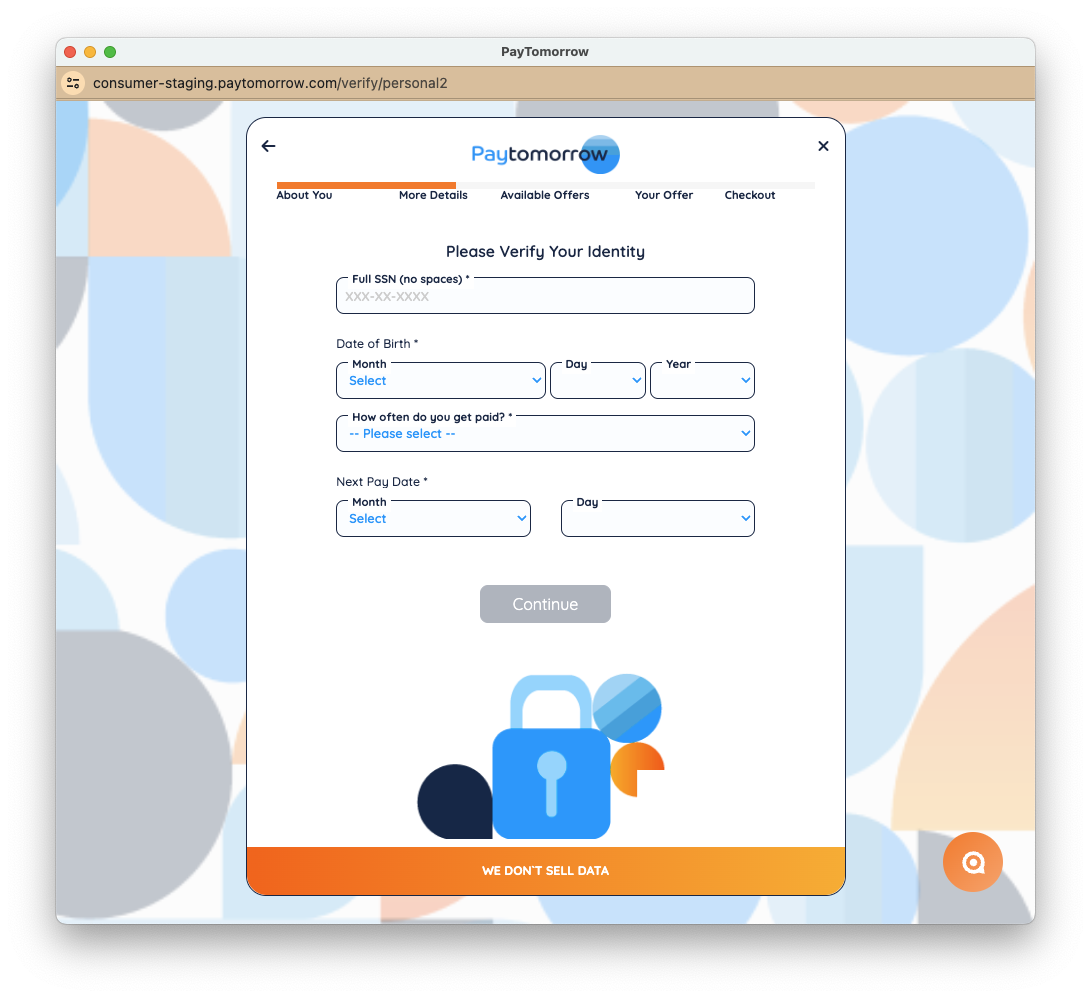
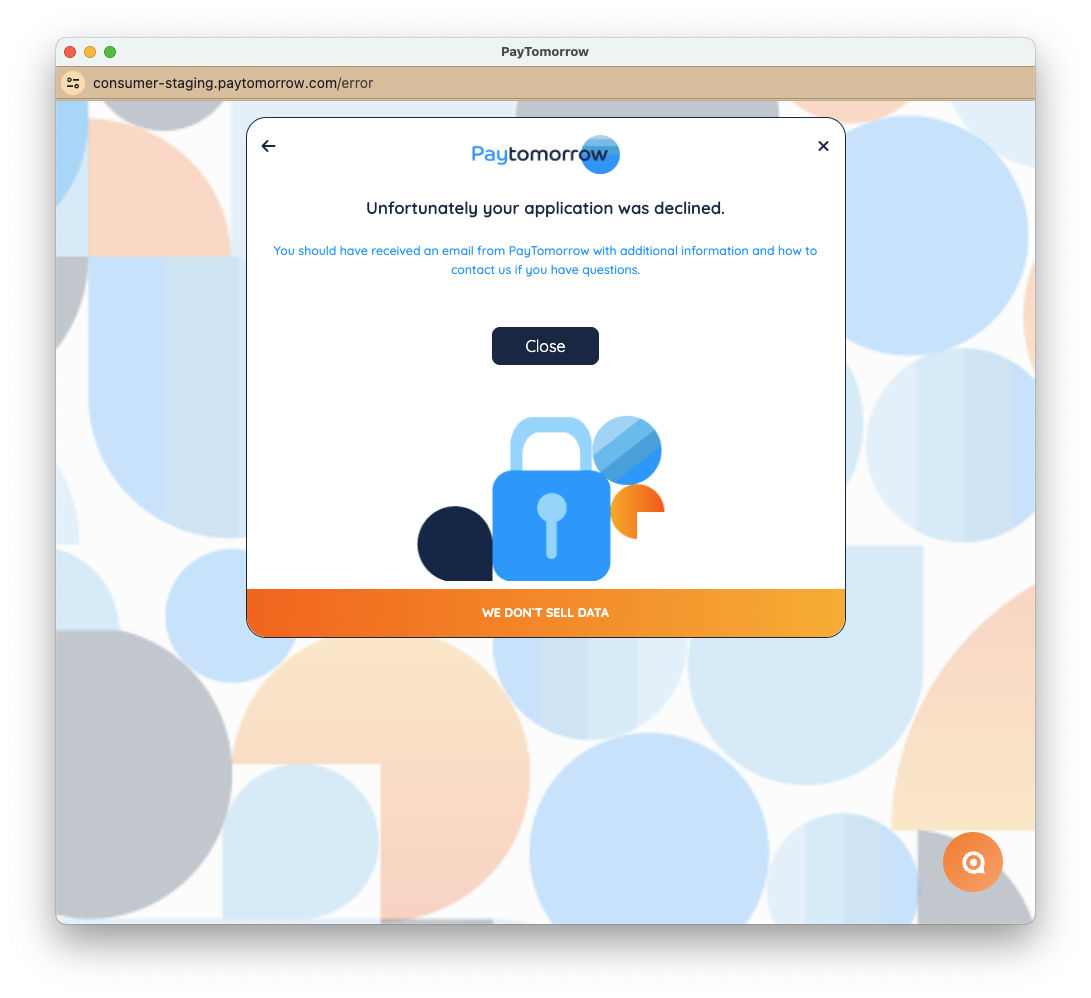
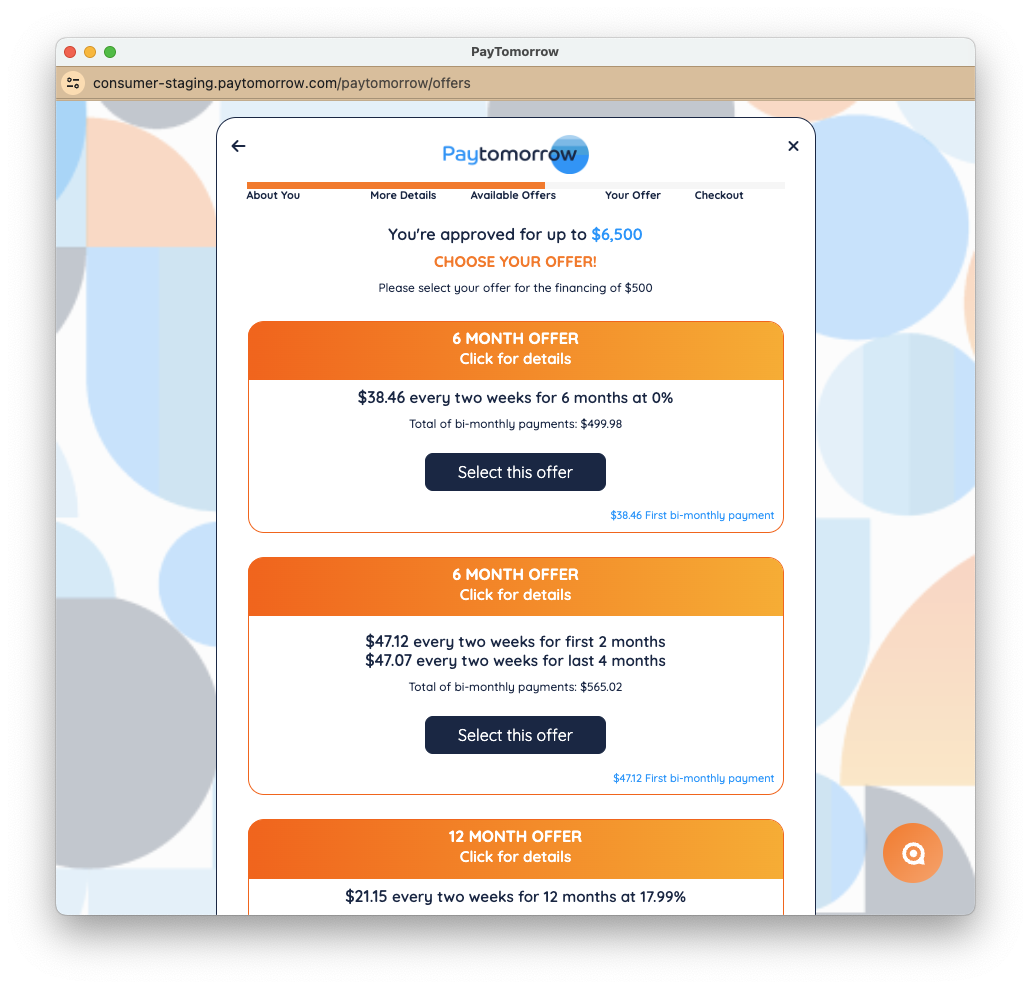
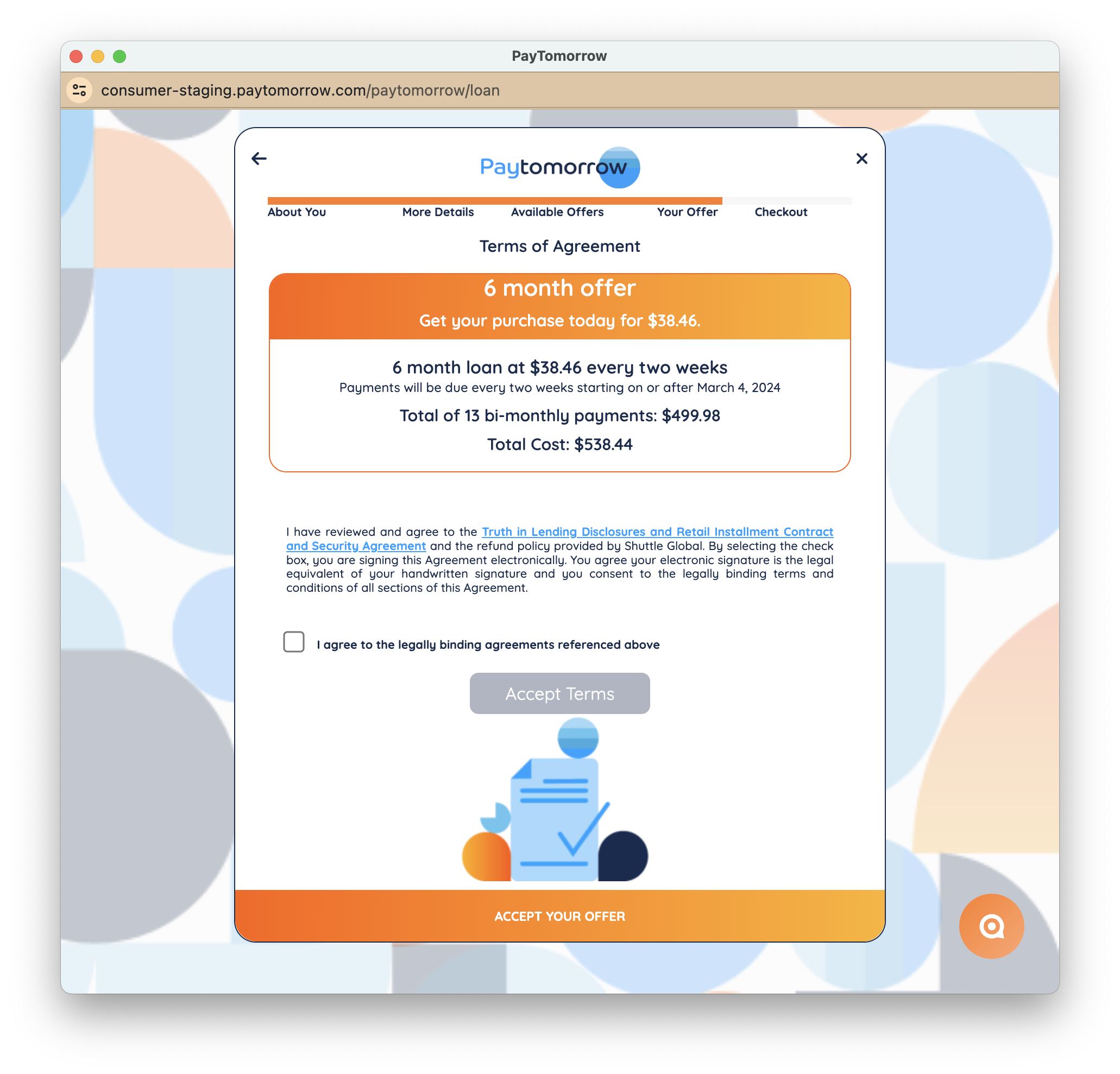
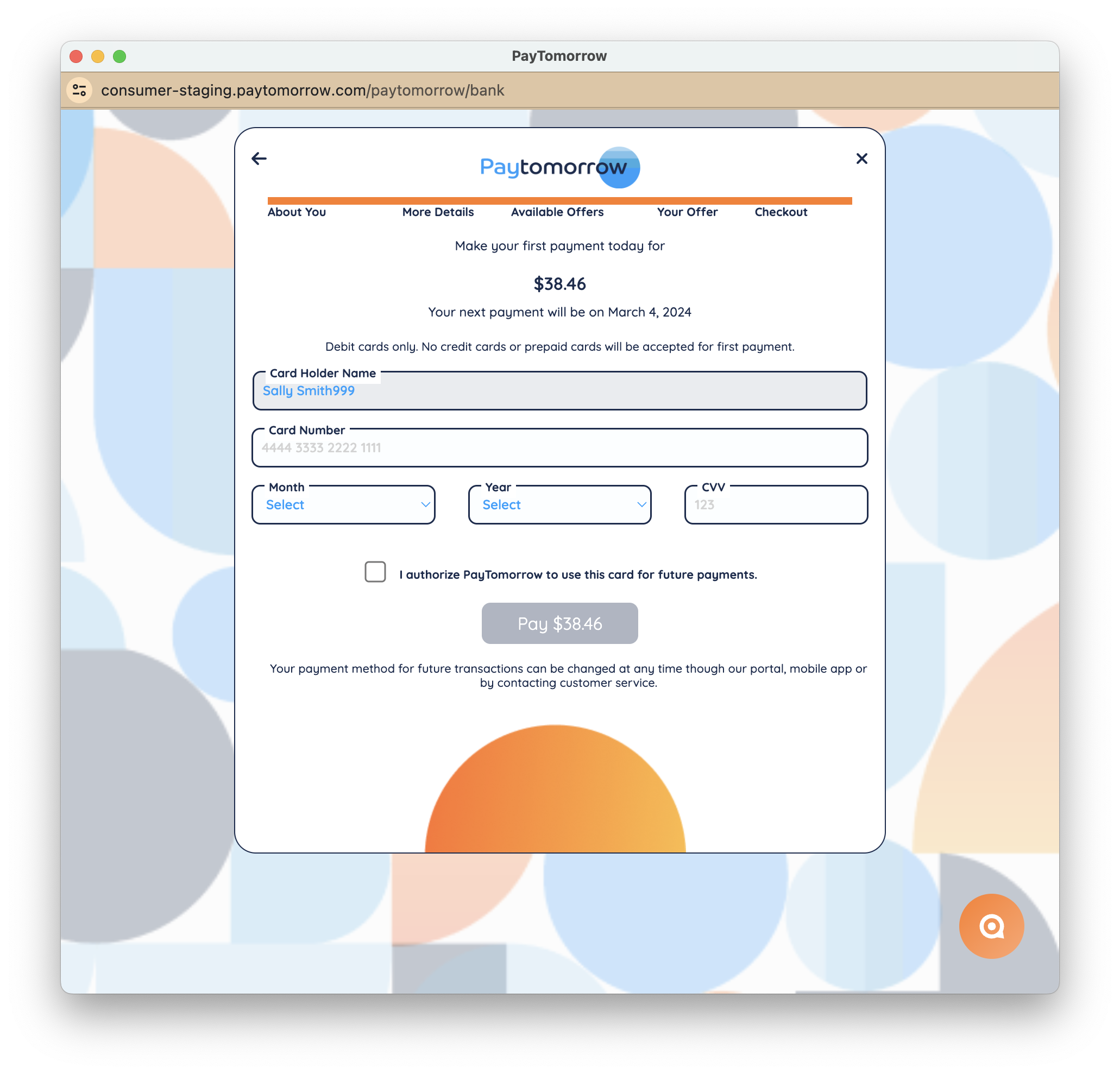
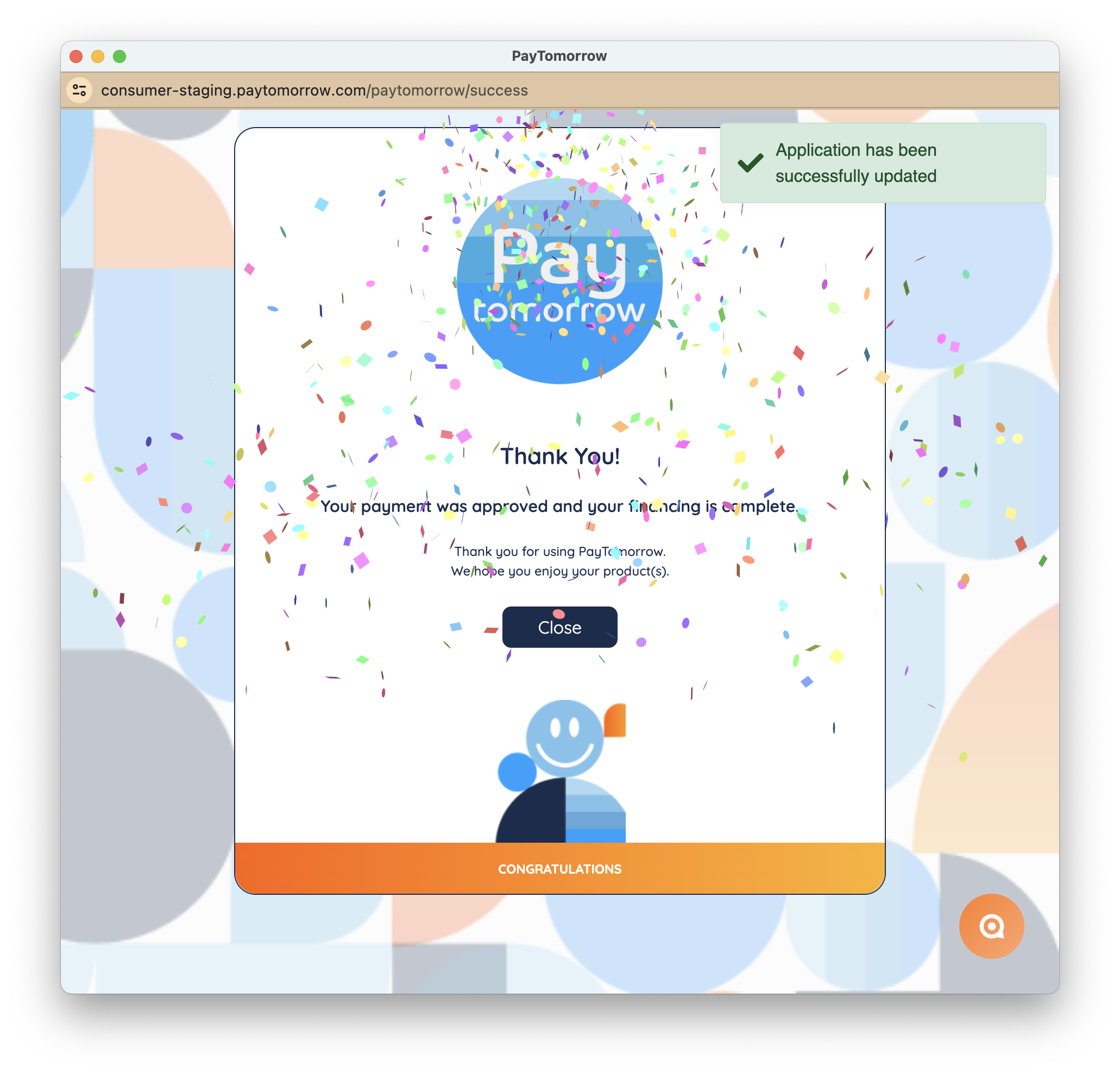
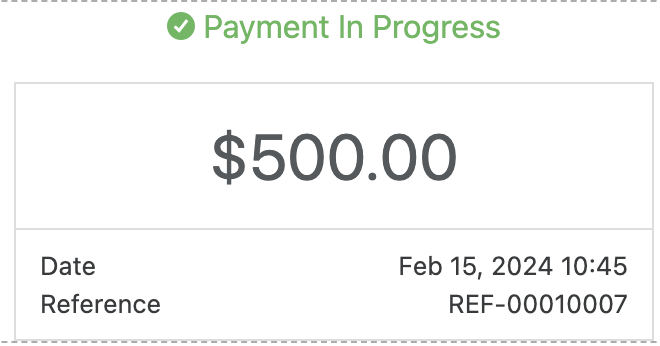
Once approved in PayTomorrow, the payment shows in the platform as a Pending payment:
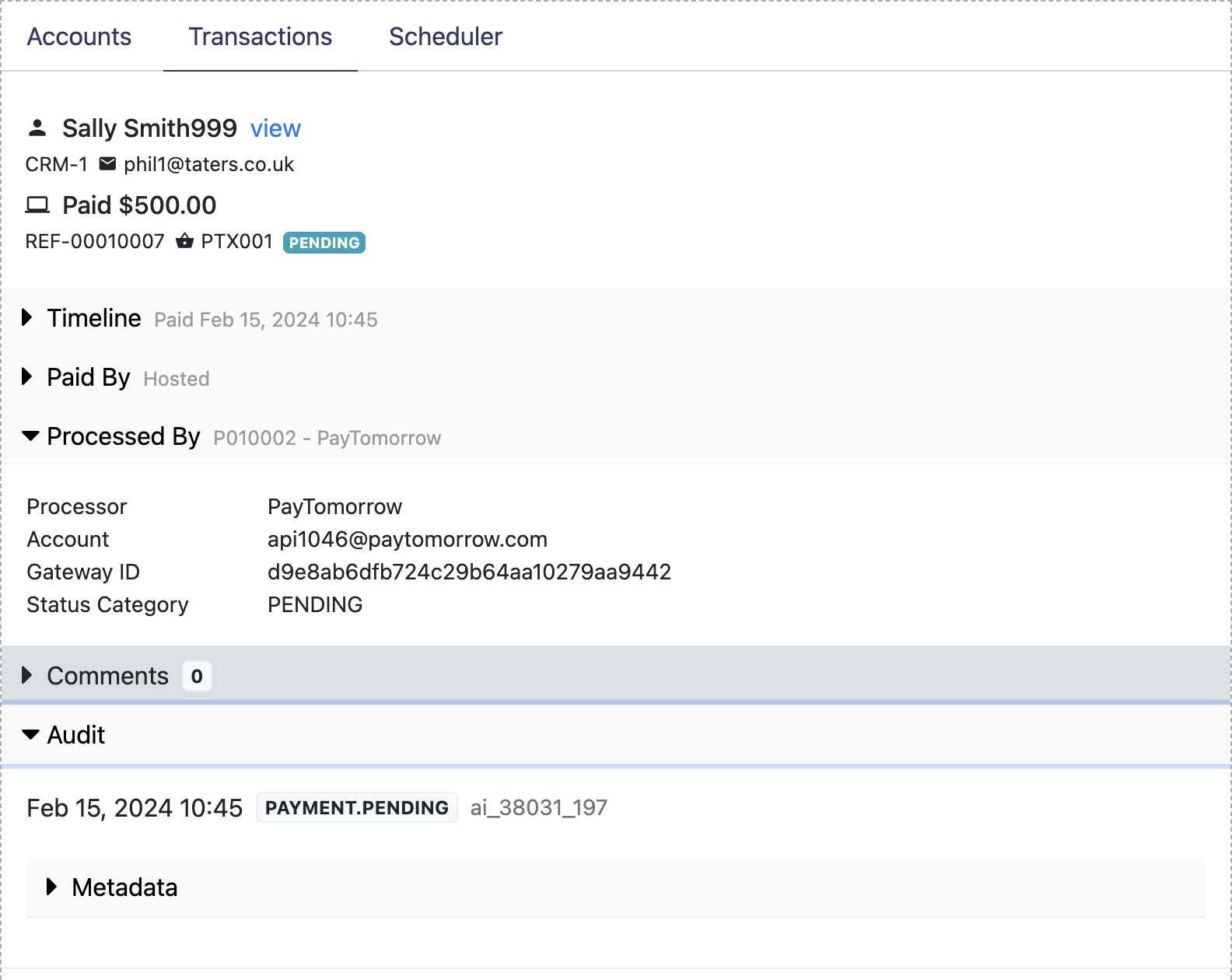
This is sent back to the originating system as a PAYMENT.PENDING webhook.
Settling a payment
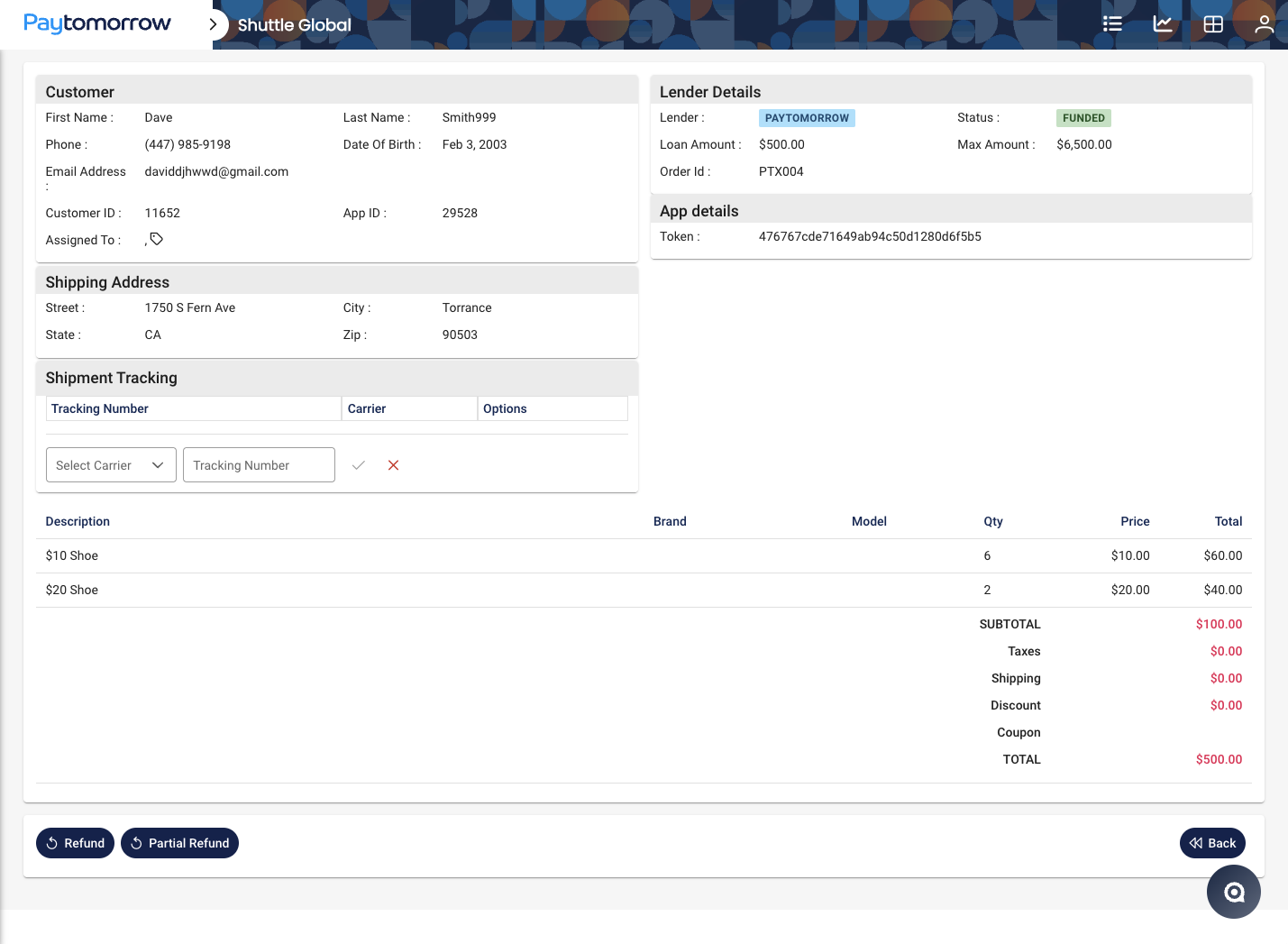
Section titled “Settling a payment”The order shows in the PayTomorrow backend as Ready to Settle. Click the eye icon in the Options column to view it:
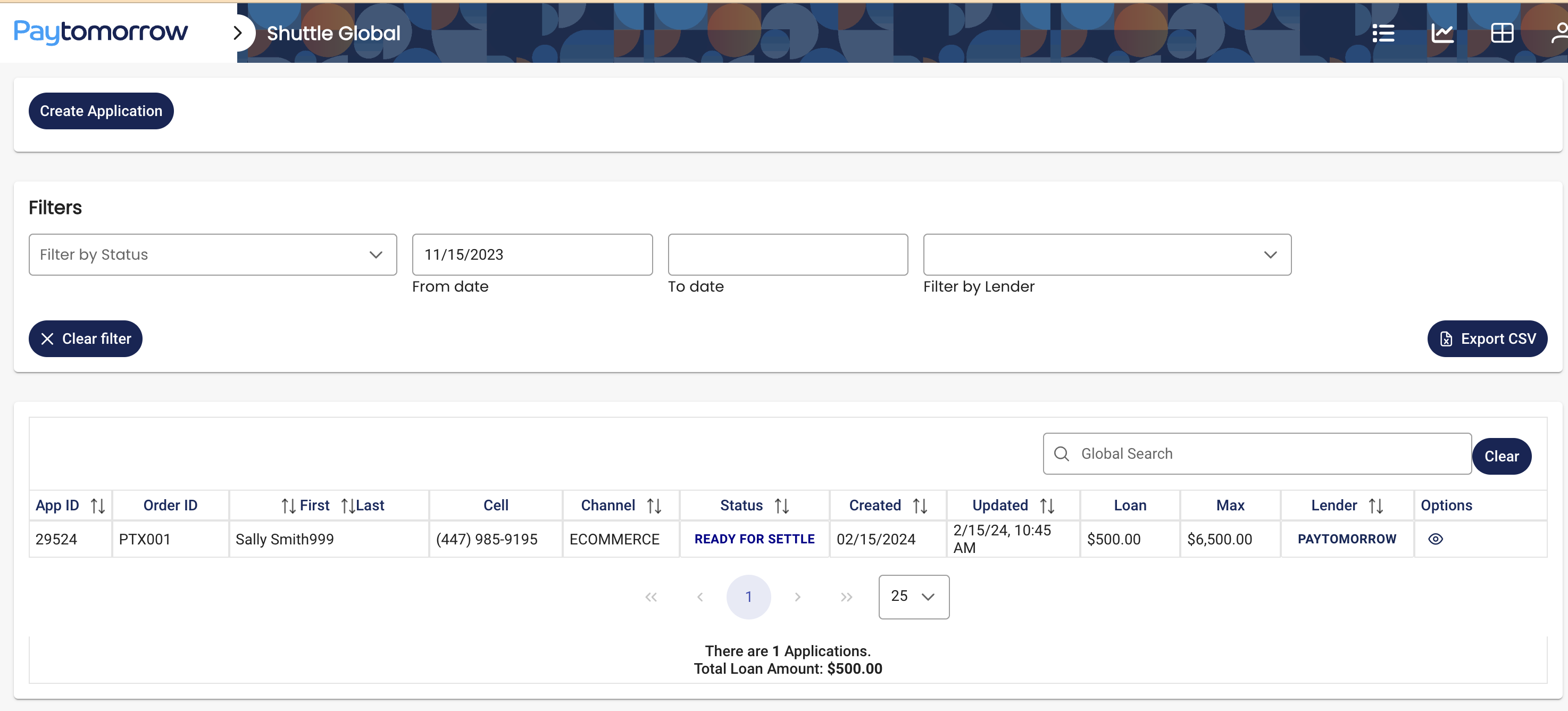
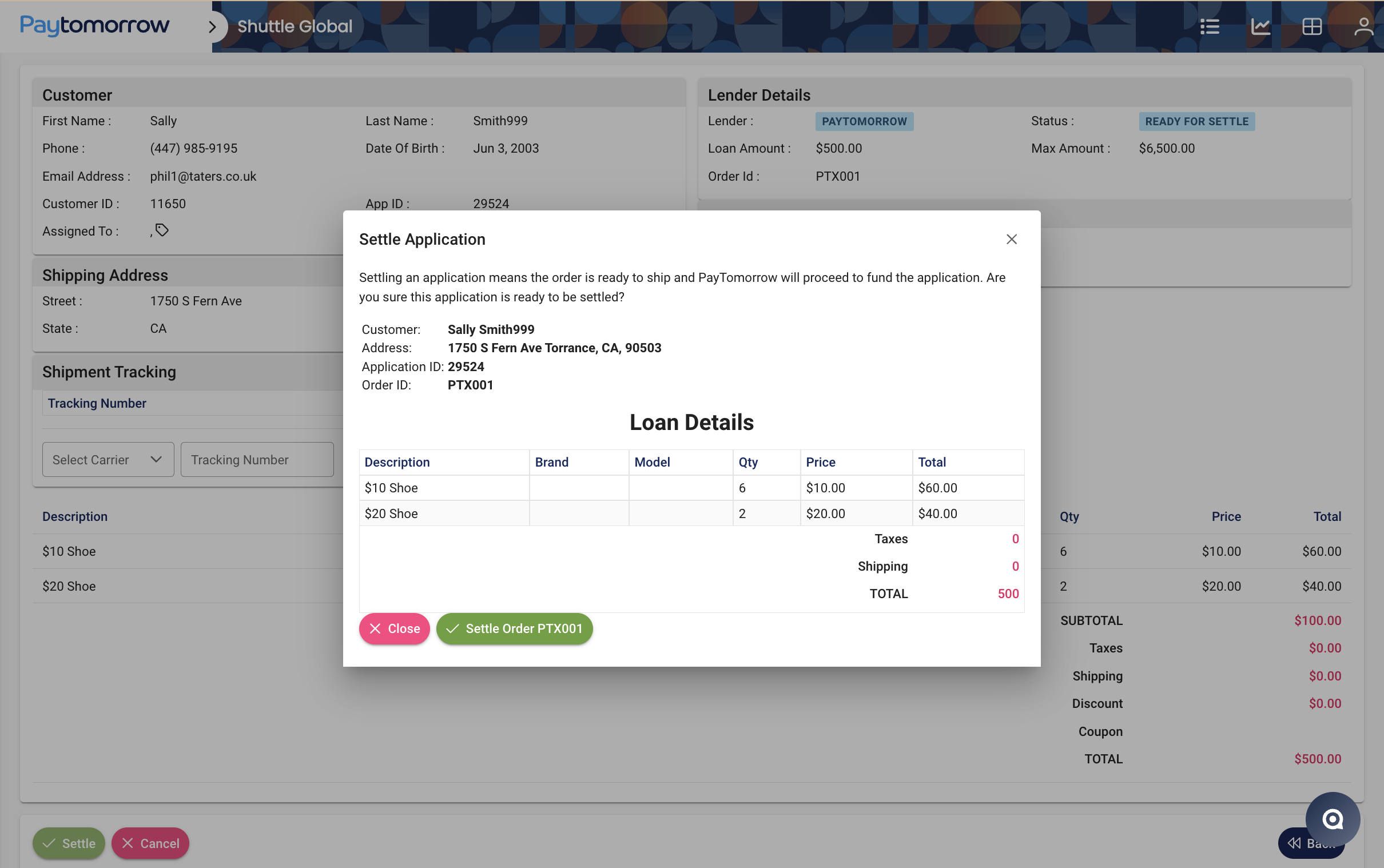
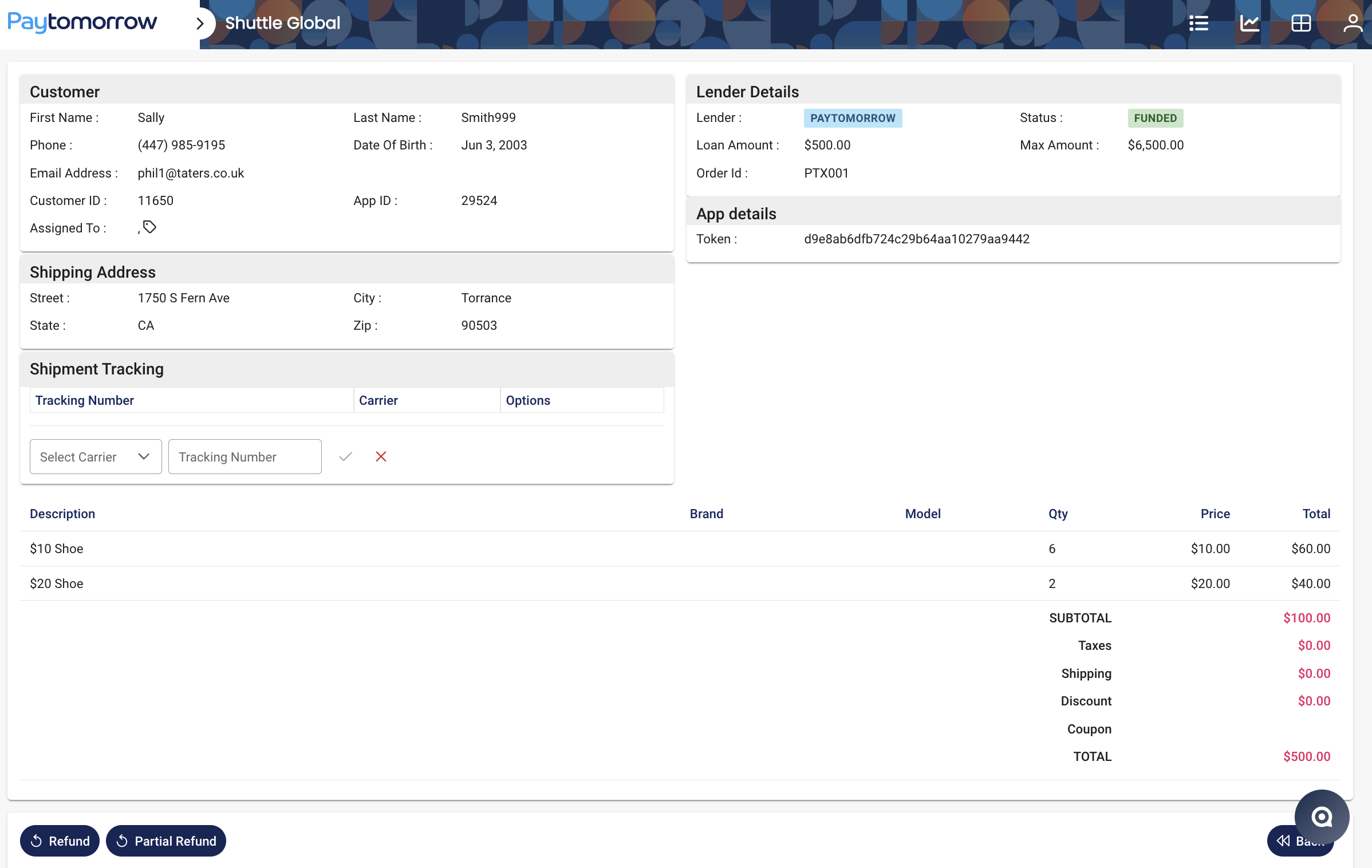
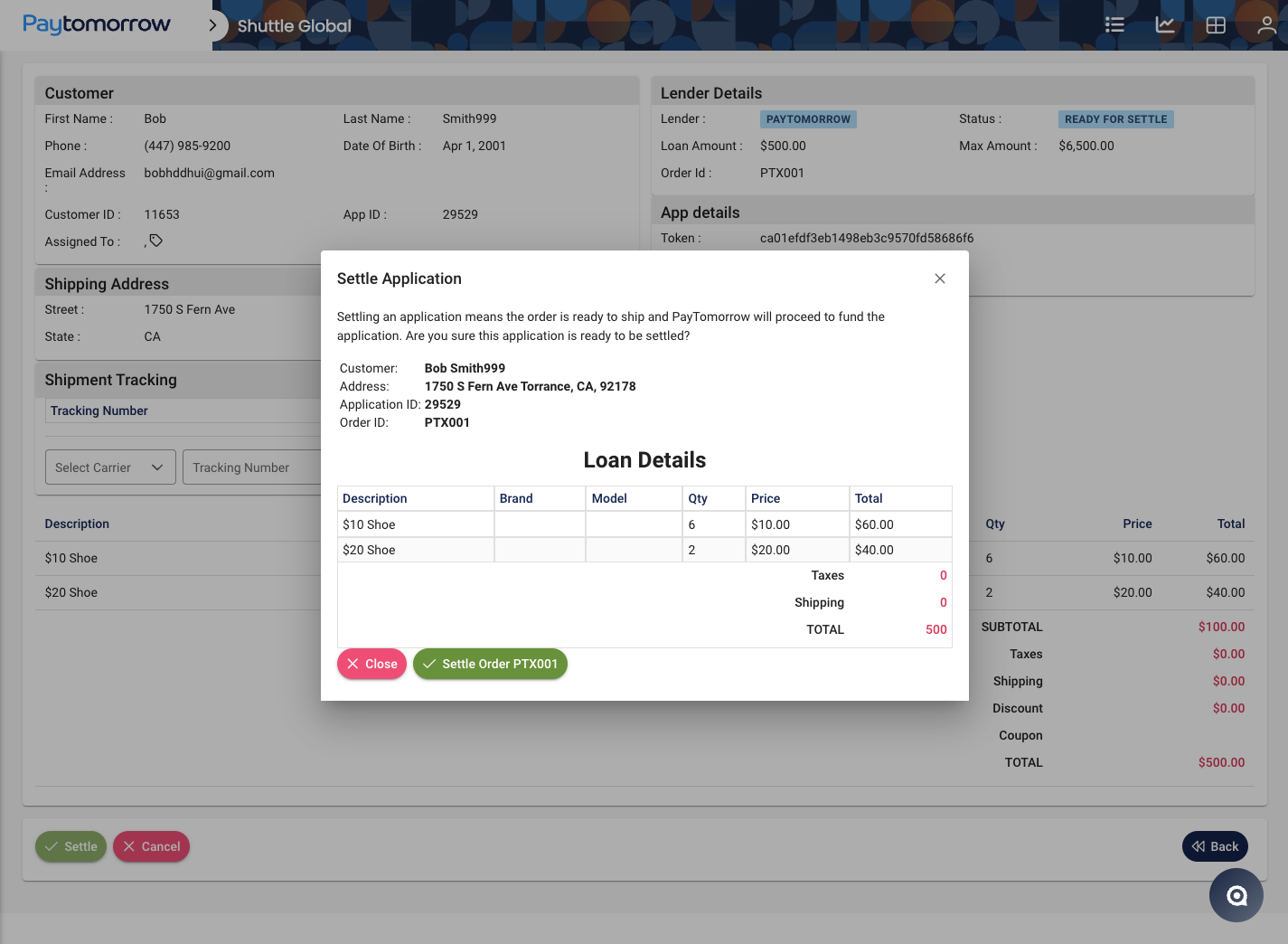
To complete the payment, with the order in Ready to Settle, select Settle, then Settle Order XXXX. The order changes status to Funded:
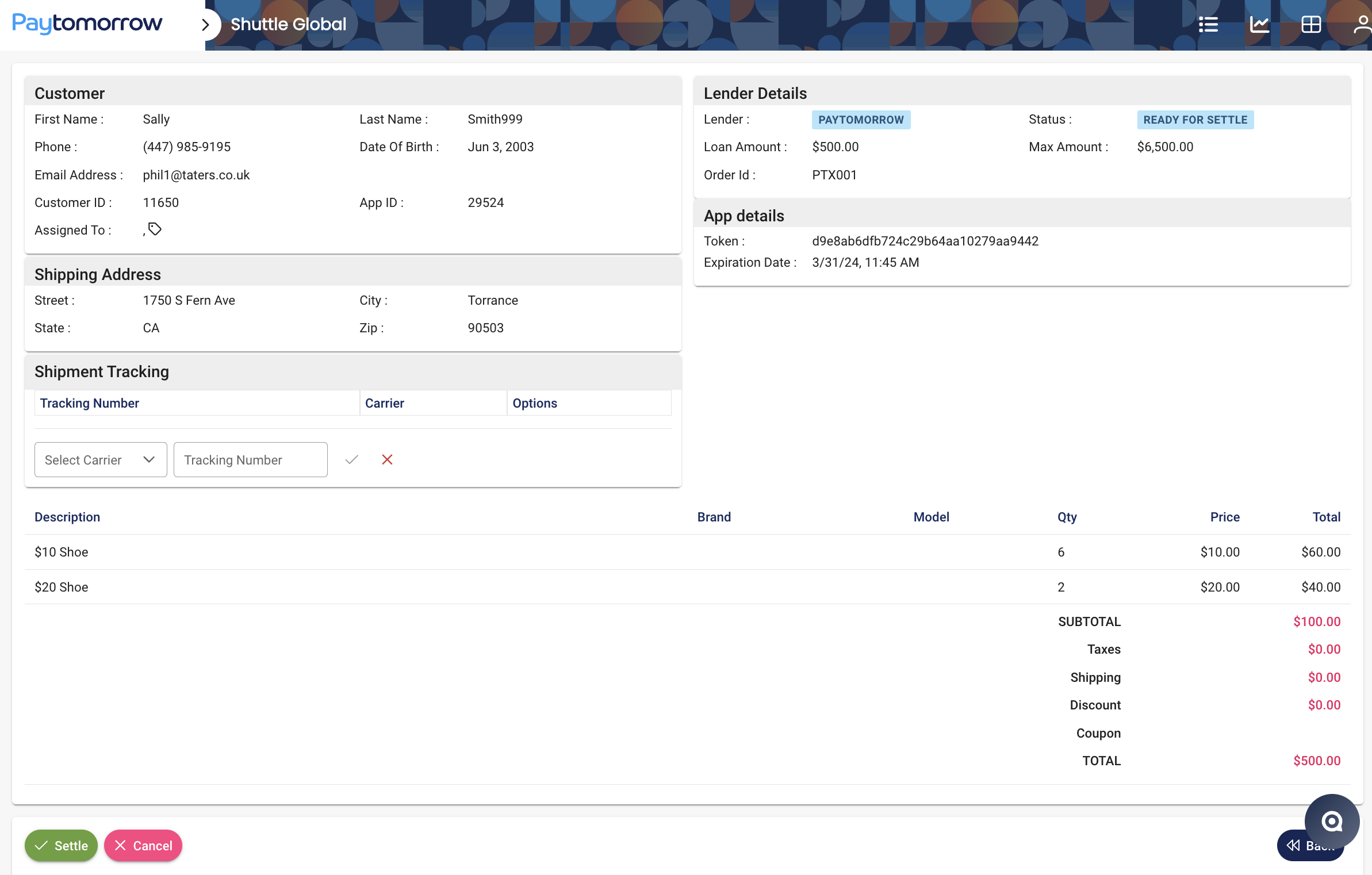
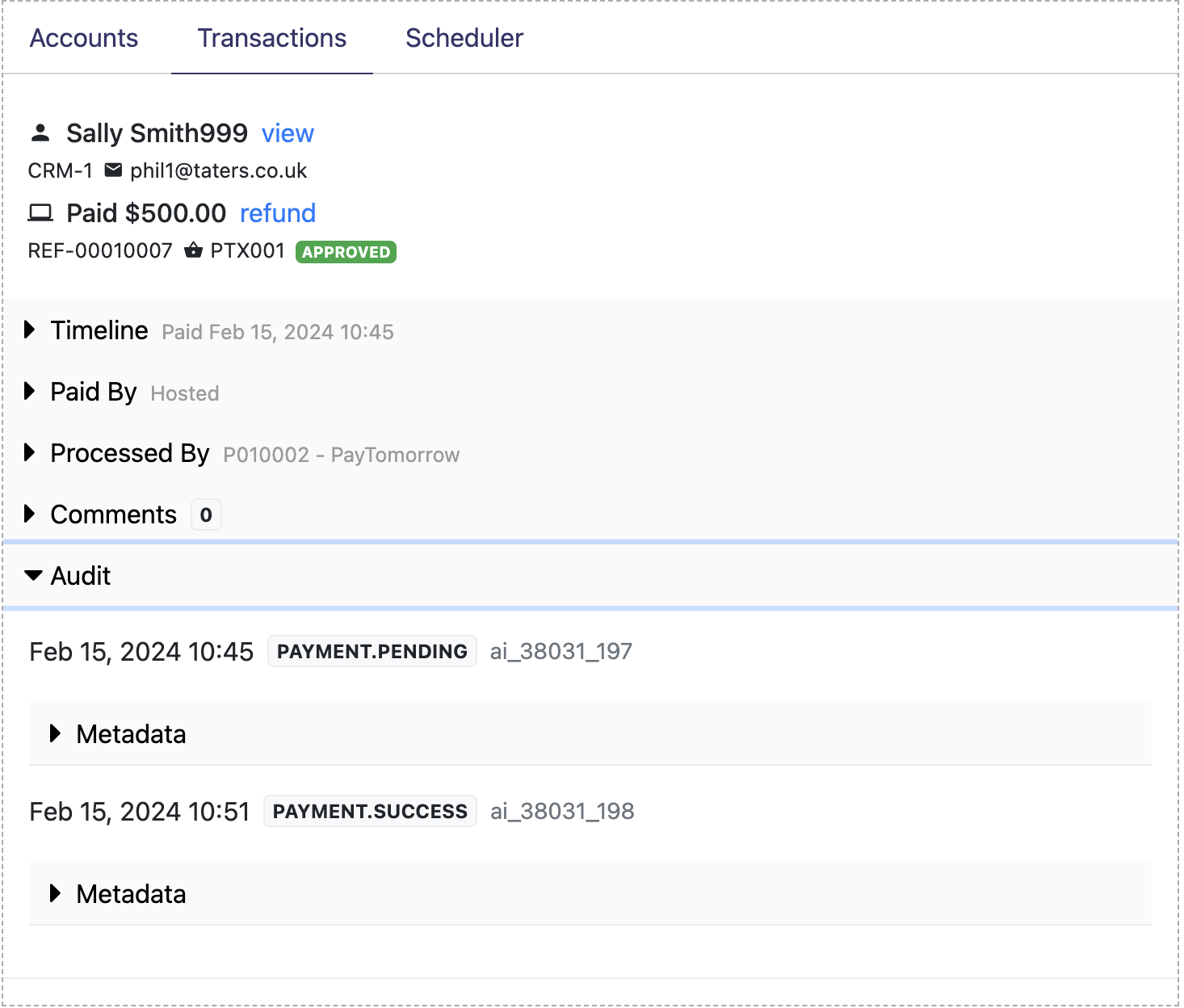
The integration automatically reflects the change and transitions the order to Approved, typically within a few seconds:
This is sent back to the originating system as a PAYMENT.SUCCESS webhook.
Authorisation and capture
Section titled “Authorisation and capture”For an auth/capture flow, the customer experience on PayTomorrow is the same:
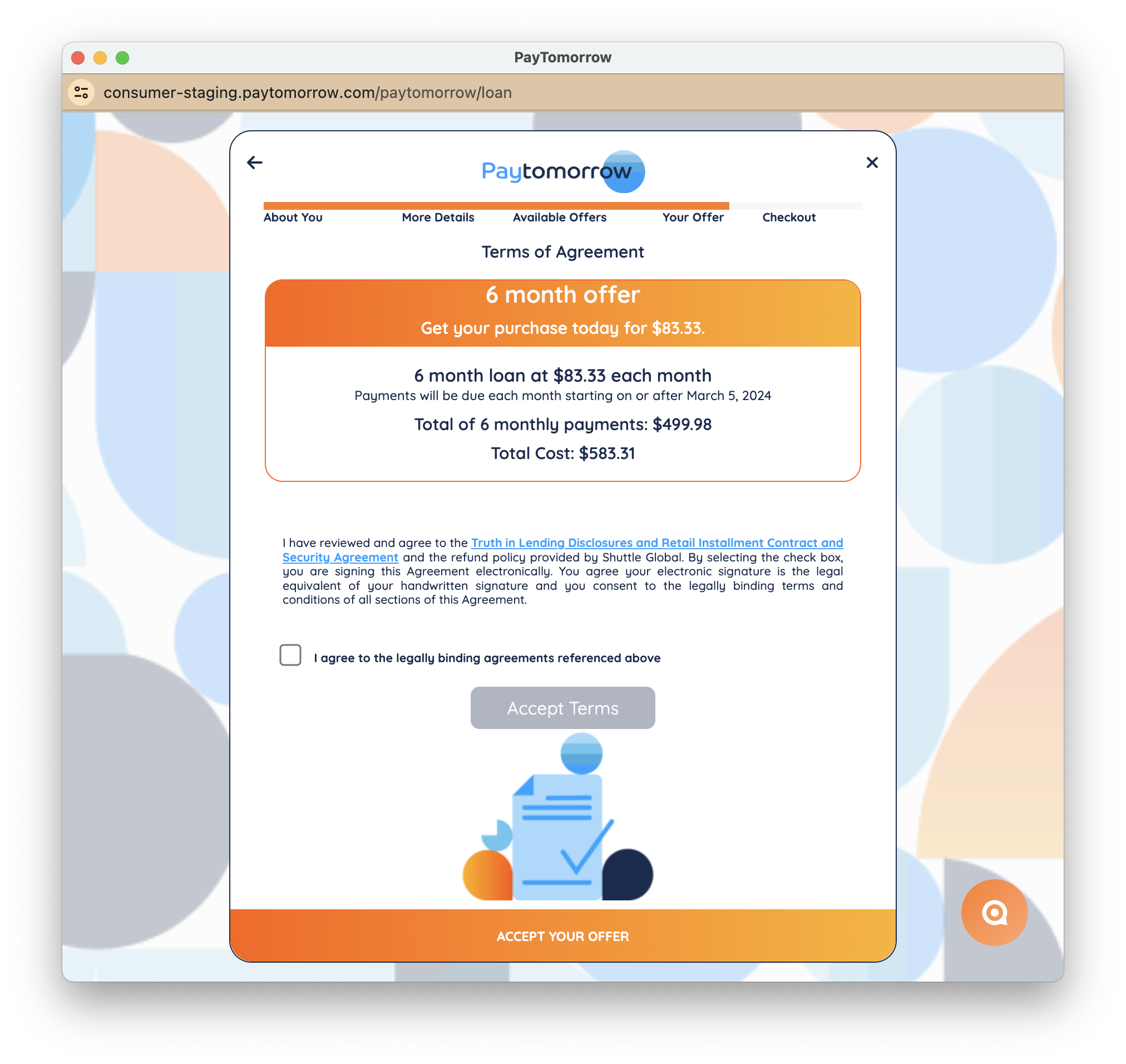
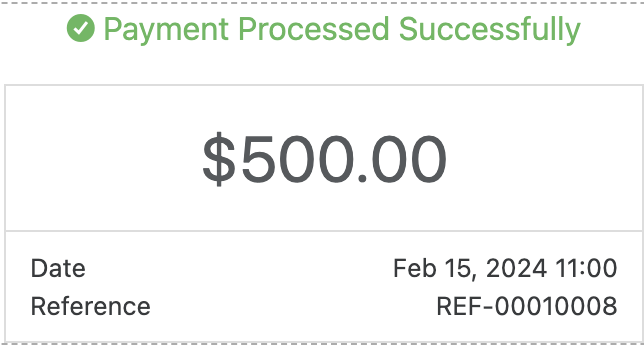
Once approved in PayTomorrow, this shows as a successful authorisation (rather than a pending payment):
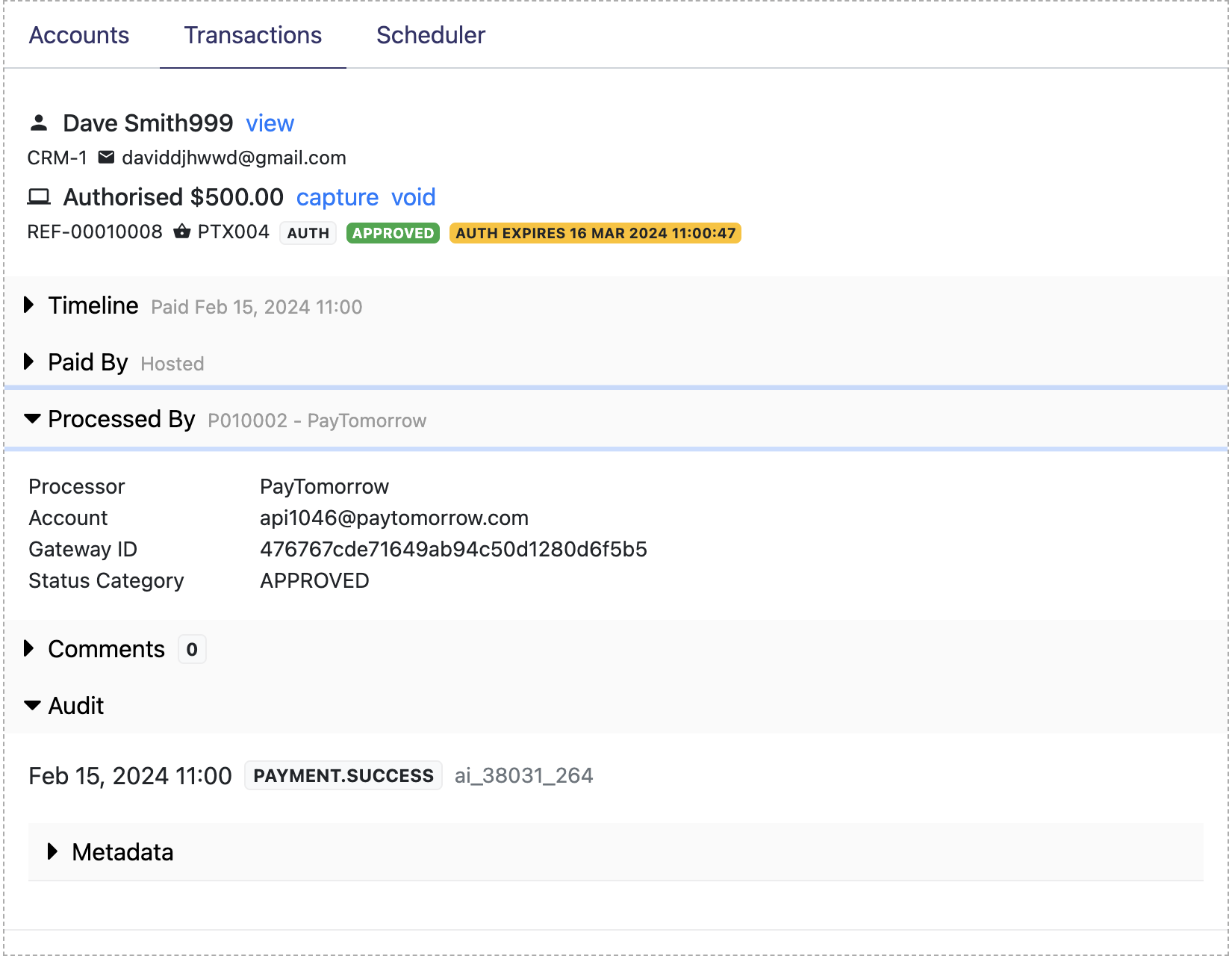
In the Merchant Portal it shows as an Approved authorisation:
This is sent back to the originating system as a PAYMENT.SUCCESS webhook. In the
PayTomorrow backend the order shows as Ready to Settle:
You can capture the authorisation in one of two ways:
- Capture via the Merchant Portal, Merchant View or the API (initiating a capture from the source system)
- Capture via the PayTomorrow backend
Capture via the platform
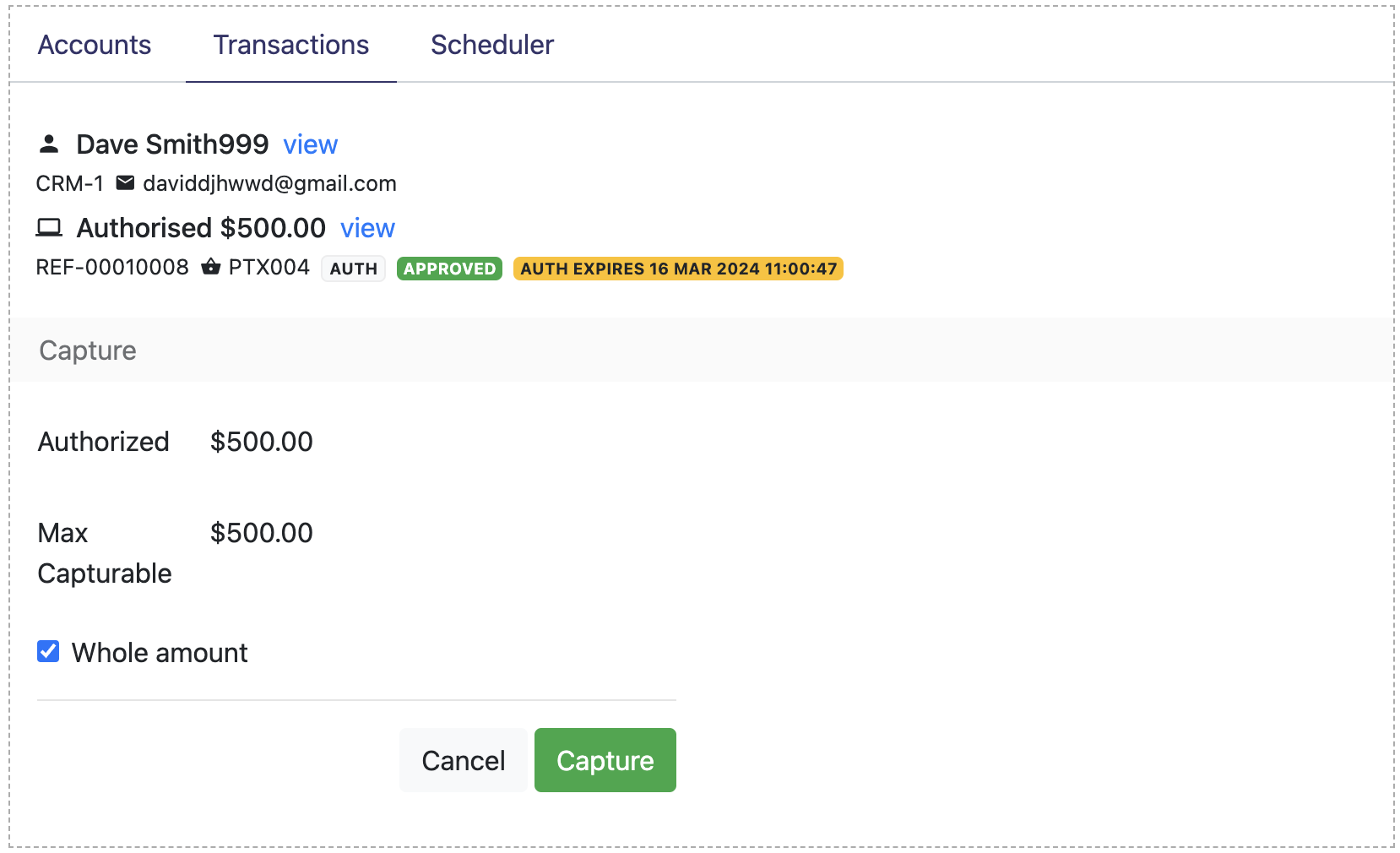
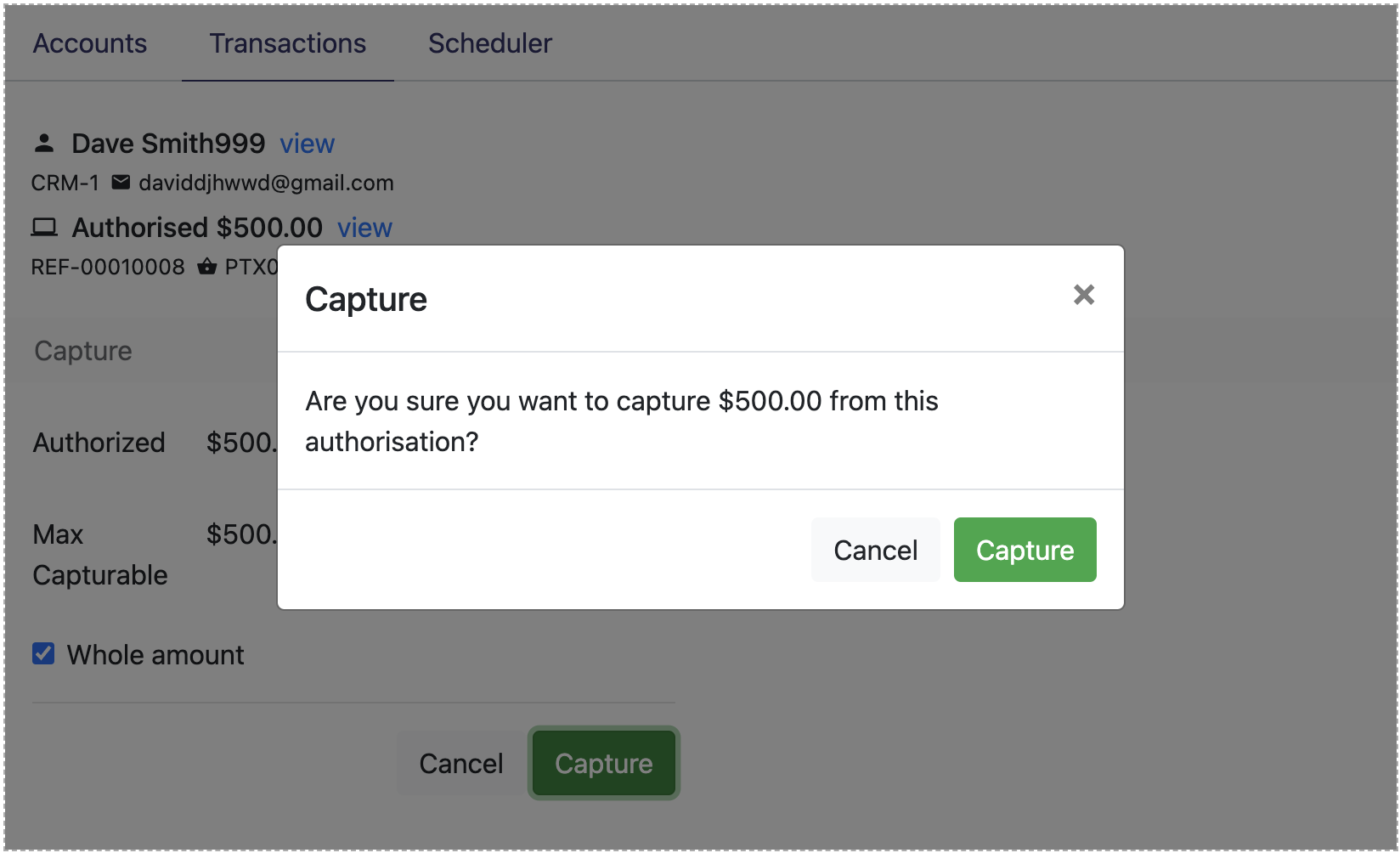
Section titled “Capture via the platform”In the Merchant Portal or Merchant View, select the Capture link at the top of the authorisation, or use the capture API:
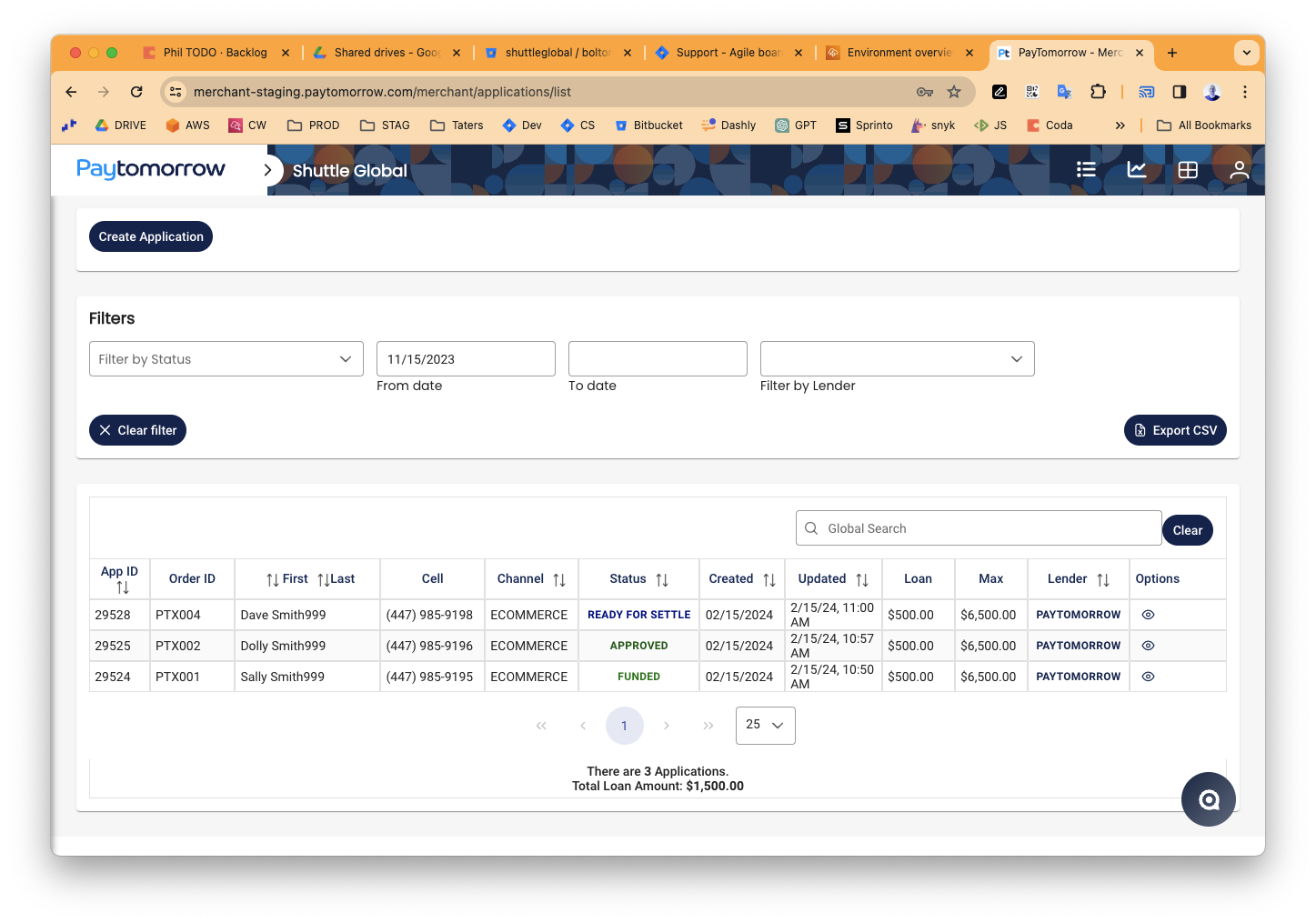
The originating system receives a CAPTURE.SUCCESS webhook, and the transaction
is automatically settled in PayTomorrow:
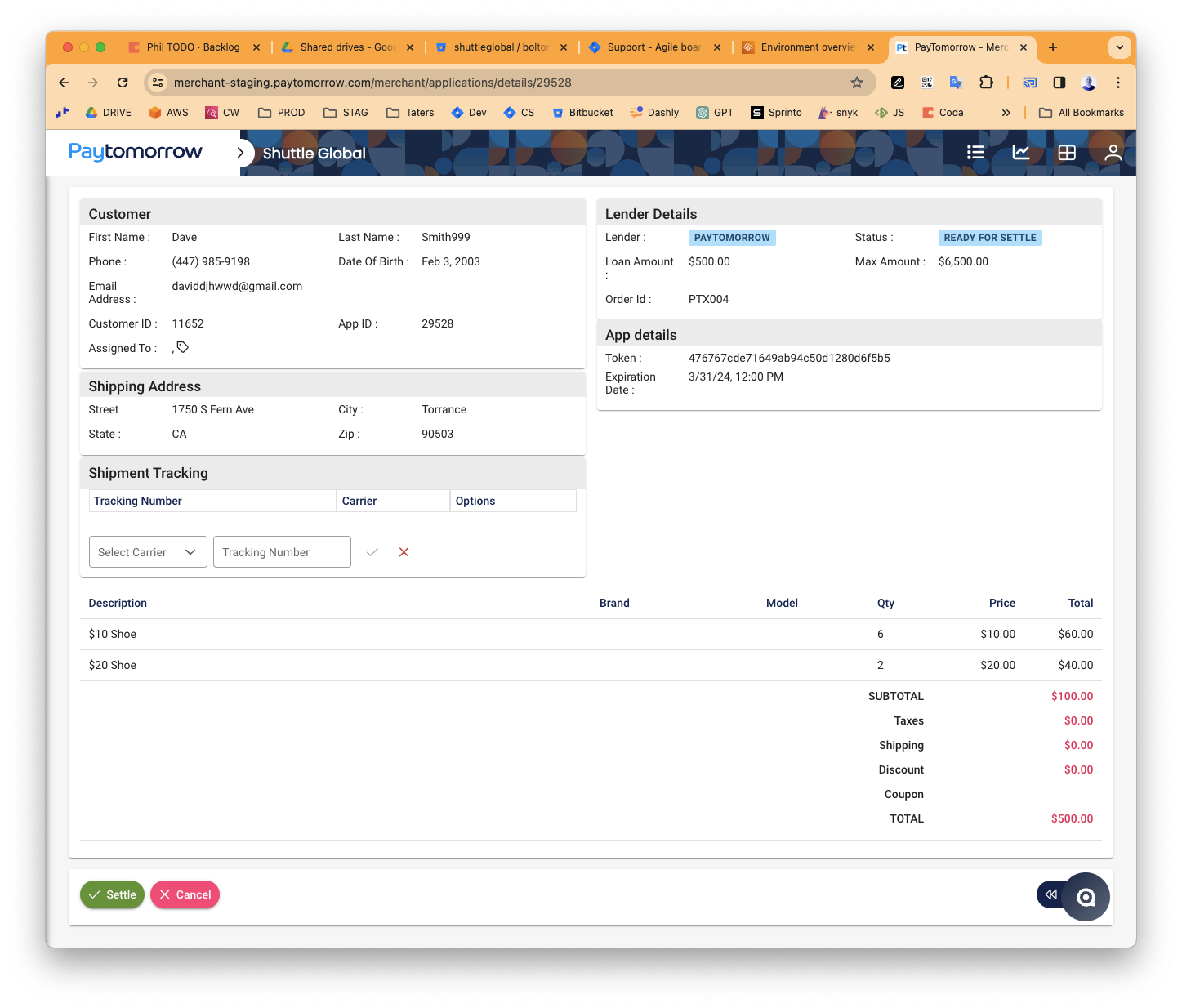
Capture via PayTomorrow
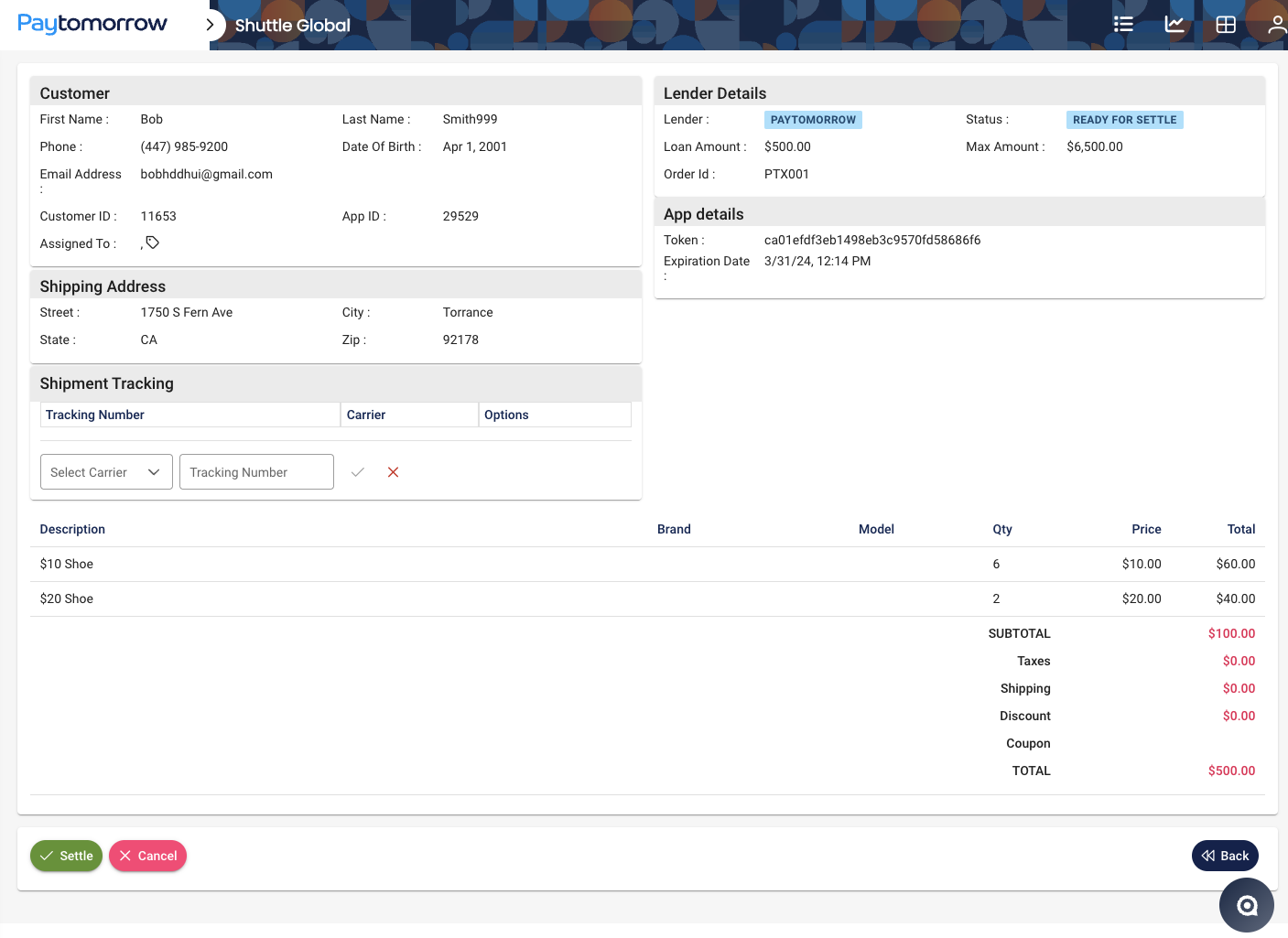
Section titled “Capture via PayTomorrow”In the PayTomorrow backend, find the order and select the Settle option:
After a few seconds the integration is notified and automatically generates a capture
transaction, which is sent to the source system as a CAPTURE.SUCCESS:
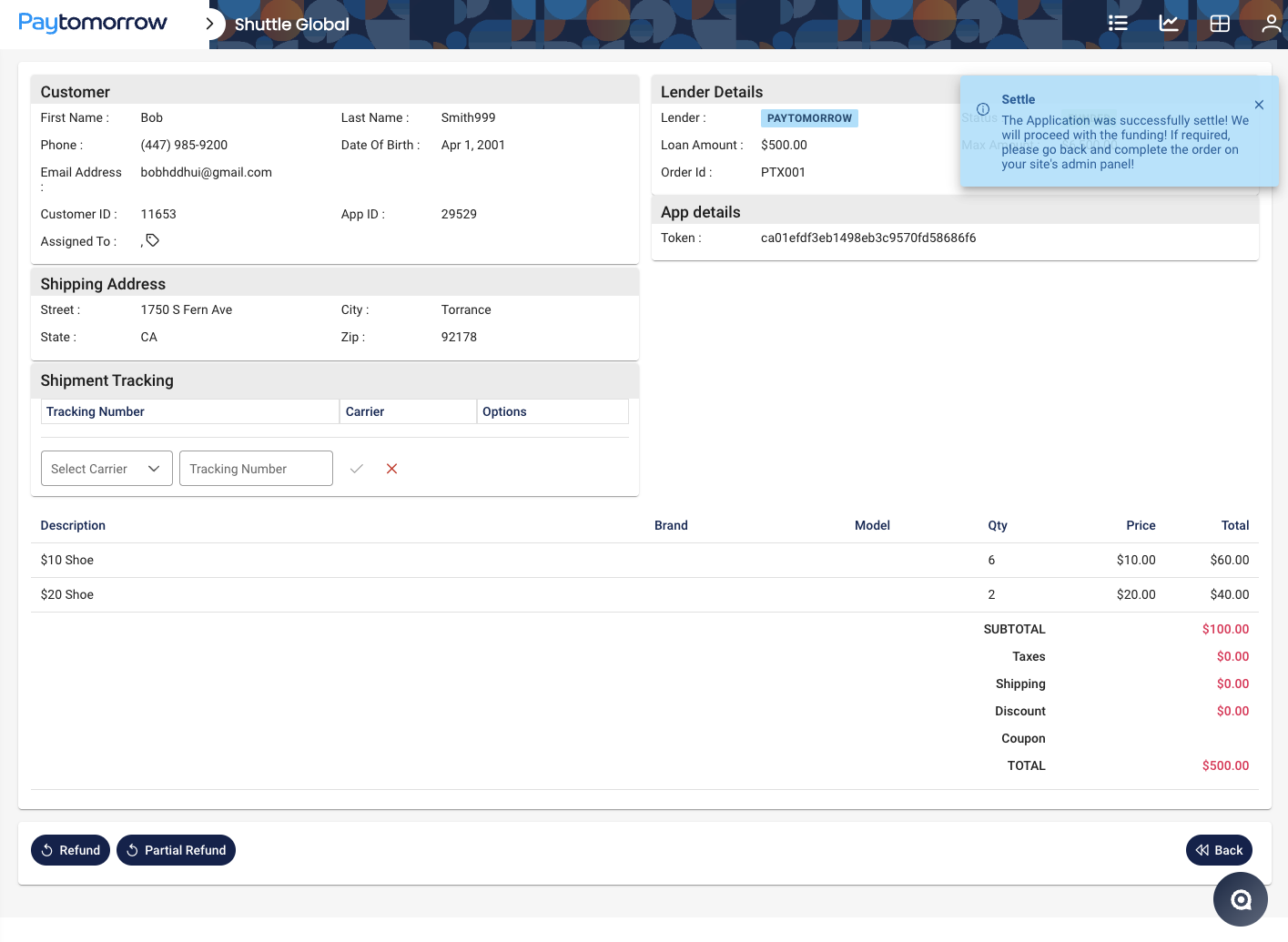
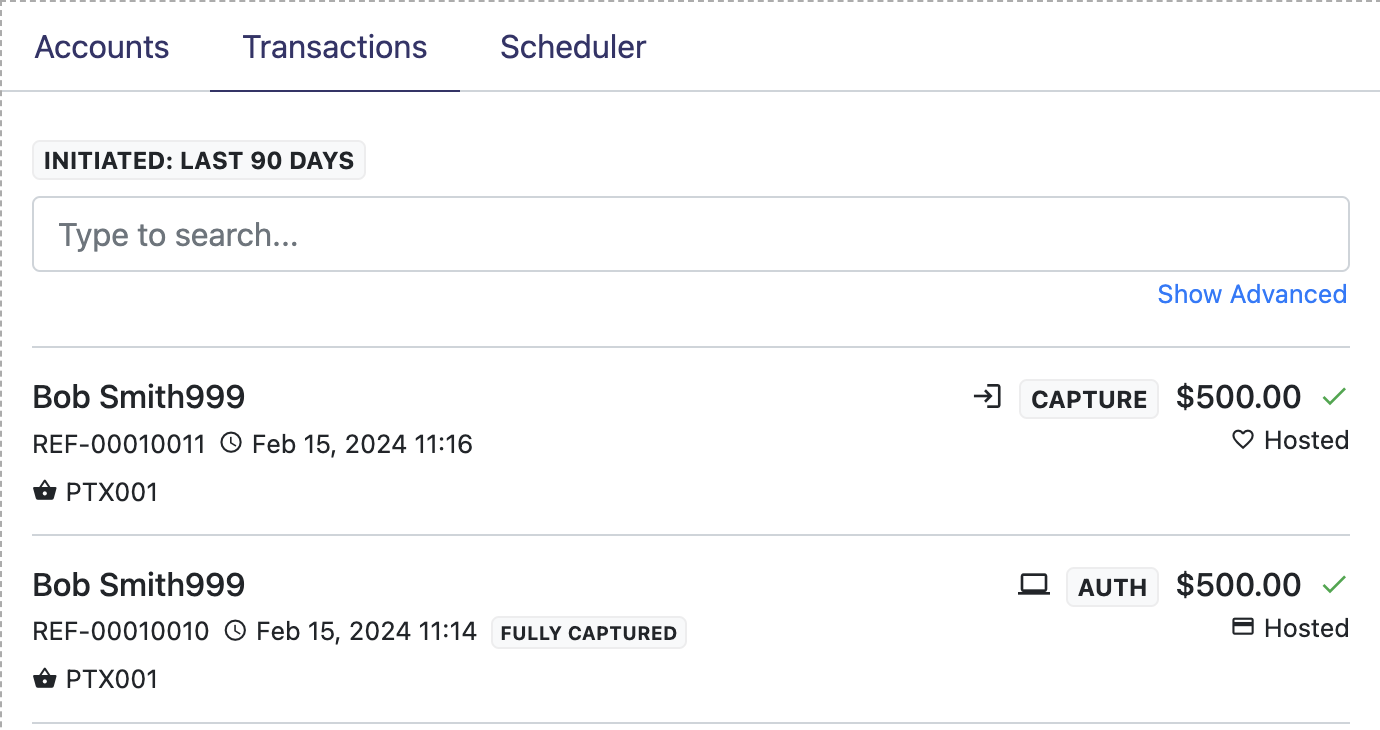
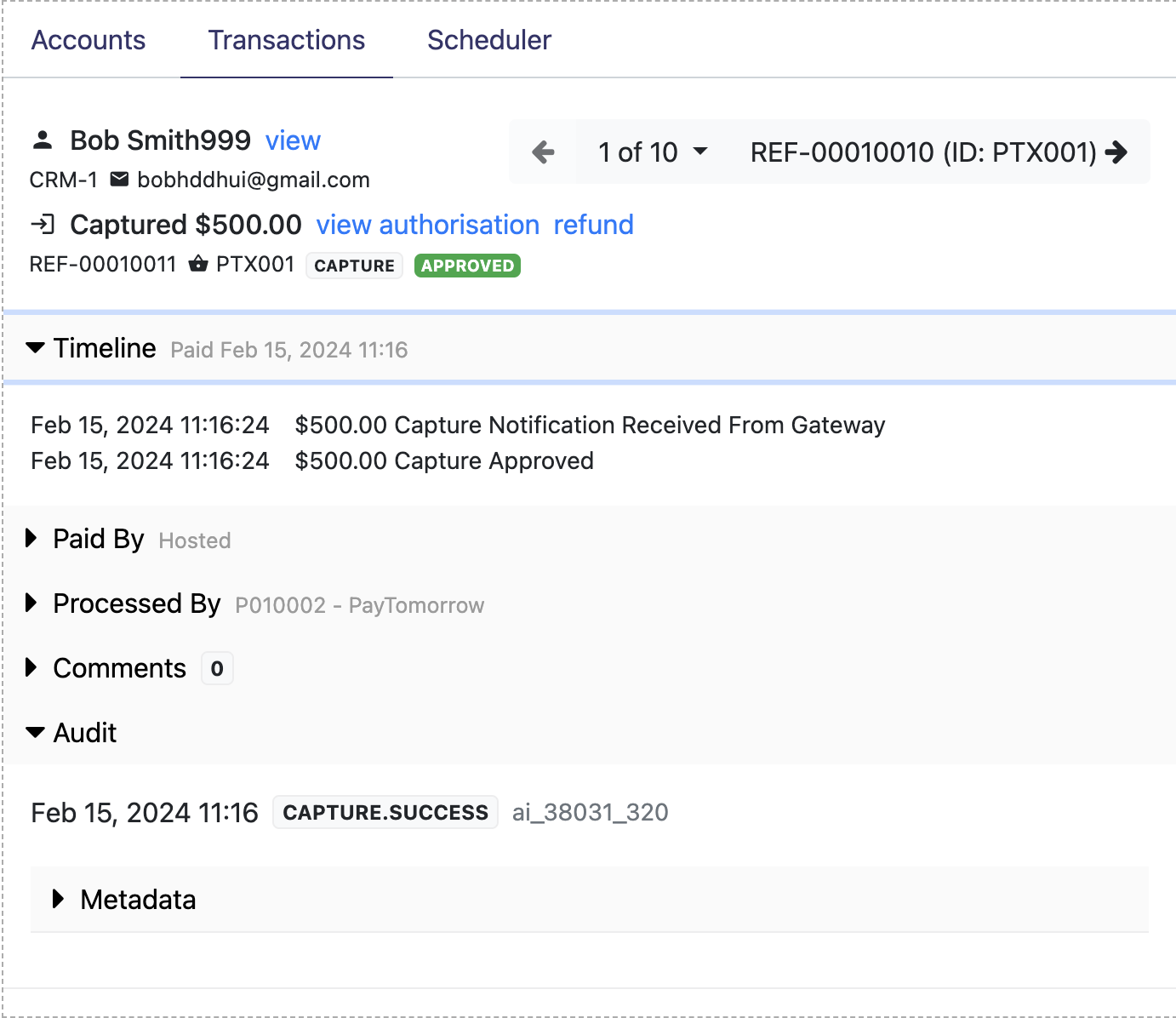
If you view the timeline of the capture, you can see it was initiated by the
gateway (PayTomorrow) — programmatically this is the field offline: true.
Was this page helpful?
What went wrong?
Thanks for telling us.