
Creating a Braintree sandbox account
This guide walks through creating a Braintree sandbox account so you can set up and verify your connection before going live.
-
Go to braintreepayments.com/sandbox and sign up for a sandbox account.
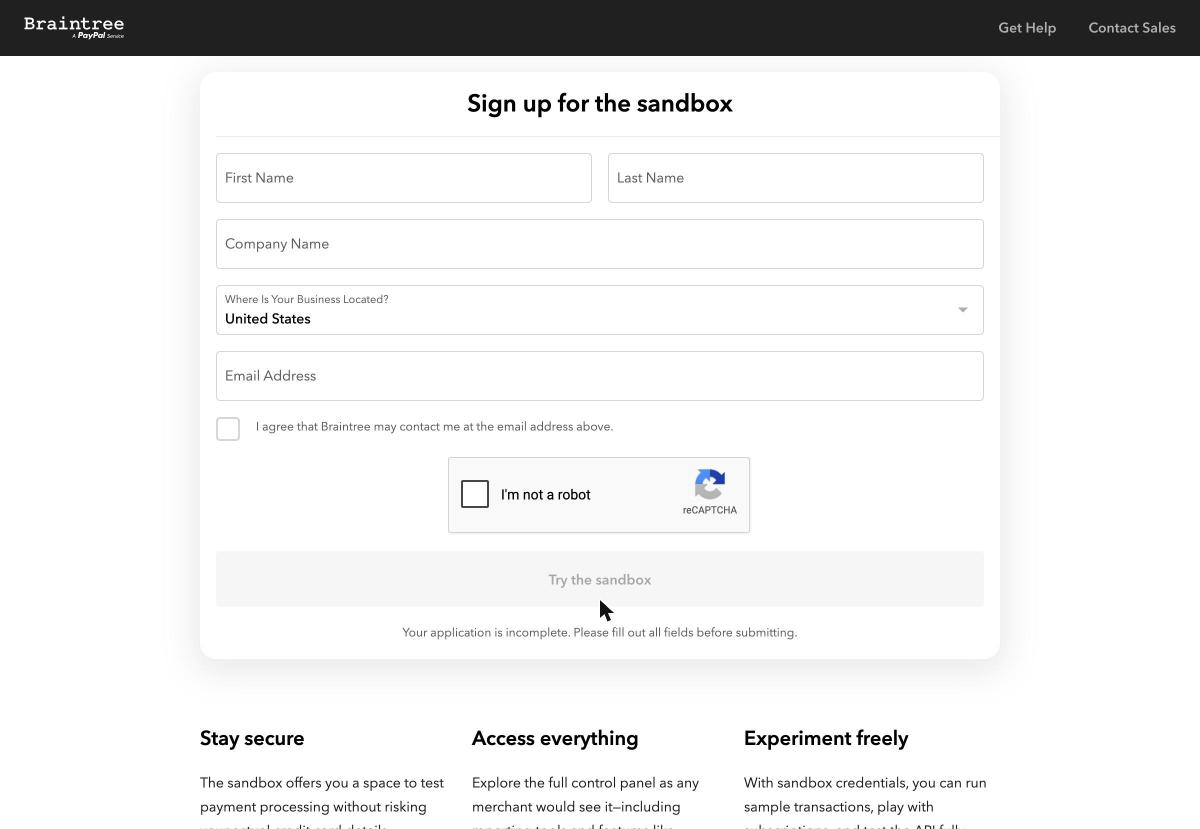
-
Log in to the sandbox Control Panel at sandbox.braintreegateway.com/login. Your Merchant ID, Public Key and Private Key are on the home page, under Sandbox Keys & Configuration.
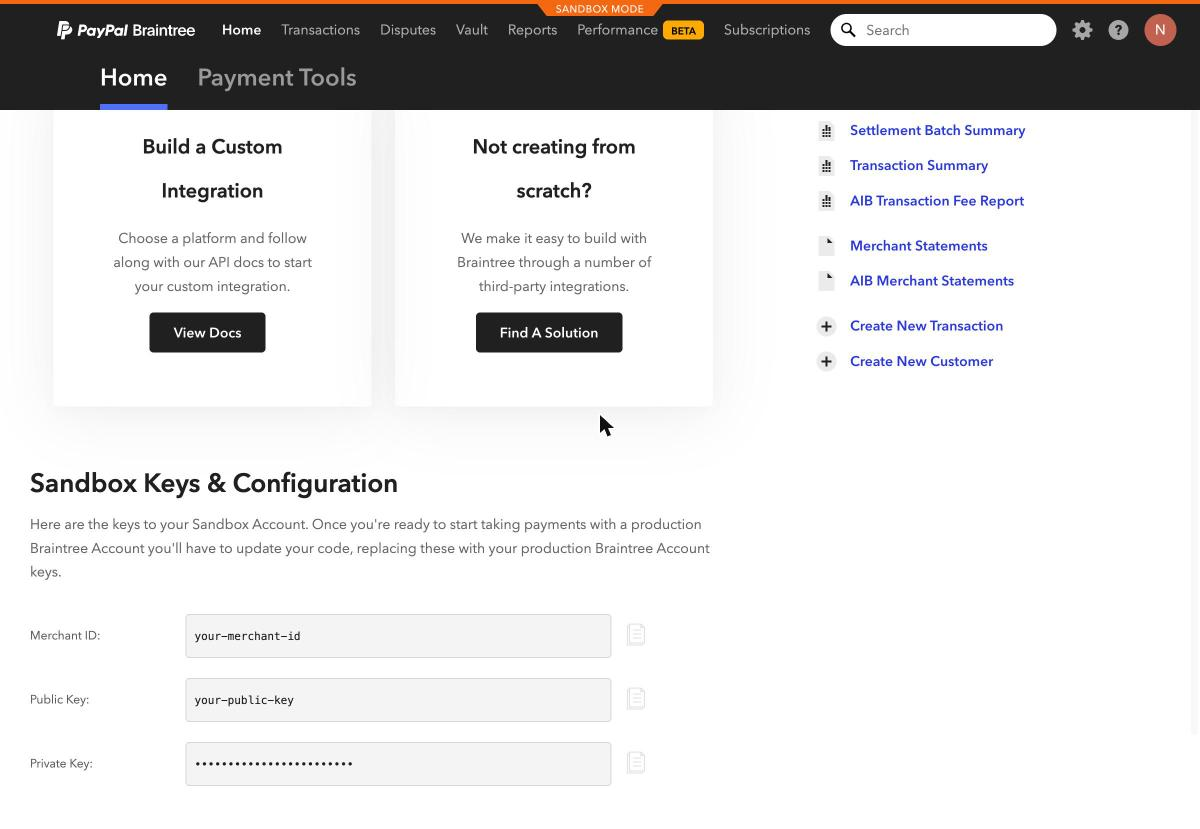
-
To manage your keys, select the gear icon in the top-right corner, then select API.
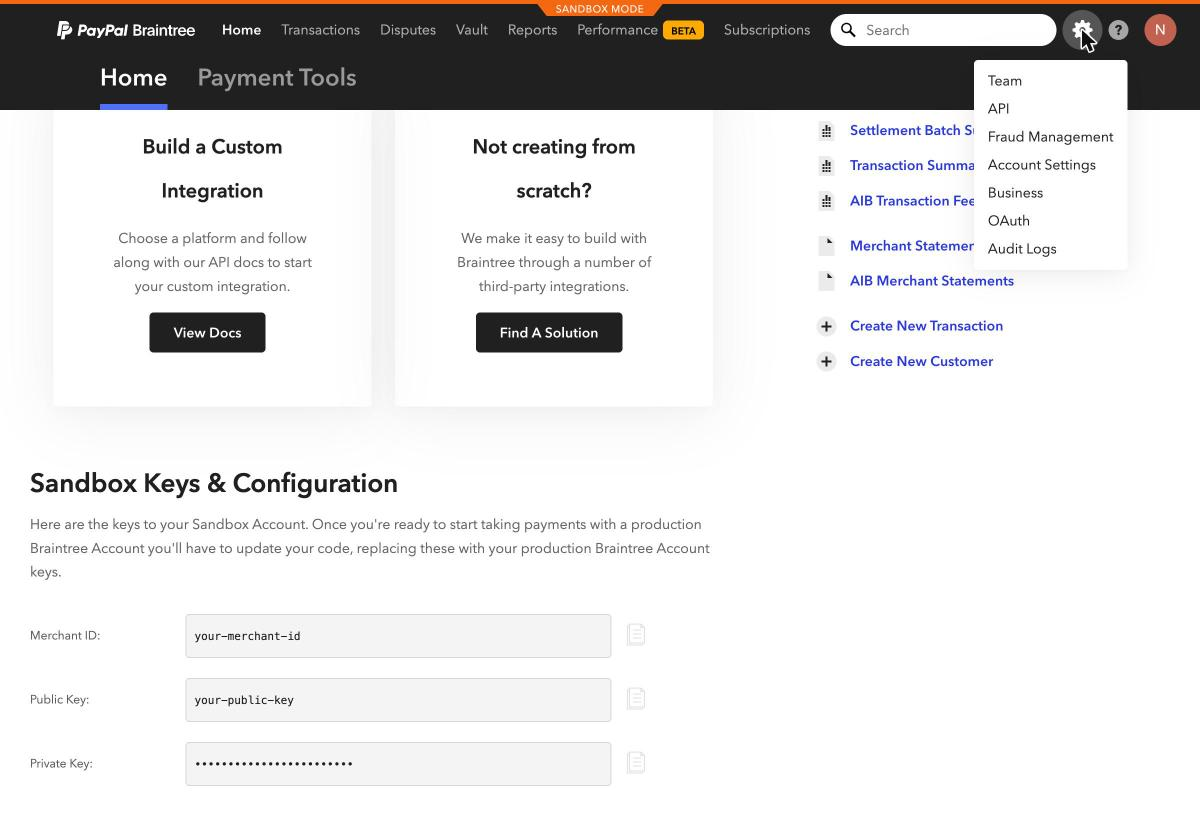
-
If no key is listed under API Keys, select Generate New API Key. To see a key’s Private Key, select View in the Private Key column.
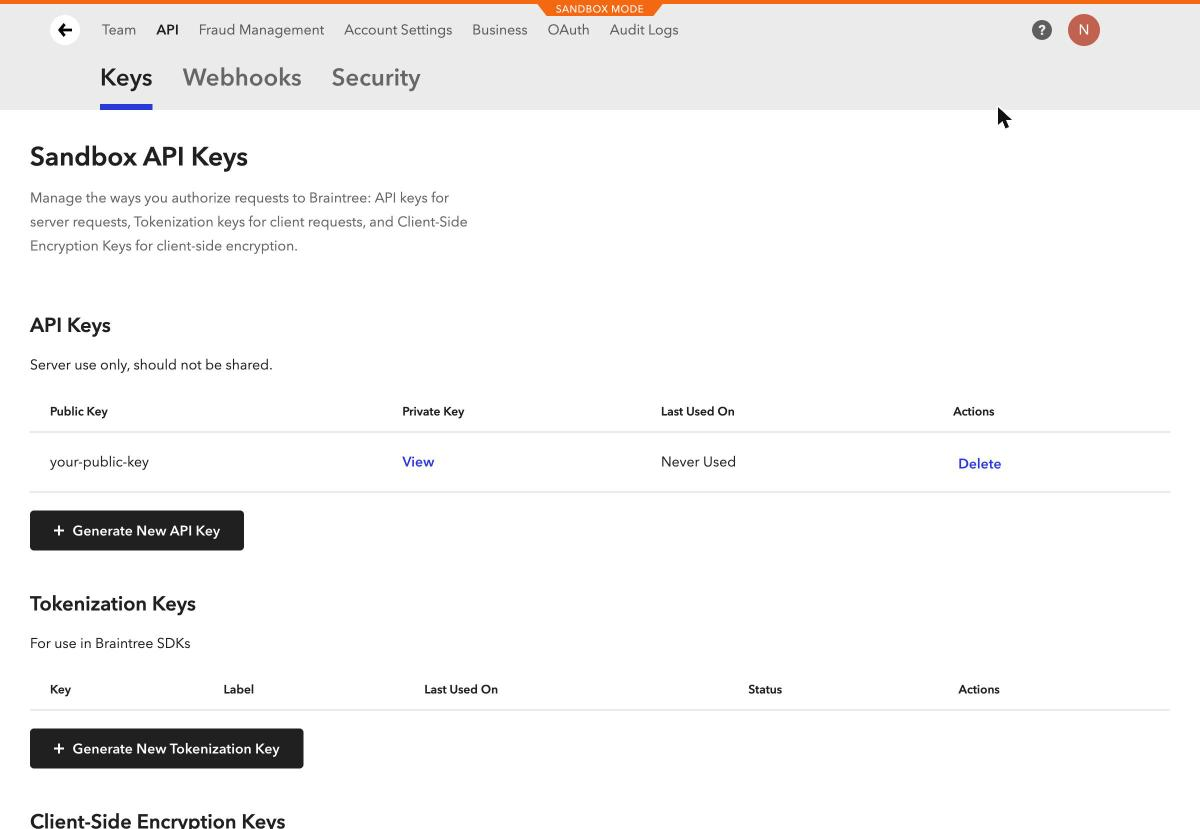
-
To find your Merchant ID again later, select the gear icon, then select Business. It is shown at the top of the page.
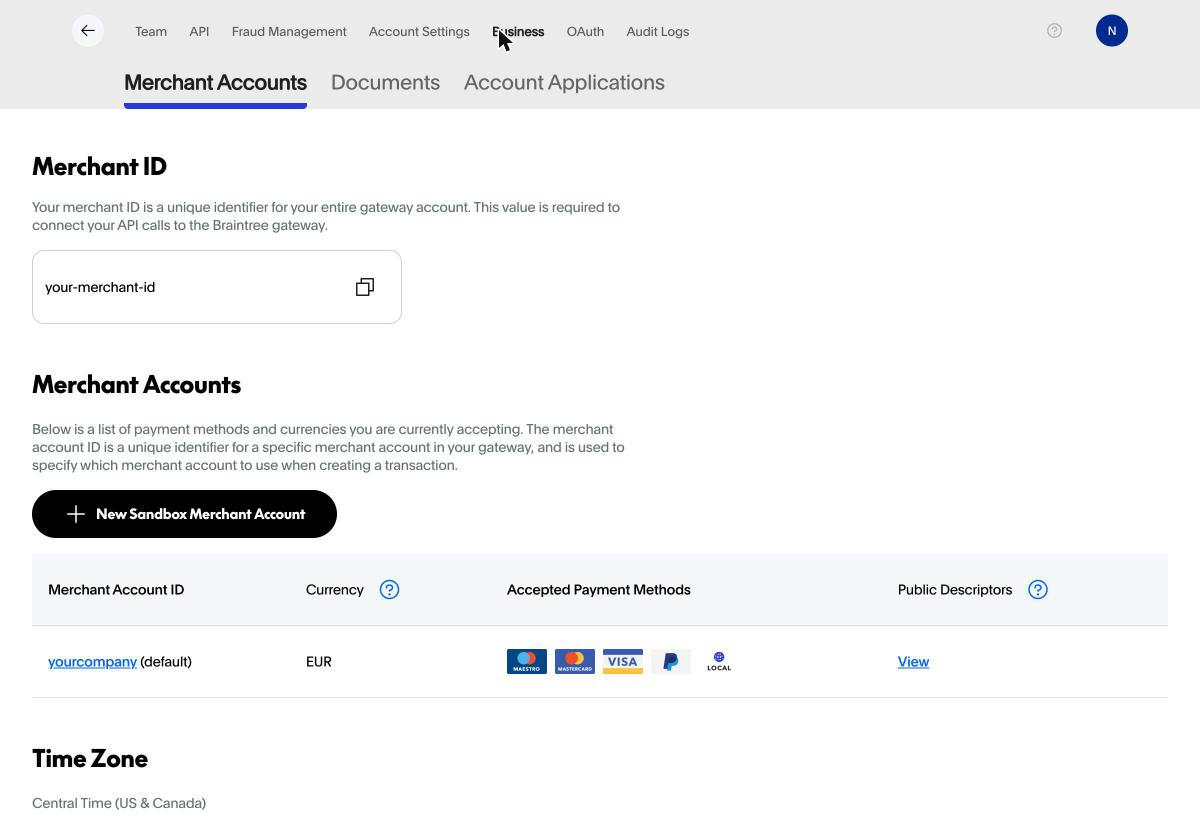
See Braintree’s Important gateway credentials guide for more on where these values are. Your sandbox has its own Merchant ID and keys, separate from your live account.
-
Enter your Merchant ID, Public Key and Private Key into the Braintree connection screen, as described in Connecting Braintree.
These steps follow Braintree’s own pages and screens as of 23 November 2026. If they no longer match, Braintree’s linked pages are the reference.
Was this page helpful?
What went wrong?
Thanks for telling us.