
Link branding
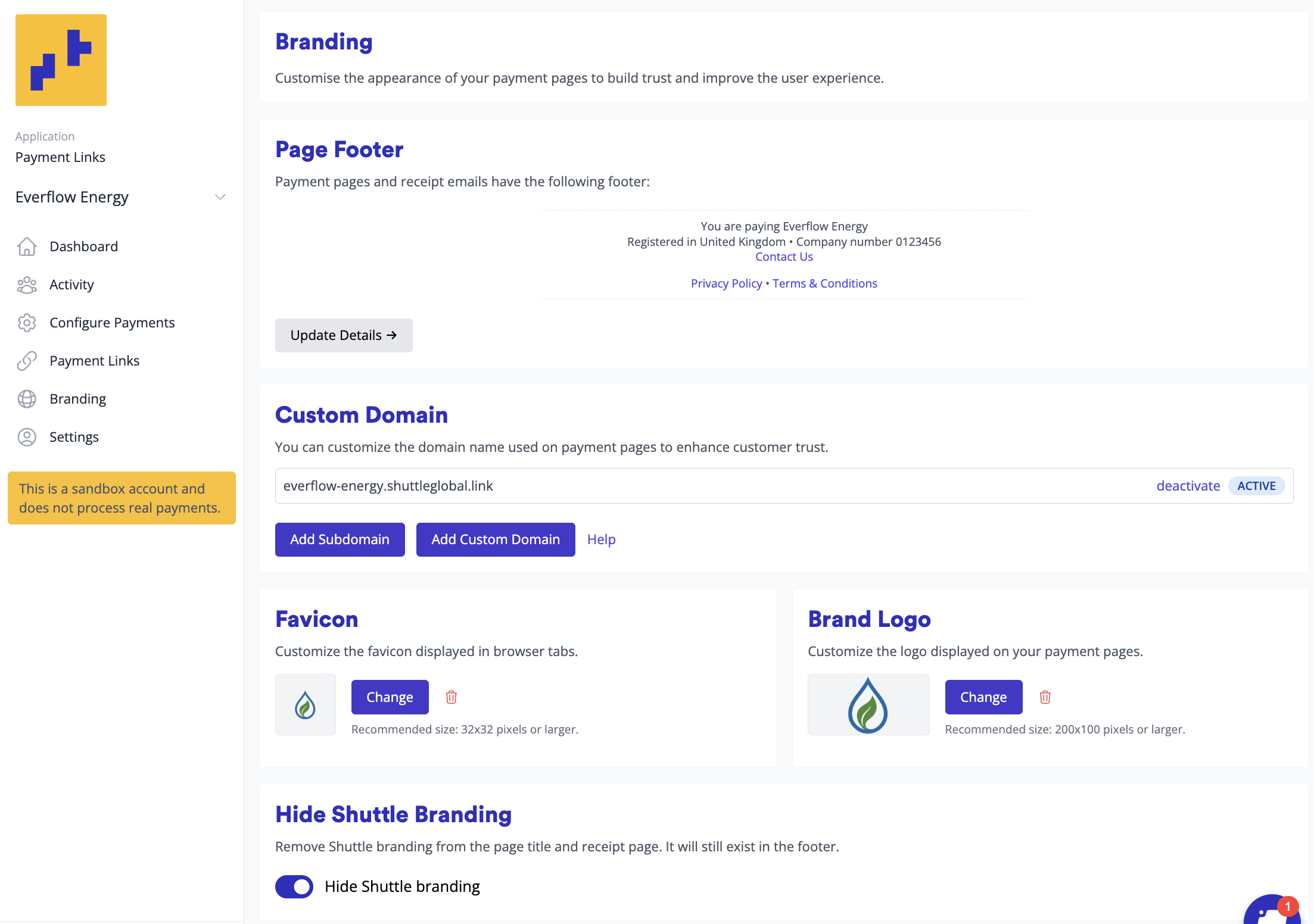
Branding your payment pages shows customers they’re paying you, which builds trust and gets more payments completed. You can:
- add a page footer with your company details, terms and conditions and privacy policy
- use your own domain, so the link’s address belongs to your company
- add your favicon and logo
- hide Shuttle’s branding from page titles and receipts
Each account has its own branding. To change it, select Configure in the menu, then Configure Branding under Branding. You need the Admin role.
Some options need a paid plan. Those show UPGRADE until you upgrade: see Billing.
Page footer
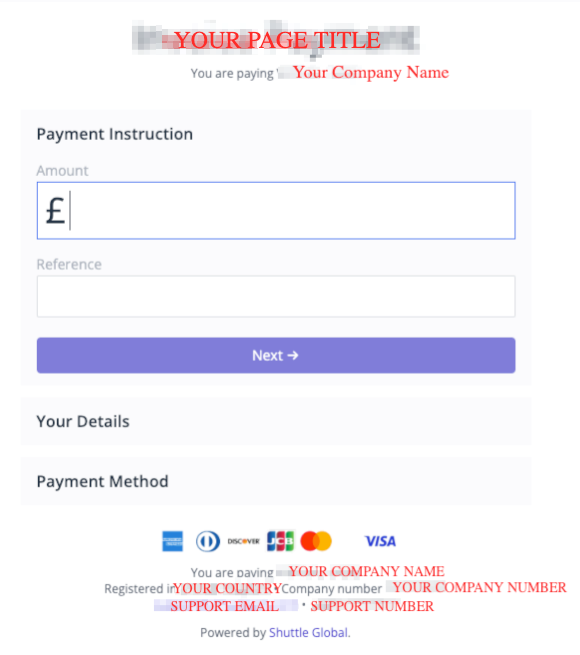
Section titled “Page footer”The footer shows your company details at the bottom of your payment pages and receipt emails, so your customers know who they’re paying, how to contact you, and the terms and privacy policy that apply.
-
In the Page Footer section, select Update Details.
-
Fill in your details, then select Save:
Field What to enter Company Name Your company’s registered name Incorporated In The country your company is registered in Registration Number / EIN Your company registration number, or your US Employer Identification Number Support Email The email address customers can contact Support Phone The phone number customers can call Support URL Your support page Privacy Policy URL Your privacy policy Terms & Conditions URL Your terms and conditions, including your refund policy
Fill in both the privacy policy and the terms and conditions: your payment provider may require them.
The payment page can’t ask customers to tick a box to accept your terms. Link your terms and conditions here instead, so they’re on every payment page. You can then add “By entering your payment details below, you accept our terms and conditions” to the link’s Page Intro (see Multi-use links). That text can’t hold a link, so the footer link is the one customers can select.
Custom domain
Section titled “Custom domain”Your payment links can use an address that shows they come from your company. There are two kinds.
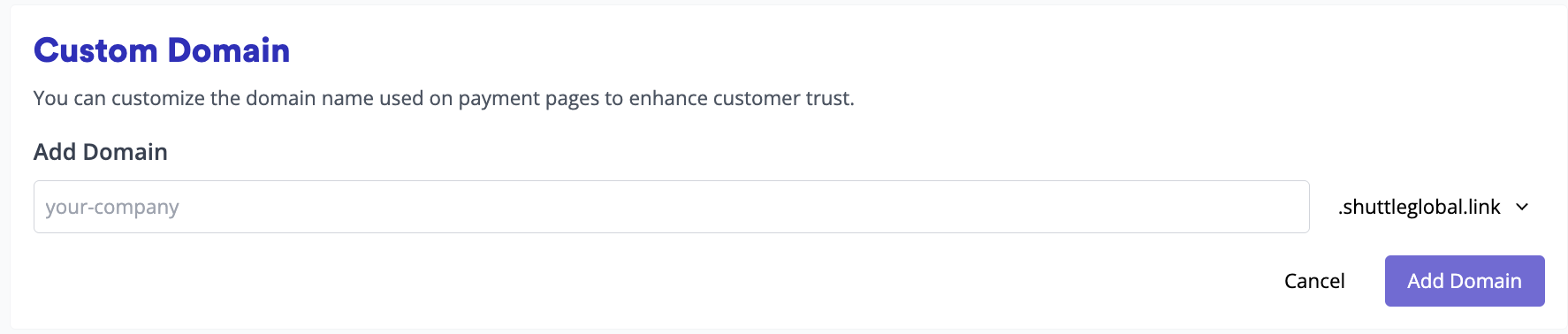
A subdomain, such as yourcompany.shuttleglobal.app or yourcompany.shuttleglobal.link, works straight away and needs no DNS changes. Select Add Subdomain, enter your company name, choose the ending, then select Add Domain.
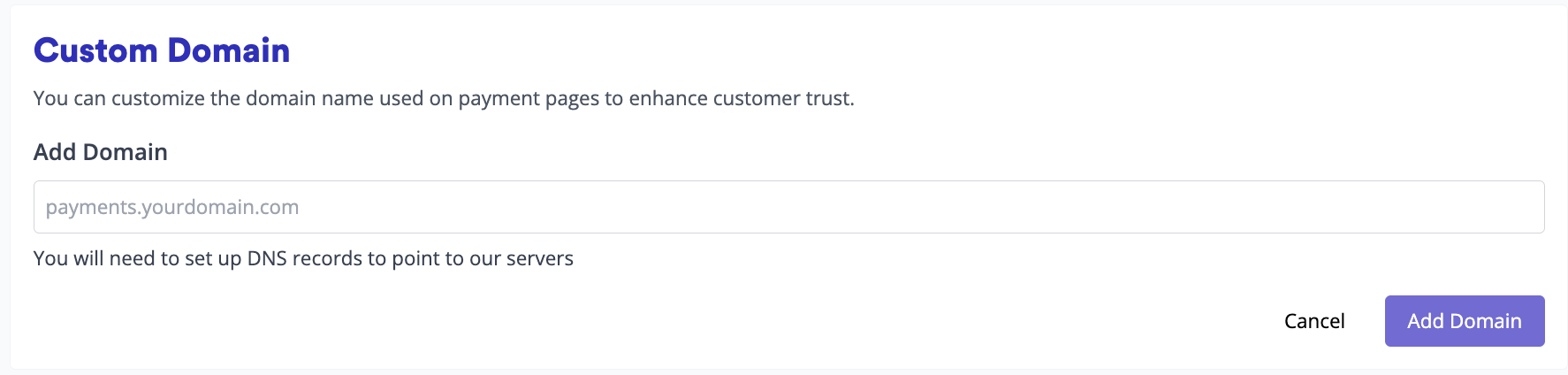
Your own domain, such as payments.yourcompany.com, gives customers the most confidence, but you need to add DNS records for it:
-
Select Add Custom Domain, enter the domain, then select Add Domain.
-
Add the CNAME records shown to your domain’s DNS, then select I’ve added the records. Checking them takes up to your previous DNS time to live (TTL), typically 5 to 60 minutes.
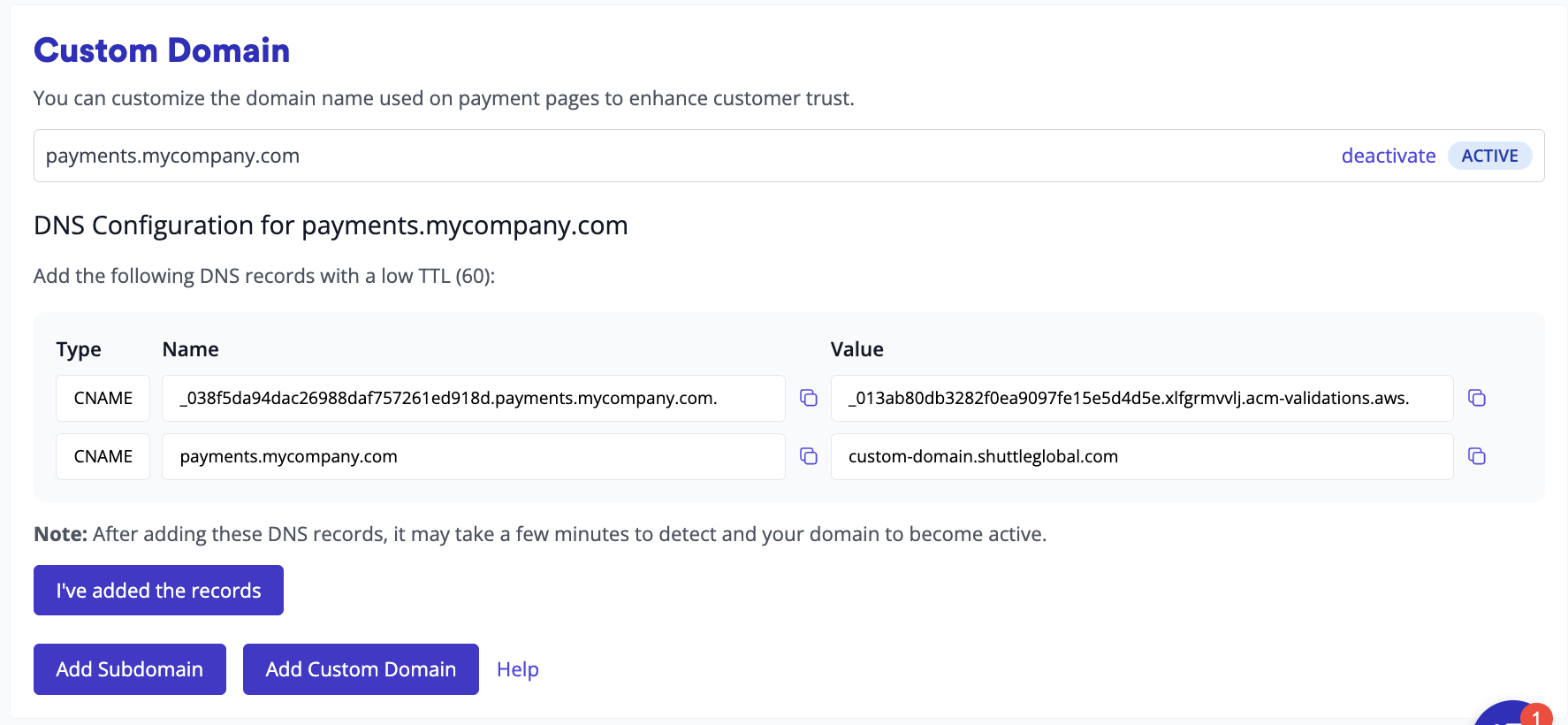
When the domain is ready, select make active to use it for new payment links. Links you’ve already sent keep working.

Favicon and logo
Section titled “Favicon and logo”Your favicon shows in the browser tab, and your logo on the payment page and link generators.
| Image | Format | Size |
|---|---|---|
| Favicon | PNG, JPG or ICO, square | Under 50KB recommended, 500KB at most |
| Brand Logo | PNG or JPG, up to twice as wide as it is tall | Under 200KB recommended, 500KB at most |
Leave your company name out of the logo: the payment page already shows it next to the link’s name. To add an image, select Upload in its section, and Change to replace it.
When a link generator is embedded in another page, the logo is hidden, so the page around it controls the design.

Hide Shuttle branding
Section titled “Hide Shuttle branding”Turn on Hide Shuttle branding to remove Shuttle from:
- the browser page title
- the receipt page’s Payment Links promotion
- your customers’ receipt emails
The payment page footer still says “Powered by Shuttle Global”. That can’t be removed.

Was this page helpful?
What went wrong?
Thanks for telling us.