
Take part payments on an invoice
With part payments turned on, your customers can pay any amount against an invoice. This helps when you’ve agreed a deposit, or when an invoice is more than a customer’s card limit and they need to pay it in two parts.
Shuttle doesn’t send reminders for the rest of the invoice. Follow those up yourself.
Turn on part payments
Section titled “Turn on part payments”- Log in to the Shuttle app.
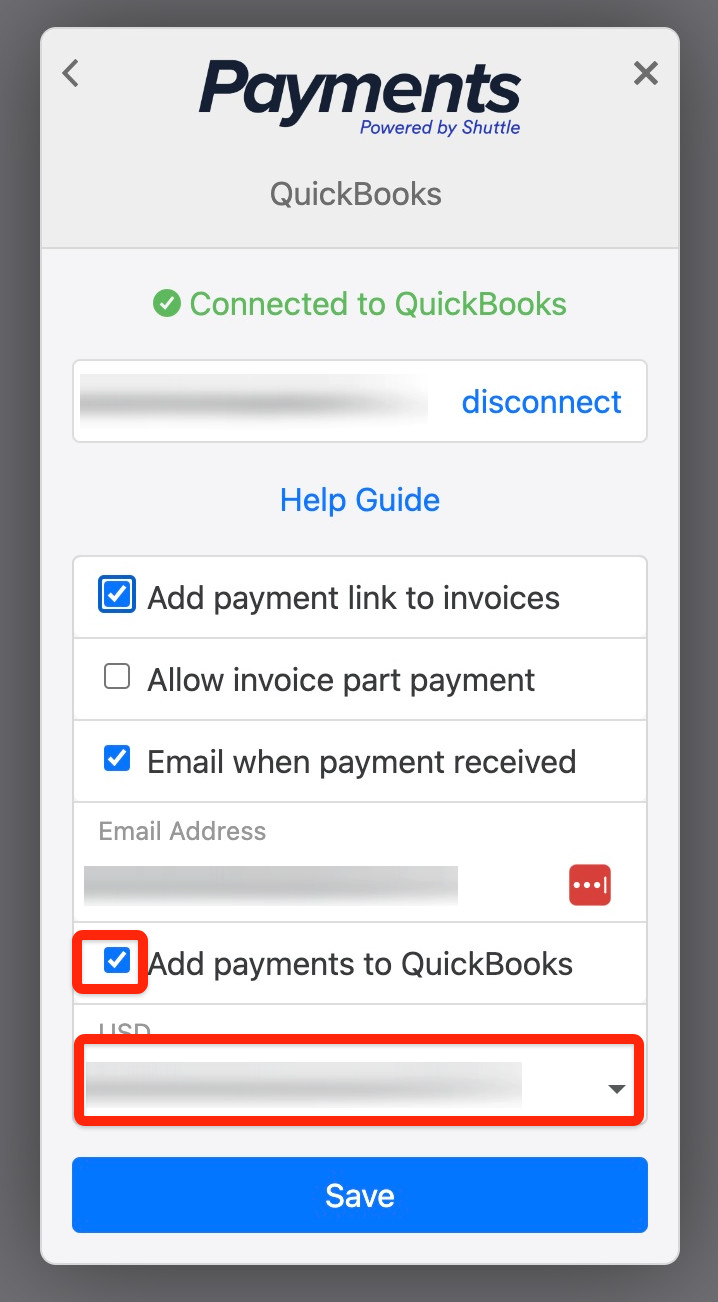
- Select View Configuration, then Accounts > QuickBooks.
- Tick Allow invoice part payment, then select Save.
How your customer pays part of an invoice
Section titled “How your customer pays part of an invoice”- On the first screen, your customer enters the invoice number and the total invoice amount. That’s how the payment is matched to the invoice, and how later payments against it are allowed.
- On the next screen, they enter the amount to pay now, and pay.
Was this page helpful?
What went wrong?
Thanks for telling us.