
Take a payment for a customer
A staff payment is one that you or a team member takes on your customer’s behalf, for example when a customer phones to pay an invoice.
Always use Staff Payment for these, not the customer’s payment link. It marks the payment as taken by staff, so the right security checks are used and you won’t be asked to complete a 3D Secure challenge meant for the cardholder.
You need the Admin or Support role. See Team management.
Take a staff payment
Section titled “Take a staff payment”-
Select Payment Links in the menu.
-
Next to the multi-use link the payment is for, select Staff Payment.
-
Enter the details, then select Next:
Field What to enter Reference The invoice number or other reference Amount The amount your customer wants to pay Name Your customer’s full name Email Your customer’s email address (optional) Phone Your customer’s phone number (optional) 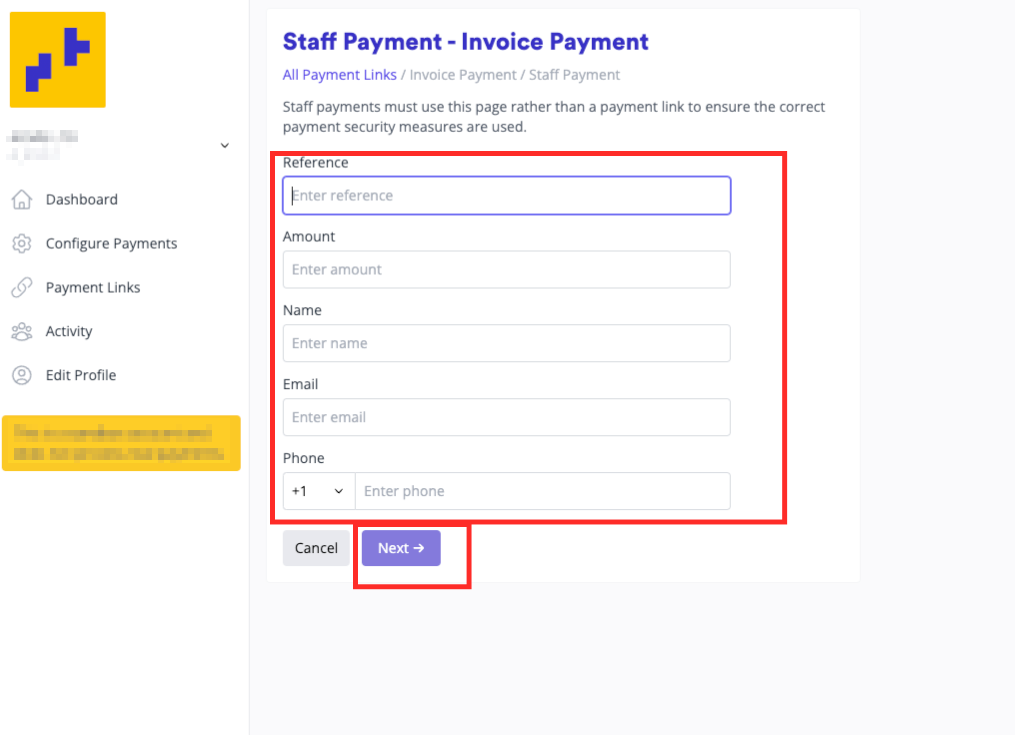
-
Enter your customer’s payment details in the payment window, and complete the payment.
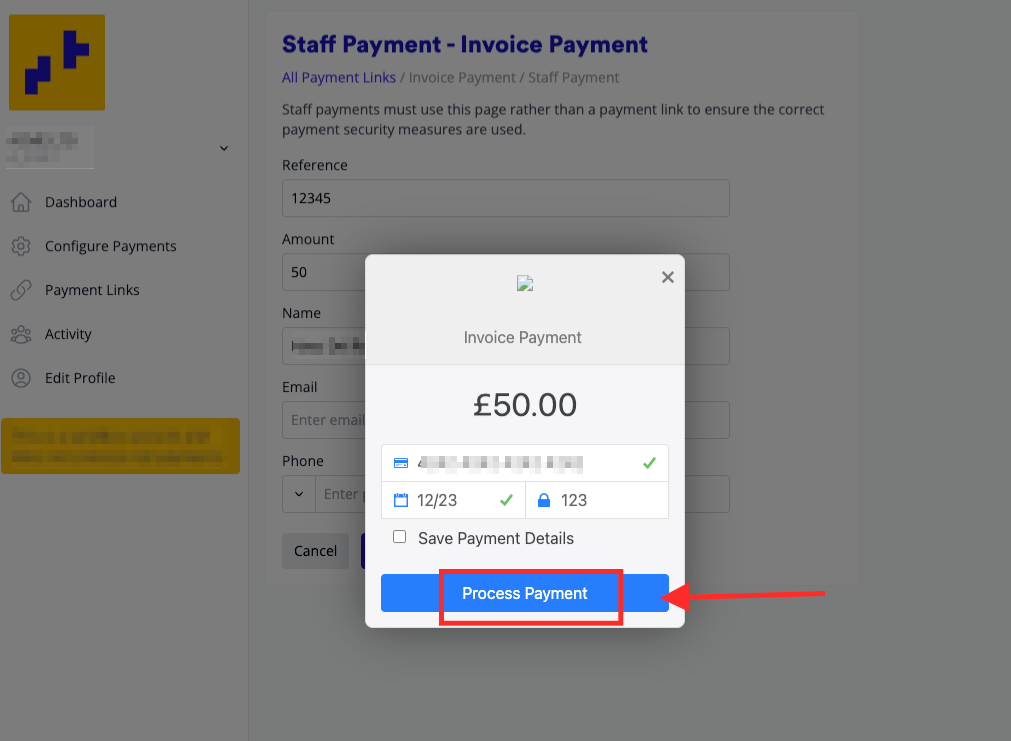
To check the payment went through, open Activity. See Activity view.
To take card payments over the phone without the card details reaching you or your staff, see Twilio.
Was this page helpful?
What went wrong?
Thanks for telling us.