
Payment Links: Getting started
You can take your first payment in four steps: create your account, connect your payment provider, create a payment link, and add your company details to the payment page.
Already have an account? Log in to the Merchant Portal.
1. Create your account
Section titled “1. Create your account”-
Enter your details:
Field What to enter Organisation Name Your business name Website Your business website Email Your own email address Name Your name Password A password that’s hard to guess. You don’t need one if you sign up with Google. 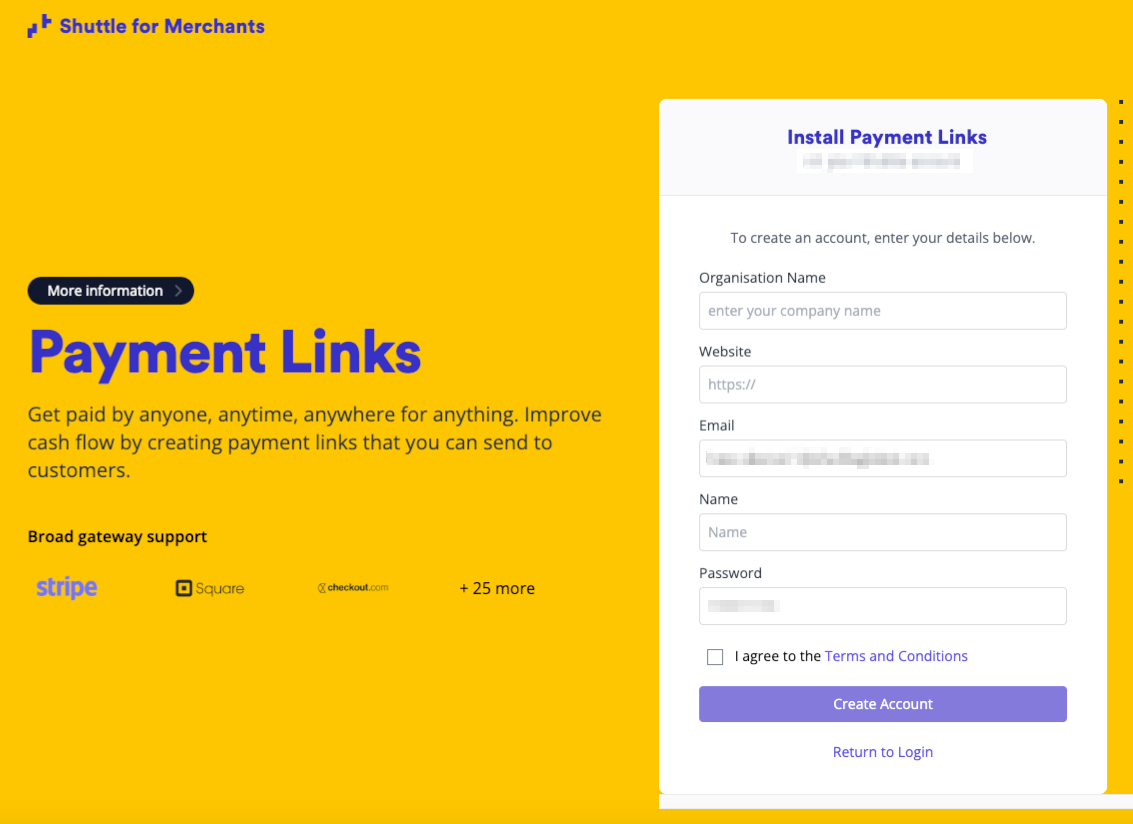
-
Tick I agree to the Terms and Conditions, then select Create Account.
-
If you’re asked for a Security Code, enter the code we emailed you.
Sandbox and live accounts
Section titled “Sandbox and live accounts”A sandbox account is for testing. It works exactly like a live account, but no money moves, and a banner on the payment page says it’s in sandbox mode. If you see I want a sandbox account for testing when you sign up, tick it for a sandbox account, or leave it off for a live one.
When you’re ready to take real payments, add a live account next to your sandbox one:
- Open the menu under your account name and select My Instances.
- Select New Instance.
- Leave I want a sandbox account for testing switched off, then select Create Instance.
- Connect your live payment provider, as in step 2.
2. Connect your payment provider
Section titled “2. Connect your payment provider”Once your account is created, the Merchant Portal opens Payment Processing and asks Do you already have a payment processor? To come back to this screen later, select Configure in the menu, then Configure under Payment Processing.
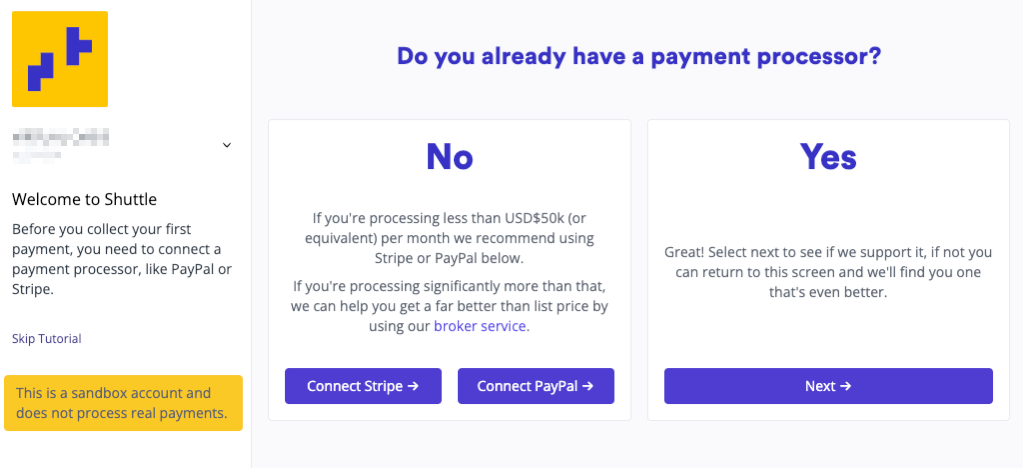
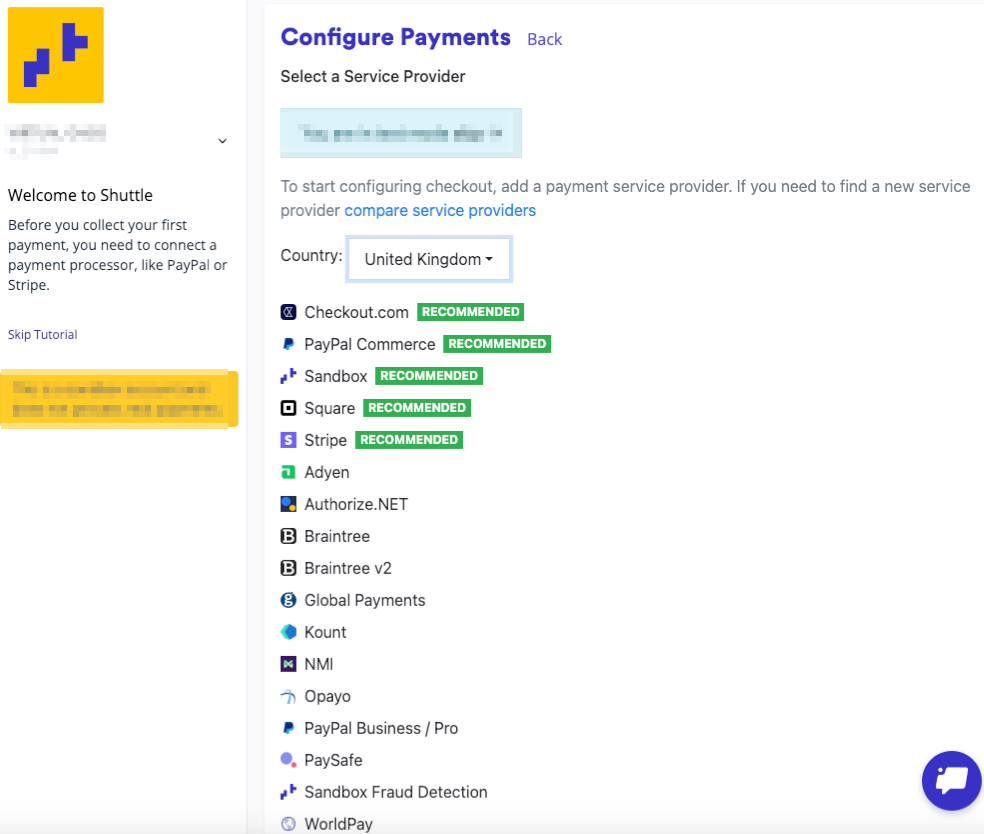
If you already have one, select Next, then choose your provider. The list depends on the country you choose. Each provider has its own setup guide under Payment Providers.
If you don’t have one yet and you process less than USD 50,000 (or the equivalent) a month, select Connect Stripe or Connect PayPal to open an account as part of the setup. If you process more than that, select the broker service link on the same screen, and we’ll help you find a provider that suits your volumes, often for less than its list price.
In a sandbox account, the question is Do you want to test a specific payment processor? Select Connect Sandbox to use Shuttle’s sandbox gateway, which needs no provider account.
Example: connecting Stripe
Section titled “Example: connecting Stripe”-
Select Connect Stripe.
-
Stripe’s sign-up opens. Select Continue and follow Stripe’s steps.
-
Back in Shuttle, the screen shows Connected to Stripe. Choose the payment options you want:
Option What it does Require address (AVS) Asks for your customer’s billing address, so Stripe can check it against the card issuer’s records to help spot fraud Enable ACH Payments from US bank accounts Enable BACS Payments from UK bank accounts Enable Multibanco Payments through Multibanco, a payment network in Portugal Enable Bank Transfer Payments by transfer from your customer’s bank account Enable SEPA Euro bank payments across the Single Euro Payments Area Enable Apple Pay Payments with Apple Pay on Apple devices Enable Google Pay Payments with Google Pay 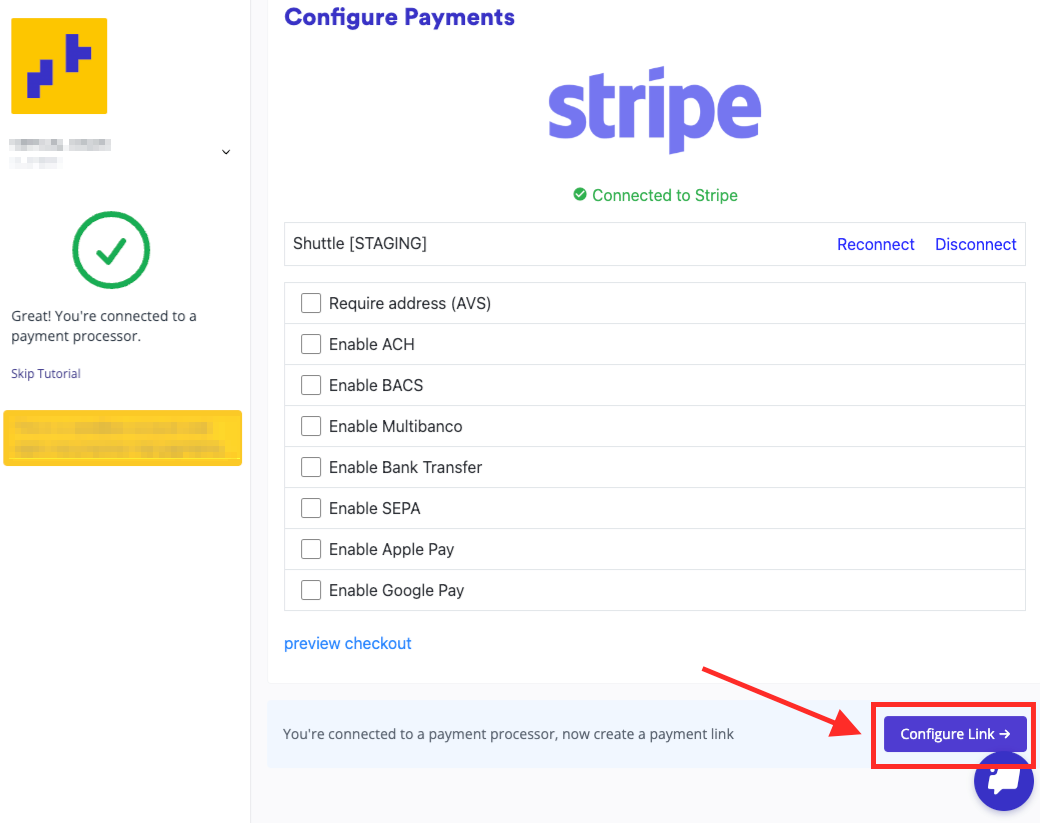
You can connect more than one payment provider, for example a card provider and PayPal, and set rules for when each payment method is offered. See Payment processing.
3. Create a payment link
Section titled “3. Create a payment link”Once you’re connected, select Configure Link in the banner at the top of the page. It opens Configure > Payment Links, where you create a multi-use payment link: one link that any number of customers can pay through. See Multi-use links.
To create a separate link for each payment, automatically from your other systems, see Personalised links.
4. Add your company details
Section titled “4. Add your company details”Your payment pages and receipt emails end with a footer showing your company details, contact details, terms and conditions and privacy policy. Fill it in before you send your first link, so your customers know who they’re paying. See Page footer.
Next steps
Section titled “Next steps”- Share your payment link by email, on your invoices or as a QR code.
- Take a payment for a customer, for example while they’re on the phone.
- See your payments and refund one.
- Choose who gets emailed about payments under Configure > Account.
Was this page helpful?
What went wrong?
Thanks for telling us.