
Team management
The Merchant Portal lets you invite other people to work with you in your organisation, each with a role that decides what they can do.
There are four roles:
- Full access to all features and settings
- Can configure and control payment options and payment destinations
- Manage team members and permissions
- Complete control over the portal
Support
Section titled “Support”- Access to Dashboard and user activity (payment history)
- Can perform merchant operations like issuing refunds and capturing authorisations
- Can access various application-related pages
- Can view, but not change, payment processing settings
Support (Read Only)
Section titled “Support (Read Only)”- View access to Dashboard and user activity, and to payment processing settings
- Can view but cannot modify any data
- Cannot issue refunds, capture payments, or edit accounts
- Ideal for support staff who need visibility without modification rights
Payment Links Only
Section titled “Payment Links Only”- Can only use payment links: create them and send them to customers, from Payment Links in the menu
- Offered only if your organisation uses Payment Links
The full list of what each role can and cannot do is in Roles and permissions, and screen by screen in Merchant View roles and Merchant Setup roles.
Setting up teams
Section titled “Setting up teams”Teams is a paid feature. Admins see Team in the menu under your account name; until you upgrade, it’s marked UPGRADE. See Billing.
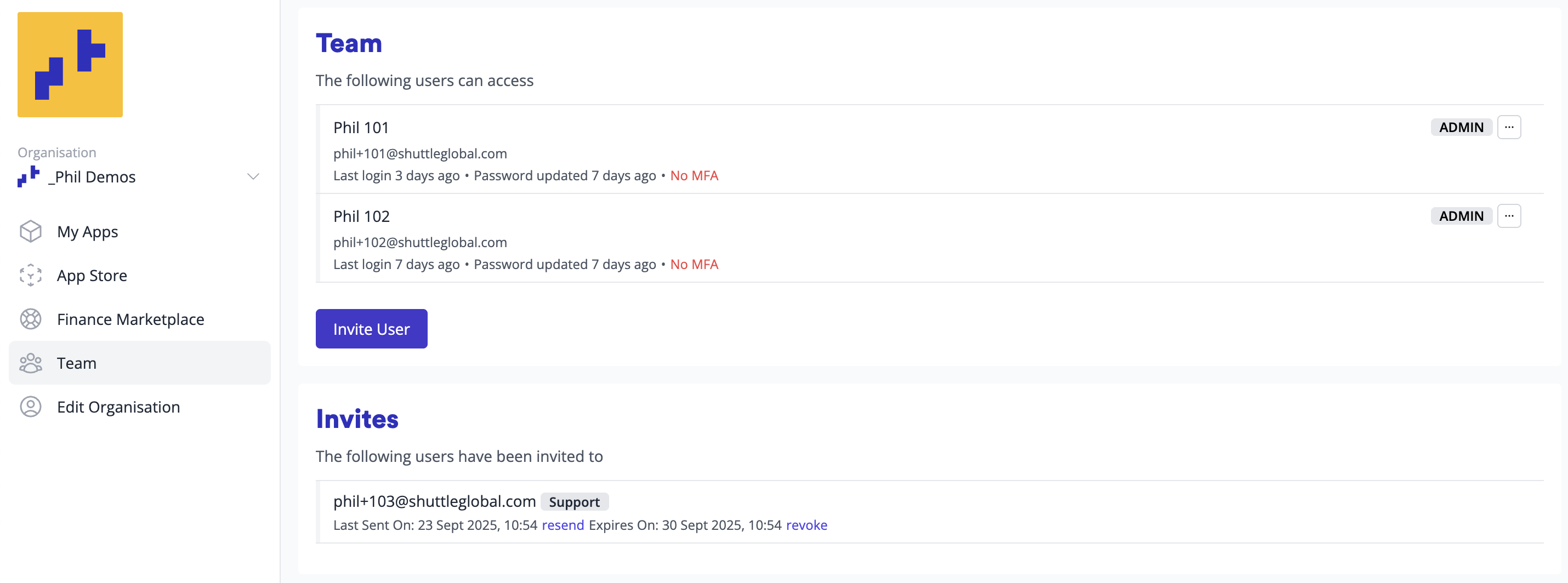
Managing more than one team
Section titled “Managing more than one team”Teams belong to an organisation. To give different groups of people access to different parts of your business:
- Create a separate organisation for each part of your business. See Multi-tenancy.
- Each organisation has its own team.
- One login can belong to several organisations, with a different role in each, so nobody needs a second login.
- For example, if you have UK and US operations, create:
- a “My Business UK” organisation for your UK team
- a “My Business US” organisation for your US team
An account can also be shared with another organisation, so both can work with it. Where your plan includes sharing, an Admin shares it from Configure > Account, under Share Account.
Inviting team members
Section titled “Inviting team members”To add team members to your organisation:
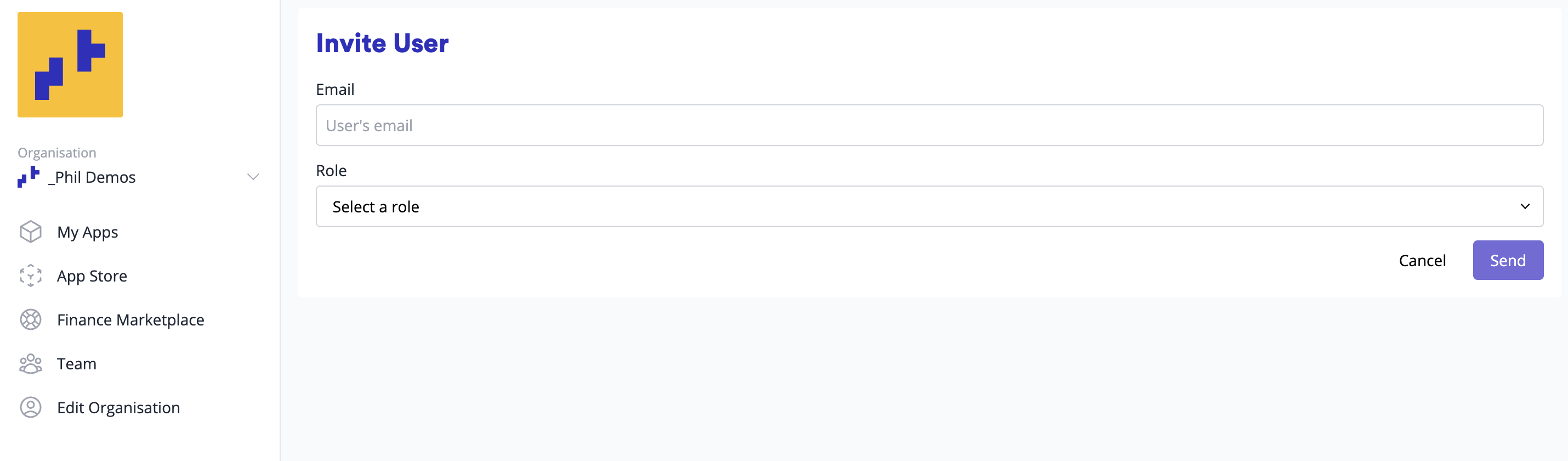
- Open the menu under your account name and select Team.
- Select Invite User.
- Enter the new user’s Email and choose their Role: Admin, Support or Support (Read Only). If you use Payment Links, there’s also Payment Links Only, for staff who only create and send payment links.
- Select Send.
To change someone’s access later, use Change Role or Revoke next to their name. Pending invites have Resend and Revoke.
The invited user will:
- Receive an email invitation
- Create a Shuttle account (if they don’t have one)
- Accept the invitation to join your team
Paid plan
Section titled “Paid plan”Inviting team members needs the Merchant Portal’s paid plan, which includes team management. See Billing.
Enterprise security controls
Section titled “Enterprise security controls”For organisations with advanced security and compliance requirements, Shuttle’s Enterprise plan offers policy-based access controls that can be enforced across the organisation. These controls ensure consistent security posture across your entire team without relying on individual user compliance.
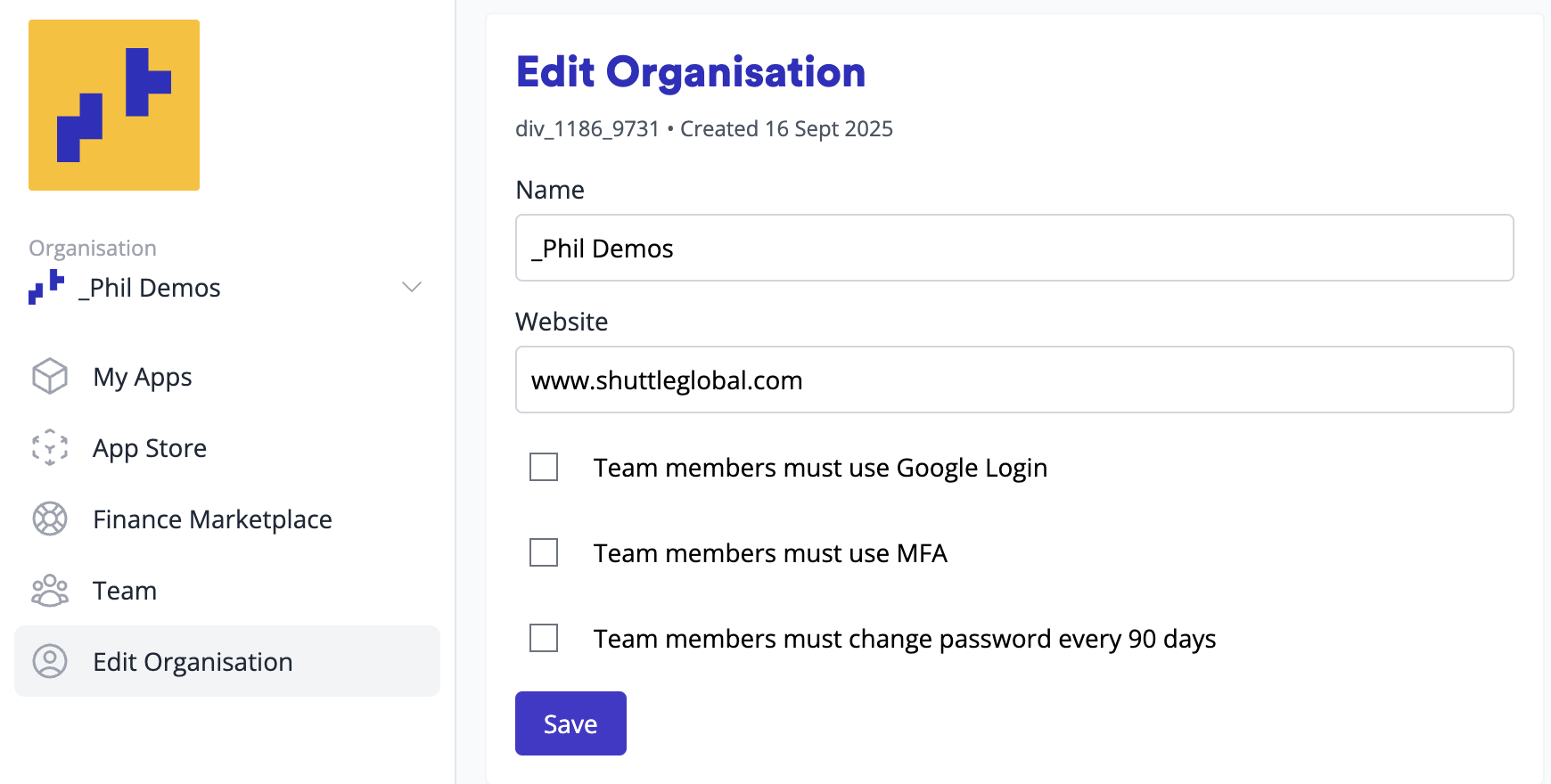
These need an Enterprise plan. To turn them on, open the menu under your account name and select Edit Organisation.
Google Workspace login
Section titled “Google Workspace login”Require team members to log in through Google Workspace, so you manage identities in one place. When enabled:
- Team members must authenticate using their corporate Google account
- Access is automatically revoked when users are removed from Google Workspace
- Eliminates orphaned accounts and ensures immediate deprovisioning
- Provides audit trail through Google Workspace logs
Mandatory multi-factor authentication
Section titled “Mandatory multi-factor authentication”Require MFA across the organisation to meet compliance frameworks such as SOC 2, PCI DSS, and ISO 27001. This control:
- Prevents access to the organisation without active MFA
- Applies to all team members regardless of role
- Cannot be bypassed or disabled by individual users
- Significantly reduces the risk of unauthorised access from compromised credentials
Password rotation policy
Section titled “Password rotation policy”Implement mandatory 90-day password rotation to align with security best practices and compliance requirements:
- Automatically enforces password changes every 90 days
- Blocks access until password requirements are met
- Maintains password history to prevent reuse
- Ensures ongoing credential hygiene across your organisation
These enterprise controls provide security teams with the governance tools necessary to:
- Meet regulatory compliance requirements
- Implement defence-in-depth strategies
- Maintain consistent security policies across all users
- Reduce reliance on user behaviour for security posture
- Generate compliance reports for auditors
Contact our sales team to discuss enabling these enterprise security features for your organisation.
Was this page helpful?
What went wrong?
Thanks for telling us.