
Multi use links
A multi-use payment link is a single URL that any number of customers can pay through. Use it for:
- a link on your website
- a link in your invoice template or PDF invoices
- a printed QR code
Your customer gives an amount, a reference and their email address, and can add their name, company and phone number. You can also let them add a note.
You can set each link up to:
- let the customer enter the amount and reference, for example an invoice amount and number
- fix the amount and let the customer enter a reference, for example a USD 20 event ticket
- fix the reference and let the customer enter an amount, for example a donation to an appeal
- fix both, for example a USD 20 ticket for event ABC123
Create a link
Section titled “Create a link”-
Select Configure in the menu, then Configure under Payment Links.
-
Select Create Multi-Use Link. If you already have one, select Create Another Link.
-
Fill in the form, then select Save:
Field What to enter Name The title your customers see at the top of the payment page Currency The currency you want to be paid in 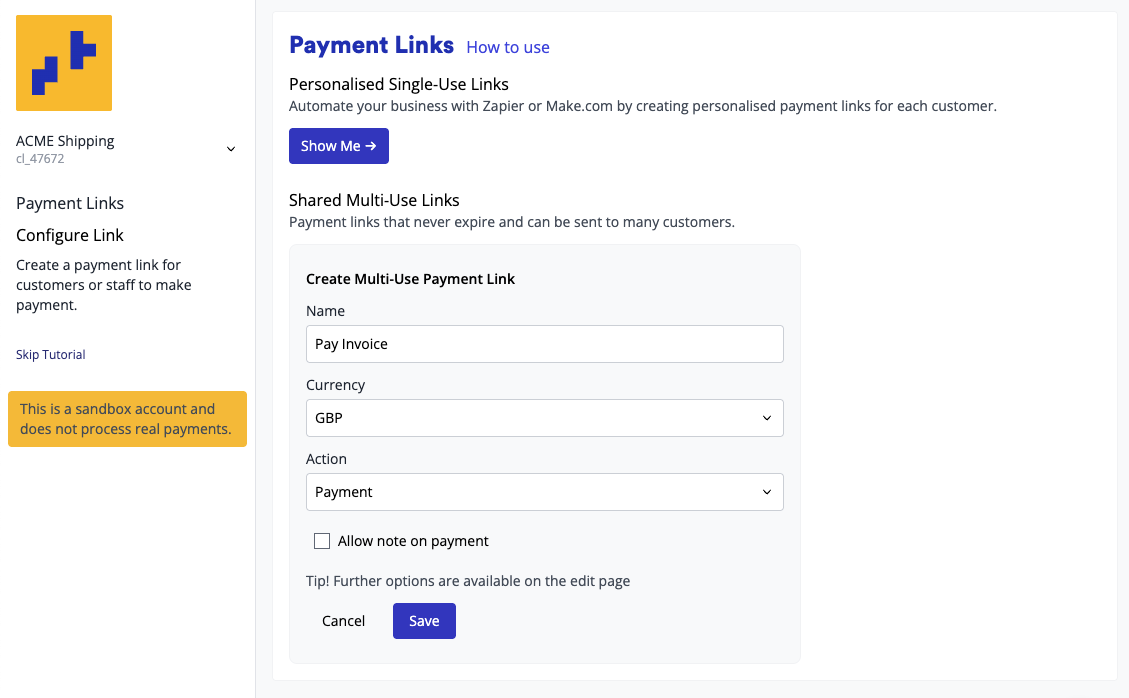
Each link in the list has Copy to Clipboard and an actions menu with Edit, QR Code, Pause (and Resume) and Delete.
Edit a link
Section titled “Edit a link”Select Edit in the link’s actions menu for more options:
| Option | What it does |
|---|---|
| Allow note on payment | Lets your customer add a note to their payment |
| Fixed Amount | Every payment is this amount |
| Default Amount | The amount filled in for your customer, when the amount isn’t fixed |
| Fixed Reference | Every payment has this reference |
| Default reference | The reference filled in for your customer, when the reference isn’t fixed |
| Page Intro | A paragraph under the page title |
| Custom Message on Successful Payment | A message on the receipt page after a successful payment, for example next steps or a redemption code |
| Custom Message on Pending Payment | A message on the receipt page when a payment is still being processed |
Share your link
Section titled “Share your link”- Select Payment Links in the menu. Each multi-use link is listed with its URL.
- Select Copy to Clipboard, then paste the link into an email, a message or your invoice template. Or select QR Code for a code your customer can scan.
Tell your customer the amount to pay and the reference to use, unless the link fixes them or you fill them in. To add a link to QuickBooks invoices, see Add payment links to your invoices.
The link is for your customer to pay themselves. To take a payment on a customer’s behalf, for example over the phone, use Staff Payment instead.
Fill in the amount and reference
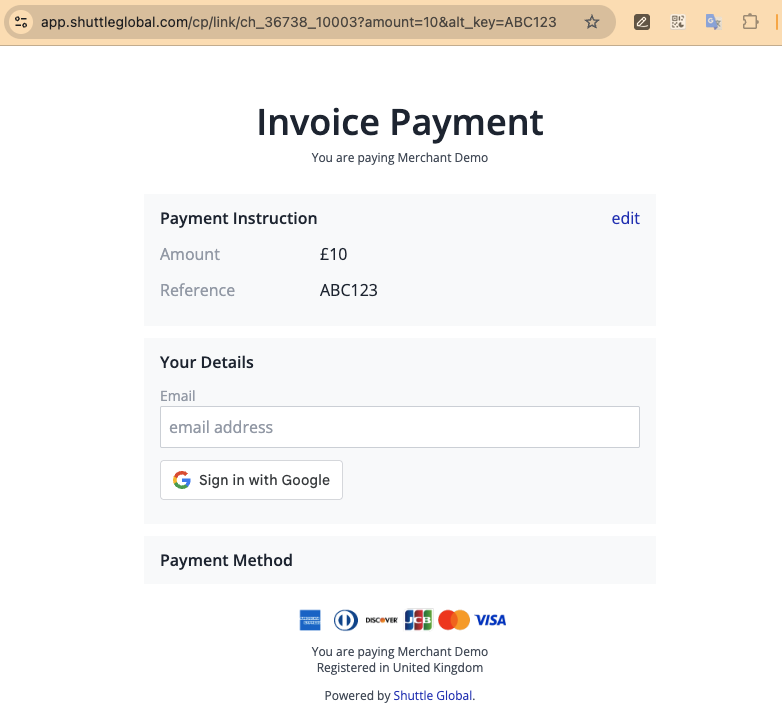
Section titled “Fill in the amount and reference”You can fill in the amount and the reference for your customer by adding them to the end of the link, for example to put the invoice amount and number in a link on each invoice:
| Parameter | What it fills in |
|---|---|
amount |
The amount, as a number in the link’s currency, with no currency symbol or thousands separator, for example 25 or 1250.50 |
alt_key |
The reference, for example an invoice number |
For example:
<your payment link>?amount=25.50&alt_key=INV1002If the reference has spaces or symbols such as & or #, encode them, for example a space as %20.
Values in the link replace the link’s Default Amount and Default reference. They don’t change a Fixed Amount or Fixed Reference.
When the amount and the reference are both filled in, your customer goes straight to entering their details. The amount and reference show at the top of the page, and your customer can select edit to change them.
What your customer sees
Section titled “What your customer sees”-
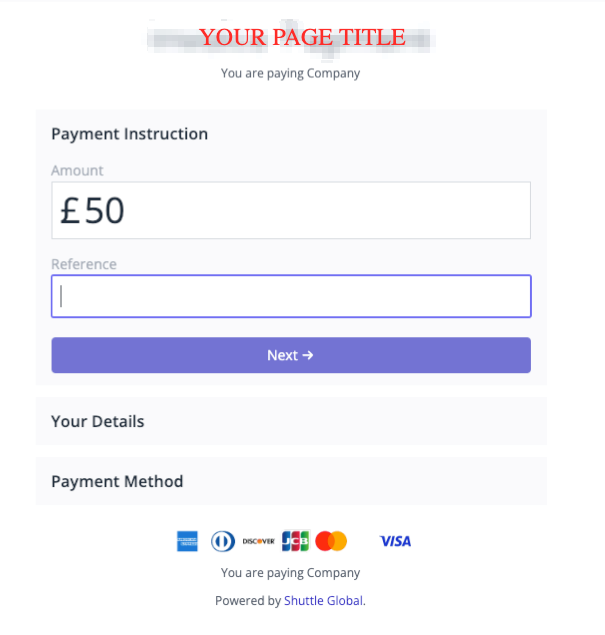
The payment page shows the link’s Name as its title. Your customer enters the Amount and the Reference, then selects Next.
-
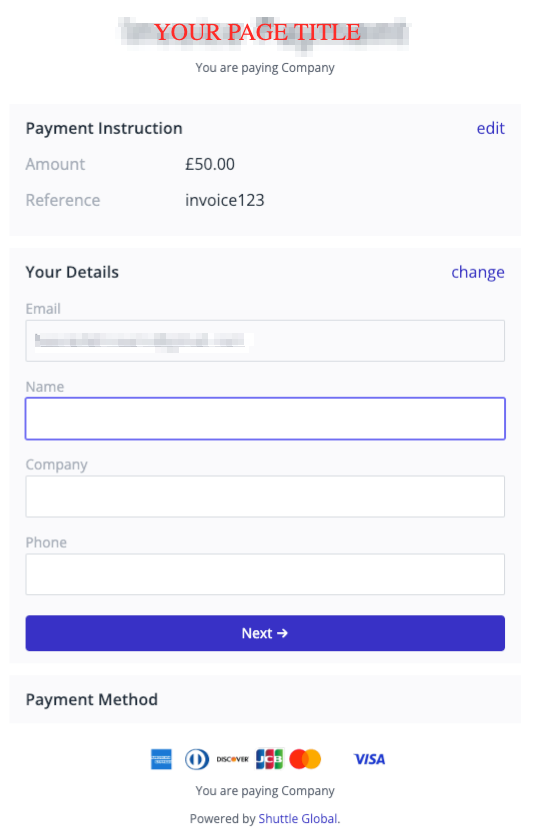
They enter their email address. Name, company and phone number are optional.
-
They choose a payment method and enter their payment details.
-
The page confirms the payment, with a receipt number and the date.
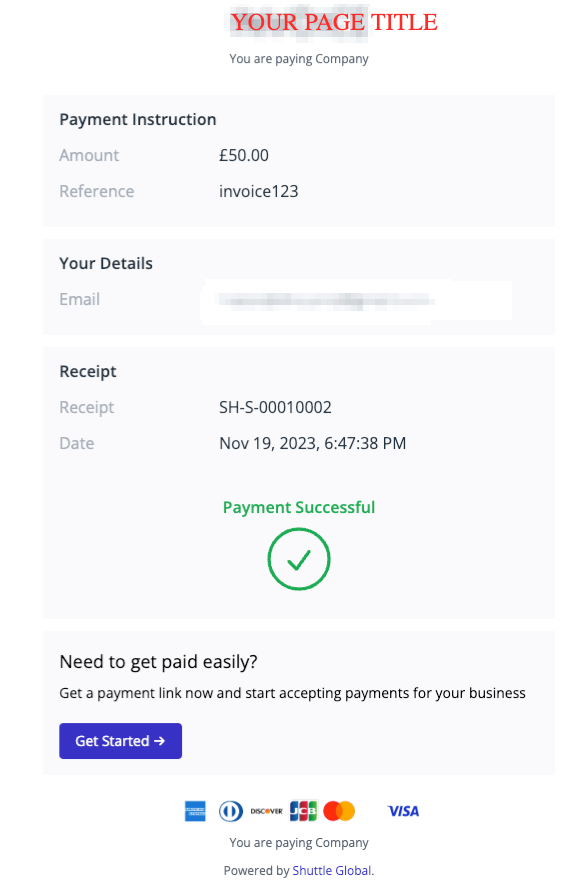
The details at the bottom of the page come from your page footer. To try it yourself, open the link in your browser. In a sandbox account no money moves.
Was this page helpful?
What went wrong?
Thanks for telling us.