
AWS Connect
Integrate Shuttle payment links directly into your Amazon Connect agent workspace, allowing agents to create and send payment links without leaving their call interface.
Prerequisites
Section titled “Prerequisites”- An active Shuttle account with an agent link generator set up
- Amazon Connect instance with admin access
Setup instructions
Section titled “Setup instructions”Video walkthrough: Configuring Payment Links in AWS Connect
1. Get your agent link generator’s address
Section titled “1. Get your agent link generator’s address”- Log in to the Merchant Portal, select Configure in the menu, then Configure under Payment Links.
- Under Agent Link Generator, select Edit next to your generator. To create one, see Via the Agent Link Generator.
- Select Copy to copy its address to your clipboard.
2. Configure Amazon Connect
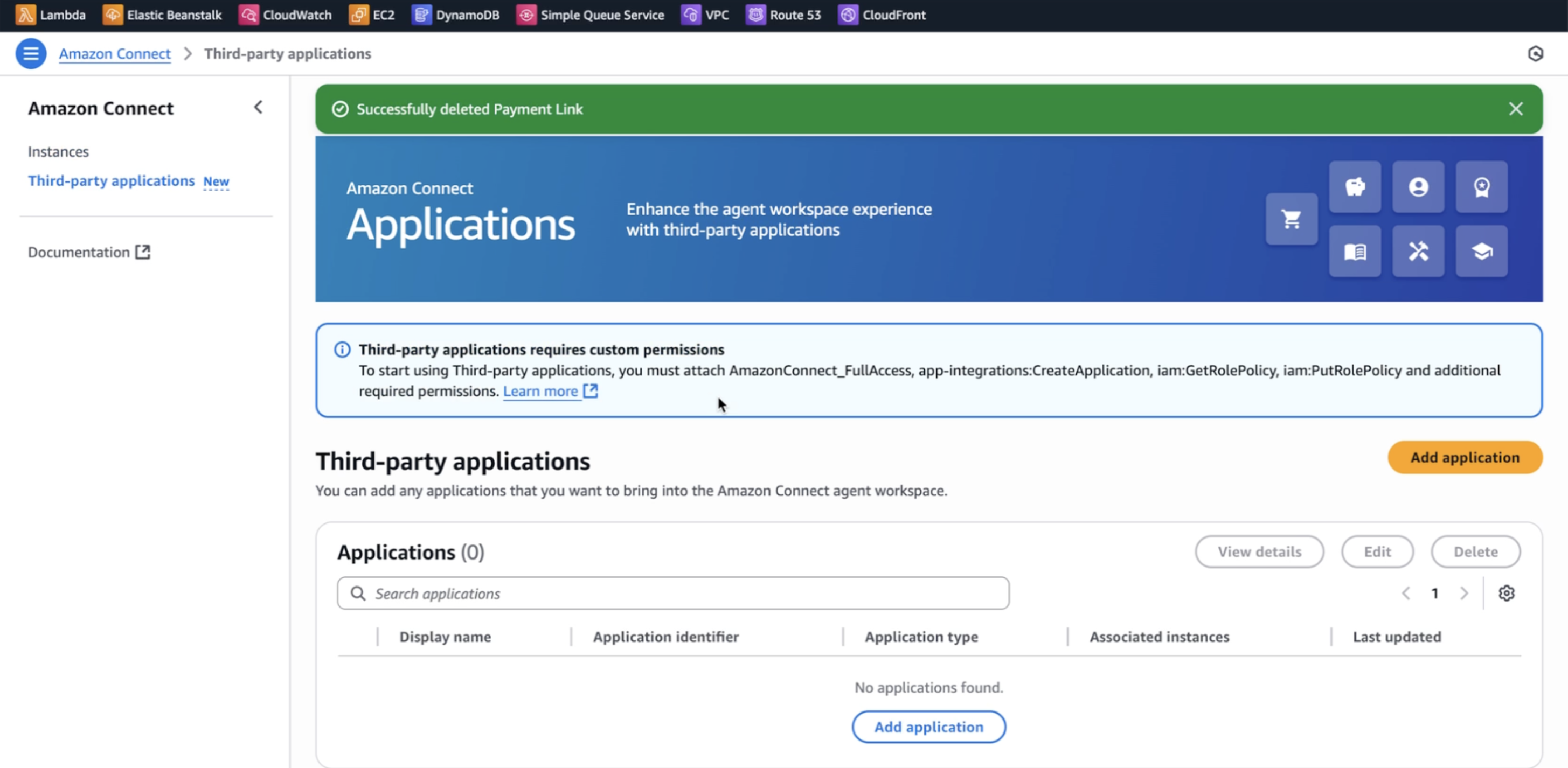
Section titled “2. Configure Amazon Connect”- In Amazon Connect, navigate to Third-party applications
- Click Add application
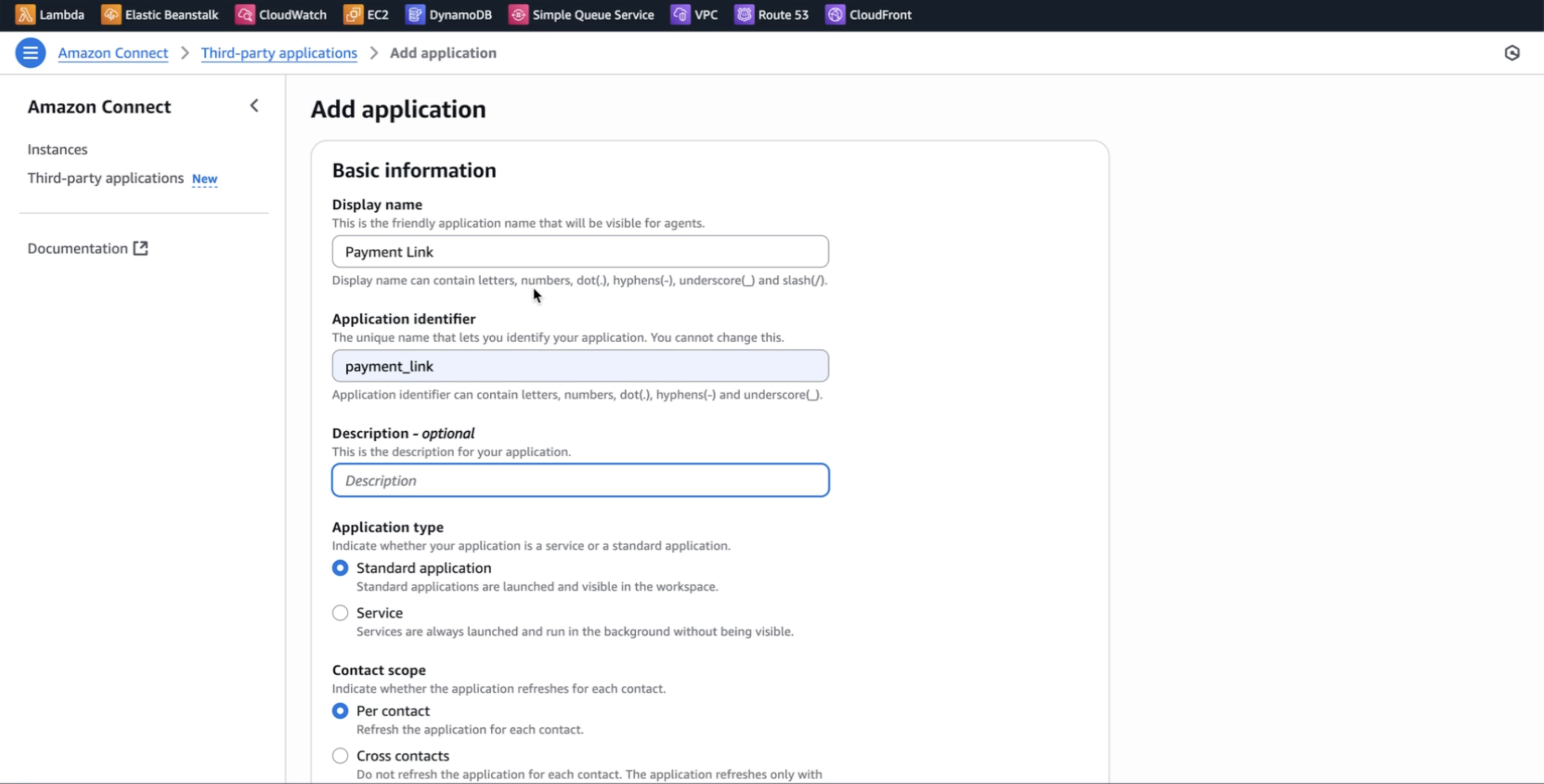
- Configure the application:
- Display Name: Choose a name agents will see (e.g., “Payment Links”)
- Application ID: Enter a unique identifier
- Settings: Leave defaults for:
- Application type
- Context scope
- Initialization timeout
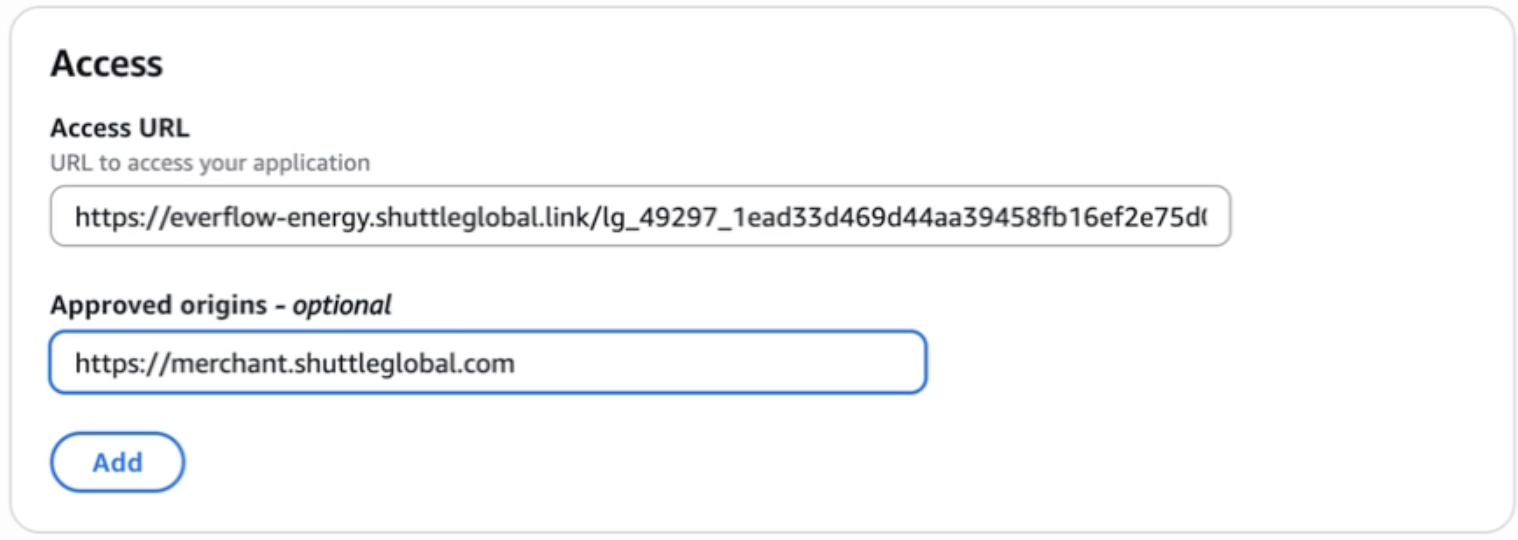
- Application URL: Paste the agent link generator address you copied
- Login Domain: Enter Shuttle’s login domain
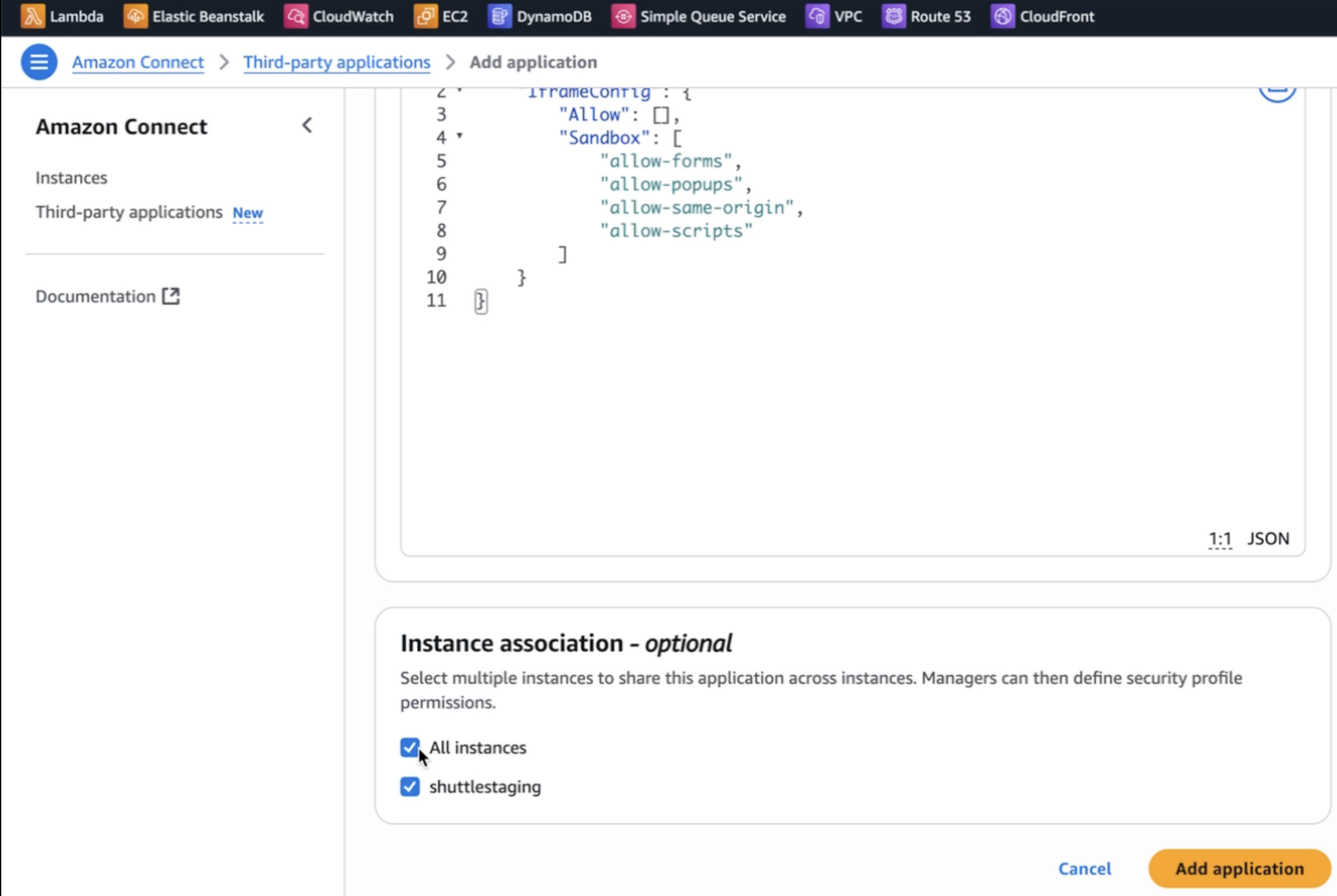
https://merchant.shuttleglobal.com - Permissions & iframe: Keep default settings
- Availability: Select the call center(s) where this should be available
3. Grant user access
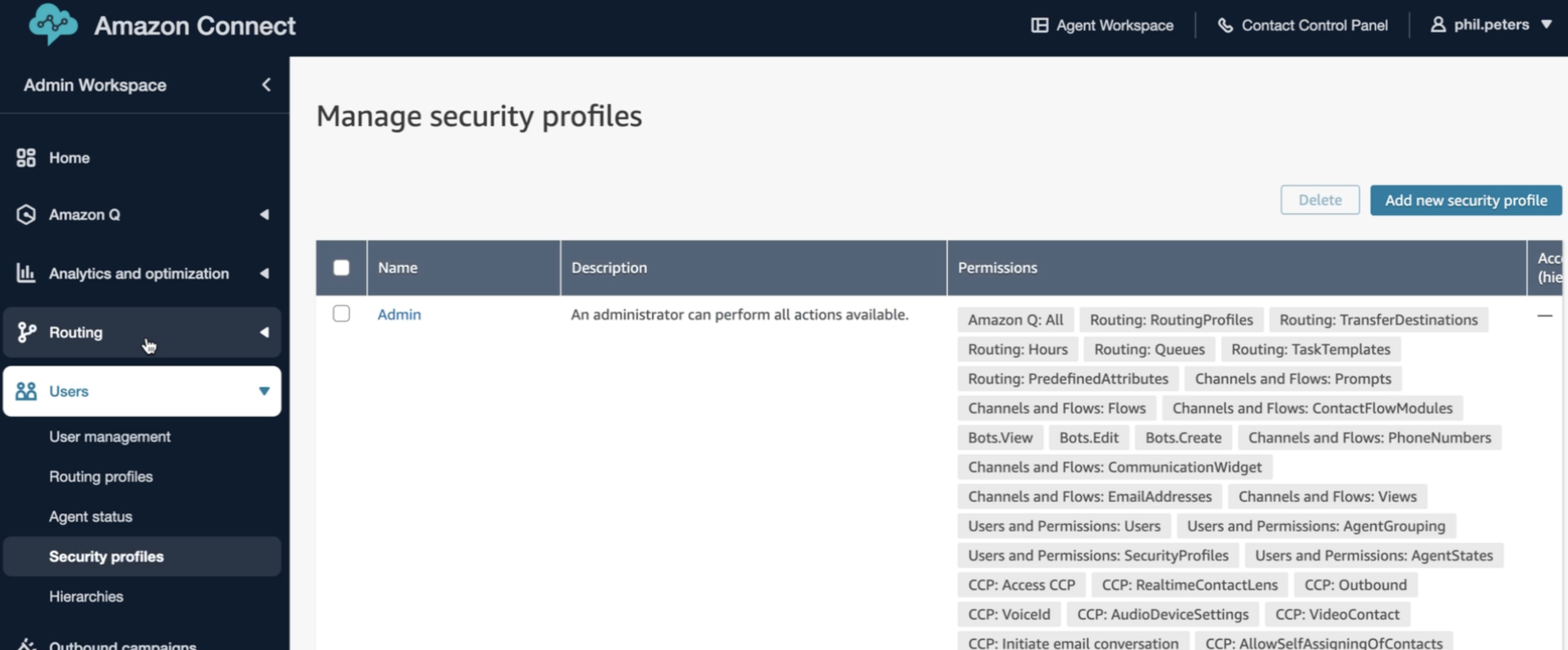
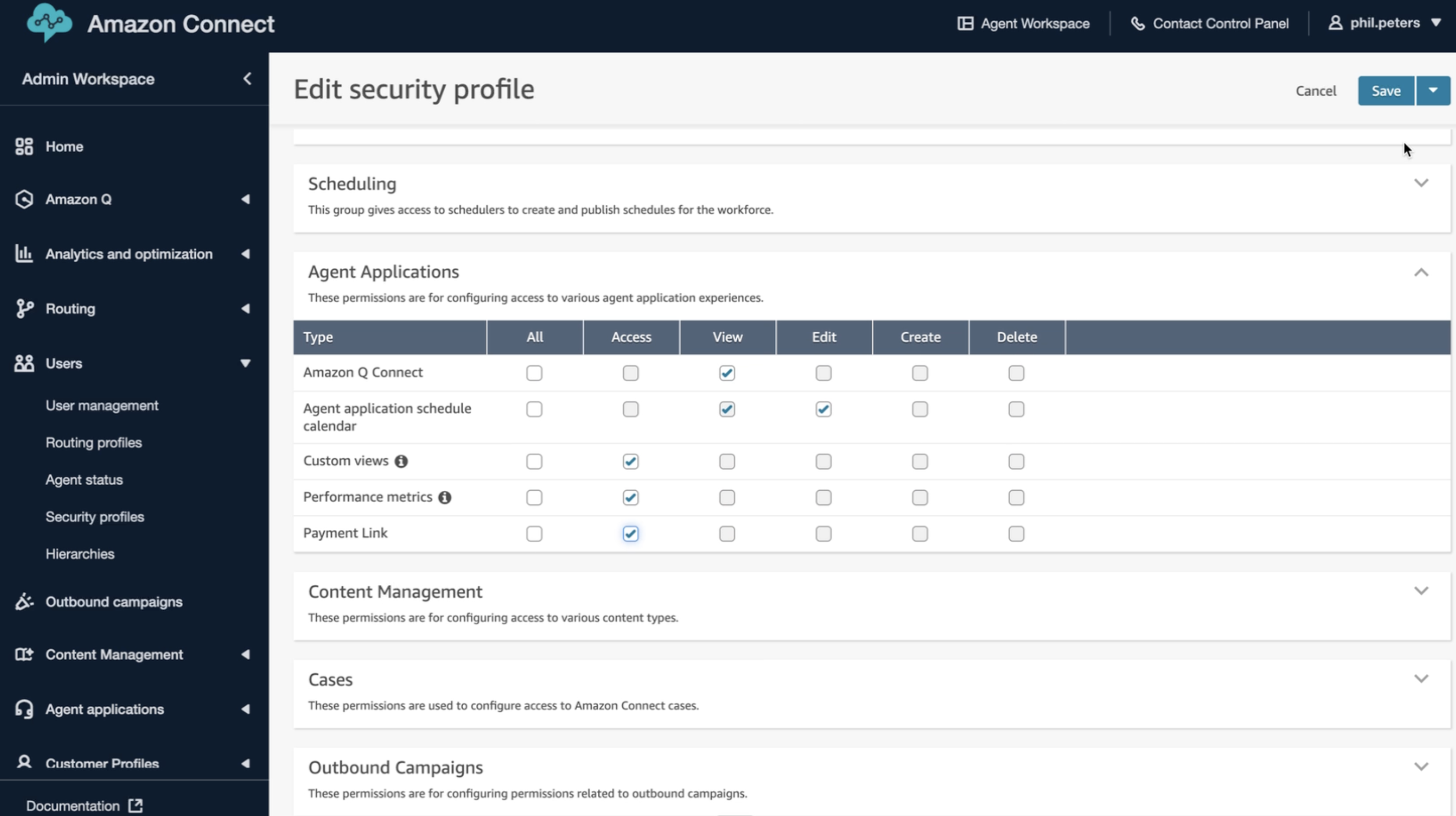
Section titled “3. Grant user access”- Navigate to Users -> Security Profiles in your Connect dashboard
- Select the team
- Click Agent Applications
- Grant “Access” to the application you created in step 2
Using payment links in Amazon Connect
Section titled “Using payment links in Amazon Connect”Agent experience
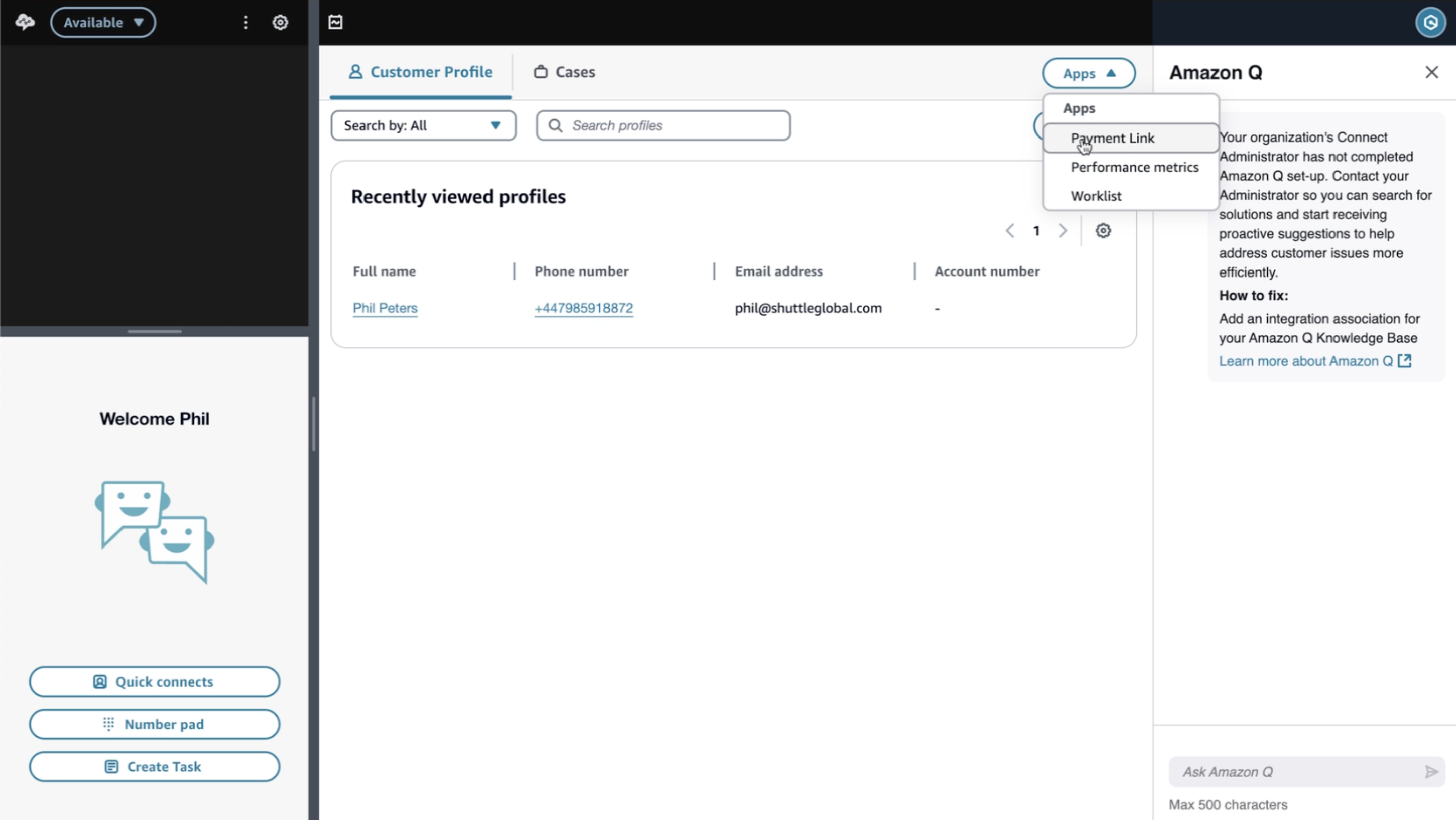
Section titled “Agent experience”- When logged into the agent workspace, the payment links option appears in the interface (may require a page refresh to appear)
- First-time users may need to log into Shuttle
- Once authenticated, credentials persist across sessions
Creating payment links during calls
Section titled “Creating payment links during calls”When handling a customer call:
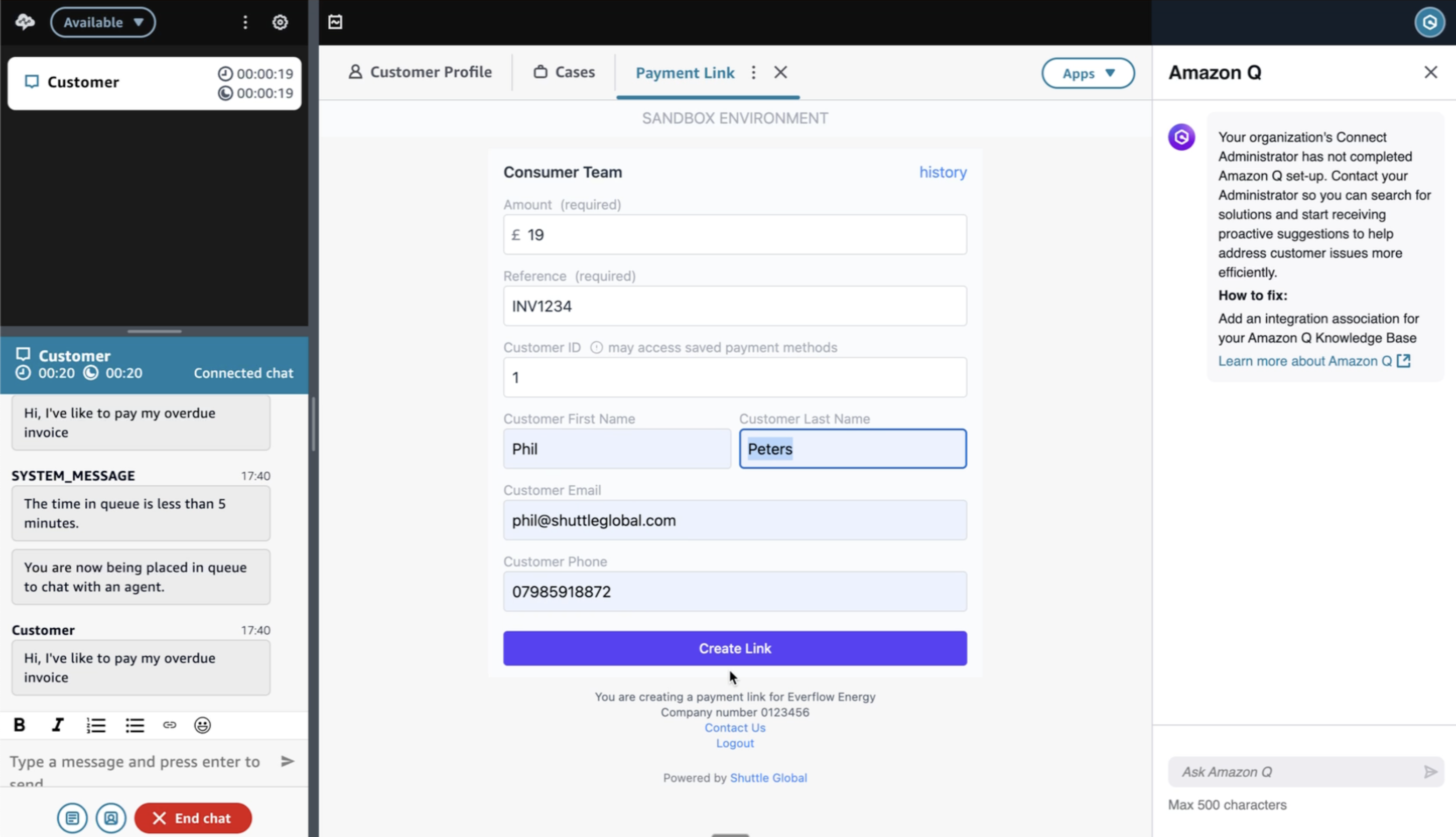
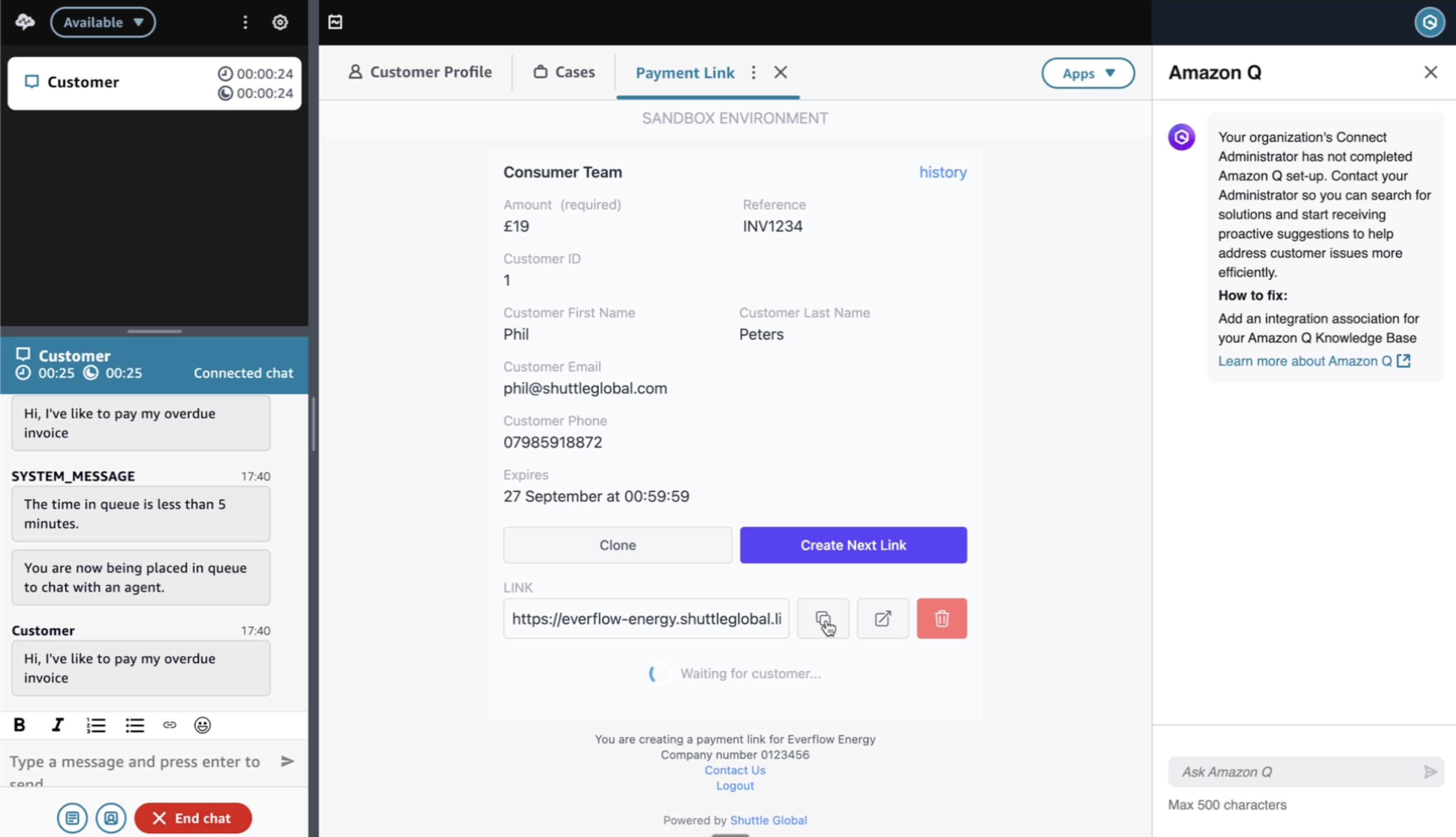
- Click your payment links application in the agent workspace
- Enter payment details:
- Amount: The payment amount
- Reference: Invoice or transaction reference
- Customer Information (optional):
- Customer ID
- Name
- Select Create Link
- Copy the generated URL
- Send to customer via chat or SMS (if you have that functionality)
Beta feature: Customer details (ID, email, phone and name) will automatically pre-fill from the call context after a second or two, streamlining the payment link creation process.
Real-time payment monitoring
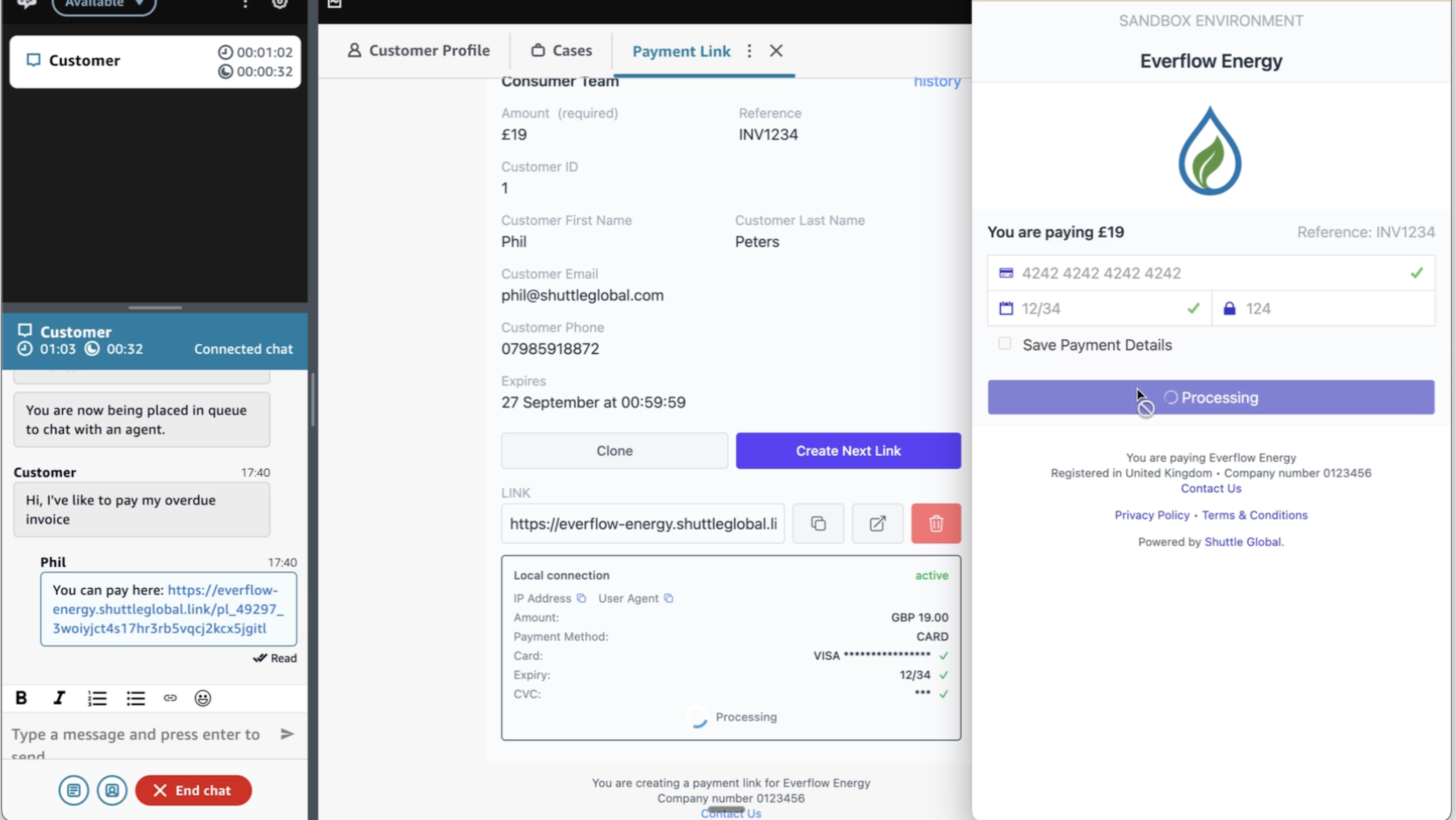
Section titled “Real-time payment monitoring”Agents can monitor payment progress in real-time:
- See when customers open the payment link
- Watch as customers enter their information
- Get immediate notification when payment completes
- Access reference numbers for other systems
DTMF payments for voice calls
Section titled “DTMF payments for voice calls”For scenarios where agents need to take payments over voice calls, Shuttle also offers a Twilio Pay Connector solution that enables secure DTMF payments directly from the customer. This allows customers to enter their payment information using their phone keypad while maintaining PCI compliance.
Contact our support team for more information on setting up the Twilio Pay Connector with AWS Connect.
Was this page helpful?
What went wrong?
Thanks for telling us.