
Twilio agent assist integration guide
This guide covers agent-assisted payments using Twilio’s Payments Subresource API. For automated IVR payments, see the Twilio IVR integration guide.
Overview
Section titled “Overview”Agent-assisted payments let call centre agents guide customers through payment collection. The agent controls the flow through a custom UI, but never sees or hears the actual card details: Twilio captures them and passes them through the Shuttle Pay connector to Shuttle, which charges them through your payment provider.
Key difference from IVR: Instead of the <Pay> TwiML verb, agent-assisted payments use the Twilio Payments Subresource API to give agents programmatic control over the payment flow.
Prerequisites
Section titled “Prerequisites”Complete the setup steps in the Introduction:
- Enable PCI Mode on your Twilio account
- Install the Shuttle Pay connector
You’ll also need:
- A backend service to proxy calls to the Twilio API (agents shouldn’t have direct access to your Twilio credentials)
- A webhook endpoint to receive status callbacks during payment sessions
Twilio Payments API
Section titled “Twilio Payments API”Agent-assisted payments use the Twilio Payments Subresource API. All endpoints are relative to an active call:
https://api.twilio.com/2010-04-01/Accounts/{AccountSid}/Calls/{CallSid}/PaymentsThe flow is:
- Start session - Create a payment session attached to the call
- Capture fields - Prompt the customer for each payment field
- Complete or cancel - Finalise the transaction or abort
1. Start payment session
Section titled “1. Start payment session”Call the Twilio Create Payment API to initialise a payment session.
POST /2010-04-01/Accounts/{AccountSid}/Calls/{CallSid}/Payments.jsonTwilio parameters:
| Parameter | Required | Description |
|---|---|---|
IdempotencyKey |
Yes | Unique key to prevent duplicate transactions |
StatusCallback |
Yes | URL to receive session updates |
PaymentConnector |
Yes | Your connector name (e.g., shuttle-pay-connector) |
ChargeAmount |
No | Amount to charge - omit for tokenisation only |
Currency |
No | ISO 4217 code (default: USD) |
PaymentMethod |
No | credit-card or ach-debit (default: credit-card). ach-debit also requires bank_account_type and AVSName in Parameter (see ACH-specific parameters) |
Description |
No | Transaction description |
Parameter |
No | JSON string for Shuttle-specific parameters |
Transaction types:
| Type | ChargeAmount | Shuttle action |
Result |
|---|---|---|---|
| Tokenisation | Omit | - | Card saved, no charge |
| Payment (capture) | Set amount | PAYMENT |
Card charged immediately |
| Payment (auth only) | Set amount | AUTH |
Funds held, capture later |
| Payment + save card | Set amount | Include save_card=true |
Card charged and saved |
Shuttle parameters are passed as a JSON string in the Parameter field. See the Shuttle Pay connector reference for the full list. Common ones:
{ "action": "PAYMENT", "save_card": "true", "alt_key": "INV-12345", "account_email": "customer@example.com"}Example request:
curl -X POST "https://api.twilio.com/2010-04-01/Accounts/{AccountSid}/Calls/{CallSid}/Payments.json" \ -u "{AccountSid}:{AuthToken}" \ -d "IdempotencyKey=unique-key-123" \ -d "StatusCallback=https://your-server.com/webhooks/payment-status" \ -d "PaymentConnector=shuttle-pay-connector" \ -d "ChargeAmount=50.00" \ -d "Currency=USD" \ -d 'Parameter={"action":"PAYMENT","alt_key":"INV-12345"}'The response includes a PaymentSid (e.g., PK123abc...) for subsequent operations.
2. Capture payment fields
Section titled “2. Capture payment fields”Call the Twilio Update Payment API to prompt the customer for each field.
POST /2010-04-01/Accounts/{AccountSid}/Calls/{CallSid}/Payments/{PaymentSid}.json| Parameter | Description |
|---|---|
Capture |
Field to capture (see values below) |
| Capture value | Description |
|---|---|
payment-card-number |
Card number, up to 19 digits |
expiration-date |
4-digit MMYY expiration |
security-code |
3-4 digit CVV/CVC |
postal-code |
Billing postal/ZIP code (optional) |
Example - capture card number:
curl -X POST "https://api.twilio.com/2010-04-01/Accounts/{AccountSid}/Calls/{CallSid}/Payments/{PaymentSid}.json" \ -u "{AccountSid}:{AuthToken}" \ -d "Capture=payment-card-number"When you trigger a capture:
- Twilio plays an audio prompt to the customer
- Customer enters digits on their phone keypad
- Agent cannot hear the DTMF tones
- Twilio sends a webhook to your
StatusCallbackwith the result
The agent can capture fields in any order and re-capture if the customer makes a mistake.
3. Complete or cancel
Section titled “3. Complete or cancel”Once all required fields are captured, finalise the transaction:
Complete:
curl -X POST "https://api.twilio.com/2010-04-01/Accounts/{AccountSid}/Calls/{CallSid}/Payments/{PaymentSid}.json" \ -u "{AccountSid}:{AuthToken}" \ -d "Status=complete"Cancel:
curl -X POST "https://api.twilio.com/2010-04-01/Accounts/{AccountSid}/Calls/{CallSid}/Payments/{PaymentSid}.json" \ -u "{AccountSid}:{AuthToken}" \ -d "Status=cancel"Webhooks
Section titled “Webhooks”Agent Assist involves two separate webhook streams:
Twilio status callbacks
Section titled “Twilio status callbacks”Twilio sends webhooks to your StatusCallback URL throughout the payment session. Use these to update the agent’s UI in real-time.
| Parameter | Description |
|---|---|
CallSid |
The call this payment is associated with |
PaymentSid |
The payment session identifier |
Capture |
Which field was just captured (during capture events) |
Result |
success or error code |
On session completion, Twilio includes Shuttle fields (prefixed with PayConnector_):
| Parameter | Description |
|---|---|
PayConnector_payment_status |
Primary status - always check this |
PayConnector_gateway_reference |
Gateway transaction ID |
PayConnector_gateway_token |
Tokenised card (when save_card=true) |
PaymentConfirmationCode |
Shuttle payment ID |
For the full list of response fields, see the Shuttle Pay connector reference.
Shuttle webhooks
Section titled “Shuttle webhooks”Separately, Shuttle sends webhooks to your configured endpoint for payment events (PAYMENT.SUCCESS, PAYMENT.FAILED and others). These are useful for:
- Reconciliation and downstream system updates
- Handling async gateway responses
- Backup if Twilio callbacks fail
These are the same webhooks used for IVR payments. See the Shuttle Pay connector reference for configuration.
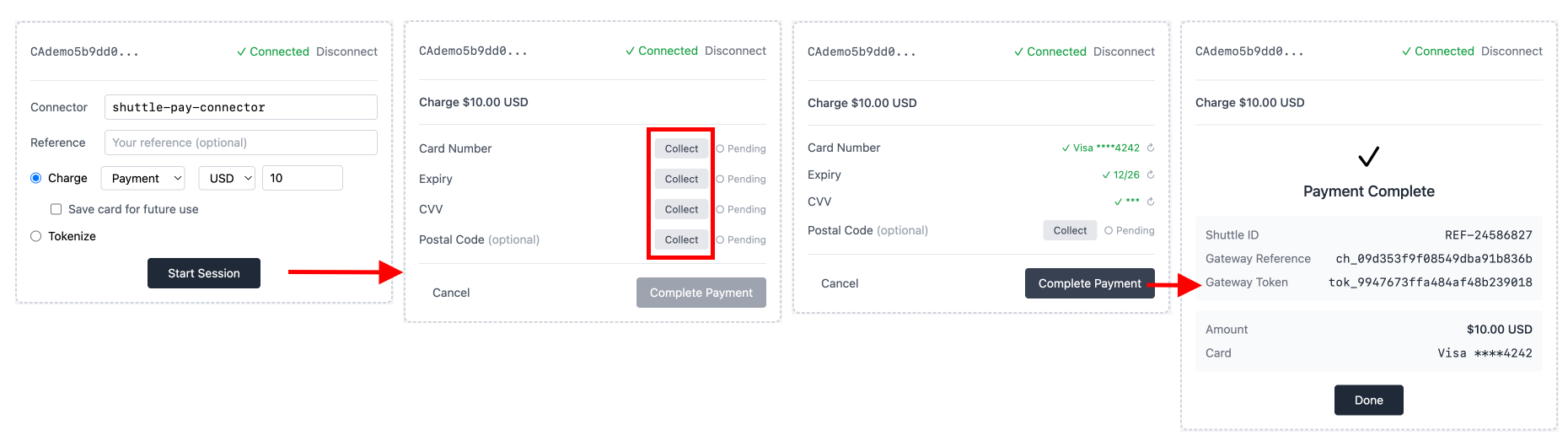
Building the agent widget
Section titled “Building the agent widget”Your widget needs to orchestrate the Twilio API calls and display status to the agent.
Getting the CallSid
Section titled “Getting the CallSid”The CallSid identifies the active Twilio call. How you get it depends on your platform:
- Twilio Flex: Available in the task context
- Custom softphone: Pass it when the call connects
- Third-party CCaaS: Check their docs for accessing call metadata
Payment configuration
Section titled “Payment configuration”Before starting the session, the agent (or your application) configures the transaction. This maps to the parameters in the Start payment session call:
- Transaction type: Charge, tokenise, or both
- Amount and currency: Required for charges
- Reference: Your internal ID (
alt_keyparameter)
You can pre-fill these from your application context or let the agent enter them manually.
Field capture interface
Section titled “Field capture interface”Provide controls for the agent to trigger each capture and see the results:
-
Capture buttons - One for each field (card number, expiry, CVV, postal code). When clicked, your backend calls the Twilio Update Payment API with the corresponding
Capturevalue. -
Status display - Show the current state of each field:
- Not started
- Capturing (waiting for customer input)
- Captured successfully
- Error (validation failed)
-
Re-capture - Allow the agent to re-trigger any field if the customer needs to correct their input.
Your backend receives status callbacks from Twilio and pushes updates to the widget via WebSocket or polling.
Completion
Section titled “Completion”Once all required fields show as captured:
- Complete button - Calls the Twilio API with
Status=complete - Cancel button - Calls the Twilio API with
Status=cancel
Results
Section titled “Results”On completion, display or pass back to your system:
PaymentConfirmationCode- Shuttle payment ID: use it to refund, capture or void the payment through the Shuttle APIPayConnector_gateway_reference- Gateway transaction ID (for reconciliation and support queries with your payment provider)PayConnector_gateway_token- Saved card token (if applicable)
Error handling
Section titled “Error handling”| Scenario | Action |
|---|---|
| Field capture timeout | Agent re-triggers capture |
| Invalid card number | Agent re-captures the field |
| Payment declined | Display reason, allow retry or cancel |
| Network timeout | Retry with same IdempotencyKey |
| Session expired | Start a new session |
For decline types and meanings, see the Shuttle Pay connector reference.
Post-payment operations
Section titled “Post-payment operations”After a successful payment, use the Shuttle API for refunds, captures, voids and charging saved cards, using the Shuttle payment ID (PaymentConfirmationCode). See the Shuttle Pay connector reference.
References
Section titled “References”- Twilio Payments Subresource API - Full API reference
- Twilio agent-assisted payments blog - Overview and use cases
- Twilio Flex plugin quickstart - If building for Twilio Flex
- Shuttle Pay connector reference - Parameters, responses, webhooks
Was this page helpful?
What went wrong?
Thanks for telling us.