
Xero
Add a Shuttle multi-use payment link to your Xero invoices, so your customers can pay online. Xero adds each invoice’s number and amount due to the link, so your customer doesn’t have to type them.
Prerequisites
Section titled “Prerequisites”- A Shuttle account with a multi-use payment link in the currency of your invoices
- A Xero account with access to Settings and Online payments
Setup instructions
Section titled “Setup instructions”1. Get your payment link
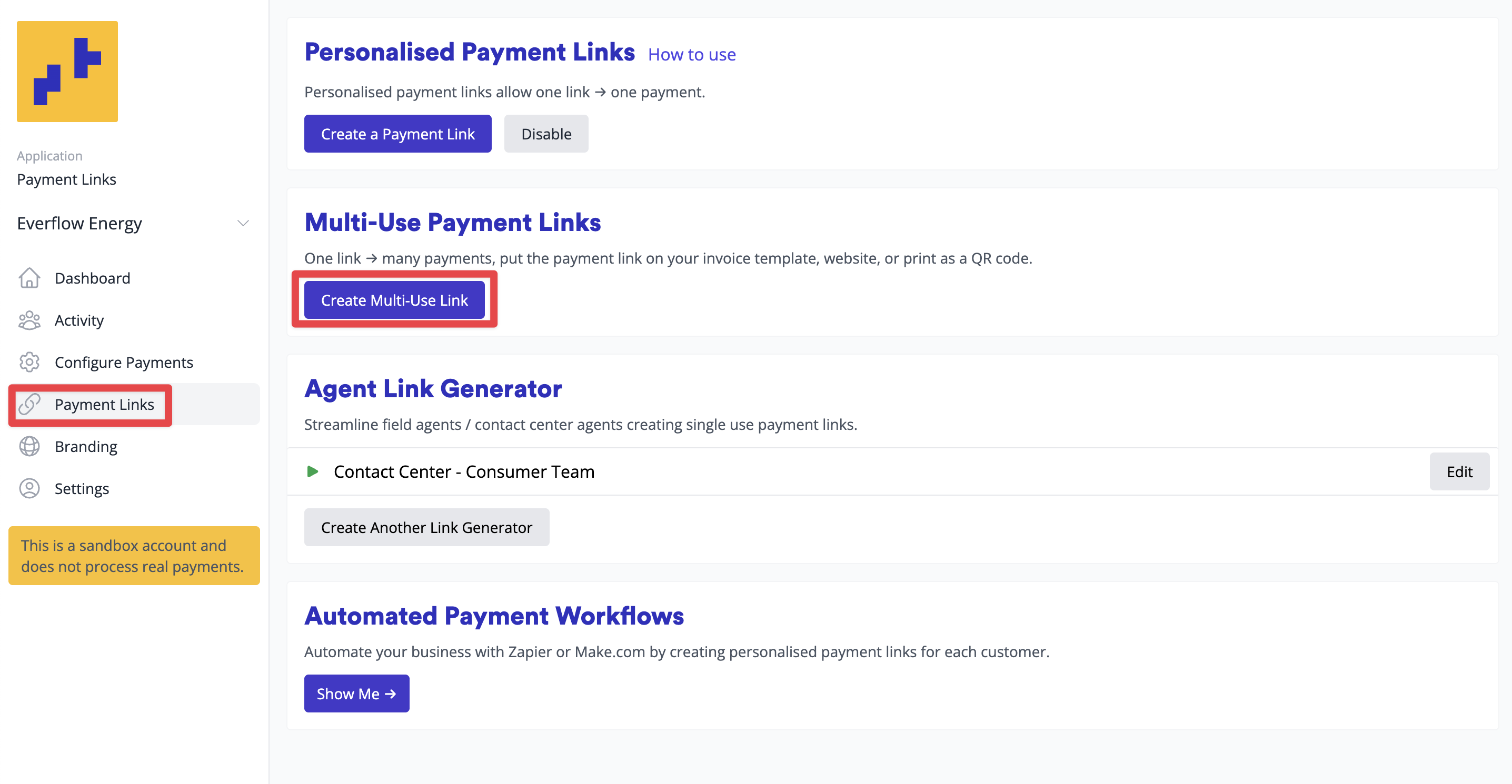
Section titled “1. Get your payment link”- Log in to the Merchant Portal, select Configure in the menu, then Configure under Payment Links.
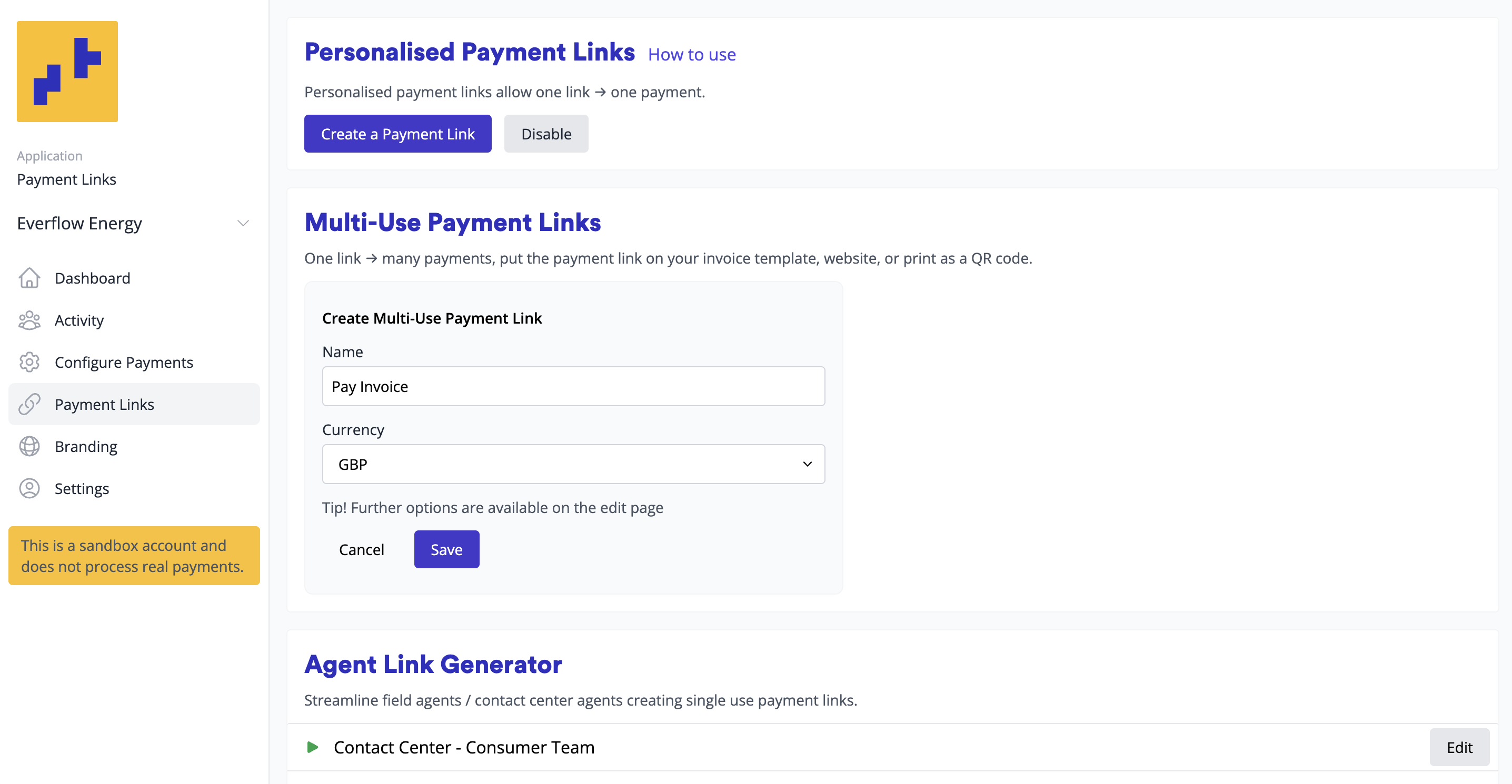
- Under Multi-Use Payment Links, create a link with Create Multi-Use Link (or Create Another Link), or use an existing one. Make sure it’s in the currency of your invoices. See Multi-use links.
- Leave Fixed Amount and Fixed Reference empty on this link. A fixed amount or reference replaces the amount and invoice number from Xero.
- Select Copy to Clipboard next to the link to copy it.
You can also copy your multi-use links from Payment Links in the menu.
2. Add the invoice number and amount to the link
Section titled “2. Add the invoice number and amount to the link”Add this to the end of the link you copied:
?amount=[AMOUNTDUE]&alt_key=[INVOICENUMBER]Xero replaces [AMOUNTDUE] with the invoice’s amount due and [INVOICENUMBER] with the invoice number. On the payment page, amount fills in the amount and alt_key fills in the reference. See Fill in the amount and reference.
Your link should look similar to:
https://yourcompany.shuttleglobal.link/pl_1234_5678_mu?amount=[AMOUNTDUE]&alt_key=[INVOICENUMBER]Keep the start of the link exactly as you copied it, up to and including the part ending _mu.
Your customer always pays in the currency of the link, whatever the currency of the invoice. If you invoice in more than one currency, create a multi-use link for each currency, add each one to Xero as its own payment service, and connect each to the branding theme you use for invoices in that currency.
3. Add a payment service in Xero
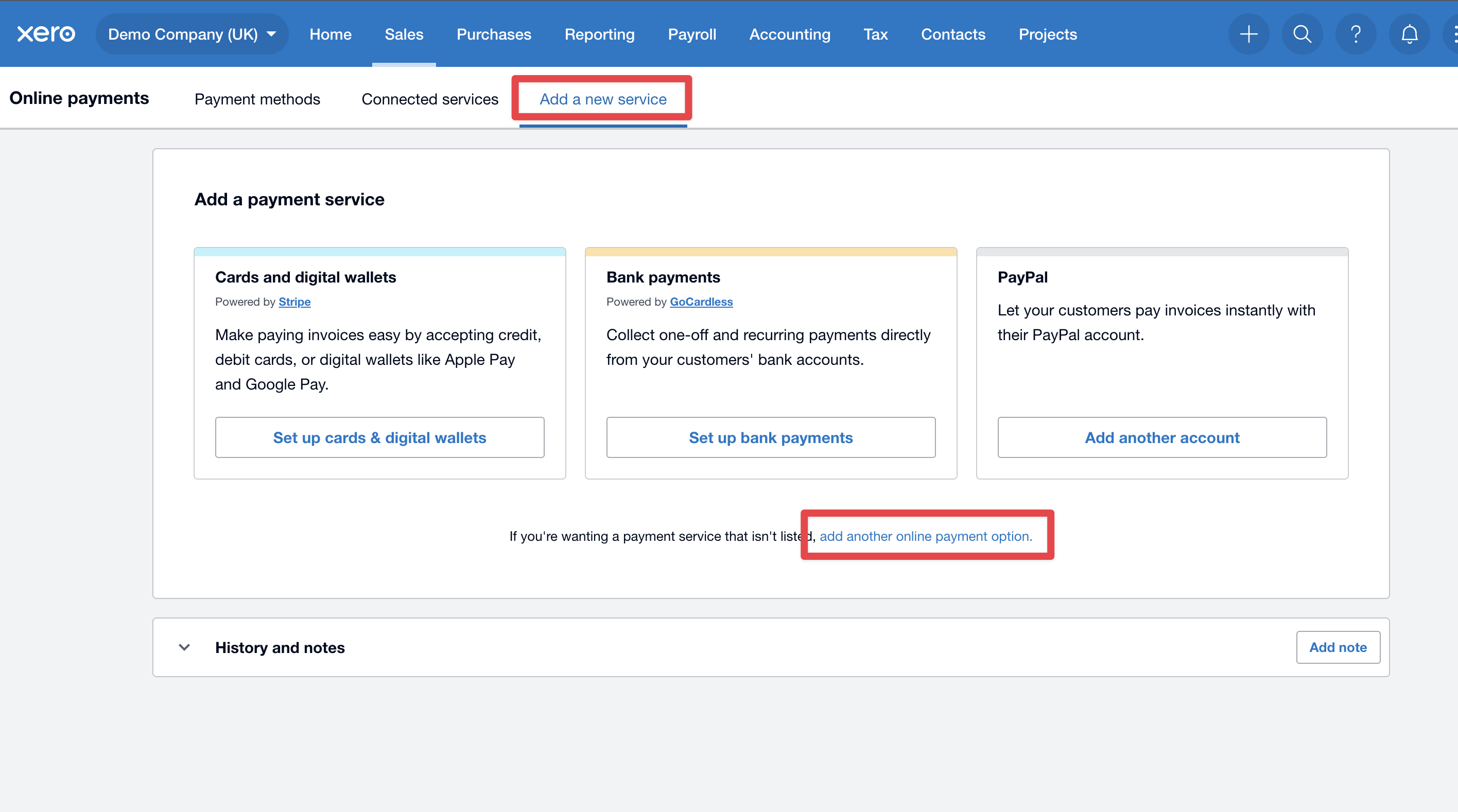
Section titled “3. Add a payment service in Xero”- In Xero, navigate to Settings → Online Payments
- Click Add New Service
- Select Add another online payment option
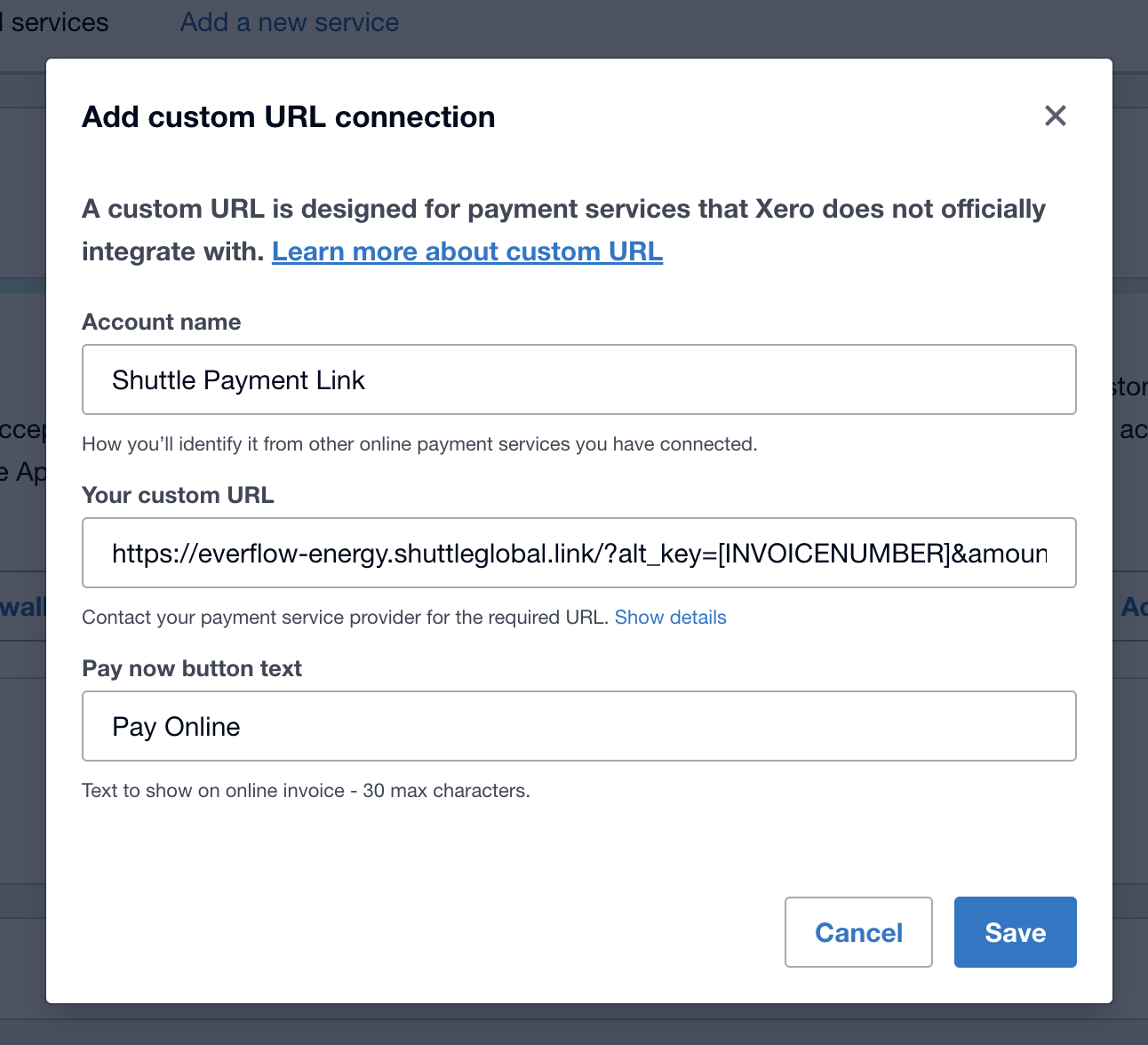
- Choose Custom payment URL
- Enter your link from step 2 as the custom URL
- Configure how you want this payment option displayed to customers
- Click Save
4. Set as the default payment option (optional)
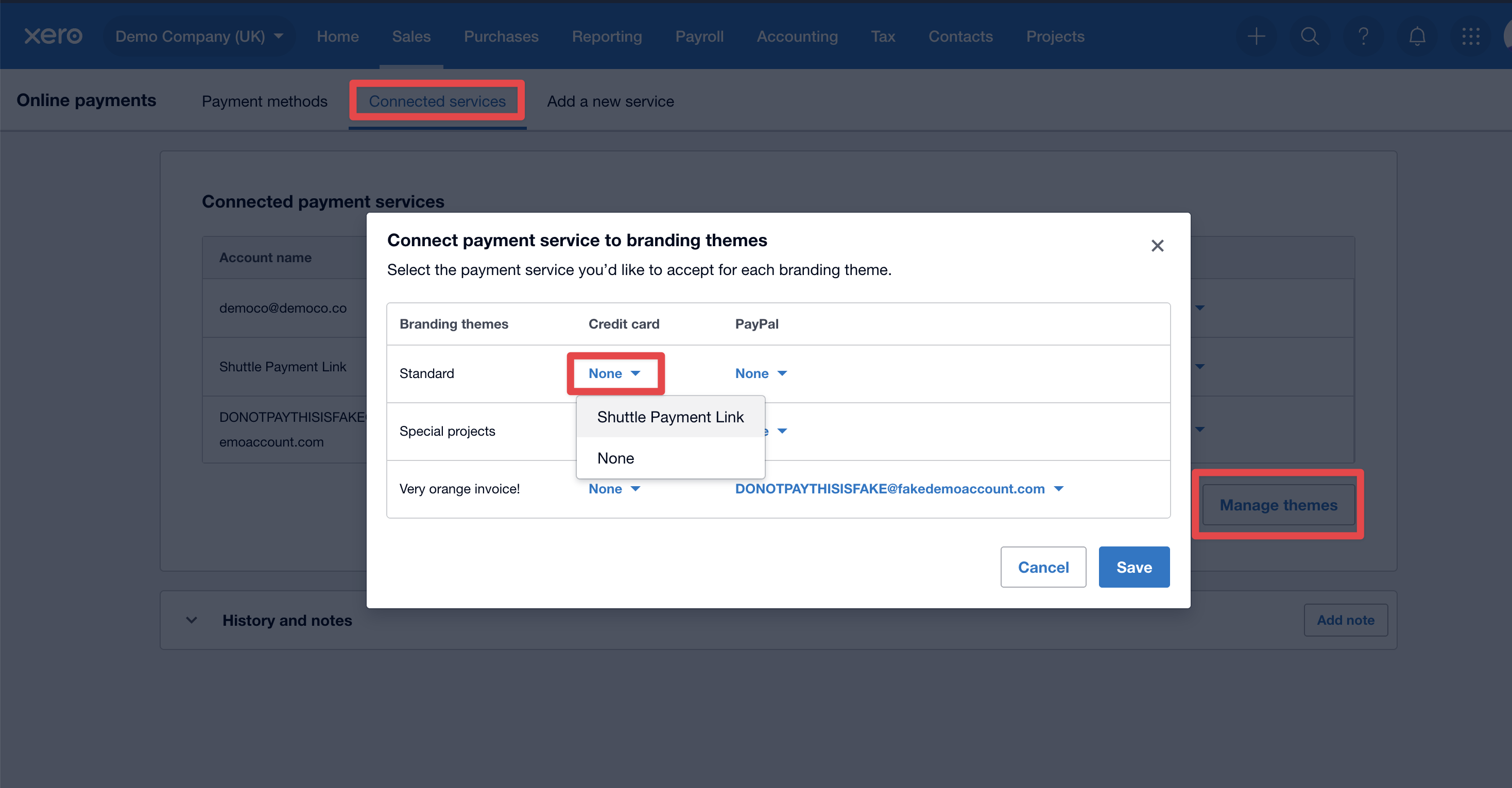
Section titled “4. Set as the default payment option (optional)”To make Shuttle your default payment method:
- In Connected Services, locate your new payment option
- Click Manage Themes
- Select the invoice theme you want to update
- Switch to use the payment method you’ve just added
- Click Save
Using payment links with Xero invoices
Section titled “Using payment links with Xero invoices”Creating invoices with payment links
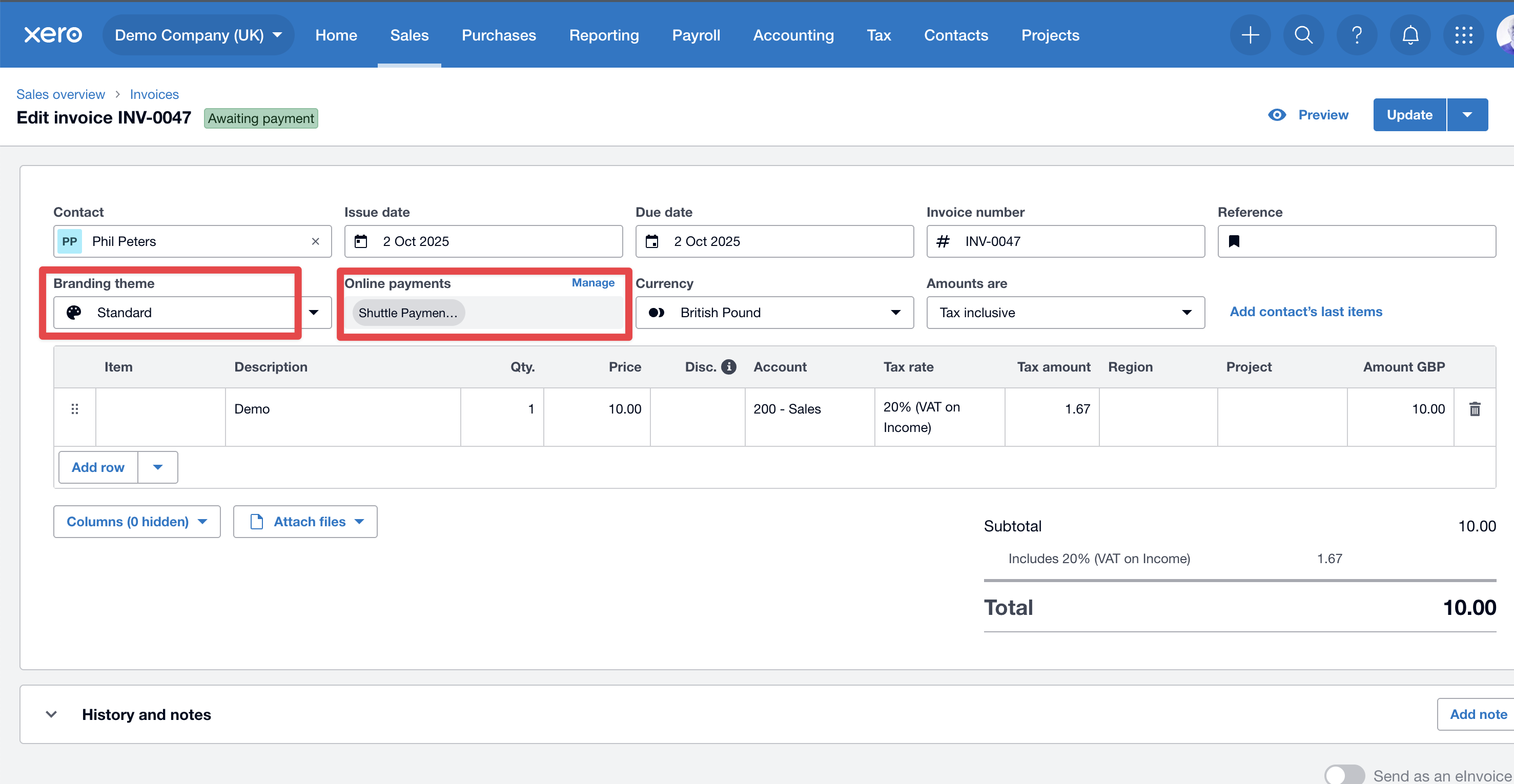
Section titled “Creating invoices with payment links”When creating a new invoice:
- If using a theme with Shuttle as the default payment option, it will automatically appear in the online payments section
- For individual invoices, you can manually add the payment option by clicking Manage in the online payments section
- Click Approve to finalize the invoice
Customer payment experience
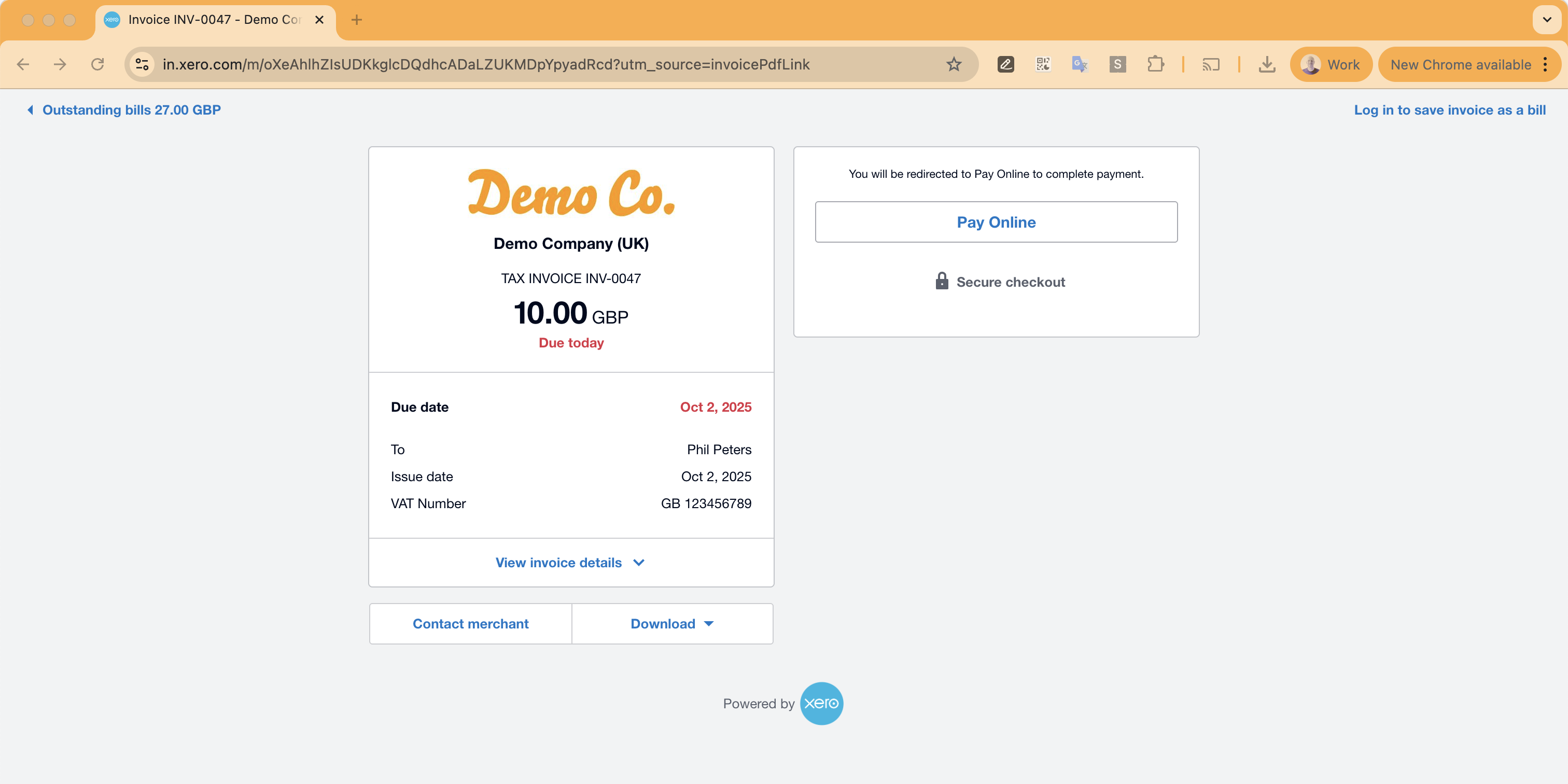
Section titled “Customer payment experience”When customers receive the invoice:
- They click Pay online now to view the invoice online
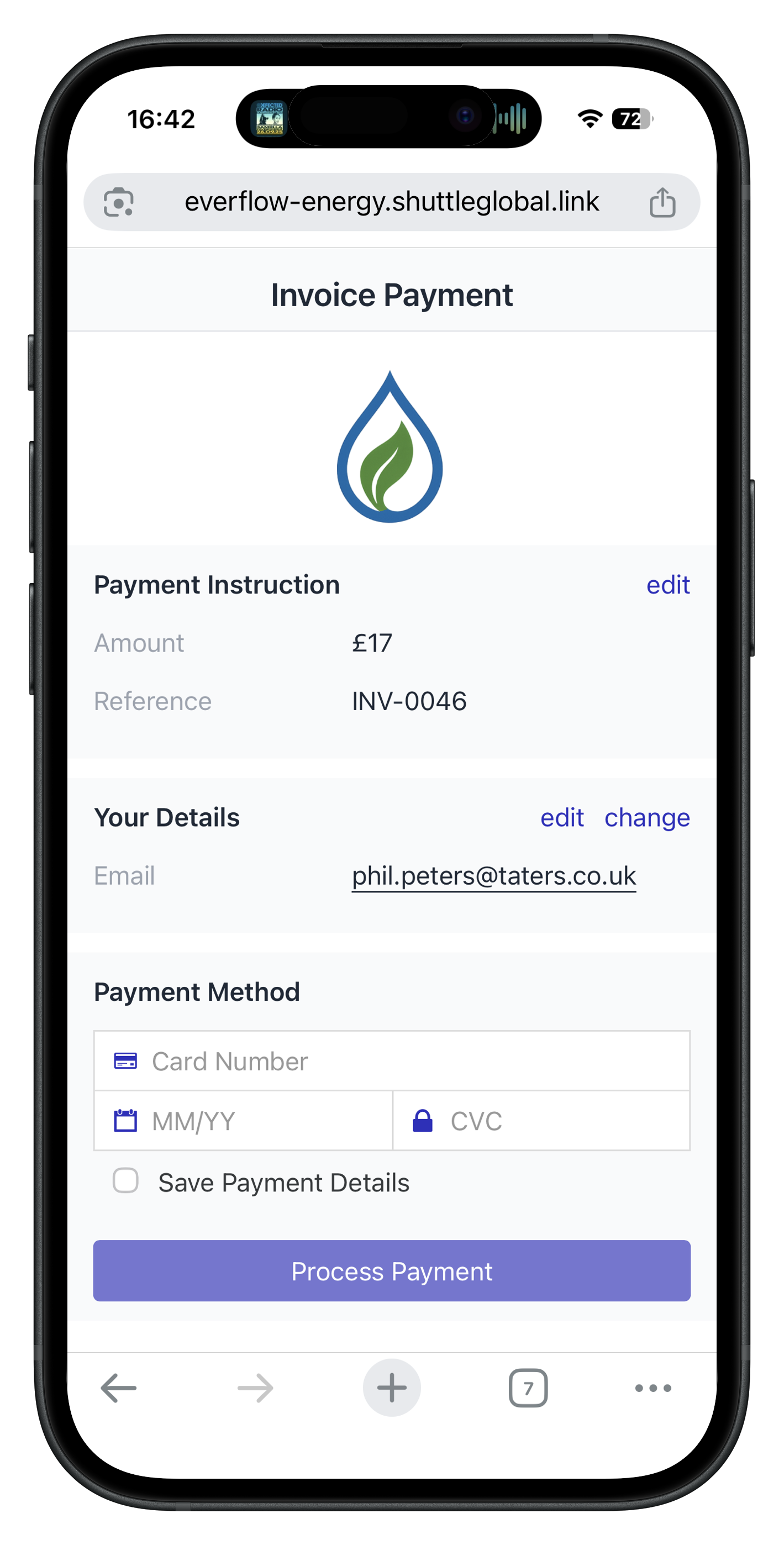
- Clicking Pay online redirects them to your Shuttle payment link
- The payment page shows the amount due and the invoice number as the reference, in the currency of your link. Your customer can select edit to change them.
- Your customer enters their email address and payment details, and pays.
Payment reconciliation
Section titled “Payment reconciliation”To track payments made through Shuttle:
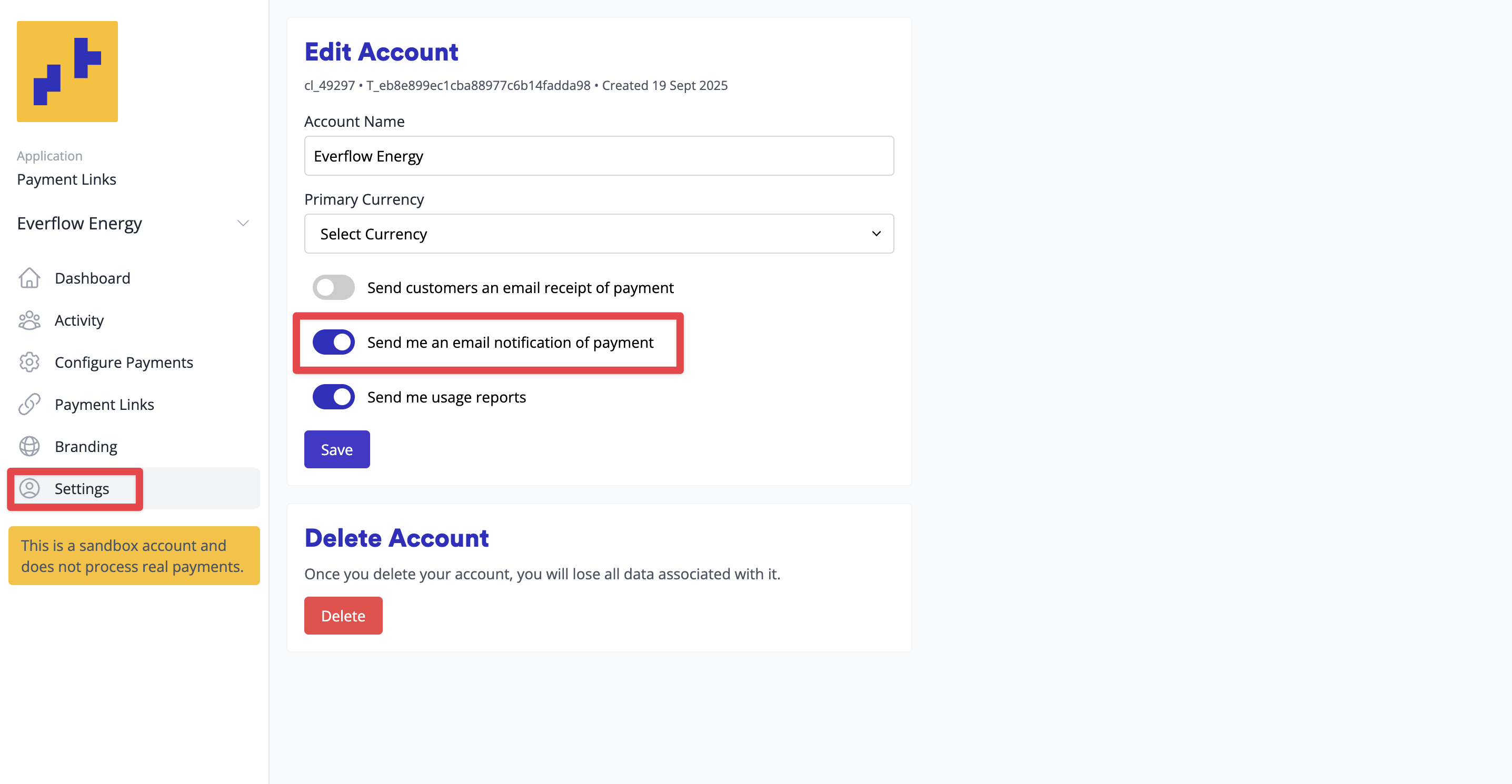
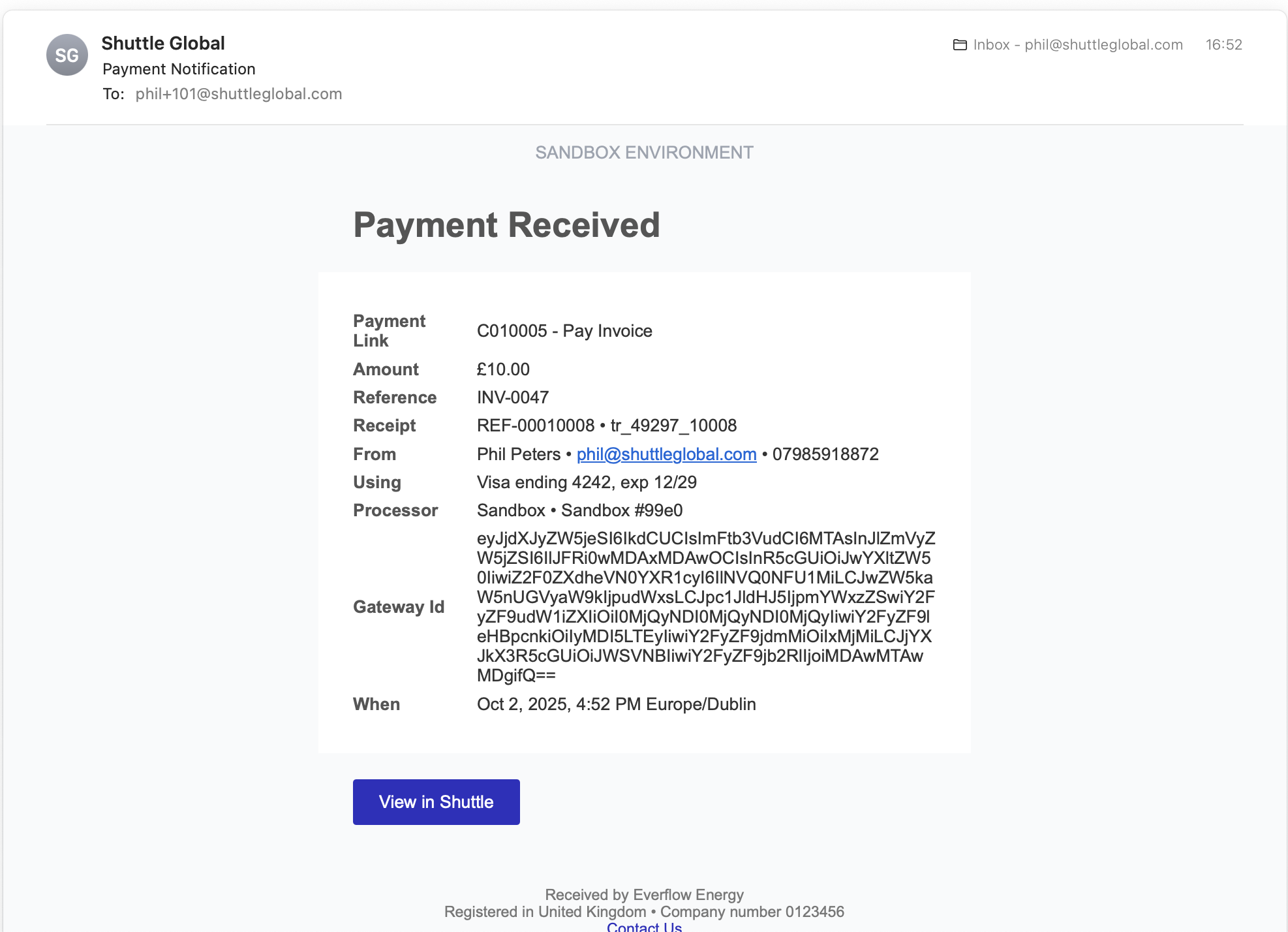
- Turn on payment emails: in the Merchant Portal, select Configure in the menu, then Configure under Account, and turn on Send me an email notification of each payment. You’ll get an email for every payment
- Each receipt includes the payment amount and invoice reference number
- Reconciliation options:
- Update Xero invoices manually based on email receipts
- Use bank reconciliation to match payments when they appear in your bank feed
- See the complete payment history under Activity in the Merchant Portal
The invoice number passed as the reference makes it easy to match payments to the correct Xero invoice.
Was this page helpful?
What went wrong?
Thanks for telling us.