
Via the agent link Generator
The Agent Link Generator is a tool for teams that create a lot of payment links, such as contact centres and field agents. Each generator is a page, with your own instructions and settings, where staff create a personalised payment link for a customer.
Note: This is a paid feature.
Create an agent link generator
Section titled “Create an agent link generator”An Admin sets up each generator:
- Select Configure in the menu, then Configure under Payment Links.
- Under Agent Link Generator, select Create a Link Generator, or Create Another Link Generator if you already have one. You can have up to 10.
- Fill in the settings below, then select Create Generator.
Generator settings
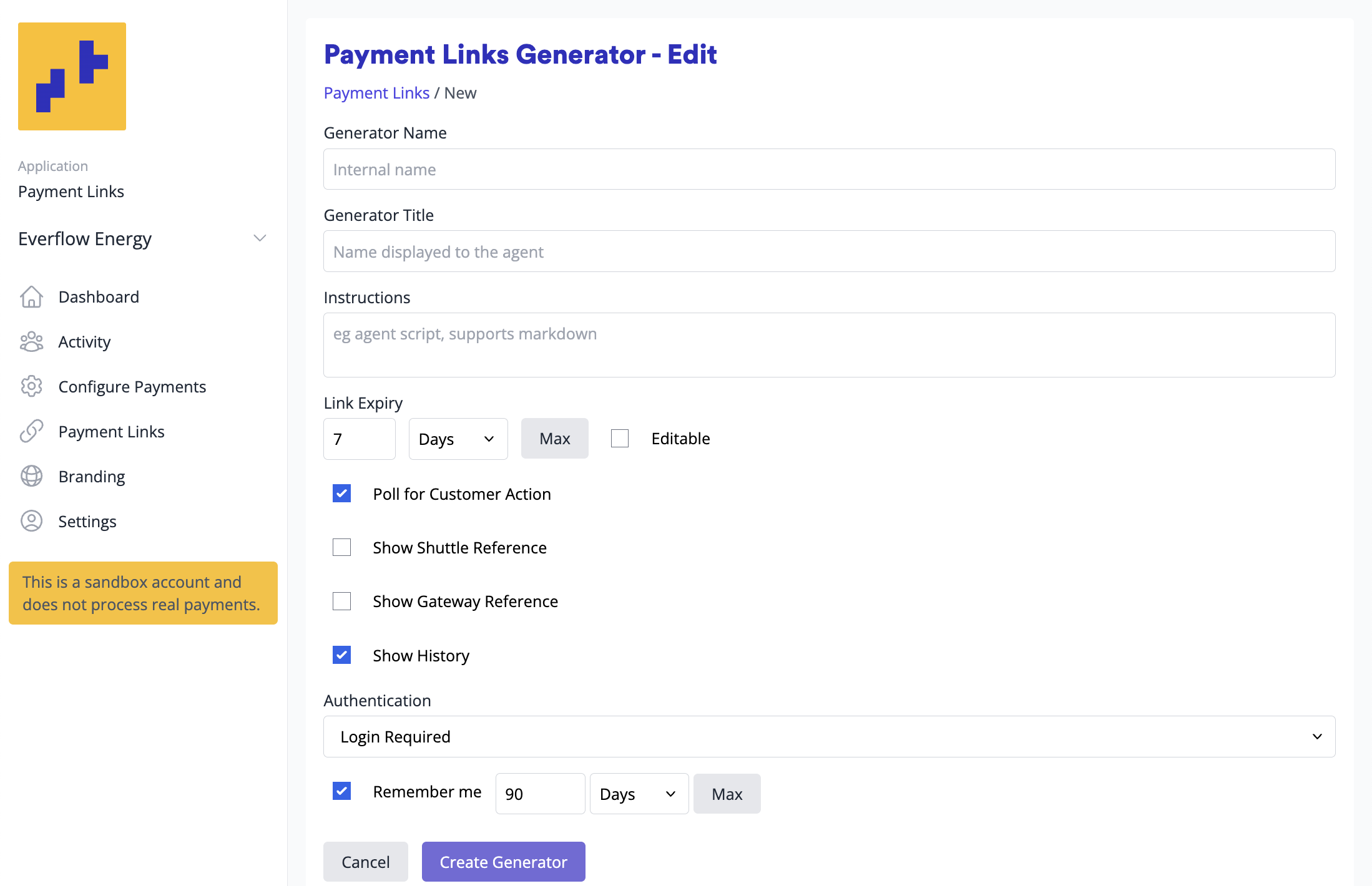
Section titled “Generator settings”- Generator Name: your internal name for this generator
- Generator Title: the name shown to staff at the top of the link generator
- Instructions: guidance for agents, which supports Markdown (useful for scripts and before and after steps)
- Link Expiry: how long links last, in minutes or days, up to 365 days
- Editable: whether agents can change the link expiry. If unticked, links expire as set here. If ticked, agents can change it, for example a field agent giving a quote can say “this quote expires at 5pm today”
- Poll for Customer Action: shows a “Waiting for customer” spinner and follows the customer’s progress
- Show Shuttle Reference: shows Shuttle’s payment ID after a successful payment
- Show Gateway Reference: shows the payment provider’s ID (Stripe, Adyen and so on), for use in other systems
- Show History: lets agents see the links they created recently
- Authentication: Login Required asks staff to log in before they can create links
- Remember me: how long staff stay logged in on a browser, in minutes or days
Manage a generator
Section titled “Manage a generator”In Configure > Payment Links, select Edit next to a generator to open it. From there:
- Copy copies the generator’s address, to bookmark or share with your staff
- Pause stops the generator from being used, keeping its address
- Once paused, Resume turns it back on
- Or Delete removes it permanently
- Edit changes its settings
The generator’s page has three sections:
- The generator settings described above
- Payment Link - Standard Settings: the payment link fields
- Payment Link - Additional Data: a premium feature available on enterprise plans with a Shuttle agreement
Create a payment link with a generator
Section titled “Create a payment link with a generator”- Select Payment Links in the menu.
- Under Agent Link Generator, select Create Link next to the generator. It opens in a new tab.
Staff can also open the generator’s address directly, for example from a bookmark.
Payment link standard settings
Section titled “Payment link standard settings”This section lets you choose which fields appear in your link generator. Most fields can be configured as:
- Hidden - Field doesn’t appear to the user
- Fixed - Predetermined value that’s the same for every user
- Optional - User can enter but isn’t required
- Required - User must enter as a mandatory field
Available fields
Section titled “Available fields”- Link Title - The heading displayed to customers. Defaults to your merchant name but can be changed.
- Personalised Intro - A personalised message to the payer.
- Action - Choose between: Payment (standard transaction), Auth (blocks funds without transacting - requires manual capture via Activity View), or Tokenise (captures the payment method only, without any payment)
- Currency - Payment currency selection.
- Amount - Payment amount.
- Reference - Transactional reference field.
- Order Description (optional) - Allows customers to add comments (e.g., colour, size preferences). You can provide instructions in the Personalised Intro field.
- Save Card - Control card saving behaviour: User selects (customer chooses), Always save, or Never save
- Customer ID - Customer identifier field
- Customer Name - Customer name field
- Customer Email - Customer email address field
- Customer Phone - Customer phone number field
- Skip Receipt - Bypass receipt page and redirect directly to success/pending URLs
- Success Message (optional) - Message displayed on receipt page after successful payment (e.g., access codes, next steps)
- Pending Message (optional) - Message shown when transaction is still processing. Use to advise against provisioning services until payment confirmation
- Success URL - Redirect destination after successful payment
- Pending URL - Redirect destination when payment is submitted but not yet fully authorised
Payment link additional data
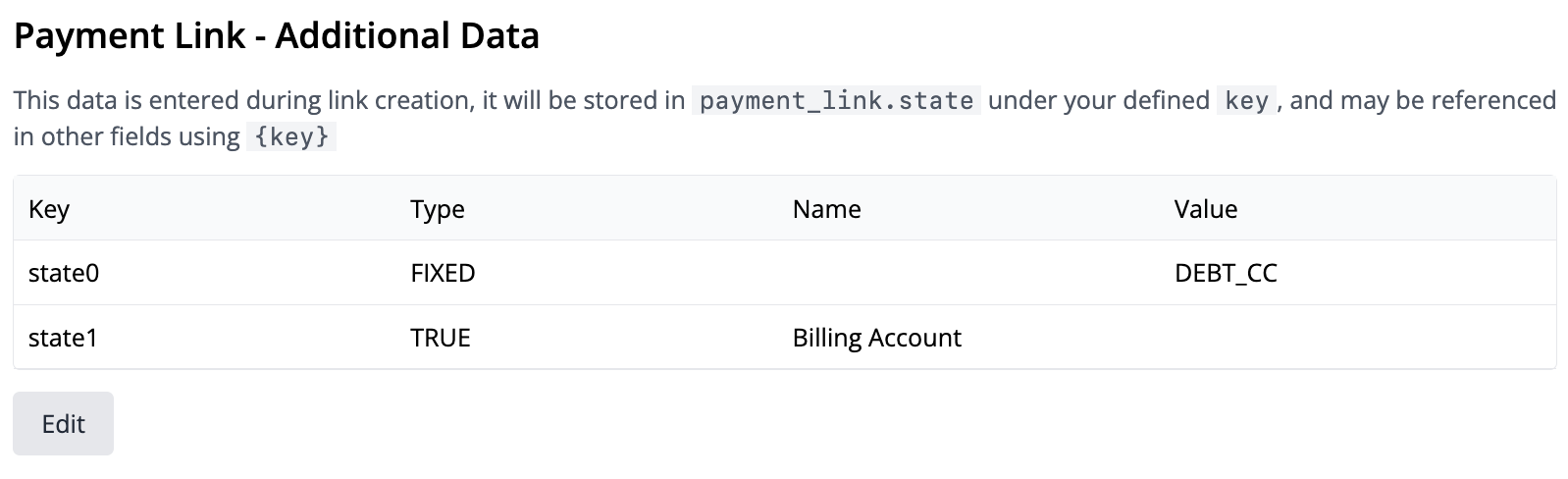
Section titled “Payment link additional data”The Payment Link Additional Data feature allows you to add custom questions that get stored in the payment link’s state. This data can be accessed in three ways:
- Programmatically - Via API access
- Automation Software - Through integrations like Zapier or Make.com
- Field Population - Use collected data to fill other fields automatically
For example, you might ask customers for their booking reference and automatically populate it into the transaction reference field.
Adding custom data
Section titled “Adding custom data”You can add information in two ways:
Request Information - Prompt users to enter data:
- Configure a field name (what the user sees)
- Set a key for storage in the state
- For Zapier/Make integrations, use keys
state1tostate9
Hardcode Information - Set fixed values:
- Define a key for the data
- Set the value to be stored
- Example: Set
state1 = "DEBT_WORKFLOW"so your Zapier workflow can easily identify relevant transactions
Referencing data in fields
Section titled “Referencing data in fields”Use the syntax {{key}} to reference additional data in any payment link generator field:
- Single Reference:
{{state1}}(if state1 contains booking reference) - Combined with Text:
"Your booking {{state1}}" - Multiple references:
"Order {{state1}} for {{state2}}"
This allows dynamic content based on the data collected or hardcoded in your additional data configuration.
Was this page helpful?
What went wrong?
Thanks for telling us.