
Update your payment method
Most of this page is for customers on a paid plan who pay Shuttle directly. It changes how you pay Shuttle for the app, not how your customers pay you. If you pay through QuickBooks or are on the free plan, see the last two sections.
Sign in to the app
Section titled “Sign in to the app”If you added the app from QuickBooks, sign in with Intuit, using your QuickBooks login. Use that rather than a Shuttle password reset. Either:
- open the app from QuickBooks, or
- go to https://app.shuttleglobal.com/c/setup/ and select Sign in with Intuit.
If you see “This account signs in with QuickBooks”, use Sign in with Intuit.
If you signed up with your phone number or email instead, use that option at the same address.
Change your card
Section titled “Change your card”-
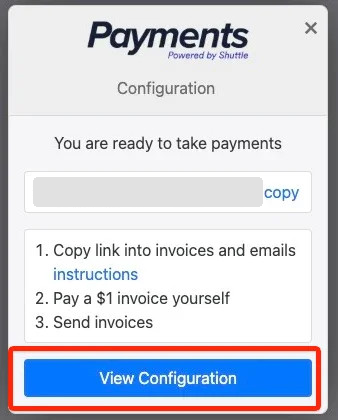
Select View Configuration.
-
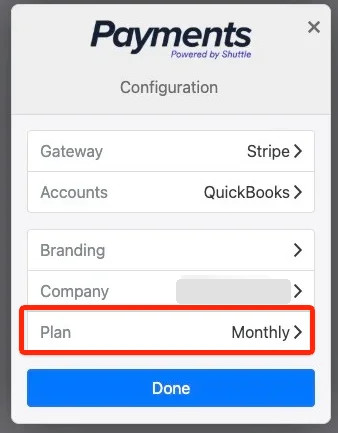
Select Plan.
-
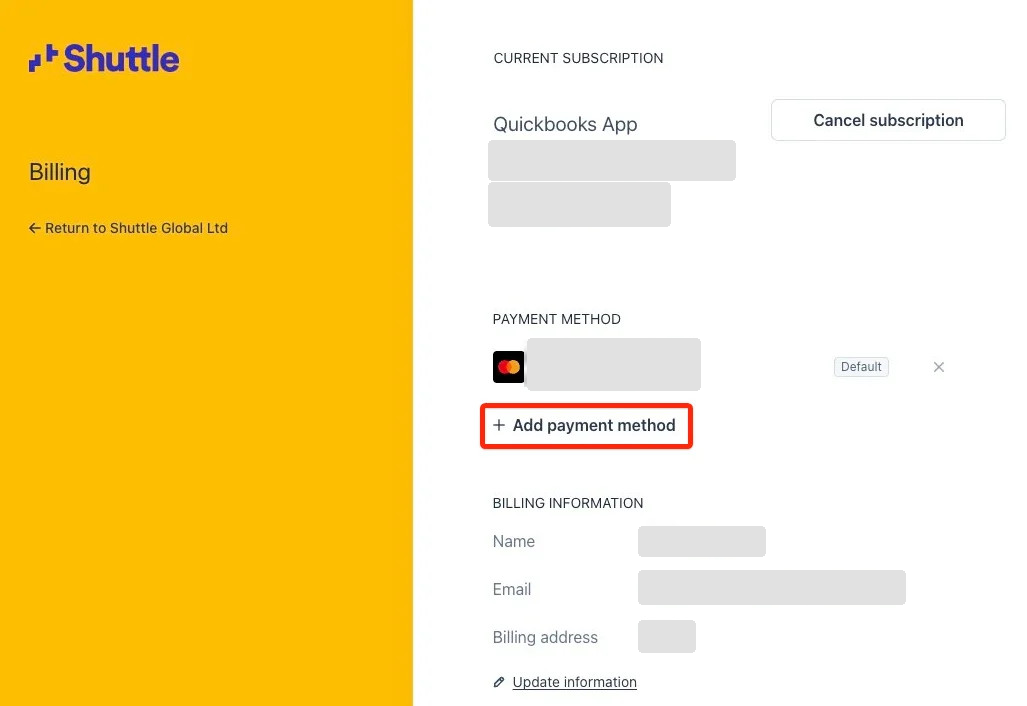
Your Shuttle billing page opens. It may open in a new tab.
-
Under Payment method, select Add payment method and enter your new card.
-
Check that your new card is marked Default. That’s the card your plan is charged to.
-
Remove your old card with the × next to it, so the plan can’t be charged to it.
If your new card isn’t marked Default, or you can’t remove the old one, email support@shuttleglobal.com.
Change your billing details
Section titled “Change your billing details”On the same billing page, under Billing information, select Update information to change the name, email or billing address.
If you pay for the app through QuickBooks
Section titled “If you pay for the app through QuickBooks”If you pay for the app through QuickBooks rather than Shuttle, there’s no Plan row. Your subscription and payment details are managed in QuickBooks. At the bottom of the Configuration screen, a note usually says your subscription is managed by App Direct, and its subscription and payment details links open QuickBooks.
On the free plan
Section titled “On the free plan”There’s no payment method to update: you add one when you upgrade to a paid plan. To upgrade, see Free plan in Plans and billing.
For what each plan includes, or to cancel, see Plans and billing.
Was this page helpful?
What went wrong?
Thanks for telling us.