
Merchant API keys
A merchant API key gives access to the Shuttle API for one merchant account only, unlike your application’s API keys, which reach every account in their environment. Use one where a merchant, or a system acting for just that merchant, calls the API directly: for example the merchant’s own integration, or a Twilio or Telnyx Pay Connector. You can manage each account’s keys in the Shuttle portal. Merchants who log in to the Merchant Portal can manage the same keys there. For how a key is sent with each request, see Authentication for merchants.
Where to find an account’s API keys
Section titled “Where to find an account’s API keys”- In the Shuttle portal, open your organisation, then your application, then Accounts.
- Open the account. It opens on the Dashboard tab.
- The keys are under API Keys in the Merchant Integration card.
The Merchant Integration card appears when merchant integration is turned on for your organisation. If you don’t see it, contact Shuttle support.
Who can manage keys
Section titled “Who can manage keys”You need to be an admin of the organisation that owns the application: someone with full access to it. Anyone else who can open the account sees You must be an organisation admin to manage API keys. instead of the keys.
The Shuttle portal never shows an existing key: each key is shown once, to whoever creates it.
Create a key
Section titled “Create a key”- Select create next to the next free slot, API Key 1 or API Key 2.
- The Your new API key dialog shows the key. This is the only time it is shown, so select Copy and put it straight into a secret store (a secrets manager or your deployment’s encrypted environment variables), or pass it securely to whoever needs it, such as the merchant.
- Tick I have copied this key, then select Done, which stays greyed out until you tick. If you try to close the dialog without the tick, the portal asks you to confirm, because the key can’t be shown again.
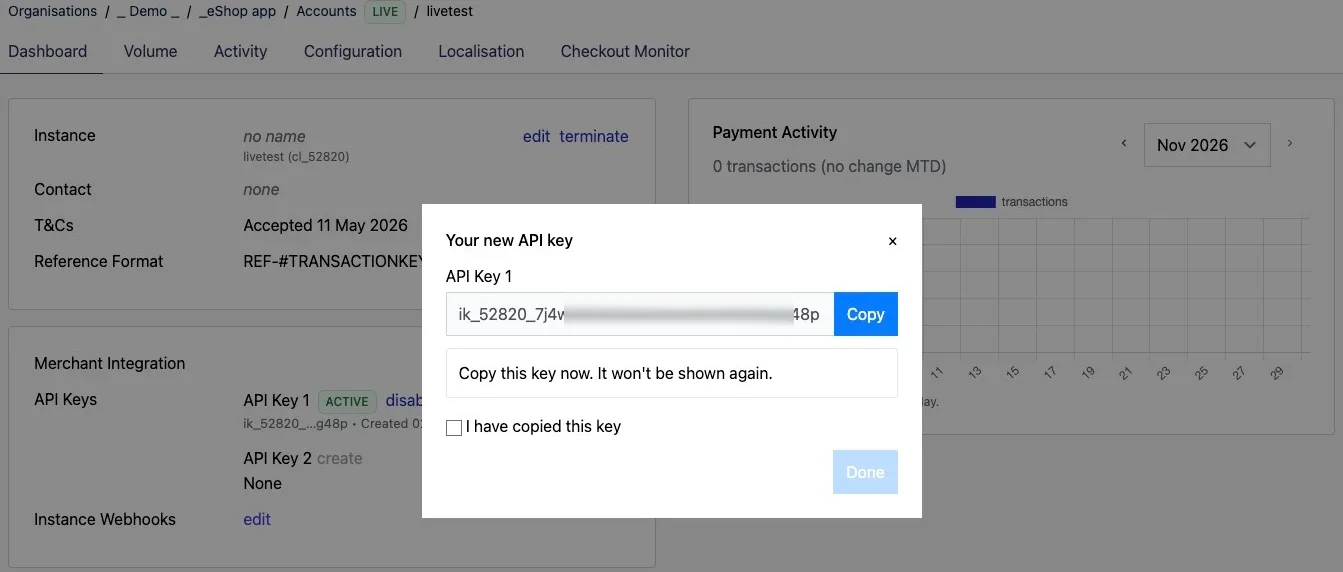
If a key is lost, it can’t be shown again or recovered: create a new one, switch to it, then delete the old one.
An account can have two API keys at a time. Once it has two, there is no create slot until you delete one.
Keys stay on servers. Anyone with a key can take and refund payments on the account, so never put one in a browser, a mobile app or a code repository, and never send one by email or chat.
The account’s keys
Section titled “The account’s keys”Each key in the list shows:
- its name, API Key 1 or API Key 2
- its status: ACTIVE, or DISABLED
- the start and end of the key, so you can tell the keys apart (for example
ik_52820_…g48p) - Created: when it was created
- Last used: when it last authenticated a request, now if that was within the last hour, or never. It is updated at most once an hour.
Disable, enable or delete a key
Section titled “Disable, enable or delete a key”- disable appears on an active key. A disabled key stops working straight away.
- enable appears on a disabled key and makes it work again.
- delete appears on a disabled key only, so disable a key before you delete it. Confirm with Delete. A deleted key can’t be restored.
Rotate a key
Section titled “Rotate a key”Rotating means replacing a key with a new one without downtime:
- Create a second key.
- Switch every system that uses the old key to the new one, including any Twilio or Telnyx Pay Connector.
- When the old key’s Last used date stops changing, select disable on it. If something still needed it, select enable while you fix that system.
- Once nothing needs it, select delete on the disabled key.
Rotate straight away if a key may have been exposed, for example committed to a code repository, written to a log, or pasted into a ticket, chat or email. To rotate your application’s own keys, see Rotating API keys.
Twilio and Telnyx Pay Connectors
Section titled “Twilio and Telnyx Pay Connectors”If the account takes phone payments through a Twilio or Telnyx Pay Connector set up with the account’s own credentials, the connector signs in to Shuttle with the account’s instance key as its username and an API key as its password. Create the key here and paste it into the connector’s Password. See Twilio integration and Telnyx.
If you see “Upgrade required”
Section titled “If you see “Upgrade required””An account may still have an old API key from before 1 November 2026, when API keys changed (it starts with sk_). While it still works, API Keys shows Upgrade required and asks you to change over to a new API key.
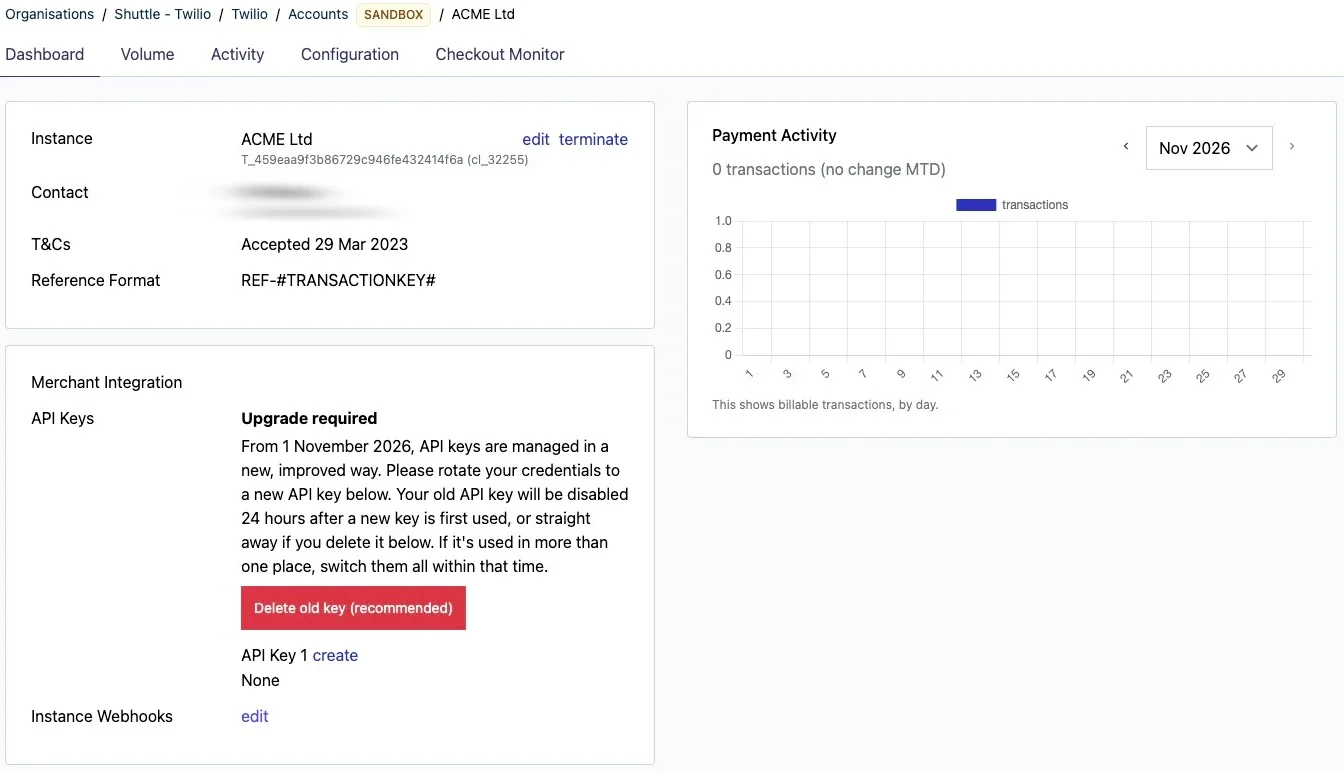
Creating a new API key starts the change-over: the old key stops working soon after the new key is first used, or straight away if you delete it. The exact rules are in Replacing an old secret key.
To change over:
- Create a new API key (see Create a key).
- Straight away, switch every place that uses the old key to the new one, including any Twilio or Telnyx Pay Connector.
- Select Delete old key (recommended), then Delete.
Once the old key stops working, the message goes.
Was this page helpful?
What went wrong?
Thanks for telling us.