
Twilio / Telnyx: Introduction
Shuttle’s Twilio integration lets you take payments over the phone using Twilio’s <Pay> capabilities. The caller keys their details on the phone keypad (DTMF), and the Shuttle Pay connector passes them to Shuttle, so the card number never reaches your agents or your systems. Both card and ACH payments are supported.
Integration methods
Section titled “Integration methods”Two questions decide how you integrate, and they are independent of each other.
Are your calls already on Twilio? If so, go straight to the capture method below. If your calls are on Telnyx, use Telnyx’s own <Pay> verb instead: see the Telnyx IVR integration guide. If your voice traffic runs on another carrier, SIP trunk, PBX or contact centre platform, you do not need to move it: see Bring your own carrier, which covers handing the caller over for the payment segment only. That choice carries PCI DSS scope consequences, so read it before you build.
Who keys the digits? Twilio Pay supports two capture patterns:
| Method | Use case | API |
|---|---|---|
| IVR (self-service) | Automated payment collection: AI voice agents and IVR flows | <Pay> TwiML verb |
| Agent Assist | Human agents in contact centres, or a custom capture workflow | Payments Subresource API |
IVR capture works whichever carrier brought the call in: on Twilio, on Telnyx with its own <Pay> verb, or on another carrier by handing the call to Twilio. Agent Assist uses Twilio’s Payments Subresource API, so the call must be on Twilio while the card is taken: either because your calls already run there, or because you hand the call to Twilio for the payment segment, as Bring your own carrier describes. For a fuller comparison of the two, see How it works.
IVR integration
Section titled “IVR integration”Use the <Pay> TwiML verb (or Telnyx’s <Pay> TeXML verb) for fully automated payment collection. The customer keys their card into the call and <Pay> handles the capture end to end, with no person involved. Best for:
- AI voice agents: the agent hands the call to
<Pay>to take the card, and carries on once<Pay>reports the result - Self-service bill pay
- Automated payment reminders
- After-hours payment collection
Agent Assist integration
Section titled “Agent Assist integration”Use the Payments Subresource API when an agent needs to guide customers through payment collection. The agent controls the flow through a custom UI while Twilio captures the card data. Best for:
- Contact centre payments taken by human agents
- AI agents that need a capture workflow
<Pay>doesn’t offer - Complex transactions requiring agent assistance
- Sales calls with payment collection
Overview
Section titled “Overview”The Shuttle Pay connector provides:
- DTMF payment collection: accept credit card and ACH payments through phone keypad input
- Reduced PCI DSS scope: card numbers go from the carrier to Shuttle, never to your systems (see Your PCI DSS obligations)
- Multiple payment methods: credit cards and ACH bank debit
- Recurring payments: set up scheduled and recurring payment plans
- Tokenisation: save payment methods for future use
- Real-time processing: immediate payment confirmation during calls
Getting started
Section titled “Getting started”Step 1: Install the Shuttle Pay connector
Section titled “Step 1: Install the Shuttle Pay connector”To take payments through Twilio, install the Shuttle Pay connector in your Twilio account.
Enable PCI Mode
Section titled “Enable PCI Mode”- Log in to your Twilio account
- Go to Voice Settings
- Select Enable PCI Mode
- Accept the Terms and Conditions
- Save your settings
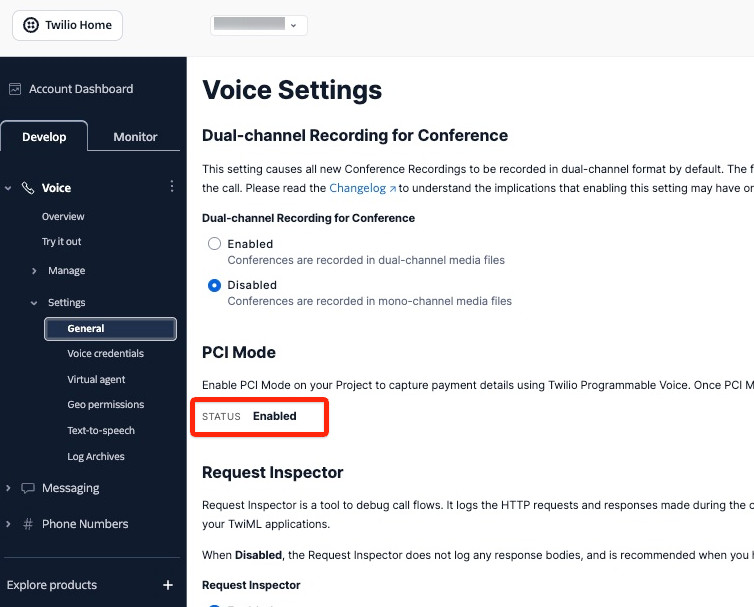
Install the Shuttle Pay connector
Section titled “Install the Shuttle Pay connector”- In Twilio Console, enter
<Pay> Connectorsin the Jump to search box, or open Pay Connectors in Twilio Console - Select Shuttle Pay Connector from the catalogue
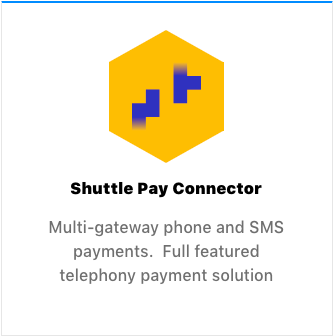
-
Configure the connector with these settings:
- Unique Name:
shuttle-pay-connector(or similar: note it for later) - Username: your Shuttle instance key
- Password: your Shuttle secret key
If you can log in to the Merchant Portal, select Configure > Voice Payments > Twilio to see these values ready to copy.
- Unique Name:
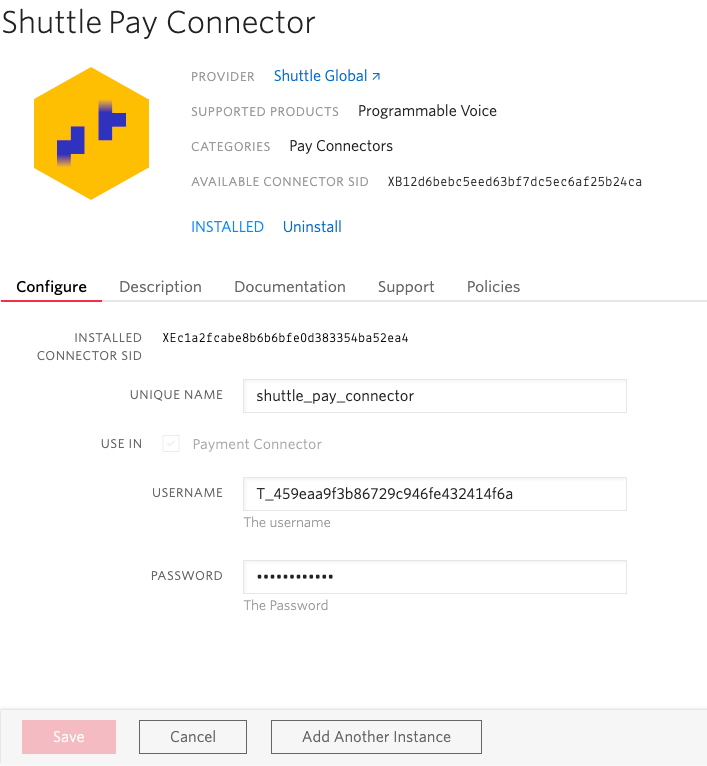
Step 2: Test your configuration
Section titled “Step 2: Test your configuration”Shuttle’s demo application lets you check your setup with a test call.
Using the demo app
Section titled “Using the demo app”The demo URL contains your secret key, so use the keys of a sandbox instance only, never live ones.
-
Map a Twilio phone number to the demo webhook URL:
https://twilio.shuttleglobal.com/demo/shuttle-pay-connector/{instance_key}/{secret_key}/startReplace
shuttle-pay-connectorwith your connector’s unique name from step 1. Configure > Voice Payments > Twilio in the Merchant Portal shows the demo URL with your keys filled in. If you run the demo app yourself from its source code, use your own host instead. -
Configure your phone number:
- Go to Phone Numbers > Manage > Active Numbers in Twilio Console, or open Active Numbers in Twilio Console
- Set Voice > A Call Comes In to Webhook
- Enter the demo URL and set the method to HTTP POST
- Save the configuration
-
Call your configured number and follow the prompts to make a test payment with a Sandbox Gateway test card.
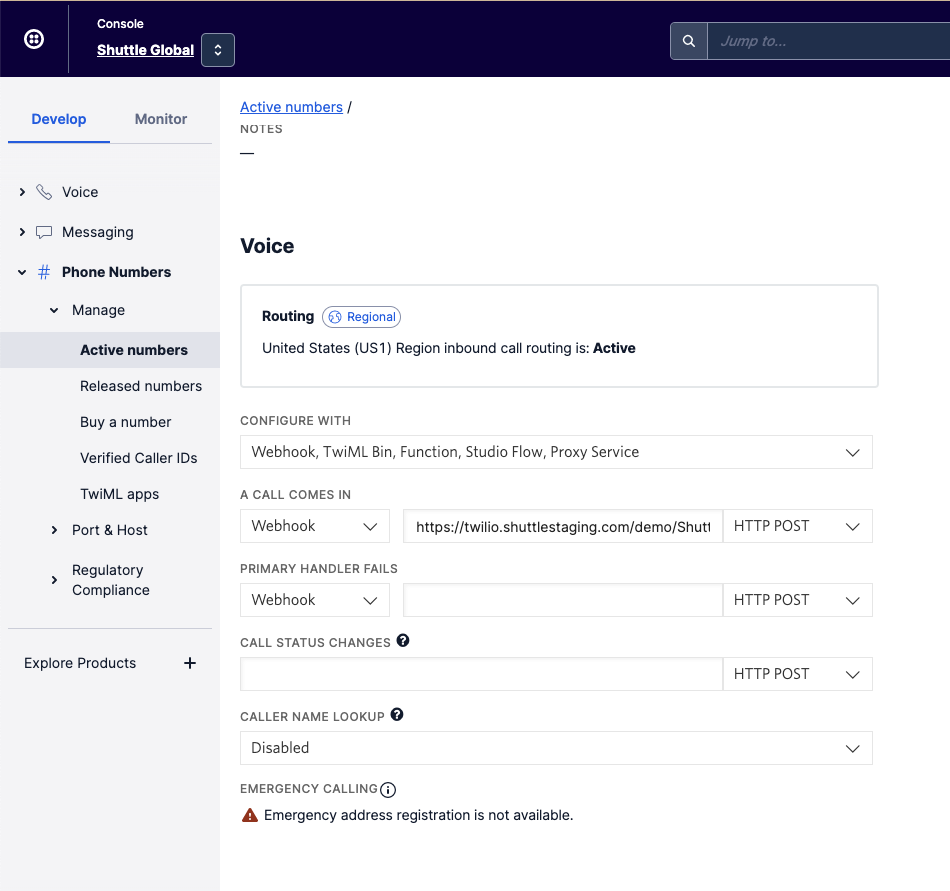
Resources: View the demo app source code or watch the walkthrough video.
Next steps
Section titled “Next steps”Once you’ve verified your setup with the demo app, choose your integration method:
How it works - Worth reading first:
- How cardholder data moves between the four parties
- PCI DSS scope, failure modes, and IVR vs Agent Assist compared
Twilio IVR integration guide - For automated self-service payments:
- Implement the
<Pay>verb in your TwiML - Handle payment responses and errors
Twilio Agent Assist integration guide - For contact centre payments:
- Build a custom payment widget for agents
- Use the Payments Subresource API
Shuttle Pay connector reference - Detailed reference for both methods:
- Request parameters and response fields
- Status values and decline types
- Webhooks and API operations
Telnyx IVR integration guide - If your calls are on Telnyx:
- Self-service capture with Telnyx’s
<Pay>TeXML verb, no Twilio account needed - Read the result back from Shuttle
Bring your own carrier - If your calls are on another platform:
- Hand the caller over for the payment segment only, from any carrier, SIP trunk, PBX or contact centre platform
- Choose between the bridge and handoff call flows, and their PCI DSS consequences
Was this page helpful?
What went wrong?
Thanks for telling us.