
Merchant Setup options
What Merchant Setup offers a merchant is yours to decide: which payment providers they may choose from, whether they see Shuttle’s terms or your own, and which parts of the screen they get at all.
Options are set in one of two places.
Set on the application
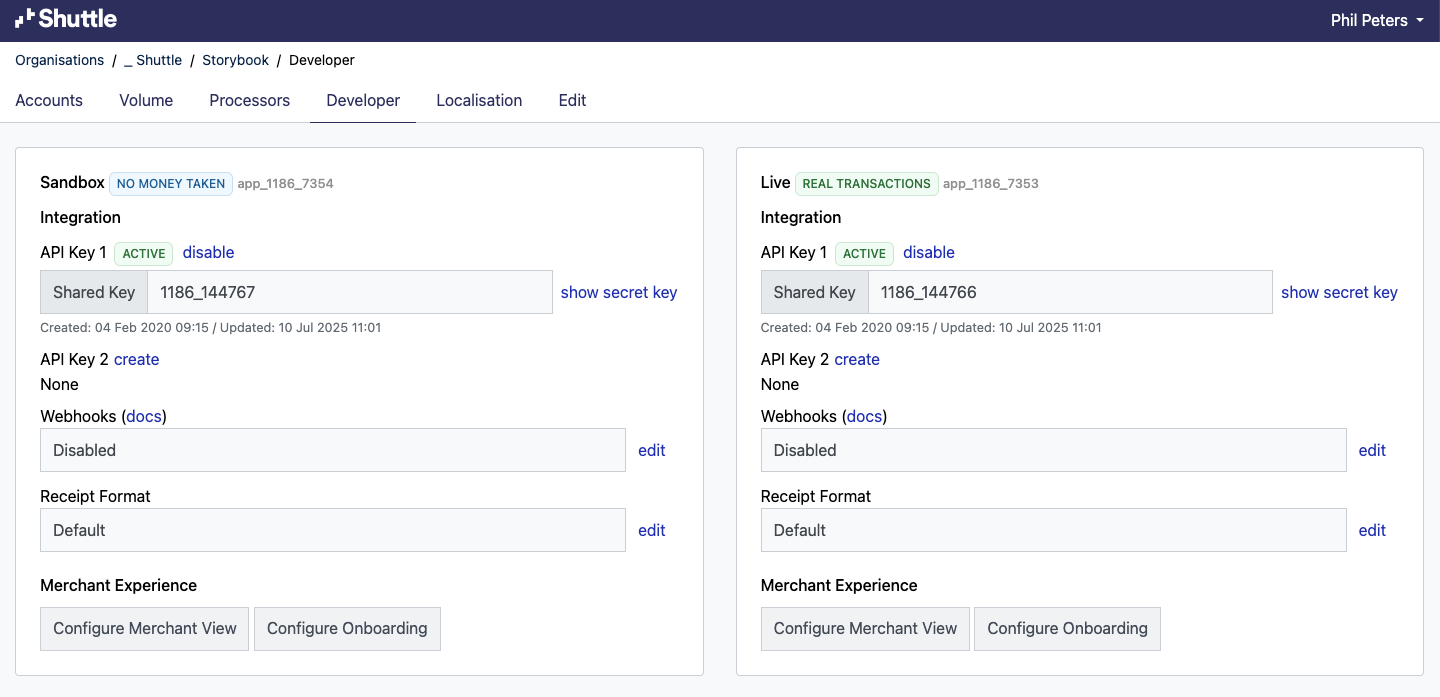
Section titled “Set on the application”In the Developer Portal, open your application, choose the Developer tab and then Configure Onboarding. What you set there applies to every Merchant Setup session that application creates. Sandbox and Live are configured independently, so a change can be proved before it reaches production.
| Option | What it does |
|---|---|
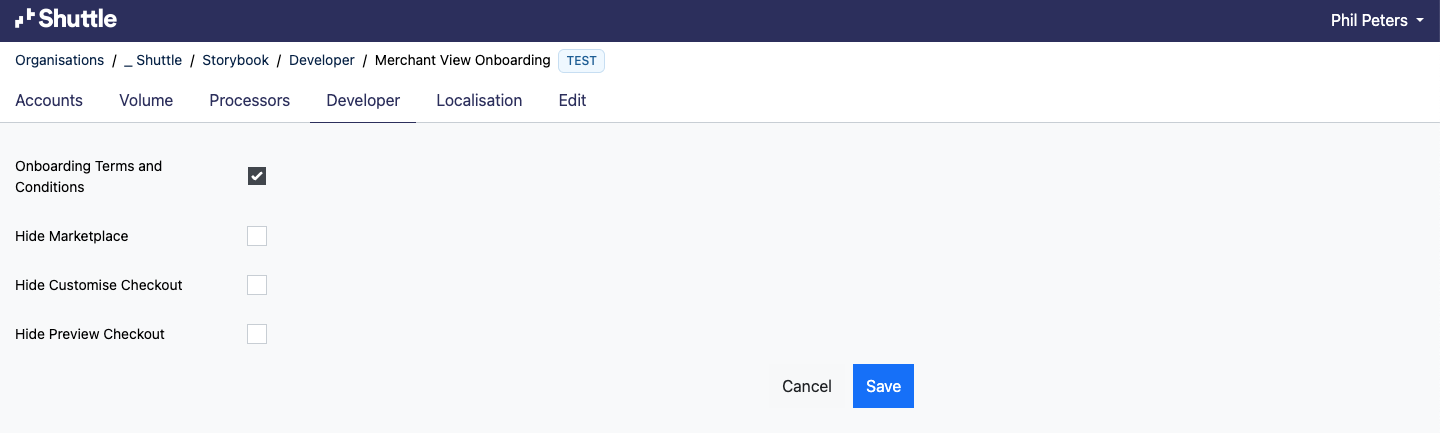
| Onboarding Terms and Conditions | Deselect to stop Shuttle presenting its own terms. Shuttle’s terms cover Shuttle’s requirements and any the payment processors impose, so if you turn this off you take on the legal obligation of carrying equivalent terms in your own. See Accepting the terms. |
| Hide Marketplace | Removes the link to Shuttle’s merchant portal. Leave it enabled where a revenue share agreement is in place. |
| Hide Customise Checkout | Removes the section where a merchant routes payment methods to processors and sets amount rules. Use it where you would rather make those choices on their behalf. |
| Hide Preview Checkout | Removes the preview of the checkout a merchant’s configuration produces. |
| Enable Wallets (Apple Pay/Google Pay) | Lets merchants turn on Apple Pay and Google Pay in Customise Checkout, where a connected payment provider supports network tokens. See Apple Pay / Google Pay. |
Set on the deep link
Section titled “Set on the deep link”Pass these in the context of a gateway-setup deep link. They apply to that session only, which lets you vary the experience by merchant.
| Option | What it does |
|---|---|
processor |
Restricts the whole component to one processor, which is app store mode: the merchant connects and configures that one and is offered no choice. See Merchant Setup. |
processor_filter |
Narrows the list to the processors you name, as an array of processor ids, e.g. ["STRIPE", "PAYPALC"]. In general prefer configuring the available processors on your application. |
country |
The merchant’s country, which decides the processors offered. Taken from the IP address you pass at deep link creation unless you set this, as a two-letter ISO code, e.g. US or GB. |
theme |
Fonts, colours, spacing and border radius, so the component sits inside your own design. See Deep links. |
A choice you make once
Section titled “A choice you make once”processor is not only a display option. Passing it puts the instance into app store mode, with one processor per instance; leaving it off gives the merchant the full-stack experience where several processors can be connected and composed into one checkout.
You can move an app store instance to full stack later by dropping the parameter. You cannot move it back once a second processor has been added, even if that one has since been archived.
What the merchant sees
Section titled “What the merchant sees”Every screen is documented, one page per screen: Merchant Setup user guide. What each control is allowed to do, and what it refuses, is in Business rules.
Was this page helpful?
What went wrong?
Thanks for telling us.