
Localisation
Localisation lets you change the wording your customers see on the hosted checkout, in receipts and in the messages the API returns, and translate it into other languages. You can do it by hand in the Localisation editor, or from your own systems with the Strings API. This page explains how strings work and walks through keeping translations in sync from your backend.
How strings work
Section titled “How strings work”Every piece of wording is a string with a fixed id. The id has the form <set>.<key>, for example web.payment_form.card_number for the “Card Number” label on the checkout. The part before the first dot is the set the string belongs to (web is the hosted checkout, core is the API’s own messages); the rest is the key within that set. The id never changes between languages, so web.payment_form.card_number is the same string in English, Arabic and French. The id is also the small grey line shown above each string in the Localisation editor.
Each string has wording per language. Languages are lowercase two-letter ISO 639-1 codes, such as ar for Arabic or fr for French. default is the base wording that every other language falls back to.
Strings you have not translated inherit. When a string has no wording of its own in a language, it shows the default wording. When you save your own wording, the string carries overriding, the wording it would otherwise show. Resetting the string removes your wording and it goes back to inheriting. Saving the same wording it already inherits also resets it.
You don’t need to add a language first. Saving the first string in a language adds that language.
Branding is optional. branding is an enterprise field for accounts that run more than one branding. Leave it out and your own branding is used.
Where a translation applies
Section titled “Where a translation applies”You can set wording at three levels, in the developer portal:
-
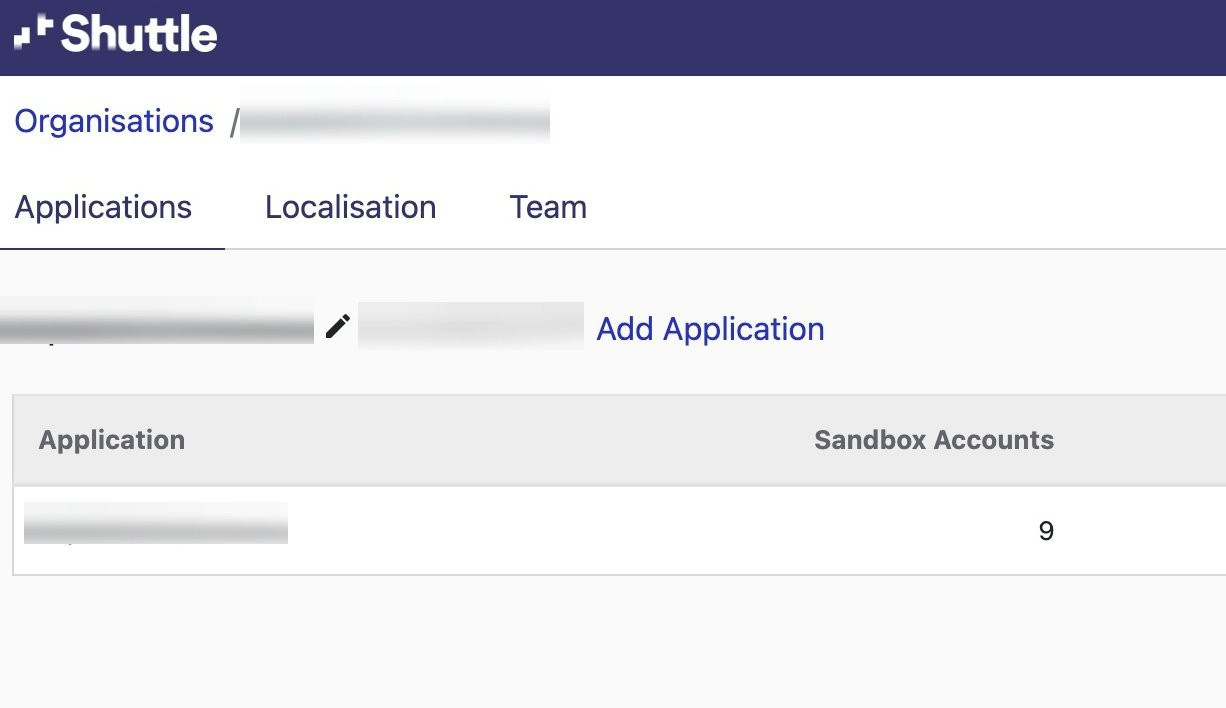
Organisation. Applies to every application that has localisation turned on. Open your organisation’s Applications page, then the Localisation tab.
-
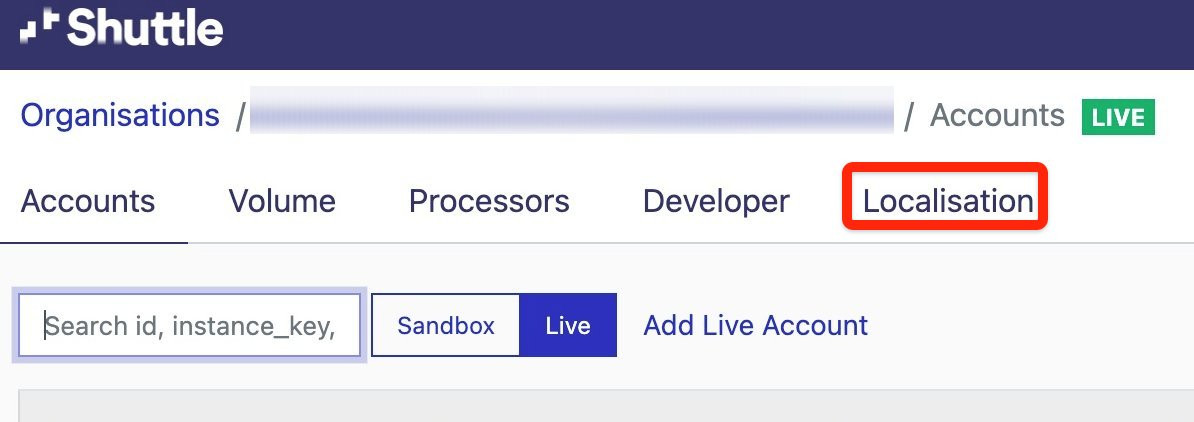
Application. Applies to every merchant account in the application. This is the level most platforms use. Open the application’s Accounts page, then the Localisation tab.
-
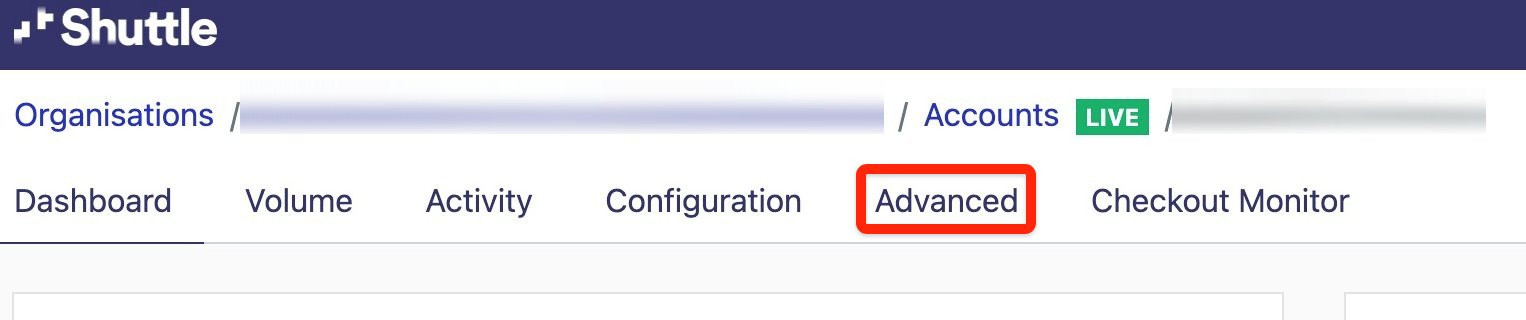
Account. Wording for one merchant’s account, for when a merchant wants their own. Open the account, then the Advanced tab.
The most specific wording wins: an account’s own wording overrides the application’s, and the application’s overrides the organisation’s. Turn on Enable Localisation for an application before you translate it; organisation wording only reaches applications that have it turned on.
Merchants can edit their own account’s wording in Merchant View: open it with mode set to setup in the deep link’s context (see Merchant View - admin).
To add a language at any level, add it with add, then change each string as needed. Work with your merchants: look at the screens they want translated, and change the strings to match.
Syncing translations from your backend
Section titled “Syncing translations from your backend”The usual pattern is: fetch the full list of strings once to learn the ids, map them to your own translation keys, then push changes whenever your translations change.
All examples use Basic authentication with your secret key against your instance. With an OAuth access token, use https://app.shuttleglobal.com/c/api/strings and Authorization: Bearer <access_token> instead.
1. Get the full list of strings for the language
Section titled “1. Get the full list of strings for the language”curl "https://app.shuttleglobal.com/c/api/instances/{instance_key}/strings?language=ar" \ -u '<secret_key>:'This returns every string that can be changed. Strings you have not translated yet come back with the inherited default wording, so this is also how you get the full set to send for translation.
{ "strings": [ { "id": "web.payment_form.card_number", "text": "رقم البطاقة", "branding": "brd_123", "language": "ar", "overriding": "Card Number" }, { "id": "web.payment_processing.error", "text": "There was a problem processing the payment.", "branding": "brd_123", "language": "ar" } ]}The first string has been translated (it has overriding). The second has not: it is still showing the inherited English.
The list is complete and unpaginated, and does not take criteria, order or expand. To get the base wording to translate from, call it with language=default.
2. Map the ids to your own keys
Section titled “2. Map the ids to your own keys”Store which Shuttle id each of your translation keys corresponds to. You only need to do this once, and again if you want to translate strings you have not mapped yet. Only ids returned by the list can be updated; Shuttle does not accept new ids.
3. Push your changes
Section titled “3. Push your changes”To update one string, PUT it by id:
curl -X PUT "https://app.shuttleglobal.com/c/api/instances/{instance_key}/strings/web.payment_form.card_number" \ -u '<secret_key>:' \ -H 'Content-Type: application/json' \ -d '{"string": {"text": "رقم البطاقة", "language": "ar"}}'To update many strings, POST them together. This is the better fit for a sync job:
curl -X POST "https://app.shuttleglobal.com/c/api/instances/{instance_key}/strings" \ -u '<secret_key>:' \ -H 'Content-Type: application/json' \ -d '{"strings": [ {"id": "web.payment_form.card_number", "text": "رقم البطاقة", "language": "ar"}, {"id": "web.payment_processing.error", "text": "حدثت مشكلة أثناء معالجة الدفع.", "language": "ar"} ]}'Both return the strings as they now read.
Always send language. When it is left out, default is used and you overwrite the base wording instead of the translation. Send one language per request: every item in a bulk request must use the same language.
4. Reset a string
Section titled “4. Reset a string”To remove your wording and go back to the inherited wording, DELETE the string. language goes in the query string here, not the body:
curl -X DELETE "https://app.shuttleglobal.com/c/api/instances/{instance_key}/strings/web.payment_form.card_number?language=ar" \ -u '<secret_key>:'This returns 204 with no body.
Automating it
Section titled “Automating it”To keep Shuttle in step with your own translations, run these steps whenever your translations change, one language at a time:
- Get the list of strings for the language.
- Compare it with your translations and keep only the strings whose wording is different.
- Send those strings in one
POST /stringsrequest for that language. - Wait for the response before moving on to the next language.
Sending only what changed keeps requests small, and sending one language at a time avoids writes being refused for waiting too long (see below).
Things to know
Section titled “Things to know”- When changes appear. New wording is used by checkouts opened after the change. A checkout session that was already created keeps the wording it was created with until it expires (a day by default).
- Bulk updates are not atomic. Strings are written in groups one after another, so a failure part-way leaves the earlier groups saved. Re-sending the same request is safe.
- Send requests one at a time. Writes are queued per account, and a write still waiting after 10 seconds is refused with
BOLT-7059. Don’t run updates for several languages in parallel. - Request size. A bulk request body must be under 10 MB.
- Unknown ids. If the part of an id before the first dot is not a recognised set, the whole request is rejected with
VALIDATION_ERROR“strings mapping not found” before anything is written. - Permissions. Your secret key or OAuth access token can read and update strings with no extra setup. In Merchant View, the Localisation editor is available to Admin users only.
- Nothing is notified. Changing wording raises no webhook or email.
Related
Section titled “Related”Was this page helpful?
What went wrong?
Thanks for telling us.